Introduction
Hello! In our last lesson, you built a practical project_setup.sh script using variables, command substitution, and environment variables. This was a great step in making your scripts more dynamic. However, if you run that script twice, it will try to create a directory that already exists and throw an error.
This lesson addresses that exact problem. We'll introduce conditional logic, allowing your scripts to make decisions and react to different situations. You will learn how to implement conditional logic using if, elif, and else with various test expressions.
By the end of this lesson, you'll be able to write scripts that can check for existing files, compare values, and execute different commands based on those checks. This is a fundamental building block for writing robust automation scripts, a crucial skill for both system administration and deploying your Django web applications.
1. The Anatomy of an if Statement
At its core, an if statement in Bash checks if a command runs successfully. In programming, we often think of this as a condition being "true" or "false". In the world of the shell:
- A command that succeeds has an exit status of 0 (true).
- A command that fails has a non-zero exit status (false).
The basic structure is if, then, else (optional), and fi (which is if spelled backward) to close the block.
Let's watch a video that introduces this fundamental structure.
BASH Conditionals Make Scripting AWESOME! (IF/THEN/ELSE/ELIF/CASE)
This segment from Shawn Powers provides a clear, beginner-friendly introduction to the if/then/else structure in Bash. It explains the purpose of each keyword and shows a simple string comparison.
Watch from 01:05 to 03:29. Focus on understanding the roles of if, then, else, and fi.
As the video explains, the if block lets you define a block of code that runs only when a condition is met, and the else block provides an alternative path.
2. Test Expressions and the [[ ... ]] Syntax
The "condition" part of an if statement is what we call a test expression. While the video first showed the test command, the modern and recommended way to write these expressions is inside double square brackets: [[ ... ]].
Why use double brackets?
- More features: They support advanced features like pattern matching.
- Safer: They prevent common errors related to variables with spaces.
- Clearer: The syntax for combining tests is more intuitive.
For your scripts, you should always prefer [[ ... ]] over single brackets [ ... ]. Let's see the video's explanation on this.
BASH Conditionals Make Scripting AWESOME! (IF/THEN/ELSE/ELIF/CASE)
This part of the video explains the difference between single and double brackets and makes a strong case for using the double-bracket syntax, which we will use throughout this course.
Watch from 03:29 to 05:39. The key takeaway is to use double brackets ([[ ... ]]) for your Bash scripts.
For a quick written reference on the basic syntax, this article from Linuxize is excellent.
This article, titled 'Bash if...else Statement', clearly lays out the syntax for if, if...else, and if...elif...else. It's a great page to bookmark.
Read the sections 'if Statement', 'if...else Statement', and 'if...elif...else Statement'. Notice how the code examples use the [[ ... ]] syntax.
3. Common Test Expressions
Now that you know the structure, let's explore what you can actually test for. Test expressions generally fall into three categories: file-based, string-based, and numeric.
File-Based Tests
These are essential for a system administrator. You can check if a file or directory exists, if it's readable, and more.
[[ -f "/path/to/file" ]]: True if it's a file.[[ -d "/path/to/dir" ]]: True if it's a directory.[[ -e "/path/to/something" ]]: True if it exists (can be a file, directory, etc.).
String Comparisons
Useful for checking user input or variable contents.
[[ "$VAR" == "some_value" ]]: True if the strings are identical.[[ "$VAR" != "some_value" ]]: True if the strings are different.[[ -z "$VAR" ]]: True if the variable is empty.
Numeric Comparisons
For comparing numbers. Note the special flag-like operators.
[[ "$NUM" -eq 10 ]]: True if equal (-eq).[[ "$NUM" -ne 10 ]]: True if not equal (-ne).[[ "$NUM" -gt 5 ]]: True if greater than (-gt).[[ "$NUM" -lt 15 ]]: True if less than (-lt).[[ "$NUM" -ge 10 ]]: True if greater than or equal to (-ge).[[ "$NUM" -le 10 ]]: True if less than or equal to (-le).
The following video segments provide practical examples for these tests.
BASH Conditionals Make Scripting AWESOME! (IF/THEN/ELSE/ELIF/CASE)
Let's return to the Shawn Powers video to see these test types in action. He covers file, string, and numeric comparisons.
First, watch the segment on file tests from 20:58 to 26:54. Then, watch the segment on numerical comparisons from 26:54 to 32:32. Pay attention to the different operators like -f, -d, -eq, and -gt.
For a complete list of all possible test operators, the "Test Operators" table in the Linuxize article is an invaluable reference.
This table lists all the common operators you can use within [[ ... ]] for file, string, and numeric checks. You don't need to memorize them all, but it's good to know where to find them.
Review the table under the 'Test Operators' section.
4. Handling Multiple Conditions
What if you need to check for more than one thing? You have two main tools: elif for sequential checks, and logical operators (&&, ||) for combined checks.
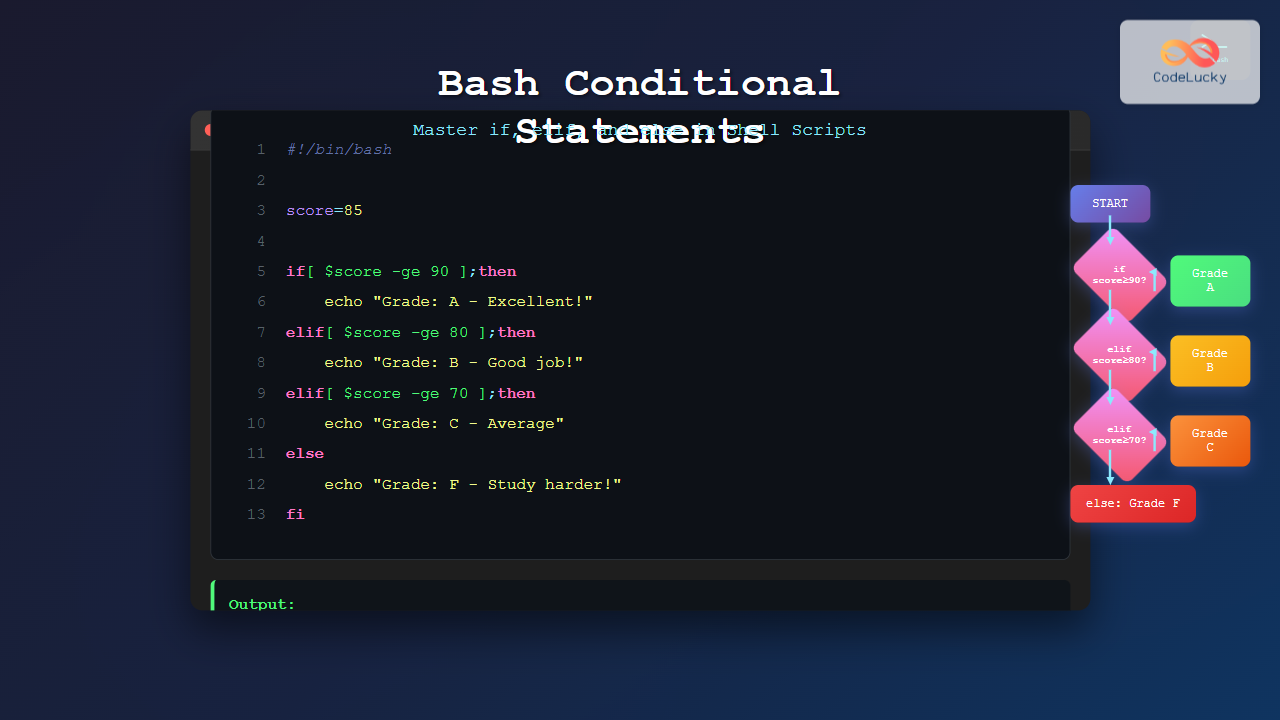
elif (Else If)
Use elif to create a chain of conditions. Bash will check them one by one and execute the code for the first one that is true. An optional else at the end acts as a catch-all if no conditions are met.
Logical AND (&&) and OR (||)
You can combine multiple tests within a single [[ ... ]] expression:
- AND (
&&): The entire expression is true only if all conditions are true.
[[ "$USER" == "root" && "$HOSTNAME" == "server1" ]] - OR (
||): The entire expression is true if at least one of the conditions is true.
[[ "$CHOICE" == "y" || "$CHOICE" == "Y" ]]
This next video demonstrates both elif and logical operators.
BASH Conditionals Make Scripting AWESOME! (IF/THEN/ELSE/ELIF/CASE)
This final video segment will show you how to build more complex logic using elif to create multiple branches and && / || to combine tests.
Watch the section on elif from 11:46 to 14:08. Then, watch the section on grouping and the && (AND) operator from 17:53 to 20:58.
Do-It-Yourself: Improve Your Project Setup Script
Now it's time to put this into practice by improving the project_setup.sh script from our last lesson. Your goal is to make the script smarter by preventing it from failing if the project directory already exists.
Your updated script must:
- Use the same
PROJECT_DIRvariable as before. - Before attempting to create anything, use an
ifstatement to check if a directory with that name already exists. The-doperator is perfect for this. - If the directory does exist, the script should:
- Print an error message like:
Error: Directory "my_django_project" already exists. - Exit immediately with a non-zero exit status to indicate failure (e.g.,
exit 1).
- Print an error message like:
- If the directory does not exist, the script should proceed to create the directories and print the success messages, just like it did before.
This exercise will combine your knowledge of variables with today's lesson on conditional logic and file tests.
Click here for a hint on the script's structure.
Your project_setup.sh file should look something like this. Try to fill in the if condition and the else block yourself.
#!/usr/bin/env bash

PROJECT_DIR="my_django_project"


# The conditional check goes here
if [[ -d "$PROJECT_DIR" ]]; then


    # What happens if it exists?
    echo "Error: Directory \"$PROJECT_DIR\" already exists."
    exit 1
else


    # What happens if it does not exist?
    echo "--- Setting up project: $PROJECT_DIR ---"

    mkdir "$PROJECT_DIR"
    echo "Created main directory: $PROJECT_DIR"

    mkdir "$PROJECT_DIR/static"
    mkdir "$PROJECT_DIR/templates"
    mkdir "$PROJECT_DIR/src"
    echo "Created subdirectories: static, templates, src"

    echo ""
    echo "Setup complete!"
    echo "Run by user: $USER on $(date)"
fi
Click here to see how to test your script.
- First, run your updated script. It should create the directory as expected.
./project_setup.sh - Now, run the exact same command again. This time, it should detect that the directory exists and print your error message without trying to re-create anything.
./project_setup.sh # Expected output: # Error: Directory "my_django_project" already exists. - You can clean up by removing the created directory:
rm -r my_django_project
Conclusion
Fantastic! You have now equipped your scripts with decision-making power. You can check for conditions and change your script's behavior accordingly, which is the essence of automation and robust programming.
Key Takeaways:
- Core Structure: Bash conditionals use the
if,then,elif,else, andfikeywords. - Test Expressions: Use the modern double-bracket syntax
[[ ... ]]for writing tests. - Types of Tests: You can perform tests on files (
-f,-d), strings (==,!=), and numbers (-eq,-gt). - Complex Logic: Use
elifto chain multiple checks and&&(AND) /||(OR) to combine tests within a single expression.
In the next lesson, we will add another fundamental programming concept to our toolkit: loops. With conditionals, your scripts can make decisions. With loops, they will be able to perform repetitive actions, such as processing every file in a directory or creating multiple users from a list.