Introduction
Hello! In our last lesson, you upgraded your project_setup.sh script with conditional logic, using if/else statements to prevent it from failing if a directory already existed. This was a crucial step in making your scripts robust and intelligent.
While conditional logic allows your script to make a single decision, what if you need to perform an action repeatedly? For example, processing every log file in a directory, or creating a series of numbered folders. This is where loops come in.
In this lesson, you will learn to write for and while loops to iterate over files, directories, and command output. This skill is a cornerstone of automation. For a system administrator and web developer, this means you can write scripts to automate backups, perform bulk file operations, or monitor system status—all essential tasks for maintaining and deploying applications like your Django projects.
1. The for Loop: Iterating Over a List
A for loop is your go-to tool when you have a known, finite set of items you want to process one by one. This "set of items" could be a list of numbers, a series of filenames, or the output of another command.
The basic structure is:
for variable_name in item1 item2 item3; do


    # Commands to execute for each item
    echo "Processing $variable_name"
done
Let's watch a video that introduces the concept and syntax.
How To Write Bash Scripts In Linux - Complete Guide (Part 9 - For Loops)
This video from Learn Linux TV provides a clear introduction to for loops. It starts with the basic concept and then shows how to write a simple loop with a manually defined list.
Watch from 00:34 to 03:38. Focus on understanding the role of the loop variable (current_number in the video) and how it takes on the value of each item in the list during each iteration.
Iterating Over Files with Globbing
Manually typing out a list is fine for simple examples, but the real power of for loops comes from using shell "globbing" patterns (wildcards like *) to generate the list of items for you. This is how you iterate over files and directories.
For example, to process every file in the current directory, you could write:
for file in *; do
    echo "Found file: $file"
done
The * is expanded by the shell into a list of all filenames in the directory, which the for loop then iterates through.

A fantastic practical application of this is to automate system administration tasks, such as archiving log files.
How To Write Bash Scripts In Linux - Complete Guide (Part 9 - For Loops)
Let's continue with the same video to see a real-world example. This segment demonstrates how to use a for loop with a globbing pattern (*.log) to find and compress log files.
Watch from 05:57 to 10:48. Notice how the script combines the for loop with the tar command to perform a useful action on each file it finds.
An Important Best Practice: What happens if your globbing pattern (e.g., *.log) doesn't match any files? By default, the loop will run once with the literal string *.log as the item, which is usually not what you want. To prevent this, you can set a shell option.
How To Write Bash Shell Loop Over Set of Files
The article 'How To Write Bash Shell Loop Over Set of Files' from nixCraft explains a simple way to handle cases where no files match your pattern.
Read the section titled 'Filename Expansion'. The key takeaway is the shopt -s nullglob command, which causes the pattern to expand to nothing if no files match, effectively skipping the loop.
2. The while Loop: Looping Based on a Condition
Unlike a for loop, a while loop doesn't iterate over a fixed list. Instead, it continues to execute a block of code as long as a certain condition remains true. This is ideal when you don't know in advance how many times you need to loop.
The basic structure uses the same test expressions you learned about in the if/else lesson:
while [[ condition ]]; do


    # Commands to execute as long as the condition is true
done
Let's watch a video that breaks this down.
How To Write Bash Scripts In Linux - Complete Guide (Part 7 - While Loops)
This video, also from Learn Linux TV, introduces the while loop. It starts with a simple counting example and then moves to a classic sysadmin use case: monitoring for the existence of a file.
Watch from the beginning (00:07) to 12:53. Pay close attention to two things: first, how a variable is updated inside the loop to eventually make the condition false (the counter example), and second, how an external event (deleting a file) can stop the loop.
Reading Input Line-by-Line
One of the most powerful and common uses of a while loop is to read a file or the output of a command line by line. This pattern is essential for processing data, log files, or lists of items generated by other tools.
The standard, robust syntax for this is:
while IFS= read -r line; do
    echo "Processing line: $line"
done < /path/to/your/file.txt
This might look complex, but it's a vital pattern to learn:
while ...: The loop structure.IFS=: This prevents the shell from splitting lines on spaces and tabs.read -r: Thereadcommand reads one line of input. The-roption prevents it from mangling backslashes.line: The variable that will hold the content of each line.< file.txt: This redirects the content offile.txtinto thewhileloop's input.
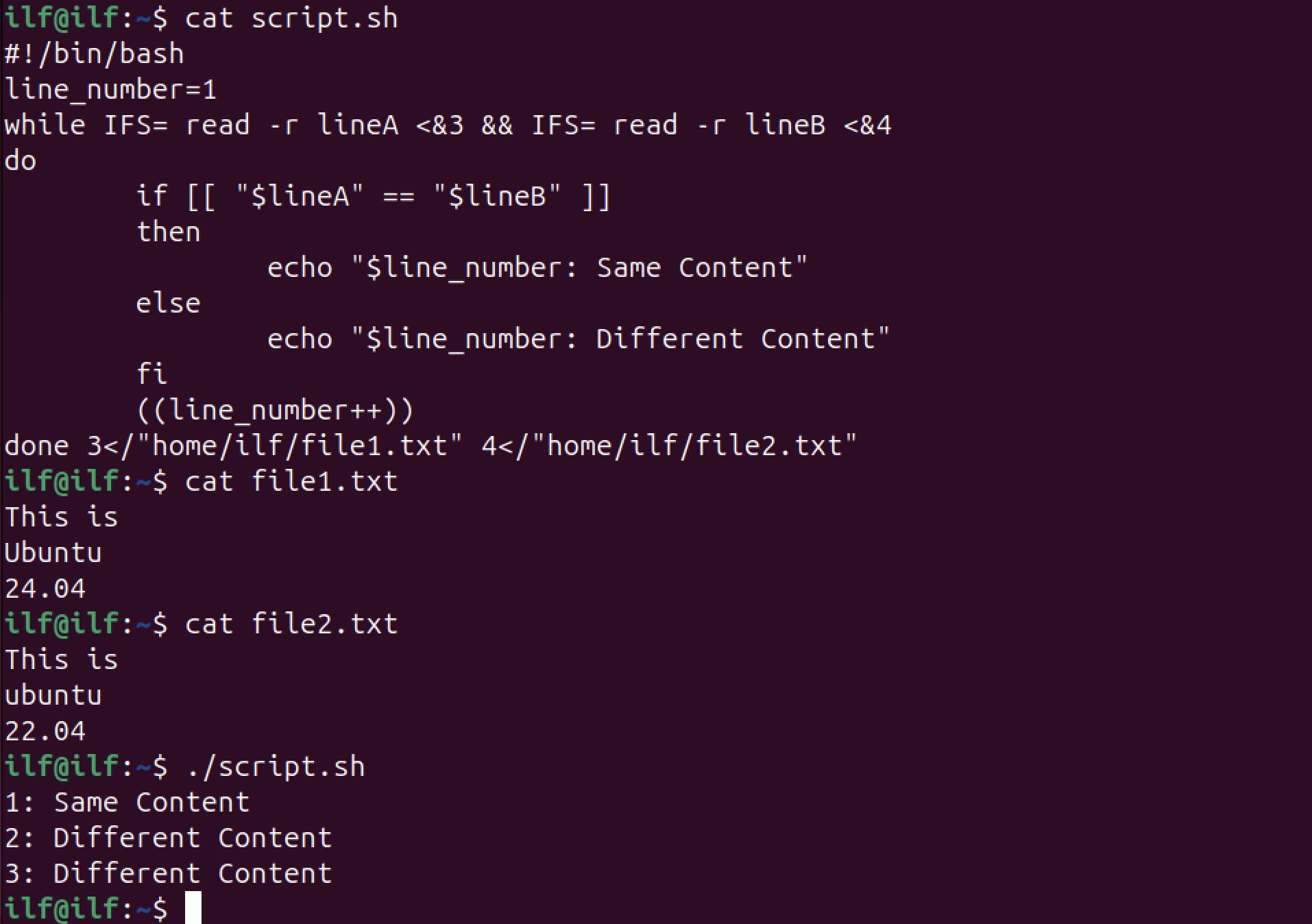
You can also pipe the output of another command directly into a while loop. This is incredibly powerful for combining tools. For example, you can use find to locate specific files and then process each one with a while loop.
How To Loop Through Files in a Directory in Bash
This article from Warp, 'How To Loop Through Files in a Directory in Bash', shows several powerful looping patterns, including how to combine find with a while read loop.
Focus on the sections 'Excluding files based on a pattern' and 'Looping through files recursively'. The key pattern to notice is using the find command to generate a list of files and piping that output to a while read loop for processing.
Do-It-Yourself: Create a Backup & Cleanup Script
Now it's time to apply what you've learned. You will create a script named cleanup.sh that automates the process of archiving old log and temporary files. This is a very common task for system administrators.
Setup Your Test Environment:
First, run these commands in your terminal to create a directory and some dummy files to work with:
# Create a directory to work in
mkdir ~/automation_practice
cd ~/automation_practice


# Create some files with different extensions
touch app-2024-01.log
touch app-2024-02.log
touch tempfile_123.tmp
touch data.csv
touch important_notes.txt
Your Task:
Create a cleanup.sh script inside the ~/automation_practice directory. The script must perform the following actions:
- Define a target directory: Create a variable
TARGET_DIRand set it to the current directory (.). - Define an archive directory: Create a variable
ARCHIVE_DIRand set it toarchive. - Check for the archive directory: Use an
ifstatement (like you learned in the last lesson) to check if the$ARCHIVE_DIRexists within$TARGET_DIR. If it does not, the script should create it and print a message like"Created archive directory.". - Use a
forloop: Write aforloop that iterates over all files ending in.logand.tmpin the$TARGET_DIR. - Archive the files: Inside the loop, for each file found, the script should:
- Print a message, e.g.,
Archiving app-2024-01.log... - Move the file into the
$ARCHIVE_DIR.
- Print a message, e.g.,
- Add
shopt -s nullglobat the beginning of your script to handle cases where no log or temp files are found.
How to Test Your Script:
- Run
./cleanup.sh. You should see messages about the archive directory being created and the.logand.tmpfiles being archived. - Use
lsandls archiveto verify that the files have been moved correctly. - Run
./cleanup.shagain. This time, it shouldn't create the directory again, and it should find no files to archive.
Click here for a hint on the script's structure.
#!/usr/bin/env bash


# Handle cases where no files match
shopt -s nullglob

TARGET_DIR="."
ARCHIVE_DIR="archive"


# 1. Check if the archive directory exists. If not, create it.
if [[ ! -d "$TARGET_DIR/$ARCHIVE_DIR" ]]; then
    echo "Creating archive directory..."
    mkdir "$TARGET_DIR/$ARCHIVE_DIR"
fi

echo "Searching for .log and .tmp files to archive..."


# 2. Loop through all .log and .tmp files
for file in "$TARGET_DIR"/*.log "$TARGET_DIR"/*.tmp; do


    # 3. Print message and move the file
    echo "Archiving $file..."
    mv "$file" "$TARGET_DIR/$ARCHIVE_DIR/"
done

echo "Cleanup complete."
Note the use of quotes around variables ("$file") to correctly handle filenames with spaces.
Bonus Challenge: Using `find` and `while`
Once you have the `for` loop working, try modifying your script. Instead of the `for` loop, use `find` piped into a `while read` loop to do the same thing. This is a more flexible approach that can handle more complex scenarios.
# This would replace your 'for' loop
find "$TARGET_DIR" -maxdepth 1 -type f \( -name "*.log" -o -name "*.tmp" \) -print0 | while IFS= read -r -d '' file; do
    echo "Archiving $file..."
    mv "$file" "$TARGET_DIR/$ARCHIVE_DIR/"
done
This command might seem complex, but it's a powerful and very common pattern in advanced scripting. The -print0 and -d '' parts are used to reliably handle filenames that might contain spaces or other special characters.
Conclusion
Excellent work! You have now mastered two fundamental building blocks of automation: for loops for iterating over known lists and while loops for repeating actions based on a condition. You've also seen how to combine these loops with other commands like tar, mv, and find to create practical and powerful scripts.
Key Takeaways:
forloops are for iterating through a predefined set of items, often generated by filename globbing (e.g.,*.txt).whileloops are for executing code as long as a condition is true, perfect for tasks where the number of iterations is unknown.- The
while IFS= read -r linepattern is the standard, robust way to process files or command output line by line. - Combining loops with conditionals (
if) and other command-line tools is the key to creating sophisticated automation scripts.
In our next lesson, we will explore functions. Functions allow you to organize your code into reusable, named blocks. Instead of rewriting your cleanup logic everywhere you need it, you could simply define a cleanup_logs function and call it whenever necessary, making your scripts much cleaner, more readable, and easier to maintain.