Introduction
Welcome to your second lesson! In our first session, we focused on identifying your system's hardware and software using commands like uname, lscpu, and cat /etc/os-release. You learned how to get a snapshot of your Fedora environment.
Now that you know what your system is, it's time to learn how to move around within it. The Linux filesystem is a hierarchical structure of directories and files, and navigating it from the command line is the single most common task you'll perform. Mastering this is essential for everything from finding log files to deploying your Django projects.
Today's lesson focuses on the three cornerstone commands for navigation:
pwd(print working directory): to know where you are.ls(list): to see what's around you.cd(change directory): to move to a new location.
By the end of this lesson, you'll be able to confidently navigate your Fedora system's filesystem using the terminal.
Finding Your Location with pwd and ls
Before you can move around, you need to know where you are and what's in your current location. The pwd and ls commands provide this situational awareness.
pwd(Print Working Directory): This command has one simple job: to print the full path of the directory you are currently in. It's like checking the "You Are Here" marker on a map.ls(list): This command lists the files and directories in a specific location. If you run it without any arguments, it lists the contents of your current directory.
Let's read a short tutorial that explains these two commands and how ls can be enhanced with options.
Linux Tutorial - 2. Master File System Navigation
The following text from Ryan's Tutorials provides a clear and concise introduction to the pwd and ls commands. It also explains the detailed output of ls -l.
Please read the first two sections, 'So where are we?' and 'What's in Our Current Location?'. Pay close attention to the breakdown of the ls -l output.
As the reading explained, ls becomes much more powerful with options (also called flags). The most common ones you'll use are:
-l: Provides a long listing format with detailed information (permissions, owner, size, modification date).-a: Shows all files, including hidden files (those starting with a.). These are often configuration files.-h: When used with-l, it displays file sizes in a human-readable format (e.g.,4.0Kinstead of4096).
You can combine these options, like ls -lah, to get a complete, detailed, and readable list of everything in a directory.
Understanding Paths: The Map of Your Filesystem
To navigate effectively, you must understand the concept of paths. A path is the address of a file or directory. There are two types of paths in Linux.
Linux Tutorial - 2. Master File System Navigation
This next section from the same tutorial is crucial. It clearly explains the difference between absolute and relative paths and introduces special shortcuts you will use constantly.
Please read the section titled 'Paths'. Focus on understanding the distinction between an absolute path (starting with /) and a relative path (starting from your current location). Also, make sure you understand the meaning of ~, ., and ...
Let's summarize those key concepts:
- Absolute Path: The full address of a file or directory, starting from the root directory (
/). It's unambiguous and works from anywhere. Example:/home/yourusername/Documents. - Relative Path: The address of a file or directory relative to your current working directory. It's a shortcut for nearby items. Example: If you are in
/home/yourusername, the relative path to your documents is justDocuments. - Special Shortcuts:
/: The root directory, the top of the entire filesystem.~: Your home directory (e.g.,/home/yourusername)..: The current directory...: The parent directory (one level up).
This image provides a great visual breakdown of the difference between an absolute and a relative path.

Moving Around with cd
Now that you understand paths, you can use the cd (change directory) command to move. This command takes a path as an argument and changes your working directory to that location.
Let's watch a short video that puts pwd, ls, and cd together.
Navigating The Linux Terminal (pwd, ls & cd) - The Basics!
This video from NCSU BIT demonstrates the three core navigation commands in action. It provides a good visual of how they work together.
Watch from 03:23 to 11:57. This covers pwd, ls (with options), cd, and the path shortcuts (~, ., ..). Note: At around 07:30, the video claims that the order of options for ls matters (e.g., ls -alh vs ls -hal). On modern Linux systems like Fedora, the order of these simple options does not matter. This is a good example of why it's always best to test commands yourself!
The cd command has a few special uses that are extremely helpful:
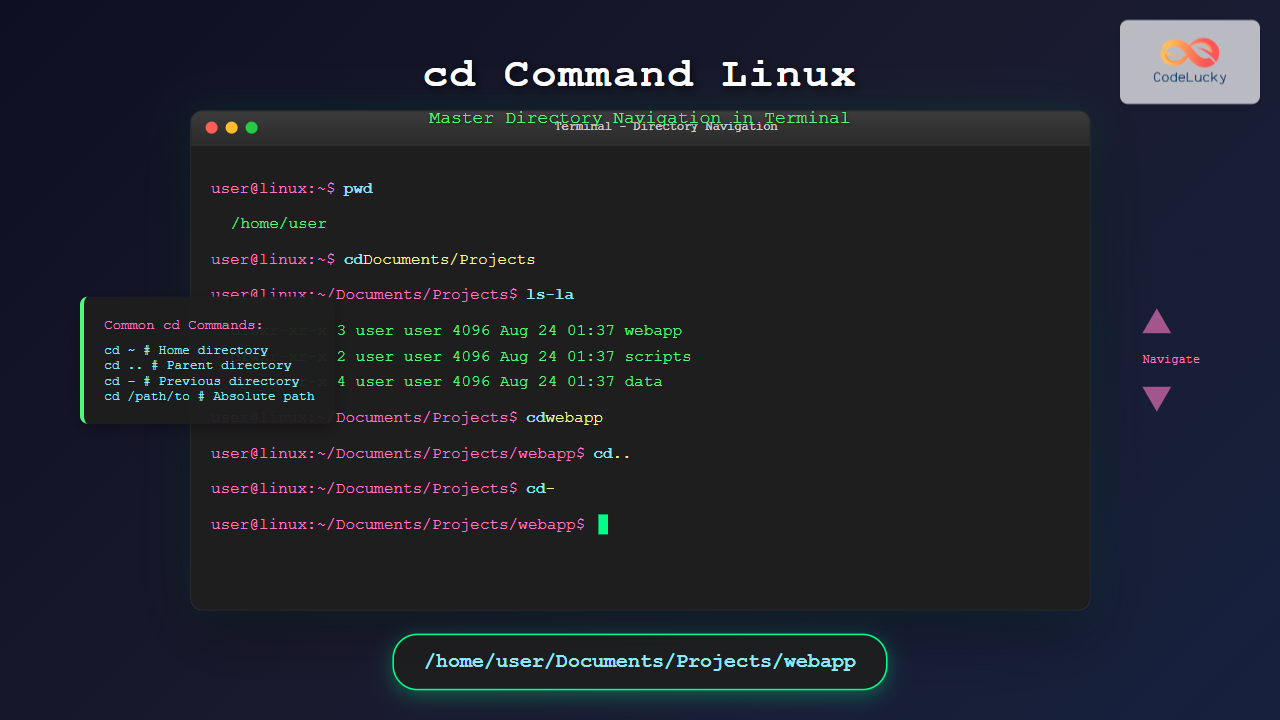
cd(with no arguments): Instantly takes you back to your home directory (~).cd ..: Moves you up one level to the parent directory.cd -: Takes you to the previous directory you were in. This is like the "back" button in a browser.
This image provides a handy summary of the most common cd commands.
Do It Yourself: Navigating Your Fedora System
It's time for you to practice. Open your Konsole terminal and perform the following tasks. Pay attention to how your command prompt might change to show your current location.
-
Start at Home:
- Open a new terminal. You should start in your home directory.
- Type
pwdand press Enter to confirm your location. It should show/home/yourusername.
-
Explore Your Home:
- Type
ls -lato see all files (including hidden ones) in your home directory. Can you spot the.and..directories?
- Type
-
Navigate with an Absolute Path:
- Let's go to a directory that holds system configuration files. Type
cd /etcand press Enter. - Use
pwdto confirm you are now in/etc. - Type
lsto see the contents of this directory. It will look very different from your home directory.
- Let's go to a directory that holds system configuration files. Type
-
Navigate with a Relative Path:
- From
/etc, you can move into one of its subdirectories. For example, if you see a directory namedsystemdin thelsoutput, typecd systemd. - Use
pwdagain. What is your full path now?
- From
-
Go Up a Level:
- Type
cd ..to move from/etc/systemdback up to/etc. - Confirm your location with
pwd.
- Type
-
Use the Shortcuts:
- Type
cd(by itself) to jump directly back to your home directory. Confirm withpwd. - Now, type
cd -to go back to the previous directory you were in (/etc). Confirm withpwd. - Finally, use
cd ~to return home one last time.
- Type
Pro Tip: Use Tab Completion!
Typing long paths is tedious and error-prone. The shell can do it for you. Start typing a path (e.g., cd ~/Docu) and press the Tab key. The shell will automatically complete the name to cd ~/Documents/. If there are multiple possibilities, it will complete as far as it can; pressing Tab a second time will show you the available options. Get in the habit of using this all the time.
Conclusion
In this lesson, you've mastered the essential skills for filesystem navigation. You are now equipped with the "map and compass" of the Linux command line.
Here are the key takeaways:
pwd: Your "You Are Here" command.ls: Your way of "looking around," with options like-l,-a, and-hto give you more detail.cd: Your tool for "moving" between directories.- Absolute vs. Relative Paths: You learned the crucial difference between a full address (absolute path, starts with
/) and local directions (relative path). - Shortcuts:
~,..,., andcd -are powerful shortcuts that will make you much more efficient.
These three commands form the foundation for almost everything else you will do in the terminal. You can't edit a file, run a program, or deploy your web app without first navigating to the correct location.
In the next lesson, we'll build on this by learning how to create, copy, move, and delete files and directories. You'll move from just navigating the world to actively shaping it.