Introduction
Welcome to your first lesson! This course is designed to build your Linux system administration skills, tailored to your goal of becoming a Full Stack Web Developer using Fedora. We'll focus on practical, hands-on knowledge that you can apply directly to deploying and managing web applications.
This first module, "Essential Commands & Filesystem Navigation," is your entry point into the Linux command line. Today, we'll start with the most fundamental task for any system administrator: understanding the system you're working on. By the end of this lesson, you will be able to gather basic system information using three core commands: uname, lscpu, and cat /etc/os-release. This will help you identify your operating system version, kernel details, and hardware specifications—essential knowledge for troubleshooting, installing software, and managing your server.
Let's open up the terminal on your Fedora KDE Plasma system. You can usually find it by searching for "Konsole" in your applications menu.
Discovering Your Kernel and System Architecture with uname
The first command we'll explore is uname (short for "Unix name"). It prints essential information about your system's software and hardware, particularly the Linux kernel, which is the core of the operating system.
Knowing your kernel version is crucial when you need to check for software compatibility, troubleshoot hardware driver issues, or understand security vulnerabilities.
To see how this works, let's watch a short video.
uname Command Simplified: Quick Way to Check Linux System Details
This video from Learn Linux TV provides a clear, step-by-step guide to the uname command and its most useful options.
Please watch the following segments: Basic uname (2:04 - 2:32): See the default output. Kernel Release (-r) (2:44 - 3:25): Learn how to find the kernel version. Machine Architecture (-m) (6:05 - 6:57): Understand how to check your system's hardware architecture (like x86_64). All Information (-a) (7:29 - 8:05): See how to get a complete summary.
As you saw in the video, uname has several options (called "flags") that modify its output:
uname -r: Prints the kernel release version (e.g.,6.8.9-300.fc40.x86_64). This is probably the most common way you'll use this command.uname -m: Shows the machine hardware architecture. For most modern desktops and servers, this will bex86_64, indicating a 64-bit system. This is vital when you're downloading software, as you need to match the package to your system's architecture.uname -a: Displays all available information, including the kernel name, hostname, kernel release, kernel version, machine architecture, and operating system. It's a great way to get a comprehensive overview in one line.
Identifying Your Linux Distribution
While uname tells you about the kernel, it doesn't tell you that you're running Fedora specifically. For that, we need to look at a standard file located at /etc/os-release. This file contains details about the distribution, its version, and even its relationship to other distributions.
To view its contents, we'll use the cat command, which simply reads a file and prints it to the terminal.
This documentation from Amazon Web Services provides an excellent breakdown of the /etc/os-release file. While the page is for 'Amazon Linux', the standard it describes applies to all modern Linux systems, including Fedora. It also includes specific examples for Fedora, Debian, and Ubuntu, which directly addresses your interest in comparing them.
Please read the following sections: Introduction: Start at the top and read down to 'Key identification differences' to understand the purpose of the file. Field types: Read the section 'Field types: Machine-readable vs. Human-readable' to learn about fields like ID, VERSION_ID, and PRETTY_NAME. Comparison with other distributions: This section is particularly relevant. It shows the output for Fedora, Debian, and Ubuntu side-by-side. Focus on the differences in the ID, ID_LIKE, and PRETTY_NAME fields.
To summarize the key points from the reading:
PRETTY_NAME: A user-friendly string (e.g., "Fedora Linux 43 (KDE Plasma)"). This is what you'd use in a report or when describing the system to a person.ID: A simple, machine-readable identifier (e.g.,fedora). This is what you would use in a script to check if it's running on Fedora.VERSION_ID: The machine-readable version number (e.g.,43).ID_LIKE: Shows the "family" a distribution belongs to. For example, Ubuntu'sos-releasefile hasID_LIKE=debian, because Ubuntu is based on Debian. Your Fedora system will likely showID_LIKE=fedora rhel, indicating its relationship to Red Hat Enterprise Linux.
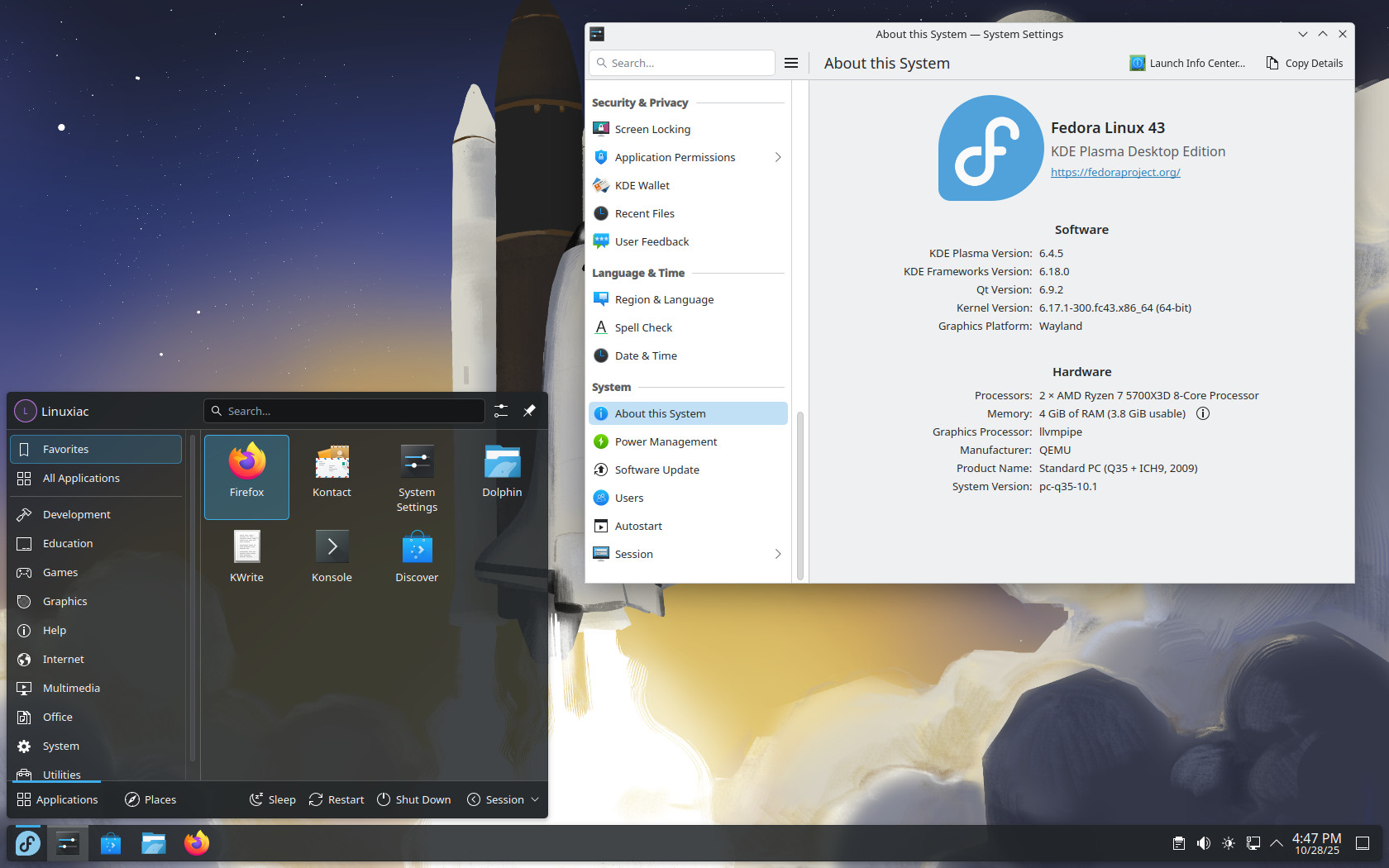
You've just installed the KDE Plasma version of Fedora. The information in /etc/os-release is also available through the graphical interface, which often presents it with hardware details.
Inspecting Your CPU with lscpu
Finally, let's look at how to get detailed information about your computer's brain: the Central Processing Unit (CPU). The lscpu command provides a comprehensive summary of the CPU's architecture, features, and capabilities.
This is useful for:
- Checking the exact processor model and speed.
- Confirming the number of cores and threads for performance tuning.
- Verifying if virtualization support (like
VT-xorAMD-V) is enabled, which is essential for running virtual machines and containers—a topic we'll cover later in the course.
This short video demonstrates the lscpu command in action.
how to identify hardware on Linux command line
This video from Art of Server shows how to use lscpu to get a detailed report on your CPU.
Watch the first part of the video (0:27 - 3:10) that covers the lscpu command. Pay attention to key fields like 'Architecture', 'Model name', 'CPU(s)', and 'Virtualization'.
The output of lscpu is dense, but here are the most important lines to focus on for now:
Architecture: Confirms the CPU architecture (e.g.,x86_64).Model name: Shows the brand and exact model of your CPU (e.g.,Intel(R) Core(TM) i7-10750H CPU @ 2.60GHz).CPU(s): The total number of logical CPU cores available to the OS.Core(s) per socket: The number of physical cores per CPU.Thread(s) per core: If this is greater than 1, it means your CPU supports simultaneous multithreading (like Intel's Hyper-Threading).Virtualization: Tells you what type of hardware virtualization is supported. This is critical for your journey into web development and deployment.
Do It Yourself: Your System's Profile
Now it's time to apply what you've learned to your own Fedora system. Open the Konsole terminal and run the commands yourself to answer the following questions. This is your first hands-on task as a system administrator!
- Run
uname -r. What is your exact kernel version? - Run
cat /etc/os-release.- What is the full
PRETTY_NAMEof your system? - What is the
VERSION_ID?
- What is the full
- Run
lscpu.- What is your CPU's
Model name? - How many
CPU(s)does your system have in total? - What does the
Virtualizationline say? Is it enabled?
- What is your CPU's
Take a moment to compare the output of these commands with the information shown in your graphical "About This System" panel (like the one in the image above). You'll see how the command line provides the raw data that graphical tools use to present it in a user-friendly way.
Conclusion
In this lesson, you took your first steps as a Linux system administrator. You learned how to use three fundamental commands to build a profile of your system:
uname: To identify the Linux kernel version and system architecture.cat /etc/os-release: To determine your specific Linux distribution and version.lscpu: To inspect detailed information about your CPU, including its model and virtualization capabilities.
Understanding your environment is the bedrock of system administration and a prerequisite for deploying applications. You now have the tools to quickly identify the key characteristics of any Linux machine you encounter.
In our next lesson, we will build on this by learning how to navigate the Linux filesystem. You'll master the cd, ls, and pwd commands to move around directories and see what's inside them, skills you'll use every single time you work in the terminal.