Introduction
Welcome to the next lesson! In our previous session, you got hands-on experience creating, copying, moving, and deleting files and directories with mkdir, cp, mv, and rm. You started to build the muscle memory for managing the filesystem.
A crucial part of using those commands effectively is telling them where to perform their actions. Today, we'll solidify your understanding of paths, which are the addresses for every file and directory on your system. This is a fundamental concept that underpins almost everything you do on the command line.
In this lesson, you will learn to:
- Differentiate between absolute paths and relative paths.
- Use special characters like
~(home),.(current), and..(parent) to navigate efficiently. - Understand when to use each type of path, particularly in the context of managing a web development project.
Mastering paths is essential for navigating quickly, accessing configuration files (like for Nginx or PostgreSQL), and writing portable scripts to deploy your Django applications.
Absolute vs. Relative Paths: The Two Address Systems
Think of paths as two different ways of giving directions. One is like a full mailing address that works from anywhere in the world, while the other is like saying "it's the house next door," which only makes sense if you're standing right there.
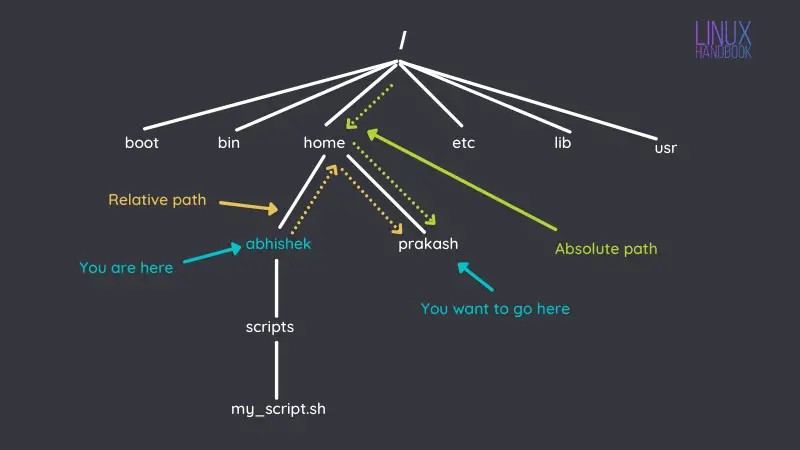
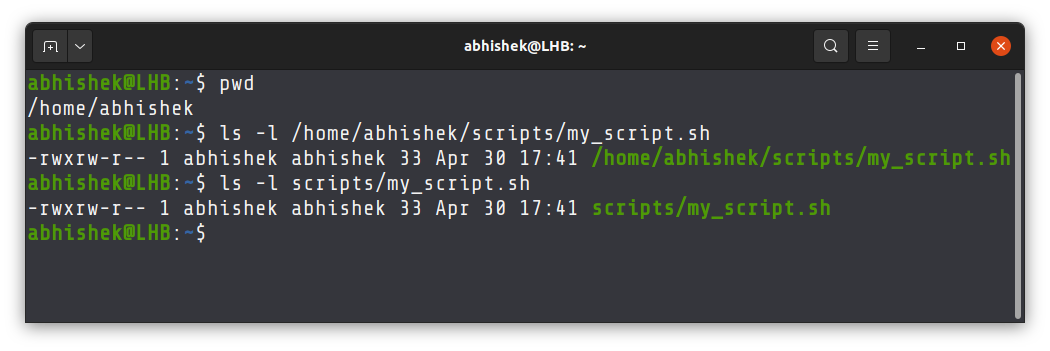
- An absolute path is the full address. It starts from the single root directory of the entire Linux filesystem, which is represented by a forward slash (
/). - A relative path is a partial address. It starts from your current working directory (the output of the
pwdcommand).
Let's read a short explanation that uses a great analogy to make this distinction clear.
Lesson 1 - Linux Professional Institute – Learning
This article from the Linux Professional Institute provides clear definitions for absolute and relative paths and a helpful analogy to distinguish them.
Please read the section titled 'Absolute and Relative Paths'. It starts after the 'Changing Current Directory' examples. Focus on the core definition of each path type and the street address analogy.
To visualize this, imagine you're trying to get from one user's directory (abhishek) to another's (prakash).
Building Blocks for Efficient Navigation
Typing out long absolute paths can be tedious. Luckily, the shell provides several powerful shortcuts to make navigation faster. These are the building blocks you'll use constantly.
| Shortcut | Represents | Example Usage |
|---|---|---|
~ |
Your home directory (e.g., /home/user) |
cd ~ or ls ~/Documents |
. |
The current working directory | cp ../file.txt . (copies file.txt here) |
.. |
The parent directory (one level up) | cd .. or ls ../ |
Let's watch a video that demonstrates these shortcuts in action, showing how you can combine them to move around the filesystem with ease.
Relative and Absolute Paths - Linux Tutorial 7
This video by Caleb Curry provides a great hands-on demonstration of using relative paths, especially the . and .. shortcuts, for practical navigation.
Watch from the beginning to 04:56. [00:17 - 02:52]: Focus on how . and .. are used with ls and cd to reference the current and parent directories. [02:52 - 04:56]: Pay close attention to the example of navigating between 'sibling' directories (e.g., from professional/ to homevids/) using cd ../homevids. This is a very common and efficient technique.
The tilde character (~) is another extremely useful shortcut that always represents your personal home directory. It allows you to reference files within your home from anywhere on the system without typing /home/yourusername.
When to Use Which Path?
Now that you know the difference, the practical question is: when should you use an absolute path versus a relative one? This is especially relevant to your goal of becoming a full-stack developer.
Use relative paths for portability.
Imagine your Django project directory:
my_django_site/
├── manage.py
├── static/
│   └── css/
│       └── styles.css
└── templates/
    └── base.html
Inside base.html, you might reference your stylesheet with a relative path like /static/css/styles.css. This is configured at the web server level, but the principle is the same. Within your project scripts or configurations, using relative paths (./static, ../) ensures that if you move the entire my_django_site folder to a different location (like from your development machine to a server), all the internal references remain intact.
Use absolute paths for certainty.
When you write a system administration script or configure a service, you often need to refer to files in fixed locations that don't change.
- Configuring Nginx to serve your Django site might involve editing
/etc/nginx/sites-available/my_django_site. - A backup script might need to store archives in
/var/backups/. - A
systemdservice file needs to know the absolute path to your Gunicorn executable, like/home/yourusername/my_django_site/venv/bin/gunicorn.
Using an absolute path guarantees that the script or service can find the file regardless of where you run the command from.
The video you watched earlier has a short, excellent summary of this trade-off.
Relative and Absolute Paths - Linux Tutorial 7
Let's revisit a small segment of the video to reinforce when to choose each path type.
Watch the clip from 06:15 to 07:10. It perfectly summarizes the trade-offs between using relative paths for portable projects and absolute paths for system-wide scripts.
Do It Yourself: Organizing Project Files
Time to apply these concepts. This exercise simulates organizing files for a web project, forcing you to switch between different path types.
Open your terminal and follow along.
-
Set Up the Scene
First, navigate to your home directory and create a workspace for this exercise.cd ~ mkdir -p project_setup/source/static project_setup/config/nginx project_setup/backupsThis creates a small project structure.
-
Create Some Dummy Files
Let's usetouchto create a few empty files to work with.touch project_setup/source/app.py touch project_setup/source/static/styles.css touch project_setup/config/nginx/prod.conf -
Navigate to the Source Directory
All subsequent commands will be relative to this location unless stated otherwise.cd project_setup/source pwd # Your output should end with: .../project_setup/source -
Task 1: Back up a file using a relative path.
From your current location (project_setup/source), copy theapp.pyfile into thebackupsdirectory. Use a path that goes "up" one level and then "down" intobackups.# Your command here cp app.py ../backups/Verify with
ls ../backups. -
Task 2: Copy a config file using another relative path.
You want to place a copy of the Nginx configuration inside yoursourcedirectory for reference. From your current location, copyprod.confinto your current directory (.).# Your command here cp ../config/nginx/prod.conf .Verify with
ls. You should now seeprod.confin the current directory. -
Task 3: List a system directory using an absolute path.
From your current location, list the contents of the/etcdirectory, which holds system-wide configurations. You must use an absolute path for this.# Your command here ls /etc -
Task 4: Navigate home and clean up using shortcuts.
Go back to your home directory with the quickest command possible. Then, remove the entireproject_setupdirectory recursively.# Your commands here cd ~ rm -r project_setupUse
lsto confirmproject_setupis gone.
This exercise mimics real-world tasks where you are deep inside a project directory but need to access files elsewhere on the system.
Conclusion
You've now explored one of the most fundamental concepts in Linux. Understanding paths is like learning to read a map—it unlocks your ability to navigate and operate anywhere on the system with confidence.
Key Takeaways:
- Absolute Paths: Start with
/. They are a complete, unambiguous address to a file or directory. Use them when you need certainty, such as in system scripts or service configurations. - Relative Paths: Start from your current location. They are shorter and make your projects portable. Use them for references within a project folder.
- Essential Shortcuts:
~is your home directory..is your current directory...is the parent directory.- Mastering these is key to command-line efficiency.
In our next lesson, we'll cover how to learn about any command directly from the terminal. You'll learn to use man pages and --help flags, empowering you to explore and understand the vast number of tools available in Linux on your own.