Hello!
In the last lesson, you learned the standard way to grant full administrative access on Fedora by adding a user to the wheel group. This is a crucial first step in setting up a system for an administrator.
However, as a web developer and future system administrator, you'll often need to grant permissions with more precision. Giving a deployment script or a junior team member full root access is a security risk. What if they only need to restart the web server, and nothing else?
This lesson addresses that exact scenario. We will move beyond the all-or-nothing approach of the wheel group and learn how to configure fine-grained sudo rules using visudo. This allows you to grant specific permissions for specific tasks, a core tenet of the principle of least privilege and a vital skill for securely managing a web server.
1. The sudoers File and the visudo Command
The rules that govern who can use sudo and for what are stored in the /etc/sudoers file. Because this file is so critical to your system's security and accessibility, a single typo could lock you out of all administrative privileges.
To prevent this, you must never edit /etc/sudoers with a normal text editor like nano or vim. Instead, you must always use the visudo command.
visudo provides two essential safety features:
- File Locking: It prevents multiple administrators from editing the file at the same time.
- Syntax Checking: When you save and exit,
visudochecks your changes for errors. If it finds a mistake, it will warn you and prevent you from saving the broken file, thereby saving you from locking yourself out.
To see this safety net in action and get a feel for visudo, watch the following clip.
Everything You Need to Know About sudo | Linux Essentials Tutorial
The video "Everything You Need to Know About sudo" from the Akamai Developer channel has an excellent demonstration of what happens when you make a mistake in the sudoers file and how visudo helps you recover.
Watch the segment from 20:07 to 23:16. The presenter intentionally creates a syntax error and shows you the recovery options visudo provides. You do not need to follow along with the commands, just observe the process.
2. The Anatomy of a sudoers Rule
Now that you know how to edit the file safely, let's understand what you're editing. A sudoers rule has a clear structure.
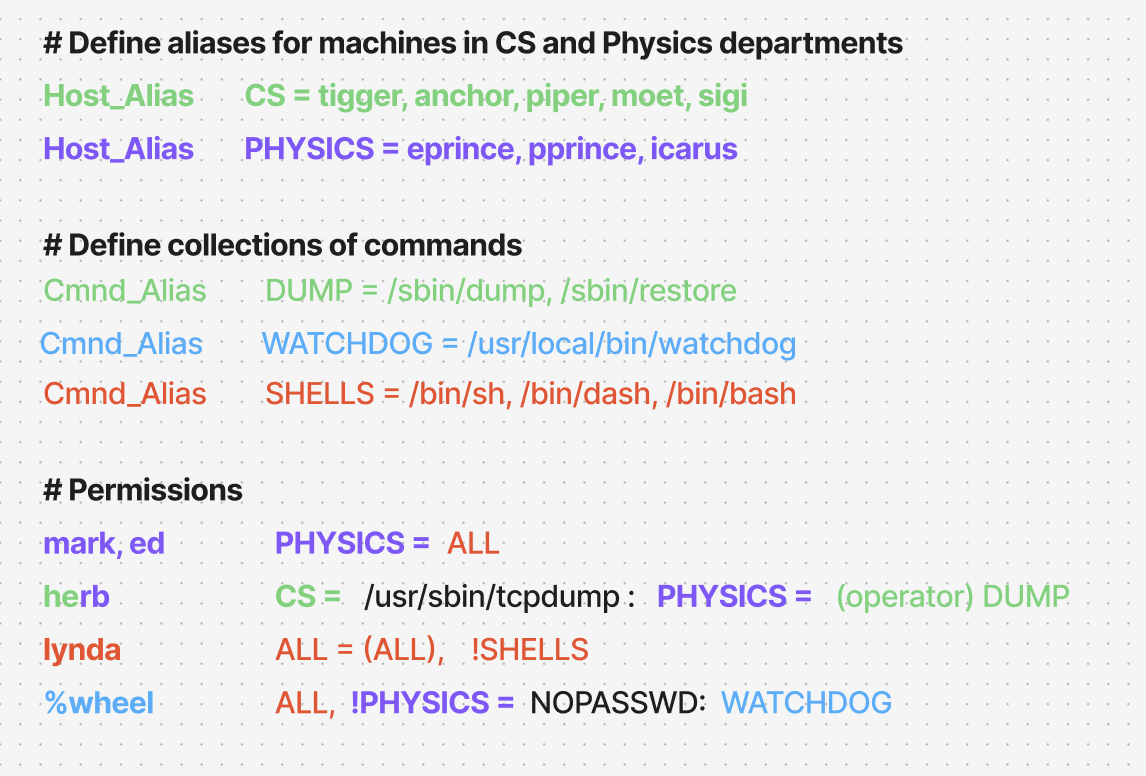
The basic syntax for a permission rule is:
who where = (as_whom) what
Let's break this down.
Granting custom root access on a Linux system - sudoers file tutorial
The video "Granting custom root access on a Linux system" clearly explains each part of a sudoers rule. This will give you the foundational knowledge to build your own rules.
Watch the portion from 01:25 to 04:22, where the presenter breaks down the root ALL=(ALL:ALL) ALL line. Focus on understanding the meaning of each ALL placeholder: the user, the host, the user/group to run as, and the command.
To summarize the syntax:
who: The user or group the rule applies to. Group names are prefixed with%(e.g.,%wheel).where: The hostname(s) the rule applies to. For a single machine, this is almost alwaysALL.(as_whom): The user (and optionally group) that the command can be run as. If omitted, it defaults toroot.what: The command(s) the user is allowed to run. Crucially, you must use the full, absolute path to the command (e.g.,/usr/bin/systemctl, not justsystemctl).
3. Best Practice: Using the /etc/sudoers.d Directory
While you can add your custom rules directly into /etc/sudoers, the modern and recommended approach is to place them in separate files inside the /etc/sudoers.d/ directory.
Why?
- Modularity: Keeps your custom rules separate from the system's default rules.
- Management: Makes it easy to add, remove, or disable a set of permissions by simply managing a single file.
- Safety: Prevents your custom rules from being overwritten during system updates.
To edit or create a file in this directory, you use visudo with the -f flag.
sudo visudo -f /etc/sudoers.d/my_new_rule
If the file doesn't exist, visudo will create it for you.
4. Do-It-Yourself: Granting Service Restart Privileges
Let's apply this to a practical scenario for a web developer. You will create a dedicated user, deployer, who can restart the web server but cannot perform any other administrative tasks. We'll use the Apache web server (httpd) for this exercise.
Step 1: Set Up the Environment
First, open your terminal. If you don't have the Apache web server installed, let's install it.
sudo dnf install -y httpd
Next, create the deployer user. If you still have this user from the previous lesson, you can skip this part. Ensure this user is NOT in the wheel group for this exercise.
# Create the user
sudo useradd deployer


# Set a password for the user
sudo passwd deployer
Step 2: Find the Absolute Path of the Command
We want to give deployer access to the systemctl command. A common mistake is to just write systemctl in the sudoers rule. This is insecure. You must always use the full path. Find it with the which command:
which systemctl
The output will likely be /usr/bin/systemctl. This is the path we'll use.
Step 3: Create the Fine-Grained Rule
Now, let's create a dedicated sudoers file for our web management permissions.
sudo visudo -f /etc/sudoers.d/web-management
This will open an editor. Add the following line to the file, which allows the deployer user to run the systemctl command specifically with the restart, reload, and status arguments for the httpd service:
deployer ALL = /usr/bin/systemctl restart httpd, /usr/bin/systemctl reload httpd, /usr/bin/systemctl status httpd
Save the file and exit the editor. visudo will check the syntax for you.
Step 4: Test the Permissions
It's time to verify your work. Switch to the deployer user.
su - deployer
First, test the allowed command. You'll be prompted for the deployer user's password.
sudo systemctl status httpd
This should work, showing you the status of the web server.
Next, test a forbidden command. Try to update the system.
sudo dnf update
This should fail with an error like: Sorry, user deployer is not allowed to execute '/usr/bin/dnf update' as root on fedora.
This confirms your rule is working perfectly! The deployer user has precisely the permissions you granted, and nothing more.
When you're done testing, return to your main user account:
exit
Step 5: Allowing Passwordless sudo (Optional but Common)
For automated deployment scripts, you can't have a password prompt. sudo allows you to specify that certain commands don't require a password using the NOPASSWD: tag.
Let's modify the rule. Open the file again:
sudo visudo -f /etc/sudoers.d/web-management
Change the line to this:
deployer ALL = NOPASSWD: /usr/bin/systemctl restart httpd, /usr/bin/systemctl reload httpd, /usr/bin/systemctl status httpd
Save and exit. Now, if you switch back to deployer (su - deployer) and run sudo systemctl status httpd, it will execute immediately without asking for a password.
For a more detailed walkthrough of this process, especially as it relates to web servers like Nginx, the following article is an excellent resource.
How To Edit the Sudoers File Safely
The DigitalOcean article "How To Edit the Sudoers File Safely" contains a fantastic, in-depth example of this exact process for allowing a user to reload the Nginx web server.
Read the section titled "In-Depth Implementation Example — Granting Granular sudo Access for Nginx Reload (Best Practice)". It reinforces the steps you just took: creating a user, verifying the command path, creating a least-privilege rule, and testing. Notice how the principles are the same whether you're managing httpd or nginx.
Conclusion
Excellent work! You've now moved from a coarse-grained administrator to a security-conscious one, capable of assigning precise permissions. This is a significant step up in your system administration skills and is directly applicable to deploying and managing web applications securely.
Key Takeaways:
- Always use
visudoto editsudoersfiles to prevent syntax errors that could lock you out. - The best practice is to add custom rules to new files in the
/etc/sudoers.d/directory. - A
sudorule consists ofwho,where,(as_whom), andwhat. - Always use absolute command paths in your rules for security.
- You can grant permission for very specific commands, like restarting a single service.
- The
NOPASSWD:tag is useful for allowing automated scripts to run privileged commands without a password prompt.
In the last few lessons, we've focused on users, permissions, and managing the system. Now, you need the skills to work with the files themselves—editing configurations, searching logs, and manipulating text.
In our next lesson, we will begin the "Text Manipulation and Stream Processing" module. You will start by learning the basics of vim, the powerful, ubiquitous text editor found on virtually every Linux system. This will be an invaluable tool for editing the very configuration files you've been learning about.