Introduction
Hello! In our previous lessons, you've become proficient at managing user accounts and groups from the command line. You've created users with useradd, organized them with groupadd and gpasswd, and even enforced security policies using chage and passwd.
Now, it's time to look "under the hood." Those commands are user-friendly tools that modify a set of core configuration files. Understanding these files is a crucial skill for any system administrator, as it allows you to diagnose problems, verify settings manually, and gain a much deeper understanding of how your Linux system works.
In this lesson, you will learn to interpret the contents of /etc/passwd, /etc/shadow, and /etc/group. This knowledge will connect the dots between the commands you've learned and the way the system actually stores user and group information.
1. The User Database: /etc/passwd
The /etc/passwd file is the original user database in Unix and Linux systems. It's a plain text file that contains an entry for every user account on the system, including regular users, system users for running services, and the root user.
Because many system processes need to look up user information (like a user's ID number or home directory), this file is "world-readable"—any user on the system can view its contents.
Lesson 1: Creating Users and Groups
To begin, let's get a formal introduction to the user and group information files from the Linux Professional Institute (LPI). This resource provides a concise, structured overview.
Read the introduction and the section titled "The File /etc/passwd". This will explain the purpose of the four main user/group files and then break down the seven fields of an /etc/passwd entry.
As you read, you'll see that each line in /etc/passwd has seven fields separated by colons (:). Let's visualize this structure.

The two most important takeaways here are:
- The second field, which historically held the password, now just contains an
x. This indicates that the real password hash is stored securely elsewhere. - The last field specifies the user's default shell. For system accounts used by services (like a web server), you will often see
/sbin/nologinor/bin/false. This is a security measure that prevents anyone from logging in as that user.
2. The Group Database: /etc/group
Similarly to /etc/passwd, the /etc/group file defines all the user groups on the system. It's also world-readable.
Lesson 1: Creating Users and Groups
Now, let's look at the structure of the group file using the same LPI resource.
Read the short section titled "The File /etc/group". Focus on understanding its four colon-delimited fields.
Here's a quick summary of the fields in /etc/group:
- Group Name: The name of the group (e.g.,
wheel,developers). - Group Password: Almost always an
x, as group passwords are rarely used and handled by a separate file (/etc/gshadow). - Group ID (GID): The unique numeric ID for the group.
- Member List: A comma-separated list of users who are members of this group, but only if it's not their primary group. If a user's primary group is this one, their name won't be listed here; the system knows from their entry in
/etc/passwd.
3. The Secure Database: /etc/shadow
This is where the real secrets are kept. The /etc/shadow file stores the encrypted password for each user, along with the password aging policies you configured in the last lesson.
Because this file contains sensitive information, it has very strict permissions. It can only be read by the root user. This is why it's called a "shadow" file—it shadows the public information in /etc/passwd with private, secure data.
/etc/passwd file & /etc/shadow file in linux | chage and passwd command | lock and disable accounts
The video "/etc/passwd file & /etc/shadow file in linux" from the Pedagogy channel provides an excellent, detailed walkthrough of the /etc/shadow file. It's particularly good at explaining the different symbols you might find in the password field.
Watch the following segments: /etc/shadow File Structure (03:55 - 04:34): Get a quick overview of the file's purpose and its fields. Password Field States (04:34 - 09:33): This is the most important part. Pay close attention to the meaning of a normal hash, a leading ! (locked account), a single ! (no password set), an empty field (no password required), and * (system account).
The fields in /etc/shadow directly map to the settings you managed with chage.
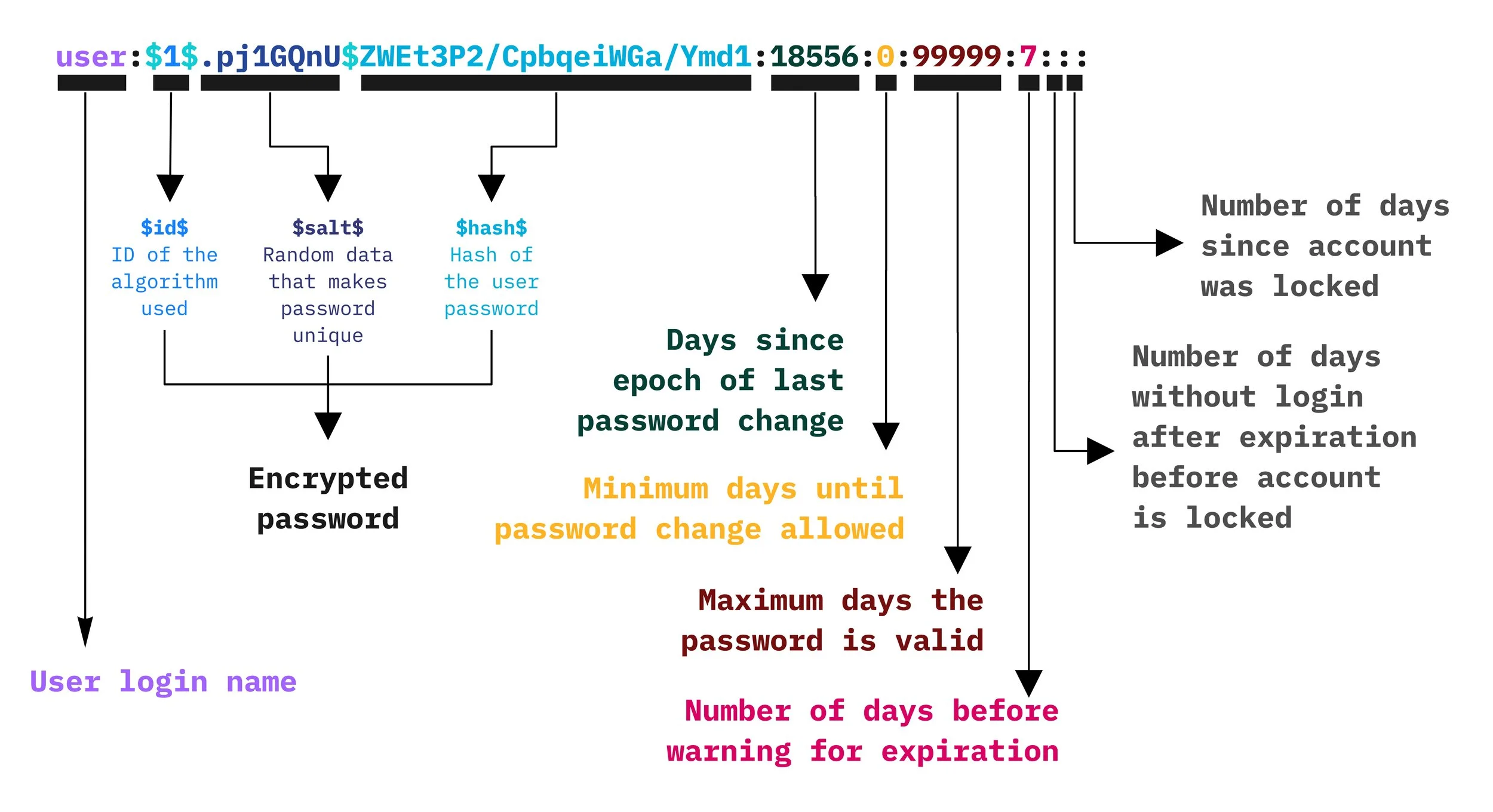
Notice how the fields for password age, warning period, and account expiration are just numbers. These represent the number of days since the "Unix Epoch" (January 1st, 1970). This is why commands like chage are so useful—they handle the date conversions for you.
4. Do-It-Yourself: Reading the Files
Time to apply this theory. In this exercise, you'll act as a system administrator and inspect the configuration files to verify user and group settings on your own Fedora system.
Open your terminal and follow these steps.
Task 1: Inspect Your Own User Account
-
Find your entry in the
/etc/passwdfile. Replaceyour_usernamewith your actual username.grep your_username /etc/passwd- Can you identify your UID, primary GID, home directory, and default shell from the output?
-
Find your primary group's entry in
/etc/group. Use the GID you found in the previous step.# Replace GID with your actual group ID number grep ':GID:' /etc/group -
Now, look at your secure information in
/etc/shadow. You'll needsudofor this.sudo grep your_username /etc/shadow -
Finally, compare the output from
/etc/shadowwith the output of thechagecommand. They should match!sudo chage -l your_username- This confirms that
chageis just a friendly way to read and write to the/etc/shadowfile.
- This confirms that
Task 2: Inspect a System Account
-
Let's examine the
sshduser, which is used by the SSH service for secure remote logins.grep sshd /etc/passwd- What is its UID? Notice it's below 1000.
- What is its login shell? You should see
/sbin/nologin, preventing direct login.
-
Check its shadow entry.
sudo grep sshd /etc/shadow- What do you see in the password field? It's likely
!!or*, indicating the account is locked and has no valid password for a human to use.
- What do you see in the password field? It's likely
Task 3: Guided Interpretation Exercise
This final task will test your ability to interpret these files from a raw text dump, a common scenario when analyzing logs or system reports.
Lesson 1: Creating Users and Groups
The LPI learning material includes an excellent guided exercise. You will be presented with the output of the three files and asked a series of questions to test your understanding.
First, go to the "Guided Exercises" section and find question #2. Read the sample output from /etc/passwd, /etc/group, /etc/shadow, and /etc/gshadow provided there. Then, try to answer all seven sub-questions on your own. For example: "What is the User ID (UID) and Group ID (GID) of carol?" Once you have your answers, scroll down to the "Answers to Guided Exercises" section to check your work. Don't peek at the answers beforehand!
This exercise is a perfect way to solidify your new knowledge and practice thinking like a sysadmin.
Conclusion
Excellent work! You've successfully peeled back a layer of abstraction and learned how Linux stores the fundamental data for user and group management. This is a significant step up from simply knowing the commands; you now understand the data structures they manipulate.
Key Takeaways:
/etc/passwd: A world-readable file containing basic user information like UID, GID, home directory, and shell./etc/group: A world-readable file defining groups, their GIDs, and their members./etc/shadow: A root-readable-only file that securely stores encrypted passwords and password aging policies, corresponding directly to the settings managed bychage.- System accounts are distinct from user accounts, often having low UIDs, no-login shells, and locked passwords.
In the previous lessons, you've created and managed standard, unprivileged users. The only truly powerful user we've seen in these files is root. In our next lesson, we will cover the modern, secure way to perform administrative tasks: granting a user administrative privileges by adding them to the wheel group for sudo access.