Hello! Welcome back to your Linux system administration journey.
In the last lesson, we explored the network layer with ping and traceroute, figuring out if servers were reachable and mapping the path to them. You learned how to diagnose a DNS failure by observing that you could ping an IP address but not a domain name. Today, we're moving up the network stack to the Application Layer to interact directly with the web services running on those servers.
As an aspiring Full Stack Web Developer, you'll spend countless hours building and interacting with APIs and web applications. The command-line tool curl is your Swiss Army knife for this work. It allows you to test, debug, and script interactions with any web service, right from your terminal. Understanding curl is not just a sysadmin skill; it's a fundamental developer skill.
By the end of this lesson, you will be able to test web service availability and inspect HTTP responses using curl.
1. What is curl? Basic Requests and Headers
curl stands for "Client URL". It's a powerful command-line tool that can transfer data to or from a server using dozens of protocols. We'll focus on its most common use: making HTTP and HTTPS requests, just like a web browser does, but with surgical precision.
At its simplest, curl fetches the content of a URL and displays it in your terminal.
Open your terminal and try it:
curl example.com
You'll see the HTML source code of the example.com homepage. This simple command already confirms that the web server at example.com is available and serving content.
But a web response is more than just the body (the HTML). It also includes headers, which contain crucial metadata. Let's watch a short video that introduces the most fundamental curl commands for fetching content and inspecting headers.
This video from Navek provides a quick, practical guide to making a basic request, fetching only the HTTP headers, and handling web redirects.
Watch from the beginning to 02:43. Pay close attention to the distinction between getting the content, getting only the headers, and following redirects.
As the video demonstrated, you have several options for inspecting responses:
curl <url>: Fetches only the response body (e.g., HTML, JSON).curl -I <url>(--head): Fetches only the response headers. This makes aHEADrequest, which is a lightweight way to check a server's status and metadata without downloading the full content.curl -i <url>(--include): Fetches both the headers and the body. The headers are printed first, followed by a blank line, and then the body.curl -L <url>(--location): Follows redirects. If you requesthttp://google.com, the server will respond with a redirect (like301 Moved Permanently) tohttps://www.google.com. The-Lflag tellscurlto automatically make a new request to the new location.
The very first line of the headers is the most important for checking availability: the HTTP status line.HTTP/2 200
This tells you the protocol version (HTTP/2) and the status code (200). A 200 OK status means your request was successful! Other common codes include 301 (redirect), 404 Not Found, and 500 Internal Server Error.
2. Deeper Inspection: Verbose Mode and SSL
To effectively debug a web service, you need to see the entire conversation: the request that curl sends and the response the server gives back.
Verbose Mode (-v)
The -v (--verbose) option is your best friend for troubleshooting. It prints a detailed log of the connection, including the request headers curl sends (prefixed with >) and the response headers the server returns (prefixed with <).

Let's see what the creator of curl has to say about using verbose mode for debugging.
using curl better - with curl creator Daniel Stenberg
In this clip, curl creator Daniel Stenberg explains how verbose mode helps you understand what's happening behind the scenes.
Watch from 17:22 to 18:47. Note how -v shows connection details and the outgoing request headers, which helps you verify that curl is sending exactly what you intended.
Handling SSL/TLS Certificates (-k)
When you're developing locally, you might set up a web server (like Nginx, which we'll cover later) with a "self-signed" SSL certificate. curl, like your browser, will refuse to connect to a server with a certificate it doesn't trust. This is a security feature, but it gets in the way during testing.
The -k (--insecure) flag tells curl to bypass certificate validation.
Let's return to our first video for a practical demonstration of this common development scenario.
Watch from 03:21 to 05:00. This section shows the 'SSL certificate problem' error and how the -k flag is used to get past it. Heed the warning: this should only be used for testing in a trusted development environment, never in production scripts.
3. curl for the Full Stack Developer: Interacting with APIs
So far, we've been acting like a browser, fetching web pages. But as a developer, you'll more often use curl to act like a client application, talking to a REST API. This usually involves sending data using different HTTP methods, like POST.
-X <METHOD>: Specifies the HTTP method (e.g.,-X POST,-X PUT,-X DELETE). If omitted,curldefaults toGET.-d '{"key":"value"}'(--data): Sends data in the request body. This is used forPOSTandPUTrequests.-H "Header-Name: Header-Value"(--header): Adds a custom header to your request. For modern APIs,Content-Type: application/jsonis one of the most common headers you'll need to send.
Let's look at an example of curl sending data to a test API.
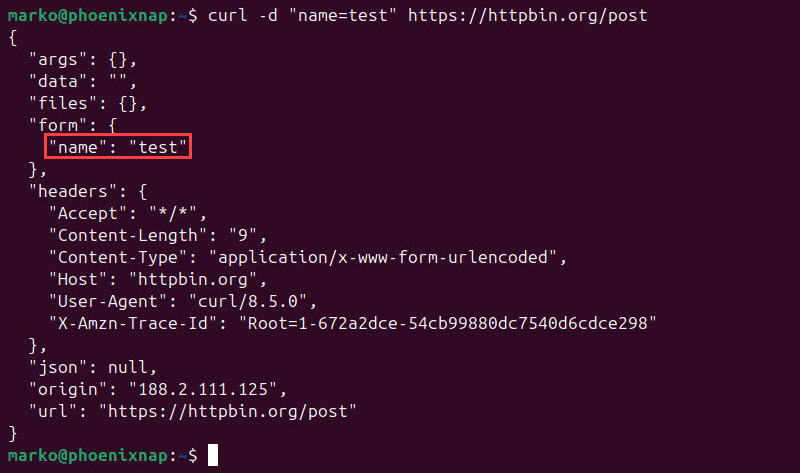
To put these pieces together for API development, let's consult a reference guide.
Curl Command in Linux Explained With Examples
As a web developer, you'll constantly be sending structured data like JSON to APIs. This article provides clear, practical examples of how to do this.
Read the section titled 'curl for APIs: JSON, POST, PUT, DELETE'. Focus on the example for 'Send JSON in a POST request'. Notice how it combines -X POST to set the method, -H to declare the content type, and --data to provide the JSON payload.
4. Do-It-Yourself: Hands-On with curl
Time to put theory into practice. These exercises use httpbin.org, a fantastic free service designed for testing HTTP clients.
Task 1: Inspect a Website
-
Get headers only: Check the response headers from the Fedora Project's website. What is the
server? What is thecontent-type?curl -I https://fedoraproject.org -
Follow redirects: Use
curlto see the redirect chain from the insecurehttp://version ofgoogle.com.curl -I -L http://google.comThe
-Iand-Lflags can be combined. You should see at least two sets of headers: one for the initial301redirect and one for the final200 OK.
Task 2: Interact with a Test API
-
Make a GET request:
httpbin.org/getis an endpoint that inspects your incoming request and echoes it back to you as a JSON response. The-sflag silences the progress meter for a cleaner output.curl -s https://httpbin.org/getIf you have
jqinstalled, you can pipe the output to it for pretty-printing:curl -s https://httpbin.org/get | jq -
Make a POST request: Now, send some JSON data to the
postendpoint.curl -X POST \ -H "Content-Type: application/json" \ -d '{"user":"test-user", "status":"learning-curl"}' \ https://httpbin.org/postExamine the JSON response. Look for the
jsonfield. Does it contain the data you sent? This is exactly how you would test if your Django API is correctly receiving data.
Task 3: Troubleshoot a Secure Connection
-
Attempt a connection: Try to connect to a site that uses a self-signed certificate.
curl https://self-signed.badssl.com/You should get an error message about the SSL certificate.
-
Investigate and bypass: Now, use verbose mode (
-v) to see the details of the failed SSL handshake, and use the insecure flag (-k) to bypass the error and fetch the page content.curl -vk https://self-signed.badssl.com/This combination is invaluable for debugging local HTTPS setups.
Conclusion
In this lesson, you've gained a powerful tool for your developer toolkit. You've moved beyond simply checking if a server is online and are now able to have a detailed conversation with the web services running on it.
Key Takeaways:
curlis a versatile command-line tool for making HTTP requests to test web service availability and functionality.- You can inspect headers with
-I(headers only) or-i(headers + body), and you should always check the HTTP status code first. - Always use
-Lto follow redirects when testing public websites. -v(verbose) is essential for debugging, showing you the exact request sent and response received.- For API development, you'll frequently use
-X POST,-H "Content-Type: application/json", and-dto send data. -kallows you to work with services using self-signed certificates in trusted development environments.
You can now test if a web server is up and responding correctly. But what if the server is fine, but your system can't even find its IP address? In our next lesson, we'll dive into dig, a tool specifically designed to query the Domain Name System (DNS) and troubleshoot name resolution issues.