Introduction
Welcome to the second module of your course, "File Permissions and SELinux Fundamentals." In the last module, you mastered the essential commands for navigating your Fedora system and analyzing its disk usage. You now know how to find any file or directory and see how much space it consumes.
But what happens once you find a file? Who is allowed to read it, change it, or run it? This is where file permissions come in, and they are the bedrock of security and organization on any multi-user system like Linux. As a web developer, understanding permissions is not just a sysadmin task; it's essential for securing your application's code, data, and configuration files when you deploy them on a server.
Your goal for this lesson is to learn how to:
- Interpret file permission strings (
rwx) and their octal equivalents.
We'll start by decoding the cryptic-looking string of letters you see when you run ls -l and then learn the numerical shorthand that system administrators frequently use.
Decoding the Permission String
You're already familiar with the ls command. To see file permissions, we use the long listing format with the -l flag.
Open your terminal and run ls -l in your home directory. You'll see output similar to this:
-rw-r--r--. 1 myuser myuser  8431 Jun 5 10:20 my_django_project.zip
drwxr-xr-x. 5 myuser myuser  4096 Jun 5 11:00 my_website/
Let's focus on that first column of characters, like -rw-r--r-- and drwxr-xr-x. This 10-character string tells you everything about the item's type and its basic permissions.
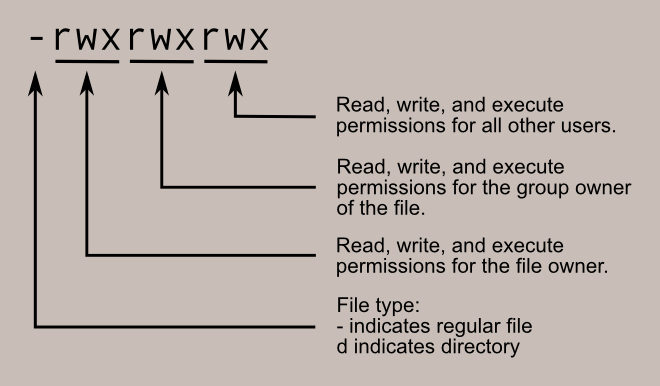
As the diagram shows, the string is broken into four parts:
- File Type (1st character): A
-indicates a regular file, and adindicates a directory. - Owner/User Permissions (characters 2-4): What the user who owns the file can do.
- Group Permissions (characters 5-7): What members of the group that owns the file can do.
- Other Permissions (characters 8-10): What everyone else on the system can do.
Each of the three permission sets consists of the letters r, w, and x, which stand for read, write, and execute. A hyphen - means that permission is not granted.
The meaning of these permissions changes slightly depending on whether you're dealing with a file or a directory. The following video provides an excellent, detailed explanation of these concepts.
Linux Crash Course - Understanding File & Directory Permissions
Watch this segment from Learn Linux TV to get a thorough understanding of how to read the permission string and what r, w, and x mean for both files and directories.
Watch from 01:07 to 12:43. Pay close attention to the breakdown of the permission string into four groups and the different meanings of 'execute' for a file versus a directory.
To summarize the key points from the video:
| Permission | For a File | For a Directory |
|---|---|---|
r (read) |
View the contents of the file. | List the contents of the directory (i.e., see the names of the files inside). |
w (write) |
Modify or delete the content of the file. | Create, delete, or rename files within the directory. |
x (execute) |
Run the file as a script or program. | Enter (i.e., cd into) the directory. |
Notice the critical difference for directories: you need execute (x) permission to cd into a directory, and you need read (r) permission to list its contents with ls.
Do It Yourself: Interpreting Permissions
Let's practice this with some real files on your system. The /etc directory, which holds most of your system's configuration files, is a great place to explore.
- Open your terminal.
- Navigate to the
/etcdirectory:cd /etc - List the contents with their permissions:
ls -l - Find the entry for the
hostnamefile and thednfdirectory. - In a text editor or on a piece of paper, analyze each one and answer these questions:
- What are the full permission strings for
hostnameanddnf? - Who is the owner and what is the group for each?
- For
hostname: Can the owner change the file? Can members of the group? Can a regular user (other)? - For
dnf: Can the owner list its contents? Can theycdinto it? What about members of the group?
- What are the full permission strings for
This exercise will help solidify your ability to read and understand what you're seeing.
From Symbols to Numbers: Octal Permissions
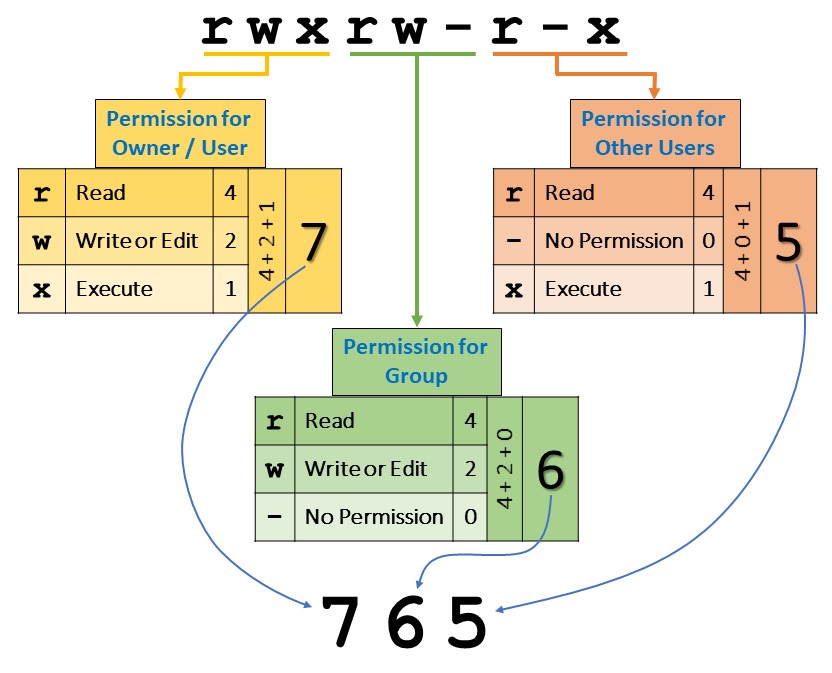
While the rwx format is descriptive, you will very frequently see permissions represented as a three-digit number, like 755 or 644. This is called octal notation, and it's a compact way to express the exact same information. It's essential to know how to translate between the two.
The conversion is based on assigning a numeric value to each permission:
r(read) = 4w(write) = 2x(execute) = 1-(no permission) = 0
To get the value for a permission set (like the owner's), you simply add the numbers for the granted permissions.
rwx= 4 + 2 + 1 = 7rw-= 4 + 2 + 0 = 6r-x= 4 + 0 + 1 = 5r--= 4 + 0 + 0 = 4
A three-digit octal number represents the permissions for [owner][group][other].
For example, a file with rwxr-xr-x permissions would be 755:
- Owner:
rwx= 7 - Group:
r-x= 5 - Other:
r-x= 5
To deepen your understanding, let's turn back to the resources.
5.3 Lesson 1 - Linux Professional Institute – Learning
This article from the Linux Professional Institute provides a clear, text-based explanation of the numeric values and how they are combined.
Read the sections titled "Understanding Permissions" and "Numeric Mode". The first part explains the meaning of each permission and introduces their octal values. The "Numeric Mode" section shows how these are combined into a 3-digit number.
The article "Linux Permissions Explained in Simple Terms" also has a fantastic, detailed walkthrough with a helpful conversion table.
Linux Permissions Explained in Simple Terms
This article offers another great explanation of octal calculation, including a cheat sheet table that is very useful for quick reference.
Read the section titled "How to Calculate Permissions in Octal Values". This guide breaks down the process step-by-step and provides a handy table mapping all symbolic permissions to their octal values.
Do It Yourself: Conversion Practice
Now it's time to test your conversion skills. This is a core competency, so take a moment to work through these.
Task 1: Symbolic to Octal
Convert the following rwx permission strings into their three-digit octal equivalents.
rwxr-xr---> ?rw-rw-----> ?rwx-------> ?
Task 2: Octal to Symbolic
Convert the following octal permissions into their rwx string equivalents.
755-> ?644-> ?700-> ?
Click to see the answers
Task 1 Answers:
rwxr-xr--->754(Owner: 4+2+1=7, Group: 4+0+1=5, Other: 4+0+0=4)rw-rw----->660(Owner: 4+2+0=6, Group: 4+2+0=6, Other: 0+0+0=0)rwx------->700(Owner: 4+2+1=7, Group: 0, Other: 0)
Task 2 Answers:
755->rwxr-xr-x644->rw-r--r--700->rwx------
Conclusion
Excellent work! You've just taken your first and most important step into the world of Linux security. Understanding who can access what is a fundamental skill that underpins almost everything else you will do as a system administrator and developer.
Key Takeaways:
- File permissions are viewed with
ls -l. - The 10-character permission string is divided into file type, owner permissions, group permissions, and other permissions.
- The permissions are
r(read),w(write), andx(execute), and their meaning depends on whether it's a file or a directory. - Permissions can also be represented by a three-digit octal number, where
r=4,w=2, andx=1. - A common permission set for directories is
755(rwxr-xr-x), and for files is644(rw-r--r--).
In the next lesson, we will make this knowledge active. You'll learn how to use the chmod command to change file permissions, using both the symbolic (u+x) and octal (755) methods you've learned about today.