Hello! Welcome back to your course on Linux and network administration.
In our last lesson, we focused on package management, learning how to install, update, and remove software using apt and dnf. You practiced the full lifecycle of a software package, a skill you'll use constantly.
I mentioned we'd be moving on to network configuration next. I'm going to adjust our path slightly for a more logical flow. Before we assign a static IP address to our server, it's essential to first understand how to manage the services that will use that network connection—like a web server or an SSH service. After all, a server isn't very useful if its key programs aren't running!
This lesson addresses the learning outcome: Manage system services using systemctl: start, stop, enable, disable, and check status. We will dive into systemd, the modern foundation of a Linux system, and its command-line interface, systemctl. For a data center technician, knowing how to manipulate services is as fundamental as turning on the power. This is a core competency you will be expected to demonstrate and explain in any technical interview.
1. What is a Service?
On a Linux server, many programs run silently in the background, waiting for requests or performing scheduled tasks. These background processes are called services or daemons. Examples include:
sshd: The SSH daemon that listens for your remote login connections.nginxorapache2: Web servers that listen for browser requests to serve web pages.cron: A service that runs scheduled jobs.
The program responsible for starting, stopping, and supervising all these services (and the entire system after the kernel boots) is called the init system. For nearly all modern Linux distributions, the init system is systemd. And the primary tool we use to talk to systemd is systemctl.
To learn a bit more about the role of systemd, let's turn to a helpful article.
Manage Systemd Services with systemctl on Linux
The article 'Manage Systemd Services with systemctl on Linux' from DigitalOcean provides a great introduction to the concepts of an init system and systemd 'units'.
Please read the 'Introduction' and 'Service Management' sections. Focus on understanding that systemd is the system manager and that 'units' (specifically 'service units') are the resources it manages.
2. Getting a Service to Manage
To make this lesson practical, you'll need a service to manage. Let's install the Apache web server, a very common service. Use the apt command you learned in the previous lesson.
Open your terminal and run:sudo apt updatesudo apt install apache2
Once it's installed, Apache is running as a service on your system, managed by systemd. Now, let's learn how to control it.
3. The Core systemctl Commands
We'll now walk through the essential systemctl commands. These six actions—status, start, stop, restart, enable, and disable—form the bedrock of service management in Linux.
The following video gives a fantastic, hands-on demonstration of these core commands.
Systemd Explained: How to Manage Linux Services Easily
The video 'Systemd Explained: How to Manage Linux Services Easily' from Learn Linux TV provides a clear, practical walkthrough. It uses a web server as an example, just as we are.
Watch from the beginning to 15:26. The video will guide you through: Checking status: How to see if a service is running, enabled, or has errors. Start, Stop, Restart: The commands for controlling the service in the current session. Enable and Disable: The commands for controlling whether a service starts automatically when the system boots. Pay close attention to the distinction between start/stop and enable/disable. This is a common point of confusion and a great topic to be clear on for an interview.
Let's break down those key commands with some explanations.
Checking a Service's Status
This is your first step in any troubleshooting scenario. The status command gives you a complete snapshot of a service.
systemctl status apache2.service
(Note: systemd is smart enough that you can usually leave off the .service suffix, but it's good practice to be explicit.)
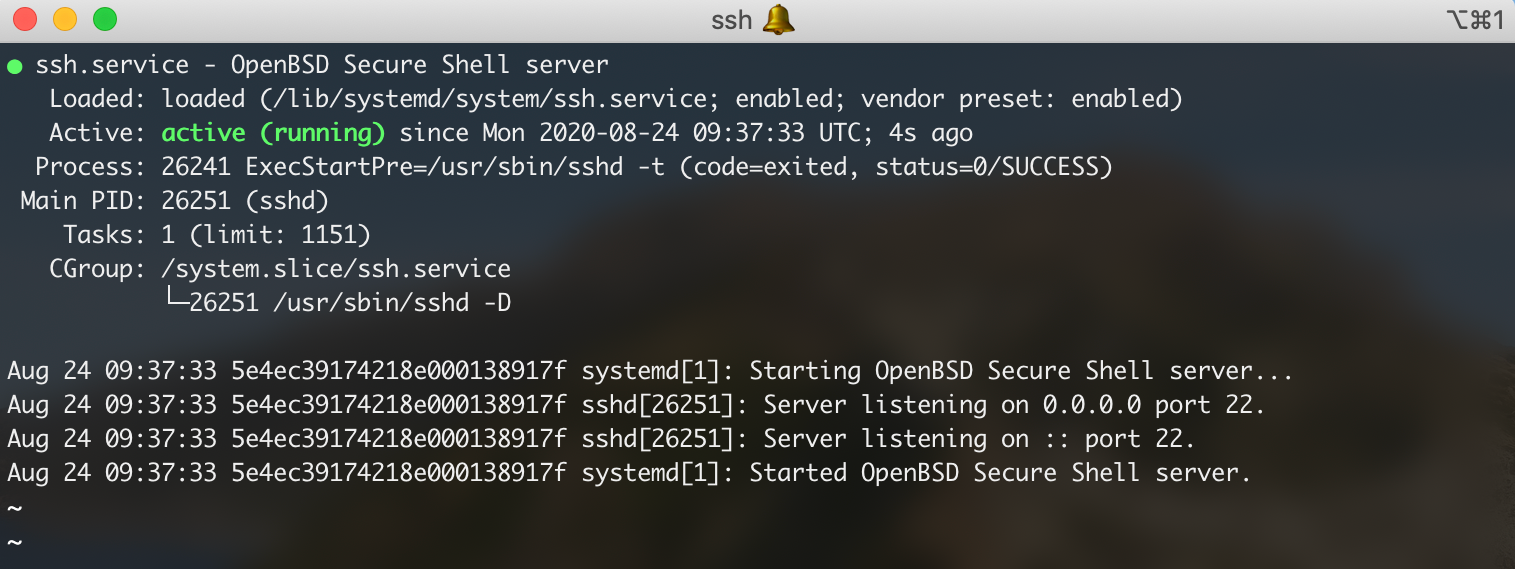
The output tells you:
- Loaded: If
systemdfound the service's configuration file. - Active: The most important line. It shows if the service is
active (running),inactive (dead), orfailed. - Enabled / Disabled: Whether the service is configured to start automatically on boot.
- Logs: The most recent log entries from the service, which are invaluable for debugging.
Controlling the Current Session: start, stop, restart
These commands affect the service right now, but they don't change what happens on the next reboot. All these commands require sudo because you're changing the state of the system.
-
To start a service:
sudo systemctl start apache2 -
To stop a service:
sudo systemctl stop apache2 -
To stop and then start a service:
sudo systemctl restart apache2
You typically restart a service after you've changed its configuration file, so it can re-read the new settings.
Controlling Boot Behavior: enable and disable
These commands determine whether a service starts automatically when the server boots up. This is critical for ensuring essential services are always available after a reboot or planned maintenance.
-
To make a service start at boot:
sudo systemctl enable apache2 -
To prevent a service from starting at boot:
sudo systemctl disable apache2
Crucial Point: disable does not stop a service that is currently running. Likewise, enable does not start a service that is currently stopped. These commands only affect boot-time behavior.
A very useful shortcut exists to enable and start a service in one go:sudo systemctl enable --now apache2
This is perfect for when you've just installed a new service and want it running immediately and permanently.
For a quick reference, this Red Hat article provides a concise summary of these commands.
How to use systemctl to manage Linux services
The article 'How to use systemctl to manage Linux services' is a great 'cheat sheet' for the commands we've just discussed. It also introduces the useful --now option.
Quickly read the sections 'Restart a service', 'Stop and start a service', and 'Control whether the service starts with the system'. Note the explanation of the --now option.
4. Your Turn: Hands-On Practice
Time to use your "katana." Let's apply these commands to the apache2 service you installed.
-
Check the initial state: After installation, Ubuntu typically starts and enables services. Let's verify.
systemctl status apache2
Is it active? Is it enabled? -
Stop the service: Let's take the web server offline.
sudo systemctl stop apache2 -
Verify it's stopped:
systemctl status apache2
The status should now sayinactive (dead). If you open a web browser in your VM and go tohttp://localhost, it should fail to connect. -
Start the service: Bring it back online.
sudo systemctl start apache2
Check the status again and try the browser. It should work now. -
Disable the service: Configure the server so Apache won't start on the next boot.
sudo systemctl disable apache2
Check the status. The service should still beactive (running), but the "Loaded" line should now saydisabled. -
Enable the service: Set it back to normal behavior.
sudo systemctl enable apache2
Verify withstatusthat it now saysenabled.
Conclusion
Excellent work. You now have the fundamental commands to control any service on a modern Linux system. This is a non-negotiable skill for anyone in a sysadmin or data center role, and you can now confidently speak to how and why you would use these commands.
Key Takeaways:
systemdis the init system that manages services on modern Linux.systemctlis the command-line tool you use to interact withsystemd.statusis your go-to command for diagnostics.start/stop/restartcontrol the service in the current session.enable/disablecontrol the service's behavior at boot time.- The
--nowflag is a convenient shortcut toenableandstarta service simultaneously.
In our next lesson, we will build directly on this. Now that you can manage a web service, we'll learn how to configure a static IP address for your Linux server. This will ensure that other computers on the network can reliably find and communicate with your services.