Hello! Welcome to the next lesson in your system administration training.
In our last session, you mastered how to control who can access files and directories using chmod and chown. Now, we'll turn our attention to managing the software that runs on the system. This is one of the most frequent and critical tasks you'll perform as a data center technician or system administrator.
This lesson directly targets the learning outcome: Install, update, and remove software packages using a package manager (apt or dnf/yum). We'll explore the tools that make software management in Linux incredibly efficient. Your goal is to be job-ready, so we'll focus not just on the commands themselves, but on the "why" behind them, so you can confidently explain the process in an interview.
1. The Challenge of Managing Software
Imagine you need to install a web server. Without a package manager, you'd have to:
- Find the correct software version for your specific OS.
- Manually download it.
- Figure out all the other pieces of software (libraries, utilities) it depends on—these are called dependencies.
- Find and install each of those dependencies, which might have their own dependencies.
- Configure everything to work together.
This process is tedious and highly error-prone. This is the problem that package managers solve. They automate the entire process of finding, installing, upgrading, and removing software by using centralized storage locations called repositories.
Linux distributions are generally split into two main "families," each with its own primary package manager:
- Debian-based (like Ubuntu, Debian, Kali): Use
apt. - Red Hat-based (like RHEL, CentOS, Fedora, AlmaLinux): Use
dnf(which replaced an older tool calledyum).
We'll start with apt, as it's extremely common, and then see how easily the concepts transfer to dnf.
2. The Debian/Ubuntu World: Mastering apt
To truly appreciate apt, it helps to see what life is like without it. The dpkg command is a lower-level tool that installs package files (ending in .deb), but it doesn't handle dependencies.
Let's watch a video that perfectly illustrates the problem and presents apt as the powerful solution.
apt, dpkg, git, Python PiP (Linux Package Management) // Linux for Hackers // EP 5
The video 'apt, dpkg, git, Python PiP' from NetworkChuck provides an energetic and practical introduction to package management. It starts by showing the 'hard way' with dpkg to highlight why apt is so essential.
Watch from 02:29 to 08:41. Pay close attention to: The definition of packages and package managers (02:29 - 03:03). The 'dependency problems' that arise when using dpkg directly (03:15 - 06:11). How apt install automatically finds and installs those dependencies, and how apt update fits into the process (06:11 - 08:41).
As you saw, apt is the high-level tool that makes our lives easy. Let's formalize the core commands you'll use daily.
Step 1: Update Your Package List
Before you do anything else, you must tell apt to refresh its list of available software from the repositories. This ensures you're getting the latest information.
sudo apt update

Step 2: Search, Install, and Remove Packages
Now that your local list is up-to-date, you can manage software.
-
To search for a package: If you don't know the exact name, you can search for it.
apt search <keyword>
Example:apt search "text editor" -
To get more info on a package: Once you find a package, you can view its details.
apt show <package_name>
Example:apt show htop -
To install a package: This is the most common command you'll use.
sudo apt install <package_name>
Example:sudo apt install nginx -
To remove a package:
sudo apt remove <package_name>
This command uninstalls the software but may leave behind configuration files. -
To remove a package AND its configuration:
sudo apt purge <package_name>
This is a complete removal. Use this if you want to start fresh.
The video you just watched also covers these concepts well. Let's continue with it to see how apt finds packages and how to remove them.
apt, dpkg, git, Python PiP (Linux Package Management) // Linux for Hackers // EP 5
Let's continue with the NetworkChuck video to explore repositories and the removal process.
Watch from 08:41 to 13:56. This section covers: What repositories are and how apt uses them (08:41 - 11:32). How to search for and view information about packages with apt list, apt show, and apt search (11:32 - 12:54). The difference between apt remove and apt purge (12:54 - 13:56).
Step 3: Keep Your System Up-to-Date
Security patches and bug fixes are released constantly. Keeping your system's software updated is a critical security practice.
- To upgrade all installed packages:
sudo apt upgrade
This command upgrades all packages to their newest versions, based on the information you fetched withsudo apt update.
It's common practice to chain these two commands together:sudo apt update && sudo apt upgrade
This single line first updates the package lists and then, if that is successful, proceeds to upgrade the packages.
For a handy reference on all these commands, the following guide is an excellent resource to bookmark.
How to Use APT to Manage Packages in Debian and Ubuntu
The article 'How to Use APT to Manage Packages in Debian and Ubuntu' from Linode is a clear and comprehensive command reference.
You don't need to read this from start to finish. Instead, use it as a 'cheat sheet'. Quickly review the sections on 'Installing Packages', 'Updating Package Information', 'Upgrading Packages', 'Uninstalling Packages', 'Searching for Available Packages', and 'Viewing Information About Packages' to see the commands we've discussed in a structured format.
3. The Red Hat/Fedora World: Working with dnf
Now, let's switch to the Red Hat family. The modern package manager here is dnf. The great news is that the concepts are identical to apt, and the command syntax is very similar.
Let's watch a video demonstrating dnf. You'll notice right away how familiar the process feels.
Essential Guide to the dnf Package Manager in Linux | Top Docs from Linode
The 'Essential Guide to the dnf Package Manager' from Akamai Developer provides a great walkthrough of the most common dnf commands.
Watch the following segments: What is dnf? (00:00 - 01:40) Installing a package with dnf install (01:40 - 05:10) Finding a package with dnf search (05:10 - 08:04) Removing packages with dnf remove (14:12 - 16:16) Upgrading all packages with dnf upgrade (17:24 - 18:58) As you watch, notice how dnf install also handles dependencies automatically, just like apt.
Comparing apt and dnf
As you can see, the logic is the same. Here’s a side-by-side comparison for the most common operations.
| Task | apt (Debian/Ubuntu) |
dnf (Fedora/RHEL/CentOS) |
|---|---|---|
| Update package lists | sudo apt update |
sudo dnf check-update |
| Install a package | sudo apt install <pkg> |
sudo dnf install <pkg> |
| Remove a package | sudo apt remove <pkg> |
sudo dnf remove <pkg> |
| Upgrade all packages | sudo apt upgrade |
sudo dnf upgrade |
| Search for a package | apt search <keyword> |
dnf search <keyword> |
| Show package info | apt show <pkg> |
dnf info <pkg> |
| Clean up old dependencies | sudo apt autoremove |
sudo dnf autoremove |
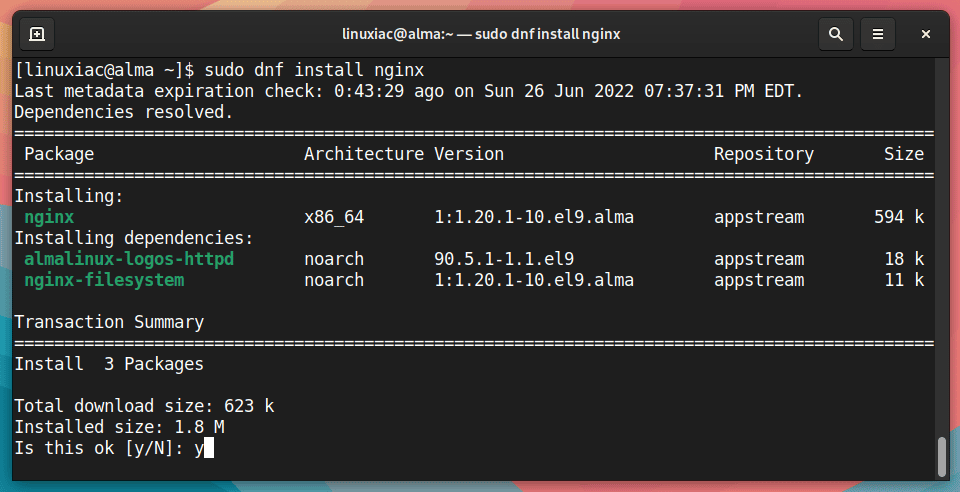
Here is what the output of a dnf install command looks like. Notice the familiar parts: the package list, dependencies, total size, and confirmation prompt.
This article provides a good summary of the commands for dnf and its predecessor, yum.
Mastering Software Package Management with Yum and DNF on CentOS and RHEL
The article 'Mastering Software Package Management with Yum and DNF' from Linux Journal provides a good overview of package management on RHEL-based systems.
Skim the 'Introduction', 'Installing Software Packages', 'Removing Software Packages', and 'Searching for Software Packages' sections. This will reinforce the commands you just saw in the video.
4. Your Turn: Hands-On Practice
Theory is good, but your "katana" is practice. Let's use apt in your virtual machine to perform a full lifecycle of a package.
Open your Linux terminal and execute the following steps. For each command, pause and think about what it's doing.
- Update your package list:
sudo apt update - Search for a fun, classic command-line tool:
apt search cowsay - Install it:
sudo apt install cowsay - Run it! Pipe some text into it. The
|symbol (pipe) sends the output of theechocommand to be the input forcowsay.
echo "Package management is cool" | cowsay - Now, pretend you don't need it anymore. Remove it:
sudo apt remove cowsay - Try running it again. What happens?
cowsay - Clean up. Some packages installed as dependencies for
cowsaymight no longer be needed. Run the autoremove command to clean up any orphaned packages.
sudo apt autoremove
Conclusion
Excellent work. You now have a foundational and highly practical skill for any Linux role. You can confidently manage software on the two major families of Linux distributions.
Key Takeaways:
- Package managers (
apt,dnf) automate software installation, updating, and removal. - They solve the "dependency hell" problem by automatically handling dependencies.
- Software is stored in and retrieved from repositories.
- The first step is always to update your package list (
sudo apt updateorsudo dnf check-update). - The core commands (
install,remove,upgrade,search) are very similar acrossaptanddnf. - Regularly running
sudo apt update && sudo apt upgrade(or thednfequivalent) is critical for system security and stability.
In our next lesson, we will move on to another essential administration task: configuring network interfaces on a Linux server with a static IP address. This is a fundamental step in making your server accessible and reliable on a network.