Hello! Welcome to your next lesson.
In our last session, we dove into troubleshooting Layer 2 and Layer 3 network issues, learning how to diagnose and fix problems like IP address conflicts and VLAN misconfigurations. You now have the skills to get a network device configured correctly. Today, we'll focus on making sure that hard work is never lost.
This lesson is all about operational resilience. A network device can fail, a well-meaning change can go wrong, or you might need to deploy ten identical switches. In all these cases, having a reliable copy of your configuration is essential. This is a fundamental task for any data center, network, or systems administrator.
Our learning outcome is to: Back up and restore a network device's configuration. We'll cover the most common methods, starting with the manual process and then moving to the automated strategies used in production environments.
1. Why, What, and Where: The Fundamentals of Configuration Backups
Before we jump into the commands, let's clarify what we're actually saving. A Cisco network device primarily uses two configuration files:
running-config: This is the active configuration, stored in the device's RAM. Any changes you make in configuration mode are applied here immediately. It's dynamic and is lost if the device reboots without saving.startup-config: This is the saved configuration, stored in NVRAM (Non-Volatile RAM). When the device boots up, it loads this file into RAM to become therunning-config. You save your active configuration to this file using thecopy running-config startup-config(orwrite memory) command.
Our goal is to copy one of these configurations to a safe, external location. This creates a backup for disaster recovery, allows you to replicate configurations on new hardware, and provides a "golden copy" to revert to after a failed change.

2. The Classic Method: Manual Backup & Restore with TFTP
The most common and straightforward method for network-based backups is using a Trivial File Transfer Protocol (TFTP) server. TFTP is a very lightweight protocol perfect for this task. The process involves telling your router to copy its configuration file to a TFTP server on your network.
Let's watch a practical demonstration. This video uses a network simulator, which is exactly how you'd practice this skill.
How To Backup Router IOS On TFTP Server | How To Restore IOS From TFTP Tp Router | IOS Upgradation |
The video 'How To Backup Router IOS On TFTP Server' by PM Networking clearly demonstrates the core commands for both backing up and restoring a device's configuration. We'll focus specifically on the configuration files.
Please watch the following two segments: Backup Configuration (9:36 - 13:28): Observe the use of the copy running-config tftp command. The presenter is prompted for the TFTP server's IP address and a filename for the backup. This is the fundamental backup operation. Restore Configuration (13:28 - 16:08): Here, the presenter uses copy tftp running-config on a different router to pull the saved configuration from the TFTP server. Notice how the new router immediately adopts the hostname and password from the backed-up file. This demonstrates how you'd replace a failed device or deploy a new one with a standard configuration.
As you saw, the commands are interactive and quite simple:
- To Back Up:
copy running-config tftp: - To Restore:
copy tftp: running-config
After a restore, the configuration is applied to the running-config. Don't forget to save it to the startup-config with copy running-config startup-config if you want it to persist after a reboot!
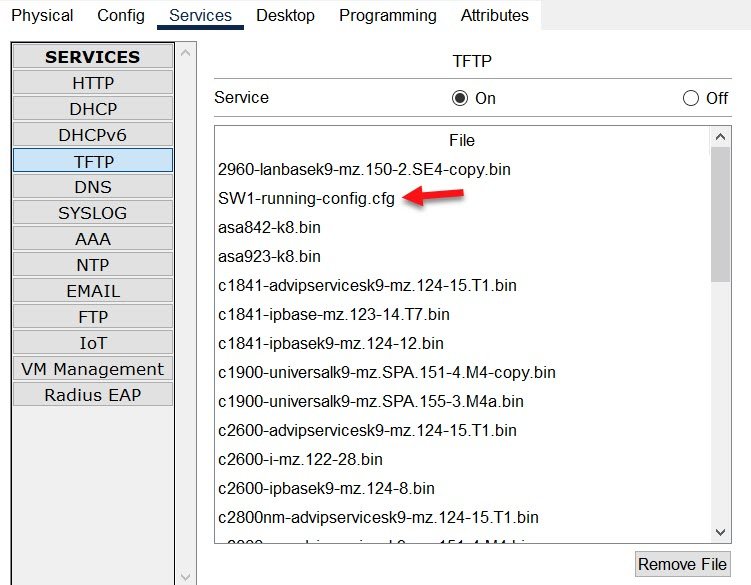
For a quick written reference on the steps involved, you can review the following guide.
Understand how to Backup and Restore Configuration Files - Cisco
This official Cisco document, 'Understand how to Backup and Restore Configuration Files', provides a concise, text-based summary of the process.
Read the section titled 'Use a TFTP Server to Backup and Restore a Configuration'. This reinforces the commands you just saw in the video.
3. Alternative Methods for Different Scenarios
While TFTP is common, it's not the only way. A good technician knows multiple methods to adapt to different situations.
On-Site Backup: Using a USB Drive
What if you're in a data center and the device you're working on can't reach a TFTP server? If the device has a USB port, you can save the configuration directly to a flash drive. This is incredibly useful for on-site work.
Backup & Restore Cisco Router Configurations VIA TFTP to Flash USB
The article 'Backup & Restore Cisco Router Configurations' explains how to use a USB drive for backups.
Read the sections 'Backup Configurations to USB FLASH DRIVE' and 'Restore Configuration Settings Using A USB FLASH DRIVE'. Notice the commands are similar in structure to the TFTP method: copy running-config usbflash0: copy usbflash0:/R1-Config running-config This shows the versatility of the copy command.
The Low-Tech Method: Terminal Capture
In a real pinch, you can always back up a configuration by simply capturing the text output from your terminal.
- In your terminal program (like PuTTY or SecureCRT), start logging your session to a text file.
- On the device's command line, type
terminal length 0to prevent the output from pausing every 24 lines. - Run the
show running-configcommand. The entire configuration will be printed to your screen and saved in your log file. - Stop the terminal logging. You now have a text file backup.
To restore, you would open this file, copy the contents, enter global configuration mode (configure terminal) on the device, and simply paste the text into the terminal window. It's crude, but effective when other methods aren't available.
4. The Professional Standard: Automated Backups
Manual backups are good, but they rely on a human remembering to do them. In a production environment, this is not reliable enough. The industry standard is to automate configuration backups. Cisco IOS provides two excellent built-in features for this.
Let's see how a professional network engineer would set up a "set it and forget it" backup strategy.
Network Automation: Schedule Cisco config backups with kron and archive
David Bombal's video, 'Network Automation: Schedule Cisco config backups', provides a superb overview of two powerful automation features: kron and archive.
Watch the following two demonstrations: Using kron (4:20 - 8:33): The kron scheduler is like cron in Linux. It allows you to schedule any command to run at a specific interval. Pay attention to how a 'policy-list' (what to do) is created and then linked to an 'occurrence' (when to do it). This automates the copy command you learned earlier. Using archive (8:57 - 14:33): The archive feature is even more powerful and purpose-built for configuration management. Note these key capabilities: Path: It specifies where to save the backups (e.g., tftp://...). Time-period: It can be set to back up periodically (e.g., every week or every day). write-memory: This fantastic option automatically creates a backup every time someone saves the configuration. This ensures you always have a copy of the most recent saved changes. Timestamping: Notice the use of $h in the path to automatically add the device's hostname to the filename, which is a critical best practice when managing many devices.
Setting up an automated process using archive is a key skill that separates a junior from a senior administrator. It demonstrates foresight and an understanding of robust operational practices, which is exactly the kind of knowledge you want to highlight in a job interview.
Conclusion
You've now learned not just how to configure a network device, but how to protect that configuration. This is a critical component of maintaining a stable and resilient network infrastructure.
Key Takeaways:
- Manual Backups: The
copycommand is your primary tool. You can back up and restore therunning-configorstartup-configto a TFTP server or a USB drive. - Alternative Method: Capturing the output of
show running-configin a terminal is a simple but effective manual backup method. - Automated Backups: For production environments, automation is key.
kronis a general-purpose scheduler for running commands periodically.archiveis the preferred, feature-rich tool specifically designed for configuration backups, allowing for periodic saves, automatic backups onwrite-memory, and dynamic filename creation.
In our next lesson, we'll tackle another critical maintenance task: Perform a firmware upgrade on a network device and verify successful installation. The very first step before any firmware upgrade is to take a backup of the configuration, so the skills you've learned today will be immediately put to use.