Hello! Welcome to your next lesson.
In our last session, you mastered the fundamental commands for managing files and directories—the "verbs" for creating, moving, copying, and deleting. You can now build and organize the structure of a system. However, a sysadmin's job isn't just about the containers; it's about what's inside them.
This lesson focuses on the crucial next step: editing the content of files using a command-line text editor. Since servers rarely have a graphical user interface (GUI), all system and application configuration is done by editing plain text files. Mastering a command-line editor is not just a useful skill; it's an absolute requirement for any Linux administrator.
We will cover the two most essential editors you'll encounter:
- Nano: A simple, intuitive editor that's perfect for quick changes.
- Vim: A powerful, highly efficient editor with a steeper learning curve, but one that is guaranteed to be on virtually any Linux or Unix system you'll ever touch.
Your goal is to become comfortable with both. This will not only make you effective on the job but also allow you to confidently answer interview questions about which tool you'd use in different scenarios.
1. Getting Started with Nano: The Friendly Editor
We'll begin with Nano. Its simplicity makes it a great starting point, and it's often the default editor on modern user-friendly distributions like Ubuntu. Its main advantage is the menu of commands displayed at the bottom of the screen, which makes it easy to learn.
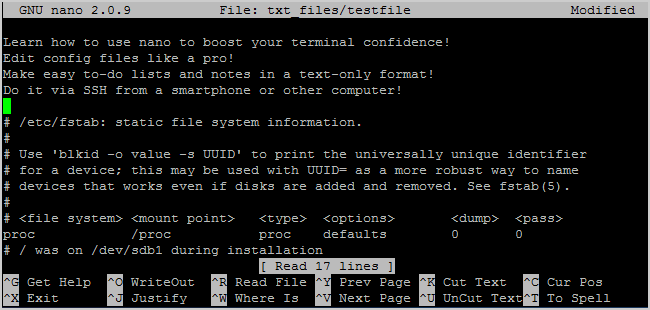
Let's watch a video that walks through the essential functions of Nano. As you watch, I recommend having your Ubuntu VM open so you can follow along.
Linux Crash Course - nano (command-line text editor)
This video from Learn Linux TV provides a clear and practical introduction to Nano. It covers everything from opening files to basic editing and searching.
Please watch from 01:37 to 07:16. The key sections cover: Opening a file and basic text entry. Saving (Ctrl+O) and Exiting (Ctrl+X). Opening system files (and the importance of sudo). Searching for text (Ctrl+W). Cutting (Ctrl+K) and pasting (Ctrl+U) lines.
Practice with Nano
Now, let's put that into practice. Imagine you need to update a configuration file for a web application.
- In your home directory, use Nano to create a new file called
webapp.conf:nano webapp.conf - Inside the editor, type the following configuration settings:
# Web Application Settings ENABLE_CACHE=true LOG_LEVEL=info # Set the default theme THEME=dark - Save the file by pressing
Ctrl+O(for "Write Out") and thenEnterto confirm the filename. - Exit Nano by pressing
Ctrl+X. - You've just been told the
darktheme is causing issues. Re-open the file (nano webapp.conf). - Use the arrow keys to navigate to the line
THEME=darkand change it toTHEME=light. - Save and exit.
You've just completed a typical sysadmin task: creating and modifying a configuration file.
2. Mastering Vim: The Professional's Editor
While Nano is easy, Vim (Vi IMproved) is powerful. Learning Vim is an investment that pays off in speed and efficiency, especially when performing complex or repetitive edits. It's famous for its modal nature, which is the biggest concept to grasp.
Think of it this way:
- Normal Mode (or Command Mode): The default mode. Every key press is a command (e.g.,
dto delete,yto yank/copy). You use this mode to navigate and manipulate text. - Insert Mode: The mode for typing text. You enter this mode from Normal mode (e.g., by pressing
i). You return to Normal mode by pressingEsc.
This separation of commands and text entry is what makes Vim so fast once you develop the muscle memory.

This video provides a fast-paced but excellent overview of the absolute essentials you need to get started and, most importantly, how to get out of Vim if you get stuck!
This 'Vim Basics in 8 Minutes' video by tutoriaLinux is a survival guide. It focuses on the critical skills you need to not get lost in Vim.
Watch the entire video (it's short!). Pay very close attention to: How to quit (:q, :q!, :wq) (00:50). Switching between Normal and Insert modes (i, Esc) (02:11). Deleting lines (dd) (03:10). Undo (u) and Redo (Ctrl+R) (03:48). Searching (/) (04:27). Search and Replace (:%s/old/new/g) (05:31).
Deeper Dive and Reference
The video was a great start. Now, let's use a written guide to reinforce these concepts and add a few more essential commands, like copying and pasting.
The Linux User's Ultimate Guide to Text Editors
This guide from The New Stack provides a well-structured comparison of Vim and Nano. We'll focus on its detailed breakdown of Vim.
Read the sections 'The vim Text Editor' and 'Additional vim Tricks'. Focus on understanding the modes and the tables of commands for text management (delete, yank, put) and navigation.
Key Vim Commands Summary:
| Action | Command (in Normal Mode) |
|---|---|
| Enter Insert Mode | i (insert before cursor), a (append after cursor) |
| Return to Normal Mode | Esc |
| Save | :w |
| Quit | :q |
| Save and Quit | :wq |
| Quit without Saving | :q! |
| Delete Line | dd |
| Copy Line (Yank) | yy |
| Paste (Put) | p (paste after cursor) |
| Undo | u |
| Redo | Ctrl + r |
| Go to Top of File | gg |
| Go to Bottom of File | G |
| Search Forward | / followed by search term, press n for next |
3. A Realistic Sysadmin Task
Now for a real-world scenario that combines what you've learned. You need to modify the SSH server configuration. Best practice is to never edit a live configuration file directly. Always make a backup first.
-
Create a workspace: In your home directory, make a new directory called
ssh_practiceandcdinto it.mkdir ~/ssh_practice cd ~/ssh_practice -
Back up the config file: Copy the SSH server configuration file into your current directory.
cp /etc/ssh/sshd_config .(Remember,
.is shorthand for the current directory). -
Edit with Vim: Open your copy of the file with Vim.
vim sshd_config -
Perform the edits:
- Search for the
Portsetting by typing/Portand pressingEnter. - The line probably reads
#Port 22. Move your cursor to the#and pressxto delete it. - Move your cursor over to
22. Pressito enter Insert mode, add22to make it2222, and then pressEscto return to Normal mode. - Now, let's disable password authentication. Search for
PasswordAuthentication. - The line should say
PasswordAuthentication yes(or be commented out). Navigate to that line. - Move to the word
yes. Typecw(change word), which deletes the word and puts you in insert mode. Typenoand pressEsc. - Finally, save your changes and quit by typing
:wqand pressingEnter.
- Search for the
You've just used Vim to perform a common, security-hardening task on a server configuration file, all while following best practices.
Conclusion
You now have the fundamental skills to edit files on any Linux system you encounter. This is a massive step forward and a core competency for any systems administrator.
Key Takeaways:
- Linux system configuration lives in plain text files.
- Nano is a simple, modeless editor ideal for quick and easy edits. Its commands are
Ctrl-based and displayed on-screen. - Vim is a powerful, modal editor (Normal vs. Insert mode). While it requires practice, it's extremely efficient for complex tasks and is universally available.
- Knowing how to use both editors is a significant advantage. You can use Nano when you need simplicity and Vim when you need power and speed.
- Always back up configuration files before you edit them.
In our next lesson, we'll learn how to chain commands together using pipes and redirection. This will let you take the output of one command and use it as the input for another, allowing you to build sophisticated command-line workflows for filtering logs, processing data, and automating tasks.