Hello! Let's get started with your next lesson.
In our last session, we mapped out the Linux filesystem, understanding the purpose of critical directories like /etc, /var, and /home. You now have the "blueprint" of your server. Today, we'll pick up the "tools" you need to build, rearrange, and clear out structures within that blueprint. This is where your practical skills will start to take shape.
The learning outcome for this lesson is to perform essential file operations from the command line: create, copy, move, rename, and delete files and directories. These commands are the absolute bedrock of Linux system administration. You will use them every single day to manage configuration files, organize data, deploy applications, and troubleshoot issues.
1. A Practical Video Guide
We'll begin with a practice-first approach. The best way to learn these commands is to see them in action and try them yourself. Fire up your Ubuntu Server VM and log in. As you watch the following video, I encourage you to type the commands into your own terminal and observe the results.
This video, 'Basic Linux Navigation' by Nathan Backman, provides an excellent, hands-on demonstration of the core commands for file and directory manipulation. It follows a simple, practical scenario of organizing course folders.
Watch the video from 01:37 to 02:30 (creating directories), 05:50 to 08:13 (deleting, copying, and navigating), and 08:25 to 11:54 (moving, renaming, and deleting directories). The video also mentions the nano text editor, which you can ignore for now—we will cover it in detail in our next lesson.
2. Reinforcing the Concepts
The video gave you a great whirlwind tour. Now, let's slow down and solidify your understanding of each command and its most important options. We'll use a text-based resource for a more structured breakdown. This is the kind of material you might review before a job interview to ensure you can explain not just how to use a command, but why you'd choose a specific option.
Creating, Moving and Deleting Files - LPI
The Linux Professional Institute (LPI) provides concise, professional-grade learning materials. We'll use their guide to review the commands and explore some crucial options the video touched upon.
Read through the sections on 'Creating Directories', 'Creating Files', 'Renaming Files', 'Moving Files', 'Deleting Files and Directories', and 'Copying Files and Directories'. Pay close attention to the command options like mkdir -p, mv -i, and rm -r.
Key Command Summary
Let's pull together the key commands from the video and the reading.
Creating
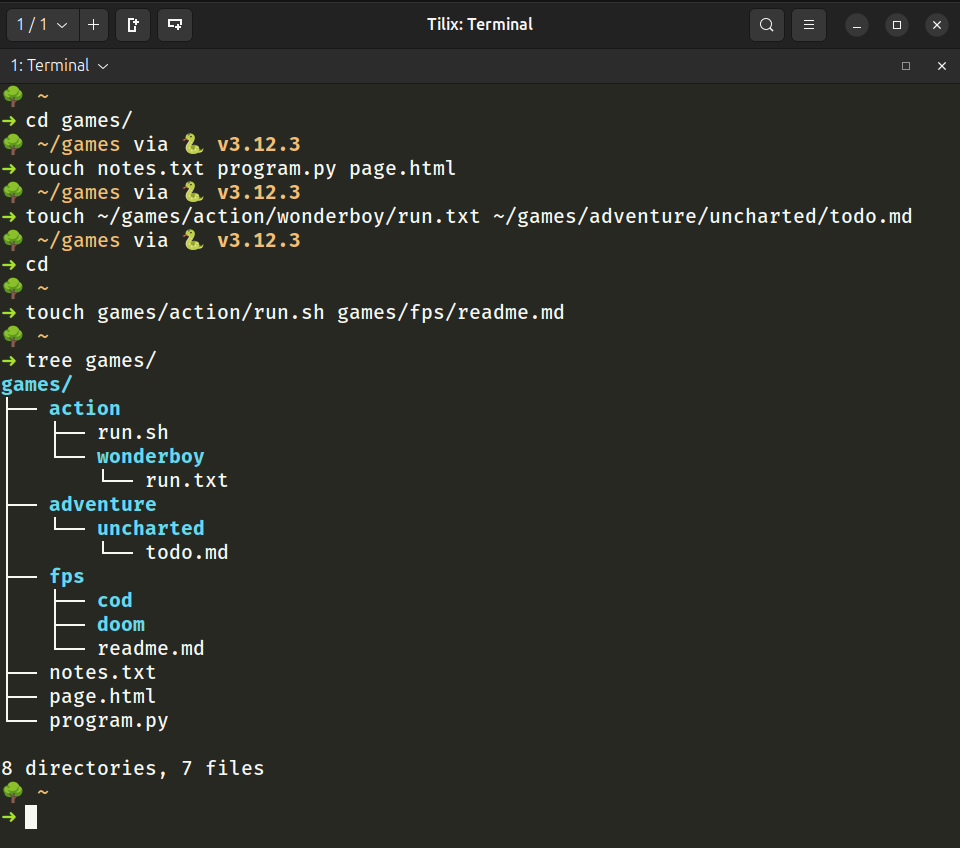
mkdir [directory_name]: Creates a new directory.mkdir -p [parent_dir]/[child_dir]: The-p(parents) option is extremely useful. It creates the entire directory path if it doesn't already exist.touch [file_name]: Creates a new, empty file. If the file already exists, it updates the file's modification time. This is often used to create placeholder log files or to simply create a file that another program will write to.
Copying
cp [source_file] [destination_file]: Copies a file. A common use is creating a backup before editing:cp config.txt config.txt.bak.cp [source_file] [destination_directory]: Copies a file into a directory.cp -r [source_directory] [destination_directory]: The-r(recursive) option is required to copy a directory and all of its contents.
Moving and Renaming
The mv command does double duty.
- To rename:
mv [old_name] [new_name]. This "moves" the file to the same location but with a new name. - To move:
mv [source_file] [destination_directory]. This moves a file or directory to a new location. - You can also move and rename at the same time:
mv source.txt /path/to/destination/dest.txt.
Deleting
Warning: There is no "Recycle Bin" on the Linux command line. Once a file is deleted with rm, it is gone. Always double-check your rm commands.
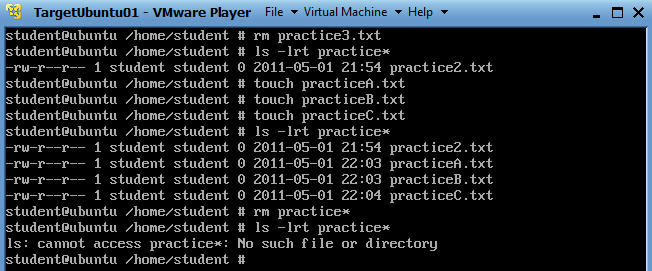
rmdir [directory_name]: Removes an empty directory. It will return an error if the directory contains any files.rm [file_name]: Removes (deletes) a file.rm -r [directory_name]: Use with caution. The-r(recursive) option deletes a directory and everything inside it.rm -i [file_or_directory]: The-i(interactive) option prompts you for confirmation before every deletion. This is a great safety feature to use until you are very confident.
3. Practical Application: Your First Sysadmin Task
Now it's time to put your "katana" to work. Imagine you've been given a ticket to set up the directory structure for a new web service.
In your home directory (~), follow these steps using the commands we've just learned.
-
Create the directory structure: The new service,
webapp, needs a home. Create the following directory path in one command:services/webapp/config,services/webapp/logs, andservices/webapp/data.Hint
`mkdir -p services/webapp/config services/webapp/logs services/webapp/data`
-
Stage initial files: Create an empty log file named
webapp.loginside thelogsdirectory.Hint
`touch services/webapp/logs/webapp.log`
-
Deploy the configuration: A default configuration file has been placed for you. First, create this dummy file:
echo "DEFAULT_CONFIG_VERSION=1.0" > /tmp/default.conf. Now, copy this file into yourconfigdirectory and name itwebapp.conf.Hint
`cp /tmp/default.conf services/webapp/config/webapp.conf`
-
Correct a mistake: You've just been told the default config is outdated.
- First, rename the existing
webapp.conftowebapp.conf.oldas a backup. - Next, create the "new" config file:
echo "FINAL_CONFIG_VERSION=1.2" > /tmp/final.conf. - Finally, move the new
final.confinto yourconfigdirectory, naming itwebapp.conf.
Hint
`mv services/webapp/config/webapp.conf services/webapp/config/webapp.conf.old` `mv /tmp/final.conf services/webapp/config/webapp.conf`
- First, rename the existing
-
Verify your work: Use the
tree servicescommand to view the final structure. It should look like this:services/ └── webapp ├── config │ ├── webapp.conf │ └── webapp.conf.old ├── data └── logs └── webapp.log
-
Decommission the service: The test is over. Clean up everything by deleting the entire
servicesdirectory and all its contents in a single command. Be careful!Hint
`rm -r services`
4. Working Smarter: Wildcards
Typing every single filename is tedious and error-prone. To work efficiently, you can use special characters called wildcards to create patterns that match multiple files.
Simple exercises for learning basic Unix/Linux commands
This document introduces the most common wildcards. Understanding these is essential for performing operations on groups of files.
Read the section titled 'Wildcards' (page 2). Focus on the definitions of * (asterisk) and ? (question mark).
Here's a quick summary:
*(asterisk): Matches zero or more characters.?(question mark): Matches exactly one character.
Let's try it. In your VM, run these commands:
mkdir wildcard_test
cd wildcard_test
touch report_jan.txt report_feb.log app.conf app.log
ls
Now, try to predict what each of the following commands will list:
ls *.log(Lists all files ending in.log)ls app.*(Lists all files starting withapp.)ls report_???.log(This will fail, as?is a single character)ls report_???.txt(This will matchreport_jan.txt)ls report_*(This will match both the.txtand.logreport files)
Wildcards can be used with cp, mv, and rm to manage large numbers of files at once. For example, rm *.tmp is a common command to delete all temporary files in a directory.
Conclusion
Excellent work. You have now mastered the fundamental tools for file and directory management on the Linux command line. These commands are verbs—the actions you will take to build and maintain systems.
Key Takeaways:
- You can create files and directories with
touchandmkdir(using the-pflag for convenience). - You can duplicate files and directories using
cp(with the-rflag for directories). - You can move and rename files and directories with the versatile
mvcommand. - You can delete files with
rmand empty directories withrmdir. Therm -rcommand is powerful for deleting directories and their contents, and must be used with caution. - Wildcards (
*,?) are powerful tools for performing operations on multiple files at once.
In our next lesson, we'll address a crucial missing piece. We can create, copy, move, and delete files, but how do we actually edit their contents? We will dive into a command-line text editor, which is essential for changing the configuration files that control how your server and its applications run.