Hello! Welcome to your next lesson.
In our last session, you successfully installed a complete Ubuntu Server on a virtual machine. You now have a blank canvas—a functioning server environment that is the foundation for almost all the skills we'll build in this course.
Today, we're going to draw the map for this new territory. Now that the operating system is installed, what's in it? Where are programs stored? Where do configuration files live? Where will you find logs when something goes wrong? Answering these questions is the goal of this lesson.
Our learning outcome is to navigate the Linux filesystem hierarchy (/, /etc, /var, /home) and explain the purpose of each major directory. We'll explore the standard layout, known as the Filesystem Hierarchy Standard (FHS), which brings a predictable and logical order to all Linux systems. Understanding this structure isn't just academic; it's essential for locating files, performing backups, and troubleshooting—all core tasks for a data center technician or system administrator.
1. Visualizing the Filesystem Tree
Let's begin by getting a high-level view of your new server's filesystem. The "practice-first" approach you prefer is perfect here. First, start your Ubuntu Server VM and log in.
The entire Linux filesystem starts from a single point called the root directory, which is represented by a forward slash (/). Every other file and directory on the system is located under this root directory.
A fantastic tool for visualizing this structure is tree. It's not installed by default, so let's install it. At the command prompt, type:
sudo apt update
sudo apt install tree
You'll need to enter your password for the sudo command.
Now, let's use tree to look at just the first level of directories branching off from the root (/):
tree -L 1 /
The -L 1 option tells tree to only show one level deep. You should see a list of directories like /bin, /etc, /home, and /var. This is the skeleton of your Linux system.
To help you keep your bearings as we explore, here is a standard diagram of the filesystem hierarchy. Think of it as our map for today's lesson.
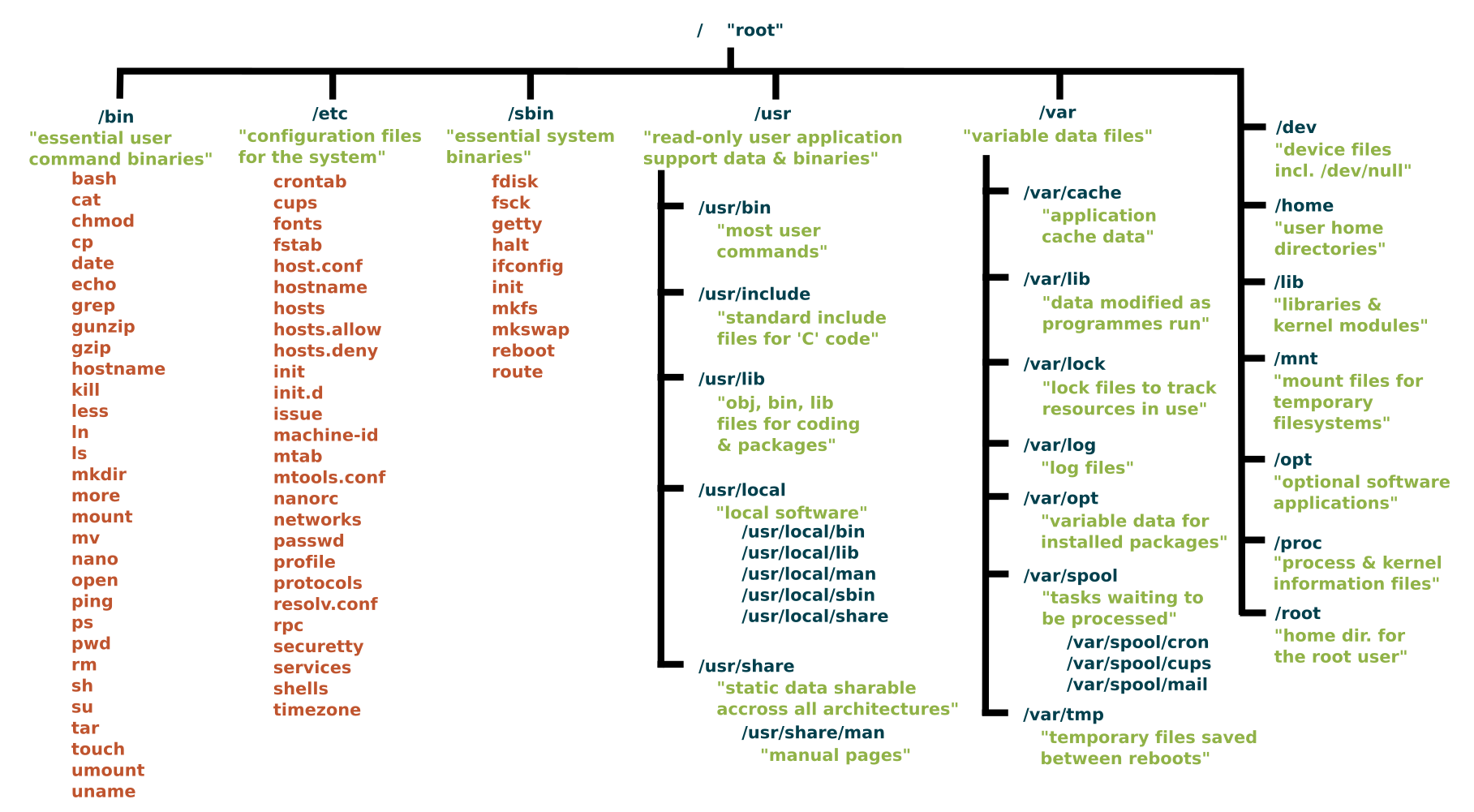
2. A Guided Tour of the Major Directories
Now that you've seen the top-level layout, let's take a guided tour to understand the purpose of each directory. This knowledge is crucial for interviews, where you'll be expected to explain why the system is organized this way.
The following video provides a systematic walkthrough of the directories as defined by the FHS.
Learning The Linux File System 2025
Let's explore the roles of these directories. This segment from Joe Collins' 'Learning The Linux File System' video offers a clear, directory-by-directory explanation.
Watch from 36:43 to 52:31. As you watch, focus on the distinction between the different types of files stored in each location. Pay special attention to the core directories mentioned in our learning outcome: /etc, /home, and /var.
To reinforce what you just learned and provide a quick reference, the table below summarizes the most critical directories for a system administrator. The descriptions are based on the excellent guides from the Linux Foundation and the Linux Professional Institute.
| Directory | Purpose | Why it Matters for a Sysadmin |
|---|---|---|
/ |
The root directory. The top of the entire filesystem hierarchy. | Every path to every file on the system starts here. |
/bin |
Binaries. Contains essential user commands and programs (like ls, cp, mv) available to all users. |
These are the fundamental tools you use to interact with the system. |
/sbin |
System Binaries. Contains essential programs for system administration (like fdisk, reboot) that are typically run by the root user. |
These are your power tools for system maintenance and configuration. |
/etc |
Etcetera/Everything to Configure. Contains system-wide configuration files for the operating system and installed applications. | This is where you'll go to change how your server behaves. Backing up /etc is critical for disaster recovery. |
/home |
User Home Directories. Contains a personal directory for each user to store their files and application settings. | This separates user data from system files. In the last lesson, you saw how creating a separate /home partition allows you to reinstall the OS without wiping user data. |
/var |
Variable Files. Contains files that are expected to grow in size, such as logs (/var/log), mail spools, and temporary files that need to persist between reboots (/var/tmp). |
Crucial for troubleshooting. When a service fails, the first place you should look for clues is in its log file within /var/log. You'll also monitor disk usage here. |
/usr |
Unix System Resources. Contains the majority of user-level applications and data, including non-essential binaries (/usr/bin), libraries (/usr/lib), and documentation. |
This is the largest part of the OS, containing most of the software you install. |
/dev |
Devices. A virtual directory containing special files that represent hardware devices connected to the system (e.g., hard drives /dev/sda, terminals /dev/tty1). |
This is how the OS interacts with hardware. Your ECE background gives you a head start in understanding that these are interfaces to physical or virtual components. |
/tmp |
Temporary Files. A directory for programs to store temporary files. On modern systems, this is often cleared upon reboot. | A place for transient data. It's world-writable, meaning any user can create files here. |
/boot |
Boot Files. Contains the files needed to start the operating system, including the Linux kernel itself. | This directory is critical for the boot process. You generally don't modify files here directly unless you're troubleshooting a boot failure. |
/lib |
Libraries. Contains essential shared libraries (code used by many programs) needed by the binaries in /bin and /sbin. |
These are the fundamental building blocks that allow programs to run. |
/root |
Root's Home. The personal home directory for the superuser (root). It's separate from /home for security and system integrity. |
Keeps the administrator's environment separate from regular users. |
3. Practical Exploration in Your VM
Theory is good, but seeing is believing. Let's use the command line to peek inside some of these directories on the server you built.
Classic SysAdmin: The Linux Filesystem Explained
These articles provide excellent written descriptions of the filesystem and encourage exploration. We'll use them as a reference as we navigate.
Skim the 'Directories' section for a quick text-based review of what you saw in the video. Then, read the short 'Digging Deeper' section to see the commands we are about to use.
Now, try these commands on your VM. For each one, think about the directory's purpose and see if the contents match your expectation.
-
List your home directory:
ls /homeYou should see the username you created during installation.
-
Look inside the
/etcdirectory:ls /etcYou'll see a lot of files. Can you spot
hostnameorfstab? These files define your server's name and how disks are mounted. Don't edit anything; just look. -
Check the log directory:
ls /var/logThis is one of the most important directories for a sysadmin. You'll see files like
syslogandauth.log, which record system events and login attempts. -
See the system binaries:
ls /binYou will see many commands you're already familiar with or will learn soon, like
ls,cat,mkdir, andmv. -
Examine the device directory:
ls /devYou will see files representing hardware. Look for
sdaornvme0n1, which represents your virtual hard disk. You'll also seettyfiles, which represent terminal sessions. This directly relates to how the operating system kernel manages hardware resources.
Conclusion
In this lesson, you've created a mental map of the Linux filesystem. This foundational knowledge is non-negotiable for anyone working seriously with Linux. You've moved from having a "black box" OS to understanding its internal structure and the logic behind it.
Key Takeaways:
- The Filesystem Hierarchy Standard (FHS) provides a logical and consistent structure for all Linux distributions.
- The filesystem is a tree starting from the root (
/) directory. - There is a clear separation of concerns:
- Configuration lives in
/etc. - User data is isolated in
/home. - System logs and other variable data are in
/var. - Programs are primarily in
/bin,/sbin, and/usr/bin.
- Configuration lives in
- You know how to use
treeandlsto explore this structure on a live system.
You are now prepared to start working within this structure. In our next lesson, we will do just that by learning to perform essential file operations from the command line, such as creating, copying, moving, and deleting files and directories.