Hello! Welcome to your next lesson.
In the last session, you mastered how to edit configuration files using Nano and Vim. You can now create and modify the content that makes a Linux system work. So far, we've treated commands as standalone tools: you run ls to see files, or cp to copy them. This lesson unlocks a new level of power by showing you how to connect these simple tools to perform complex tasks.
Today's learning outcome is to chain commands together for complex tasks using input/output redirection and pipes. This is a fundamental concept in Linux and is central to the "small tools, big results" philosophy. Mastering this will allow you to efficiently analyze logs, manage data, and automate workflows—all critical skills for a systems administrator and topics that frequently come up in technical interviews.
1. The Three Standard Streams
Before we start connecting commands, we need to understand how they communicate. Every process you run on the command line has three standard data streams attached to it. Think of these as default communication channels:
- Standard Input (stdin): Where the program gets its input. By default, this is your keyboard. It's identified by the number 0.
- Standard Output (stdout): Where the program sends its normal results. By default, this is your terminal screen. It's identified by the number 1.
- Standard Error (stderr): Where the program sends error messages. By default, this also goes to your terminal screen, but it's a separate stream from
stdout. It's identified by the number 2.
Understanding these three streams is the key to manipulating the flow of data.
Let's watch a video that explains this concept and introduces our main topics: redirection and pipes.
Linux Sysadmin Basics 04 -- Shell Features -- Pipes and Redirection
This video from tutoriaLinux introduces the core concepts of standard streams, redirection, and pipes. It clearly explains the 'why' behind these powerful shell features.
Watch the first 4 minutes and 17 seconds (00:00 - 04:17). Focus on understanding: The purpose of pipes and redirection. The definition of standard input (0), standard output (1), and standard error (2). How these streams default to your keyboard and shell.
2. Redirecting I/O to and from Files
Now that you know about the standard streams, let's learn how to change their destination. This is called redirection. Instead of printing to the screen, we can send output to a file. Instead of typing, we can have a command read its input from a file.
Redirecting Output (> and >>)
This is the most common form of redirection. You use it to save the output of a command.
>(overwrite): Redirectsstdoutto a file. If the file exists, it will be overwritten. If it doesn't exist, it will be created.>>(append): Redirectsstdoutto a file. If the file exists, the new output will be added to the end. If it doesn't exist, it will be created.
Let's continue with the video to see this in action.
Linux Sysadmin Basics 04 -- Shell Features -- Pipes and Redirection
The next part of the video demonstrates how to redirect standard output and, crucially, standard error.
Watch from 04:17 to 09:32. Pay close attention to: Using > to save output and how it overwrites files. Using >> to append output without overwriting. Using 2> to capture error messages into a separate file.
Hands-on Practice: Redirecting Output
Let's try this in your Ubuntu VM.
- Navigate to your home directory.
- List the contents of the
/etcdirectory and save it to a file namedetc_contents.txt.
Usels -l /etc > etc_contents.txtcat etc_contents.txtorless etc_contents.txtto verify the file was created and contains the output. - Now, try to list a directory that doesn't exist. Notice the error message appears on your screen, not in the file.
Checkls /nonexistent_dir > etc_contents.txtetc_contents.txtagain. It should now be empty because thelscommand produced no standard output, and the file was overwritten. - Let's capture that error. Run the same command, but this time redirect
stderr(stream 2) to a file callederrors.log.
Nothing appears on the screen! Now,ls /nonexistent_dir 2> errors.logcat errors.log. You'll see the error message has been saved there. This is incredibly useful for logging problems in scripts.
3. Pipes: Chaining Commands
Redirection is great for saving output, but the real power comes from piping. The pipe symbol | takes the stdout of the command on its left and uses it as the stdin for the command on its right.
This lets you build a "pipeline" of commands, where each one processes the data from the previous one.
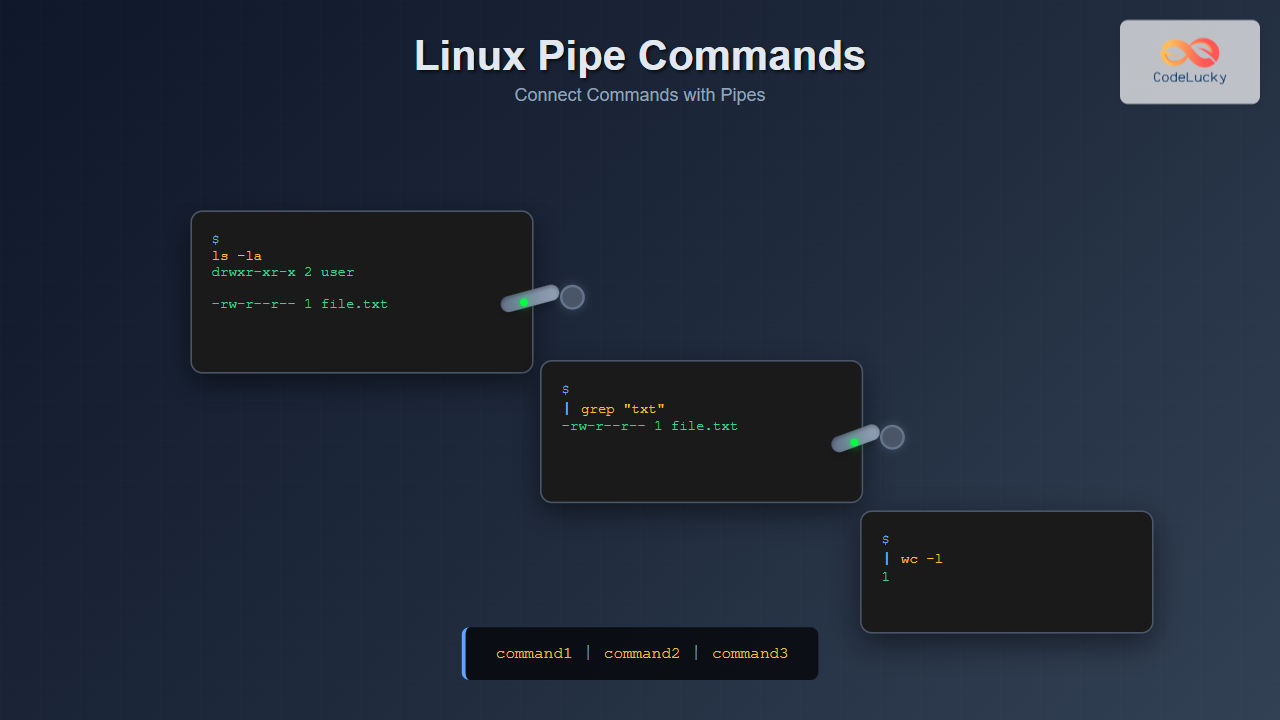
Let's see a final clip from the video that demonstrates pipes.
Linux Sysadmin Basics 04 -- Shell Features -- Pipes and Redirection
This last segment explains how the pipe | character connects commands, allowing for powerful, on-the-fly filtering and processing.
Watch from 12:15 to 16:28. The key example here is ps aux | less. This shows how a command with a huge amount of output (ps aux) can be made manageable by piping it into a pager command (less).
4. A Real-World Sysadmin Task: Filtering Logs
Let's combine these ideas for a practical task that you might perform daily as a sysadmin or data center technician.
Scenario: A server is having issues, and you need to check the main system log (/var/log/syslog) for any lines containing the word "error". You want to see these lines on your screen but also save a copy to a file named critical_errors.txt for your records.
This requires a command that does two things at once: print to the screen and write to a file. The perfect tool for this is tee. The tee command reads from stdin and writes to both stdout and one or more files—like a "T" joint in a pipe.
Here's the command pipeline to solve this:
cat /var/log/syslog: Reads the entire log file and prints it tostdout.| grep "error": We pipe that output intogrep, a powerful filtering tool.grepwill only pass through the lines that contain the word "error".| tee critical_errors.txt: We pipe the filtered error lines intotee.teewill print the lines to the screen (stdout) and simultaneously save them tocritical_errors.txt.
Let's try it. (Note: depending on your system's activity, /var/log/syslog might not contain the word "error". We can create a dummy log for this practice.)
# First, let's create a sample log file for practice
echo "INFO: Service started successfully." > sample.log
echo "INFO: User 'admin' logged in." >> sample.log
echo "ERROR: Failed to connect to database." >> sample.log
echo "INFO: Processing request #123." >> sample.log
echo "ERROR: Disk space is critically low." >> sample.log


# Now, run the pipeline on our sample log
cat sample.log | grep "ERROR" | tee critical_errors.txt


# You should see the two "ERROR" lines on your screen.
# Now, verify the file was created with the same content:
cat critical_errors.txt
This one-liner accomplishes a multi-step analysis task, demonstrating the efficiency you gain from chaining commands.
5. Putting it all Together: Deeper Dive and Interview Prep
You've now seen all the core components in action. Let's solidify this knowledge with a focused reading and frame it for your job-seeking goals.
Sample Linux Interview Questions and Answers
This resource is framed as a Q&A for Linux interviews, which directly aligns with your goals. It provides a concise, professional explanation of redirection.
Read Question 39, 'What does the term “redirection” mean in Linux, and how is it used?'. Then, read Question 40 and pay attention to the example at the end: ls -l | grep 'txt'. This shows how redirection and piping are often discussed together.
The resource above also covered a few more advanced redirection techniques. This next reading provides a great summary and clarifies some of the more complex syntax, like combining stdout and stderr.
Learn Piping and Redirection - Linux Tutorial
This tutorial from Ryan's Tutorials provides a clear, text-based summary of everything we've covered, plus a few extra details. It's a great reference to have.
Read the sections 'Redirecting STDERR', 'Piping', and the 'Summary'. Pay special attention to the syntax > myoutput 2>&1 in the 'Redirecting STDERR' section. This is a very common idiom for capturing all output (both normal and error) into a single file.
Conclusion
You've learned one of the most powerful and defining features of the Linux command line. By understanding that simple tools can be connected, you can solve complex problems with elegant one-liners.
Key Takeaways:
- Every command has three streams: Standard Input (0), Standard Output (1), and Standard Error (2).
- Redirection changes where these streams go.
>sendsstdoutto a file (overwriting).>>sendsstdoutto a file (appending).<takesstdinfrom a file.2>redirectsstderr.
- The pipe (
|) is the glue that connects commands, sending thestdoutof one to thestdinof the next. - Combining commands with pipes and redirection is essential for automation, log analysis, and general system administration.
In our next lesson, we will cover how to learn about commands on your own. Now that you can build pipelines, you'll need a way to discover new tools and understand their options. We'll explore man pages and the --help flag, which are the built-in manuals for the Linux command line.