Hello! Welcome to the next lesson in your journey to becoming a proficient Linux administrator.
In our last session, you learned how to systematically diagnose a failing service using systemctl and journalctl. A very common error message you'll uncover in those logs is Permission denied. Today, we'll tackle that head-on. You'll learn not just how to read that error, but how to understand its root cause and, most importantly, how to fix it.
This lesson directly addresses the learning outcome: Diagnose and fix file permission issues that prevent a service from starting or a user from accessing files. Mastering this skill is non-negotiable for any sysadmin role and is a direct continuation of our troubleshooting workflow. When the logs point to a permission problem, this lesson provides the toolkit you'll need to solve it.
1. The Language of Linux Permissions
Before we can fix permissions, we must learn to read them. The ls -l command is our primary tool for this. It provides a detailed listing, and the first column is a 10-character string that describes the permissions.
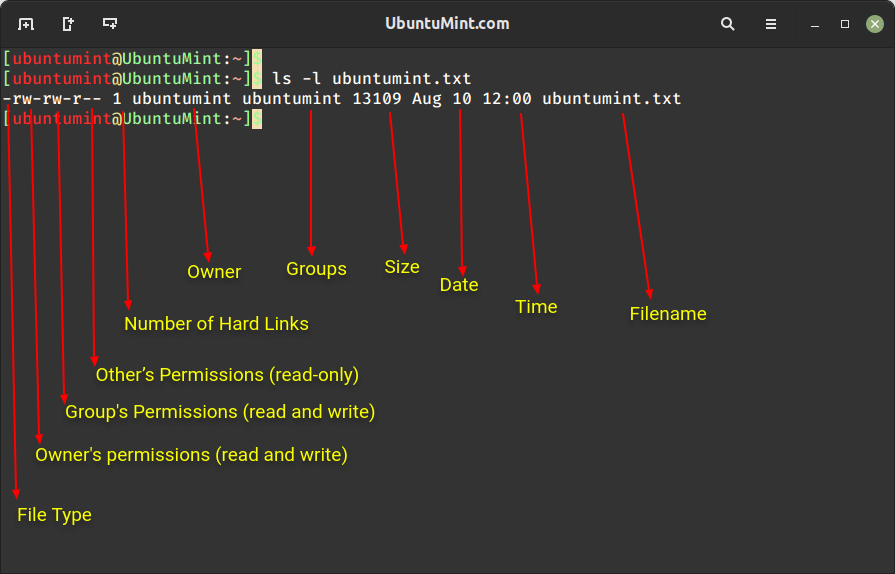
To dive deeper into what this all means, let's watch a video that explains the fundamental concepts.
Linux Crash Course - Understanding File & Directory Permissions
The video "Linux Crash Course - Understanding File & Directory Permissions" from Learn Linux TV is an excellent guide. It clearly explains the permission string, the three permission groups (user, group, other), and the different meanings of read, write, and execute permissions for files versus directories.
Watch the segments from 00:47 to 03:51 and 04:36 to 09:45. Pay close attention to: The three permission groups: User (the owner), Group (the assigned group), and Other (everyone else). The critical difference between what r, w, and x mean for a file versus a directory.
Here is a summary of the crucial distinction between file and directory permissions:
| Permission | On a File | On a Directory |
|---|---|---|
Read (r) |
Allows viewing the contents of the file. | Allows listing the contents of the directory (e.g., with ls). |
Write (w) |
Allows modifying or deleting the file's content. | Allows creating, deleting, or renaming files within the directory. |
Execute (x) |
Allows running the file as a program or script. | Allows entering (cd) the directory and accessing files within it. |
The execute (x) permission on a directory is a frequent source of confusion. If a user needs to access a file at /path/to/file, they must have execute permission on /, /path, and /path/to.
2. Changing Permissions and Ownership
Now that you can read permissions, let's learn how to change them. We have two primary commands for this:
chmod(change mode): Modifies the read, write, and execute permissions.chown(change owner): Changes the user and/or group that owns the file.
The same video provides a clear walkthrough of both commands.
Linux Crash Course - Understanding File & Directory Permissions
Let's continue with the "Linux Crash Course" video. These next sections demonstrate how to use chmod with both symbolic and octal notation, and how to use chown to change ownership.
Watch from 14:57 to 27:24 to learn chmod, and then from 30:30 to 35:04 to learn chown. Symbolic notation (u+x, g-w) is intuitive for making small changes. Octal notation (755, 644) is extremely common for setting permissions explicitly. As an aspiring admin, you must be comfortable with it. The numbers correspond to r=4, w=2, x=1.
This cheatsheet is a great reference to have on hand as you work with permissions.

3. Practical Troubleshooting Scenario 1: A Service Fails to Start
Let's apply this knowledge to a real-world scenario, picking up right where our last lesson left off.
Scenario: The Nginx web server fails to start. Your initial investigation with journalctl reveals the error: (13: Permission denied).
Let's simulate and solve this.
-
Create the Problem:
First, install Nginx if you don't have it:sudo apt update && sudo apt install nginx.
We'll configure Nginx to write its error log to a new directory that it doesn't have permission to access.# Create a new directory for logs owned by root sudo mkdir /var/log/my_app_logs sudo chown root:root /var/log/my_app_logs # Create a new config file for Nginx # This tells Nginx to use a custom error log location echo 'server { error_log /var/log/my_app_logs/error.log; }' | sudo tee /etc/nginx/sites-available/broken_site # Enable the new site and remove the default sudo ln -s /etc/nginx/sites-available/broken_site /etc/nginx/sites-enabled/ sudo rm /etc/nginx/sites-enabled/default -
Trigger the Failure and Diagnose:
Now, try to restart Nginx. It will fail.sudo systemctl restart nginx sudo systemctl status nginx # Note the 'failed' state.Just as you learned in the last lesson, check the logs for the specific error.
sudo journalctl -u nginx.service -n 20You should see a line similar to this:
nginx: [emerg] open() "/var/log/my_app_logs/error.log" failed (13: Permission denied) -
Investigate and Fix:
The log tells us the problem is with/var/log/my_app_logs/error.log. The Nginx process was denied permission.- Who is the Nginx process? We need to know which user is being denied.
You'll see aps aux | grep nginxrootmaster process and several worker processes running as the userwww-data. The worker processes handle requests and logging. - What are the permissions? Let's check the directory where it's trying to write.
ls -ld /var/log/my_app_logs # Output: drwxr-xr-x 2 root root ... /var/log/my_app_logs - The Diagnosis: The directory
/var/log/my_app_logsis owned byroot:root. Thewww-datauser, falling into the "other" category, only has read and execute (r-x) permissions. It needs write (w) permission to create theerror.logfile. - The Fix: The correct solution is to grant ownership of the log directory to the user that needs to write to it.
sudo chown www-data:www-data /var/log/my_app_logs
- Who is the Nginx process? We need to know which user is being denied.
-
Verify the Solution:
# Restart the service sudo systemctl restart nginx # Check the status sudo systemctl status nginx # It should now be 'active (running)'! -
Cleanup:
To restore your Nginx configuration:sudo rm /etc/nginx/sites-enabled/broken_site sudo rm /etc/nginx/sites-available/broken_site sudo ln -s /etc/nginx/sites-available/default /etc/nginx/sites-enabled/ sudo systemctl restart nginx
4. When the Basics Aren't Enough: Stubborn Permission Errors
You will inevitably encounter situations where ls -l shows what look like correct permissions, but you still get a "Permission denied" error. This is a common interview question and a frequent real-world problem. The cause is usually another layer of security on top of the standard rwx bits.
The following article provides an excellent, structured overview of these advanced layers.
Decoding Stubborn Linux File Permission Errors for Sysadmins
Please read "Decoding Stubborn Linux File Permission Errors for Sysadmins" from the Arrietty Studio Blog. It adopts a fantastic layered approach to troubleshooting, which is exactly how a professional sysadmin should think.
Read the article from the beginning through the "Systematic Troubleshooting Checklist". This covers the layers of permissions beyond the basics. Focus on understanding what each of these layers are and the key command to check for them.
Systematic Troubleshooting Checklist for Stubborn Errors
Based on that article, here is a mental checklist to run through when you're stuck:
- Verify the Basics: Have you checked permissions on the entire path to the file? A user needs execute (
x) permission on every parent directory. Usels -ldon each directory in the path. - Check for ACLs (Access Control Lists): Does
ls -lshow a+at the end of the permission string (e.g.,rwxr-xr-x+)? If so, ACLs are in use. Usegetfacl <file>to see the specific rules. An explicit "deny" ACL can override standard group permissions. - Check for MAC (SELinux/AppArmor): Is this a Red Hat-based system (CentOS, RHEL) or Ubuntu/Debian?
- SELinux: Use
ls -Zto check the security context. Denials are logged in/var/log/audit/audit.log. Theausearchcommand is your tool here. - AppArmor: Use
sudo aa-statusto see active profiles. Denials are logged in the system journal (journalctl) or/var/log/syslog.
- SELinux: Use
- Check Mount Options: Use the
mountcommand and look at the options for the filesystem where your file resides. Is it mounted withnoexec(prevents running programs) orro(read-only)? This is common for/tmpor external drives. - Check File Attributes: Use
lsattr <file>. Is the immutable bitiset? If so, not evenrootcan change or delete the file until you remove the attribute withsudo chattr -i <file>.
Knowing these layers transforms you from someone who just knows chmod to a true troubleshooter.
Conclusion
Today you've added some of the most fundamental Linux administration skills to your toolkit. You've not only learned the theory of file permissions but have applied it to a practical service failure scenario. Most importantly, you now have a mental framework for diagnosing even the most stubborn permission issues that go beyond the basics.
Key Takeaways:
- Permissions are defined for User, Group, and Other.
- The meaning of
r,w, andxis different for files vs. directories. Execute permission on directories is essential for access. - Use
chmodto change permissions (symbolic for simple changes, octal for explicit settings) andchownto change ownership. - When troubleshooting, your process is: Check logs (
journalctl) -> Identify the user and file -> Check permissions (ls -l) -> Fix (chmod/chown). - If basic permissions look correct, methodically check the advanced layers: ACLs (
getfacl), SELinux/AppArmor (ls -Z,aa-status), mount options (mount), and file attributes (lsattr).
In our next lesson, we will move from software and configuration issues back toward the hardware layer. You'll learn how to use smartctl to inspect a storage device's health and interpret its S.M.A.R.T. data to predict and diagnose drive failures.