Hello! In our last lesson, you learned how to perform critical repairs on a non-booting system by fixing filesystem corruption with fsck. That was about getting the system back on its feet. Today, we shift our focus from pre-boot failures to problems that happen while the system is up and running: service failures.
This lesson directly addresses the learning outcome: Diagnose and resolve a service failure by analyzing logs, checking configuration syntax, and verifying dependencies. We will build a systematic, repeatable troubleshooting methodology that is a cornerstone of a Linux administrator's toolkit. This is a highly practical skill, and being able to walk an interviewer through this logical process is a key part of demonstrating your job readiness.
1. The First Responder: Understanding Service Status
When a user reports "the website is down," your first step isn't to start rebooting things. It's to gather information. For services managed by systemd, your primary tool for this is systemctl.
This video provides an excellent hands-on review of the essential systemctl commands. It demonstrates how to check a service's status and manage its state (start, stop, etc.), which is our starting point for any diagnosis.
Systemd Explained: How to Manage Linux Services Easily
Watch this section from "Systemd Explained: How to Manage Linux Services Easily" by Learn Linux TV to see the fundamental service management commands in action. The presenter uses the Apache web server, which is a great example for our purposes.
Watch from 04:40 to 15:26. Pay close attention to how systemctl status is used to discover that a service isn't running and how start, stop, restart, enable, and disable are used to control the service. Notice the 'Loaded', 'Active', 'enabled'/'disabled' lines in the status output – we'll be dissecting those next.
Dissecting systemctl status
The systemctl status <service-name> command gives you a quick, dense summary of a service's health. Let's break down the key parts you need to understand.
Complete Guide to systemctl Logs: View, Filter, and Troubleshoot Linux System Logs
The article "Complete Guide to systemctl Logs" provides a clear breakdown of the systemctl status output and the core lifecycle commands. This will solidify what you saw in the video.
Read the sections "Essential Service Management Commands" and "Understanding systemctl status Output". This will serve as a great reference. Focus on the annotated example output to understand what each line signifies.
From that reading, here are the most important lines to interpret:
Loaded: Tells you where the service's unit file is located and whether it'senabled(starts at boot) ordisabled.Active: This is the crucial line.active (running): The service is running correctly.inactive (dead): The service is stopped.active (exited): The service started and then immediately finished, which is normal for one-off tasks but an error for long-running services.failed: The service tried to start but couldn't due to an error. This is our cue to start digging deeper.
- Log Snippet: At the bottom, you'll see the last few log entries related to the service. This is often your first clue about what went wrong.
2. The Detective's Logbook: journalctl
The log snippet in systemctl status is helpful, but it's rarely the whole story. To conduct a full investigation, you need to consult the system's centralized log, and the tool for that is journalctl.
This next video focuses entirely on journalctl, showing you how to go from seeing all system logs to surgically targeting the exact information you need.
journalctl Basics: How to Easily Check Your Linux Logs
The video "journalctl Basics: How to Easily Check Your Linux Logs", also from Learn Linux TV, is a perfect practical guide. It demonstrates the most important feature for our task: filtering logs for a specific service.
Watch the segment from 05:25 to 12:04. The key command here is journalctl -u <service-name>, which filters the journal to show logs only from that service unit. The example of troubleshooting a live SSH connection failure is a fantastic demonstration of this process.
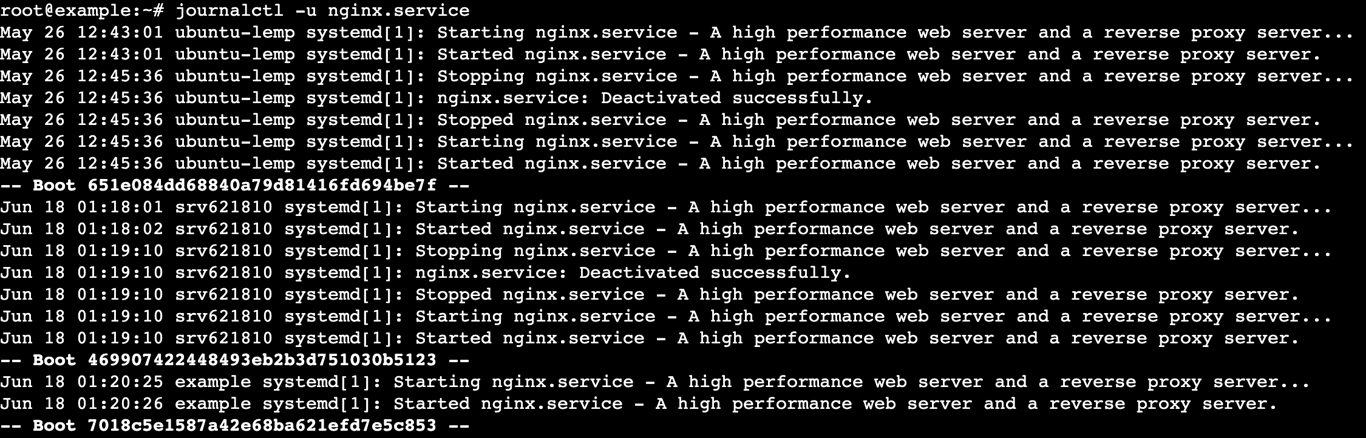
Here are the essential journalctl commands for troubleshooting:
| Command | Purpose |
|---|---|
sudo journalctl -u <service> |
View all logs for a specific service. This is your primary investigative tool. |
sudo journalctl -u <service> -f |
"Follow" the logs in real-time. Useful for watching what happens when you try to start a service. |
sudo journalctl -u <service> -b |
Show logs for the service from the current boot session only. |
sudo journalctl -u <service> --since "10 minutes ago" |
Show logs from a specific timeframe. |
sudo journalctl -u <service> -p err |
Show only logs with a priority of "error" or higher (crit, alert, emerg). |
3. A Systematic Approach to Troubleshooting
Now, let's combine these tools into a methodical workflow. Randomly trying commands is inefficient; a structured approach will solve problems faster and is what distinguishes a professional from a hobbyist.
We'll simulate a common scenario: the Nginx web server is failing. You can follow these steps on your VM. If you don't have Nginx installed, you can install it with sudo apt install nginx.
The 4-Step Troubleshooting Workflow
We'll follow the systematic process outlined in the "Complete Guide to systemctl Logs" article (LINK), which you can refer back to. Specifically, the section "Systematic Service Failure Diagnosis".
Scenario: Nginx fails to start after a configuration change.
Step 1: Initial Status Check
First, we'll intentionally break the Nginx configuration.
- Open the main Nginx configuration file:
sudo nano /etc/nginx/nginx.conf - Find a line that ends with a semicolon (
;), for exampleinclude /etc/nginx/conf.d/*.conf;. - Delete the semicolon at the end of the line.
- Save the file (
Ctrl+O,Enter) and exit (Ctrl+X).
Now, try to restart Nginx:
sudo systemctl restart nginx
The command will likely hang and then fail. This is your trigger. Now, begin the diagnosis.
sudo systemctl status nginx
You will see the Active: line shows failed. At the bottom, you will see a log snippet mentioning a failure to start and possibly an error related to the configuration file.
Step 2: Examine Detailed Logs
The status gave us a clue. Let's get the full story.
sudo journalctl -u nginx.service
Scroll through the output. You should see explicit error messages. Nginx is very good about its error logging and will often point you to the problem. You might see something like nginx: [emerg] unexpected "}" in /etc/nginx/nginx.conf:25 or directive is not terminated by ";". The log has confirmed a configuration syntax problem.
Step 3: Check Configuration Syntax
Most well-designed services provide a way to test their configuration files without having to start the service itself. This is much faster and safer than repeated start/fail cycles.
For Nginx, the command is nginx -t.
sudo nginx -t
This command will test the entire Nginx configuration and print out the exact file and line number where it found the syntax error. This is the smoking gun.
Resolution:
- Go back and edit the file:
sudo nano /etc/nginx/nginx.conf - Add the semicolon back to the line you edited.
- Save and exit.
- Run the test again to confirm:
sudo nginx -t. It should now reportsyntax is okandtest is successful. - Now, start the service:
sudo systemctl start nginx. - Verify with
sudo systemctl status nginx. It should now beactive (running).
Step 4: Analyze Dependencies
Sometimes a service fails not because of its own configuration, but because something it depends on is missing or not running.
Let's look at a common dependency issue. The systemd-analyze tool can be used to validate unit files.
Systemd: Zero to Hero – Part 4: Diagnosing Failures and Debugging ...
The article "Systemd: Zero to Hero – Part 4" provides excellent detail on diagnosing failures. We'll focus on how it explains dependency issues and common error codes.
Read the subsections "Using systemctl for Dependency Analysis", "Environment and Configuration Issues", and "Exit Codes and Signal Handling". These will help you understand the next practical example.
Scenario: Nginx fails due to a dependency failure.
A common error is when a service's ExecStart directive points to an executable that doesn't exist. Let's simulate this.
- First, make a copy of the nginx service file so we can edit it safely. We'll use the
--fullflag which creates a copy in/etc/systemd/system, overriding the default file.sudo systemctl edit --full nginx.service - Your text editor will open with the service file. Find the line starting with
ExecStart=. - Change
/usr/sbin/nginxto/usr/sbin/nginx-is-not-real. - Save and exit the editor.
- Tell systemd to reload its configuration since we changed a unit file:
sudo systemctl daemon-reload - Now, try to start the service:
It will fail. Check the status:sudo systemctl restart nginxsudo systemctl status nginx. This time, you'll see a different error. Notice the linecode=exited, status=203/EXEC. As you read in the article,203/EXECis a specific systemd error meaning it could not execute the command. This immediately tells you the problem is with the path to the executable itself.
Resolution:
- Run
sudo systemctl edit --full nginx.serviceagain. - Fix the
ExecStartpath back to/usr/sbin/nginx. - Save and exit.
- Run
sudo systemctl daemon-reloadandsudo systemctl start nginx. The service will now start correctly. - To clean up, you can remove your override file:
sudo rm /etc/systemd/system/nginx.serviceand rundaemon-reloadone last time.
Another dependency issue is when a service Requires another service that isn't running. You can check this with systemctl list-dependencies <service-name>. If you see a dependency in red or with a failed state, that's your next area to investigate.
Conclusion
You have just walked through the fundamental process of diagnosing a failed service in a modern Linux system. This methodical, four-step approach—status, logs, config, dependencies—is your blueprint for tackling a huge range of common server problems.
Key Takeaways:
- Start with
systemctl status <service>to get a quick overview and see if the service is in afailedstate. - Use
journalctl -u <service>to dig into the detailed logs. This is where you'll find specific error messages. - Always check the configuration using the service's built-in test command (like
nginx -t) before concluding it's a deeper issue. - Investigate dependencies with
systemctl list-dependenciesand by checking for systemd-specific exit codes like203/EXEC.
In our next lesson, we will dive into one of the most common root causes you'll discover through log analysis: permission errors. You will learn to diagnose and fix file permission issues that prevent a service from starting or a user from accessing files, building directly on the skills you've developed today.