Hello! Welcome back to the course.
In our last lesson, we focused on hardware reliability by learning how to use smartctl to monitor the health of storage drives. This proactive approach helps prevent data loss from failing hardware. Today, we'll apply that same proactive mindset to software by focusing on system security and stability.
This lesson covers one of the most fundamental responsibilities of a system administrator: keeping the system's software up to date. We'll explore how to apply security updates and kernel patches, and manage system reboots for kernel upgrades. This is a critical process for protecting servers from vulnerabilities and ensuring they run smoothly.
1. The Importance of System Updates
Before we type any commands, it's crucial to understand why we're doing this. An unpatched system is an insecure system. Cyberattacks often exploit known vulnerabilities for which a patch is already available. As a system administrator, you are the first line of defense.
Updates typically fall into three categories:
- Security Patches: Fix vulnerabilities that could be exploited by attackers. These are the highest priority.
- Bug Fixes: Correct errors in software that might cause instability or incorrect behavior.
- Feature Updates: Add new functionality to the software.
The article below provides a great introduction to the importance of patching and the challenges involved, such as downtime from reboots.
How to Apply Linux Kernel Security Patches: 3 Different Ways (2024)
The article "How to Apply Linux Kernel Security Patches" from TuxCare provides an excellent overview of why kernel patching is so critical and introduces the different ways it can be done.
Please read the introduction of this article, down to the list of the three methods. Focus on understanding the risks of unpatched systems and why kernel updates, in particular, are a central part of a sysadmin's duties.
2. Manually Applying Updates
The most direct way to update a system is through the command line using its package manager. Since you'll encounter different Linux families in your career, we'll cover the two main ones: Debian/Ubuntu (using apt) and Red Hat/CentOS/Fedora (using yum or dnf).
The following blog post is a handy reference for the commands used across different distributions.
Linux Updates: Command Line Guide - LinuxBlog.io
The "Linux Updates: Command Line Guide" from LinuxBlog.io gives a concise, practical list of commands for updating different Linux systems.
Read the sections "Why Installing Linux Updates is important?" and "Guide to Linux Command Line Updates". Keep this guide in mind as a quick reference.
Practice on a Debian/Ubuntu System
On your Ubuntu VM, the process involves two main steps. Open your terminal and follow along:
-
Update the package index: This command downloads the latest package lists from the repositories. It doesn't install or upgrade any software.
sudo apt update -
List upgradable packages (Optional but recommended): Before committing to an upgrade, it's good practice to see what will be changed.
apt list --upgradable -
Upgrade the packages: This command downloads and installs the newer versions of the packages you have on your system.
sudo apt upgrade -yThe
-yflag automatically answers "yes" to the confirmation prompt. Use it when you're confident, but omit it if you want to review the changes before they are applied.
Observing the Process on a Red Hat System
To broaden your experience, let's see how this works on a Red Hat-based system using yum. The principles are the same, just the commands differ slightly.
Linux Patch Management || How to Patch Linux OS vulnerability
This video from Server Gyan, "Linux Patch Management", demonstrates the update process on a Red Hat system. It's a great way to see the concepts you just learned applied in a different but very common server environment.
Watch from 00:37 to 05:34. The presenter first shows how to check for available updates with yum check-update and then proceeds to run yum update to apply them. Notice the similarity in the workflow to apt.
3. Managing Kernel Updates and Reboots
The Linux kernel is the core of the operating system. When you update other software, like a web browser or a text editor, you can often just restart the application. You can't do that with the kernel. Applying a kernel patch or update almost always requires a system reboot to load the new kernel into memory.
Here’s the standard workflow:
-
Check your current kernel version:
uname -rThis command will print the version of the kernel you are currently running, for example,
5.15.0-78-generic. -
Perform a system upgrade as shown in the previous section. If a new kernel is part of the upgrade, your package manager will install it.
-
Verify a reboot is needed. On Debian/Ubuntu systems, a file at
/var/run/reboot-requiredwill be created if an update necessitates a reboot. You can check for its existence:if [ -f /var/run/reboot-required ]; then echo "A reboot is required." else echo "A reboot is not required." fi -
Reboot the system:
sudo reboot -
Verify the new kernel is running: After the server comes back online, log in and run the kernel check command again.
uname -rYou should now see the new, higher version number.
The following clip emphasizes why this reboot step is non-negotiable for kernel updates.
Linux Patch Management || How to Patch Linux OS vulnerability
Let's return to the Server Gyan video. The presenter makes a critical point about the necessity of rebooting after a patch.
Watch from 05:59 to 06:47 to understand why rebooting is essential. Then, skip ahead and watch from 11:21 to 13:42, where the presenter logs back in after a reboot and runs yum check-update again to confirm that the system is now fully patched.
What if a new kernel causes problems?
During boot, the GRUB menu allows you to select which kernel to load. If a new kernel update causes system instability, you can reboot, enter the "Advanced options" in GRUB, and select an older, stable kernel to boot into while you troubleshoot the issue.
4. Automating Security Updates
Manually logging into every server to run updates is time-consuming and prone to human error. For security patches, it's often better to automate the process. On Ubuntu, the standard tool for this is unattended-upgrades.
This allows you to configure the system to automatically install updates—typically security updates only—in the background.
Ubuntu 24.04: How to Automate Updates with Unattended Upgrades
The video "Ubuntu 24.04: How to Automate Updates with Unattended Upgrades" from Learn Linux TV is a fantastic practical guide. We'll walk through the key steps.
Watch from 03:10 to 07:40. Follow the presenter as they: Install the unattended-upgrades package. Check that the service is running with systemctl. Examine the two key configuration files to enable the service and define which updates (e.g., security, updates) are allowed.
A crucial part of unattended-upgrades is configuring how it handles reboots and cleanup.
Ubuntu 24.04: How to Automate Updates with Unattended Upgrades
Now let's look at the more advanced configuration, including the all-important automatic reboot setting.
Watch from 09:48 to 14:24. Pay close attention to these configurations: Unattended-Upgrade::Remove-Unused-Kernel-Packages and Unattended-Upgrade::Remove-Unused-Dependencies: Important for keeping the system clean. Unattended-Upgrade::Automatic-Reboot: The setting to enable automatic reboots when required. Unattended-Upgrade::Automatic-Reboot-Time: A critical setting to control when the reboot happens, ideally during a low-traffic maintenance window.
Automating updates is a trade-off. It ensures security patches are applied promptly but introduces a small risk that an update could cause an issue without your direct intervention. For this reason, many administrators configure it to apply security updates only and schedule automatic reboots during designated maintenance windows.
5. Advanced Topic: Live Kernel Patching
What if you're managing a critical system where even a few minutes of downtime for a reboot is unacceptable? In high-availability environments, this is a common challenge. The solution is live patching.
Live patching is a technology that allows you to apply critical kernel security patches to a running kernel without rebooting.
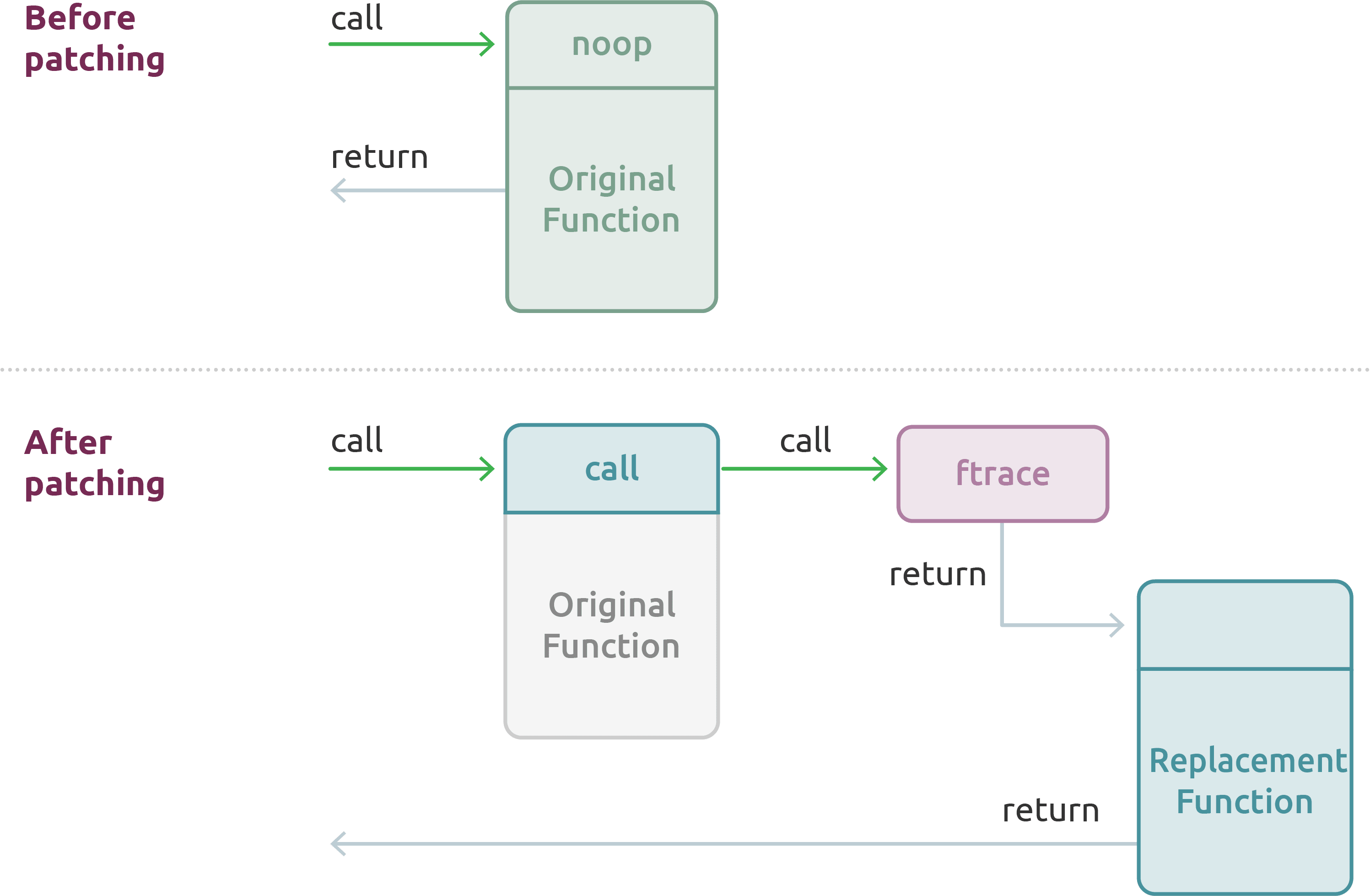
This technology is a game-changer for uptime. Instead of rebooting for every security patch, you can apply live patches continuously and schedule a full reboot only for major kernel upgrades.

Several vendors offer live patching services, such as Canonical's Livepatch for Ubuntu and TuxCare's KernelCare for multiple distributions. While configuring these is beyond our scope today, knowing this technology exists is crucial for a job interview, as it demonstrates your awareness of solutions for mission-critical infrastructure.
Conclusion
You now have a solid, practical understanding of one of the most essential system maintenance tasks. Keeping systems patched is fundamental to security and stability in any data center or server environment.
Key Takeaways:
- Regularly updating your system is critical for security.
- The standard commands are
sudo apt update && sudo apt upgradefor Debian-based systems andsudo dnf upgradefor Red Hat-based systems. - Kernel updates are unique because they require a system reboot to take effect.
- You can verify your running kernel with
uname -rand check if a reboot is needed by looking for/var/run/reboot-required. - The
unattended-upgradespackage on Ubuntu can automate the installation of security patches and manage scheduled reboots. - For zero-downtime environments, live patching technology exists to apply kernel security fixes without rebooting.
In our next module, "Practical Network Analysis," we will shift our focus from a single machine to how machines communicate. Our first lesson will be to capture and analyze a basic web request using tcpdump or Wireshark to identify the roles of Ethernet, IP, TCP, and DNS, bridging the gap between system administration and network engineering.