Hello! Let's dive into our next lesson on managing Linux processes.
In the last lesson, you learned how to observe running processes with tools like top and how to terminate them using kill and pkill. You've mastered the art of stopping a process, whether politely with SIGTERM or forcefully with SIGKILL.
Today, we address a different challenge. What if you need to run a task that takes a long time—like a system backup, a large file transfer, or a data processing script—but you can't afford to have your terminal locked up for hours? And what happens to that task if your SSH connection drops or you need to log out? This is a fundamental challenge in server administration.
This lesson will teach you how to run and manage processes in the background using &, nohup, jobs, fg, and bg. By the end, you'll be able to launch tasks, regain control of your shell, and ensure your important processes continue running even after you've disconnected. This is a core skill for any sysadmin working in a data center.
1. From Foreground to Background: Taking Back Control
By default, any command you run executes in the foreground. It takes over your terminal, and you can't enter new commands until it finishes. You saw this in the previous lesson when we ran commands like yes or a simple script.
But what if you start a long-running process and then realize you need your terminal back? You don't have to kill it. You can suspend it and move it to the background.
Let's watch a video that demonstrates this entire workflow visually.
Managing Processes in Linux (jobs, fg, bg, &, nohup, kill, ...)
This video from the YouTube channel Jadi provides a great visual introduction to job control. It uses simple graphical programs to make the distinction between foreground and background states very clear.
Please watch from 01:19 to 08:24. As you watch, focus on this key sequence of actions: Running a command in the foreground and seeing that it blocks the shell. Using Ctrl+Z to suspend (stop) the foreground process. Using the jobs command to see the list of suspended jobs. Using the bg (background) command to resume the suspended job in the background. Using the fg (foreground) command to bring a background job back to the foreground.
Practice Time: The Job Control Loop
Now, let's put what you saw into practice. Open your terminal and follow these steps. We'll use the ping command as our long-running foreground process.
-
Start a foreground process:
ping google.comYour terminal is now blocked, showing the
pingoutput. -
Suspend the process:
PressCtrl+Z. You'll see a message like[1]+ Stopped ping google.com, and you'll have your command prompt back. Thepingprocess is now paused. -
Check your jobs:
jobsThis lists all jobs associated with your current shell. You'll see your stopped
pingcommand, identified by a job number (e.g.,[1]). -
Resume in the background:
Let's makepingcontinue running, but in the background.bg %1(If you only have one job, you can just type
bg). You'll see a message like[1]+ ping google.com &, and thepingoutput will start appearing on your screen again, but you still have your command prompt. You can type other commands while it runs. -
Bring it back to the foreground:
Now, let's bring it back to the foreground to interact with it directly.fg %1(Again,
fgis sufficient if it's the most recent job). Thepingcommand is now in the foreground again, and your shell is blocked. -
Terminate the process:
PressCtrl+Cto send theSIGINTsignal and terminate thepingprocess for good.
This Ctrl+Z -> bg -> fg loop is the fundamental mechanism for managing the state of an already-running process.

2. Starting Processes Directly in the Background
The method above is great for processes you've already started. But if you know from the outset that a command will take a long time, you can launch it directly into the background by adding an ampersand (&) at the end.
Practice Time: Using the Ampersand &
-
Start a background job:
Let's run asleepcommand that will run for 5 minutes (300 seconds) in the background.sleep 300 &The shell will immediately return a job number and a Process ID (PID), and you'll have your prompt back.
-
Verify the job:
jobsYou'll see your
sleep 300command with the status "Running".
You've now successfully launched a process that runs without blocking your work. To bring it to the foreground, you would use fg %<job_number>, just as before.
For a clear, text-based explanation of this concept, review the following article from DigitalOcean. It reinforces the commands you've just used.
Please read the sections "Managing Background Processes" and "Changing Process States". This will solidify your understanding of using &, jobs, bg, and fg.
3. The Final Challenge: Surviving Disconnection with nohup
You now know how to run tasks in the background. But there's a critical problem: all these jobs are still children of your current shell session. If you close the terminal window or your SSH connection drops, the shell sends a SIGHUP (hangup) signal to all its child processes, causing them to terminate.
In a data center environment, you can't risk your 4-hour backup job dying because of a network glitch. The solution is the nohup command.
nohup stands for "no hangup". When you prepend nohup to a command, it tells that process to ignore the SIGHUP signal. This makes the process immune to terminal closure.
Let's see the classic combination in action: nohup command &.
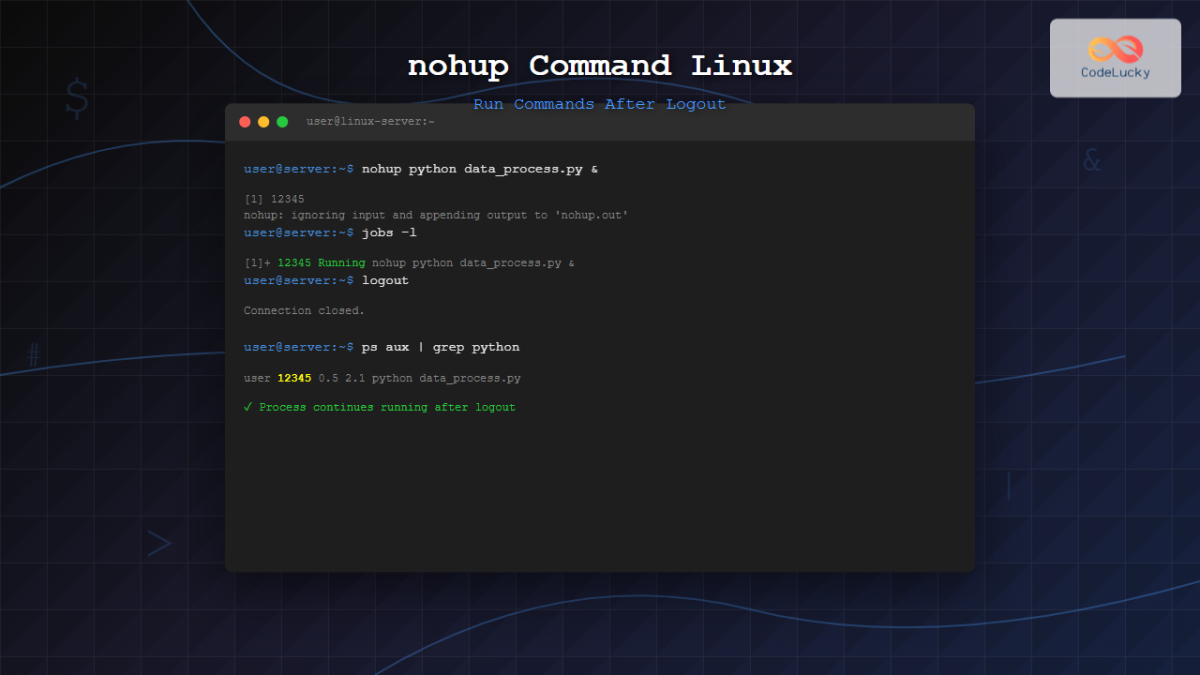
Practice Time: The Sysadmin's Workhorse
Let's simulate a long-running server task and make sure it survives a "logout".
-
Create a script:
First, let's create a simple script that logs the current date and time to a file every 5 seconds. This will simulate a monitoring or backup script.echo 'while true; do date >> script_output.log; sleep 5; done' > long_runner.sh chmod +x long_runner.shThis creates an executable script named
long_runner.sh. -
Run it with
nohup:
Now, execute the script usingnohupand send it to the background with&.nohup ./long_runner.sh &You'll get a message like
nohup: ignoring input and appending output to 'nohup.out'. This tells you that since you didn't redirect the script's output,nohupis protecting it by sending it to a file namednohup.out. You'll also get the job and process ID. -
Verify it's running:
You can check that the script is running in two ways:jobs: This shows it as a running job in your current shell.tail -f script_output.log: This will show you the live output of your script as the date is written to the log file every 5 seconds. PressCtrl+Cto stoptail.
-
Simulate a logout:
To prove thatnohupworks, you need to end your shell session. You can do this by simply typingexitor closing your terminal window.Now, open a new terminal window.
-
Confirm persistence:
In the new terminal, runjobs.jobsThe output will be empty! This is because
jobsonly lists jobs for the current shell. The old shell is gone. But is the process still running? Let's check the system's process list.pgrep long_runner.shThis command should return a PID. Your script is still alive! It has been "disowned" by its original shell and is now running independently.
-
Check the output:
Finally, look at the log file again.tail script_output.logYou will see that the file has continued to grow with new timestamps, proving the script never stopped.
-
Clean up:
Since the process is no longer a "job" in your new shell, you can't usefgorbg. You must manage it like any other system process, using the skills from the previous lesson. Find its PID andkillit.kill $(pgrep long_runner.sh)
You've just performed one of the most common and essential tasks for a Linux administrator.
Conclusion
Great job! You've gone beyond simply running and stopping processes. You now have a toolkit for managing the lifecycle of your tasks, allowing you to multitask effectively and run critical jobs with confidence.
Key Takeaways:
- Foreground vs. Background: Foreground processes block the shell; background processes do not.
- Job Control Loop: Use
Ctrl+Zto suspend a foreground job,bgto resume it in the background, andfgto bring it back to the foreground. &Operator: Append&to a command to start it directly in the background.jobsCommand: Usejobsto list all background or suspended processes in your current shell.nohupCommand: Prependnohupto a command (and usually end with&) to make it immune to terminal closure, which is essential for long-running tasks on remote servers.
In our next lesson, we'll address another critical aspect of administration: "Locate and interpret system logs in /var/log and journalctl to diagnose application or service errors." Now that you know how to run persistent background services, the next logical step is learning how to check their health and troubleshoot them when they have problems by reading their logs.