Hello! Welcome to the next lesson in our journey through Linux Process and Performance Management.
In the last lesson, you learned how to be the "eyes" of the system. You can now use ps, top, and htop to see exactly what processes are running and how much CPU and memory they're consuming. This is the essential first step in any troubleshooting scenario.
Today, we move from observing to acting. You'll learn how to manage process states by sending signals with kill and pkill. When you identify a misbehaving, frozen, or unwanted process, these commands are your tools to take control. Mastering this is a non-negotiable skill for any sysadmin and a frequent topic in technical interviews, where you'll be expected to explain not just how to stop a process, but the right way to do it.
1. Beyond "Killing": Understanding Signals
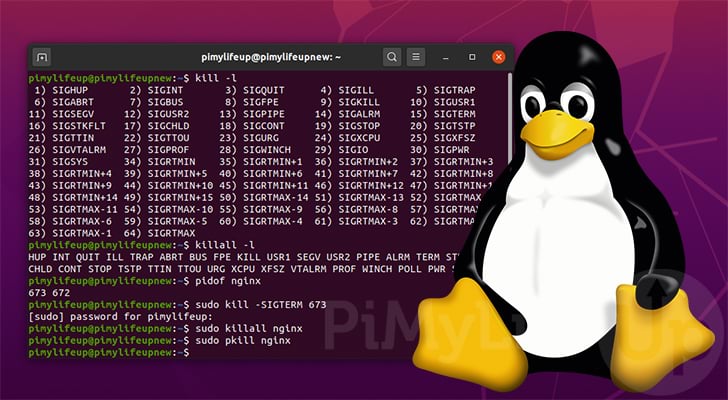
First, let's clarify the terminology. While the command is called kill, it doesn't always mean immediate termination. In Linux, "killing" a process really means sending it a signal. A signal is a standardized message the operating system sends to a program to tell it that a specific event has occurred. The program can then react accordingly.
There are many signals, but for now, we'll focus on the three most important ones:
SIGTERM(Signal 15): The "terminate" signal. This is a polite request asking a process to shut down. It's the default signal sent by thekillcommand. A well-behaved program will catch this signal, perform necessary cleanup operations (like saving files), and then exit gracefully.SIGKILL(Signal 9): The "kill" signal. This is not a request; it's a direct order to the operating system kernel to terminate the process immediately. The process cannot ignore this signal. This is your tool of last resort for a frozen application, as it prevents any cleanup and can lead to data corruption.SIGHUP(Signal 1): The "hang up" signal. Historically, this was used when a user's terminal connection was lost (hung up). Today, many system services and daemons are programmed to interpret this signal as a command to reload their configuration files without restarting the entire service.
The diagram below gives a good overview of how signals fit into the lifecycle of a process. Notice how signals like SIGTERM and SIGKILL are used to transition a process to the "Killed" state.

2. The Theory and the Tools in Action
To get a solid grasp of these concepts and the tools we'll be using, let's watch a video that explains and demonstrates them clearly.
Kill Signals! (Linux+ Objective 1.4.3)
This video from Shawn Powers is an excellent, practical guide to kill signals. It covers the core theory and then dives into a command-line demo that perfectly illustrates the differences between the tools.
Watch the video from the beginning (around 00:35) to the end. Pay close attention to: The explanation of SIGTERM, SIGKILL, and SIGHUP (00:35 - 05:55). The difference between kill (which uses a PID), killall (which uses an exact process name), and pkill (which can use a partial name/pattern) (07:18 - 10:19). The hands-on demo, especially the Firefox example, which shows why pkill is so useful when you don't know the exact process name (10:19 - 15:30). The final summary on when to use SIGTERM vs. SIGKILL (15:30 - 16:46).
3. Practice Time: Wielding Your "Katana"
Now it's time to put this into practice. We'll use the processes you created in the last lesson to simulate real-world scenarios.
First, make sure your test processes are running. If you've rebooted since the last lesson, open a terminal and start them again:
# Create a simple background worker script
echo 'while true; do echo "Worker is running..."; sleep 5; done' > worker.sh
chmod +x worker.sh
./worker.sh &


# Create a process that hogs CPU
yes > /dev/null &
You now have a well-behaved worker.sh script and an unruly yes process running. You can verify this with htop.
Scenario 1: The Polite Shutdown (SIGTERM)
Your worker.sh script is a well-behaved background task. Let's ask it to shut down gracefully.
-
Find the PID: Use
pgrepto get the Process ID of your script.pgrep worker.shThis will return a number. Let's say it's
12345. -
Send the
SIGTERMsignal: Use thekillcommand with the PID you just found. SinceSIGTERMis the default, you don't need to specify it.kill 12345After you press Enter, you should see a message on your terminal like "Terminated". This is the shell telling you that the background job has ended because it received the
SIGTERMsignal. -
Verify: Check that the process is truly gone.
pgrep worker.shThis command should return no output.
Scenario 2: The Force Quit (SIGKILL)
The yes process is simulating a frozen application. It's stuck in a tight loop and won't respond to polite requests.
-
Find the PID:
pgrep yesLet's say the PID is
54321. -
Attempt a polite shutdown:
kill 54321Wait a few seconds. The process is likely still running (you can check
htopin another terminal). It's ignoringSIGTERM. -
Send the
SIGKILLsignal: Now, we escalate. You can specify the signal by its number (-9) or its name (-SIGKILL). The number is more common.kill -9 54321You should immediately see a "Killed" message. This is a much more forceful termination handled by the kernel itself.
Scenario 3: The Name Game (pkill)
Imagine a service has gone haywire and spawned dozens of identical processes. Finding and killing each PID would be tedious. This is where pkill shines.
-
Create some processes: Let's start a few
sleepcommands in the background.sleep 1000 & sleep 1000 & sleep 1000 & -
Terminate by name: Now, use
pkillto terminate all processes whose name matches "sleep".pkill sleepYou will see "Terminated" messages for all the
sleepjobs you started. This is far more efficient than finding and killing three separate PIDs. As the video showed,pkillis also great when you only know part of a process name (likepkill firefoforfirefox-esr).
4. Consolidating Your Knowledge
You've done the practical work. Now, let's review the concepts and best practices. This will help solidify the "why" behind your actions, which is crucial for interviews.
How to Kill a Process in Linux: A Complete, Practical Guide
This article serves as an excellent reference guide. It summarizes the commands you've just used and provides important context on safety and best practices.
Read through this guide, paying special attention to: The explanations of kill, pkill, and killall to reinforce what you saw in the video. The section titled 'Force Killing a Process: When and Why'. This explains the risks of using SIGKILL. The section 'How to Kill a Process in Linux Safely (Best Practices)'. The final section, 'Common Mistakes When Killing Linux Processes'. These last two sections are pure gold for developing a professional mindset.
To give you a quick visual summary of the commands, here is a helpful cheat sheet.
Conclusion
Excellent work. You've moved from a passive observer to an active administrator who can manage running processes. You now have the fundamental skills to handle unresponsive applications and misbehaving services—a core responsibility in any data center or sysadmin role.
Key Takeaways:
- Signals are messages: "Killing" a process is about sending it a signal. The most common are
SIGTERM(15) for a graceful shutdown andSIGKILL(9) for a forced termination. - Be polite first: Always start with a standard
killcommand (which sendsSIGTERM). Only escalate tokill -9if the process is unresponsive. - Use the right tool for the job:
kill <PID>targets one specific process.pkill <name>targets one or more processes by name, even a partial name.killall <exact_name>targets all processes matching an exact name.
In our next lesson, we will continue exploring the process lifecycle. You've learned to monitor and terminate processes. Next, you'll learn how to properly run and manage processes in the background using tools like &, nohup, jobs, fg, and bg, ensuring your important tasks keep running even after you log out.