Welcome back! In our last lesson, we learned how to automate administrative tasks using cron. This is a powerful tool for ensuring a server runs smoothly without constant manual intervention. One of the most common automated tasks is monitoring system health, and a critical aspect of that is managing disk space.
Today, we'll address the learning outcome: Monitor disk usage with df and du to identify and manage space constraints.
Running out of disk space is a frequent and critical issue in any data center. When a server's disk fills up, services can fail, data can be lost, and the entire system might become unresponsive. As a system administrator, your job involves a two-step process: first, getting a high-level overview to see if any storage is nearing capacity, and second, drilling down to find exactly which files or directories are responsible.
This is where the two essential commands, df and du, come into play. We'll explore how to use them, what their outputs mean, and—crucially for job interviews—why they sometimes seem to disagree.
1. df: The Filesystem Overview
The first command, df, stands for disk free. It operates at the filesystem level, giving you a quick summary of all mounted storage devices and their usage. Think of it as the 30,000-foot view of your server's storage.
Let's watch a video that introduces the command and its most important option.
Linux Crash Course - The df and du Commands
The video 'Linux Crash Course - The df and du Commands' by Learn Linux TV provides an excellent practical introduction to df.
Watch from 02:05 to 05:07. Focus on: The default output of the df command. How the -h (human-readable) option makes the output understandable. The meaning of each column: Filesystem, Size, Used, Avail, Use%, and Mounted on.
As you saw, the output of df -h gives you everything you need for a quick health check. In a data center, you'd scan the Use% column for any filesystems approaching critical levels (e.g., over 85% or 90%).
For more detailed analysis, here are a few other indispensable options.
Disk Usage with df — What It Reports & How to Read It
This article from 'Linux Disk & I/O Monitoring' provides a concise written summary of df and its useful variants.
Read the section 'Disk Usage with df'. Pay special attention to the 'Useful Variants' like df -hT (to see the filesystem type, like ext4 or xfs) and df -i (to check inode usage).
What are inodes?
An inode is a data structure on a filesystem that stores all the information about a file except its name and actual data. Every single file or directory requires one inode. It's possible to have a disk with plenty of free space but run out of inodes if you have millions of tiny files. In this situation, you won't be able to create new files. Checking df -i is a key troubleshooting step.
Your Turn: Practice with df
Open your terminal and run the following commands:
df -h: Look at theUse%for your root filesystem (/). How full is it?df -hT: What filesystem type is your root partition using?df -i: How many inodes are used versus free on your root filesystem?
This is the exact first step you'd take when an alert says "Disk space is low on server-101."
2. du: Finding the Space Hogs
df told you that your / filesystem is 95% full. Now what? You need to find the specific directory or file that's consuming all the space. This is the job of du, which stands for disk usage. Unlike df, du works by recursively scanning directories and summing up the sizes of the files within them.

Let's see how to use du effectively.
Linux Crash Course - The df and du Commands
We'll return to the 'Linux Crash Course' video, which demonstrates how to tame the verbose output of du and get useful, summarized information.
Watch from 10:00 to 13:51. Focus on these essential techniques: Using -h to make the output readable. Using --max-depth=1 to prevent du from scanning too deeply, which gives you a clean summary of the immediate subdirectories. Targeting a specific directory, like du -h --max-depth=1 /var.
The Ultimate Admin One-Liner
The most common use case for du is to find the largest directories within a specific path. You can do this by combining du with two other commands we've seen: sort and head.
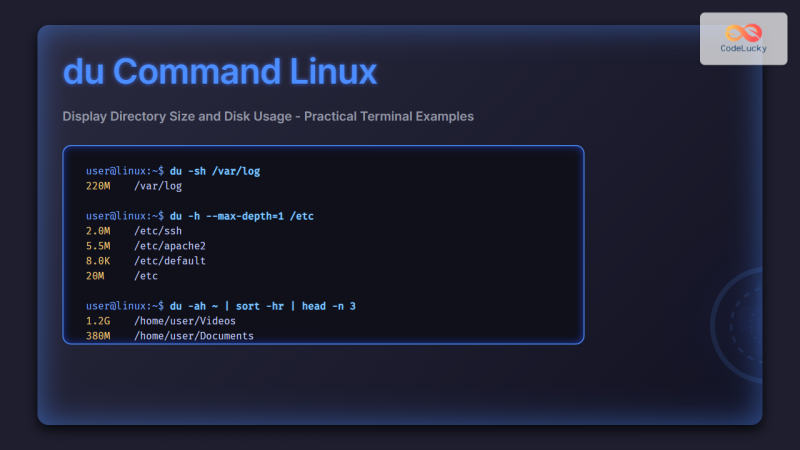
Here’s the pattern:sudo du -h --max-depth=1 /path/to/check | sort -rh | head -n 10
Let's break that down:
sudo du -h --max-depth=1 /path/to/check: Get the human-readable sizes of all immediate subdirectories in/path/to/check. We usesudoto ensure we can read all directories.|: The pipe operator sends the output of theducommand to the input of the next command.sort -rh: Sorts the incoming lines.-rreverses the order (largest first), and-htells it to sort based on human-readable numbers (e.g., it knows1Gis larger than100M).| head -n 10: Takes the sorted list and shows only the top 10 lines.
Your Turn: Practice with du
Let's find the largest directories in your /var directory, a common place for logs and other data to grow.
- Run
sudo du -h --max-depth=1 /var. You'll see the size of each subdirectory (e.g.,/var/log,/var/lib). - Now, use the one-liner to find the top 5 largest directories:
sudo du -h --max-depth=1 /var | sort -rh | head -n 5 - Based on the output, you can drill down further. If
/var/logwas the largest, you could then runsudo du -h --max-depth=1 /var/log | sort -rh | head -n 5to find the largest log directory, and so on.
This systematic process allows you to quickly pinpoint the source of high disk usage.
3. Why df and du Disagree: An Interview Goldmine
Sooner or later, you will encounter a situation where df reports a disk is 90% full, but when you run du on the root directory, it only accounts for 60% of the space. Where did the "missing" 30% go? This is a classic interview question that tests your depth of knowledge.
The article 'Linux Disk & I/O Monitoring' briefly touches on the difference between df and du and the primary reason they might disagree.
Read just the short section titled 'df vs du'. It introduces the main culprit: 'deleted-but-open files'.
The core of the issue lies in how each command gets its information:
dfreads high-level filesystem metadata. It knows the total number of blocks allocated on the disk. It's very fast.duwalks the directory tree and sums the sizes of all files it can see. It's slower and only reports what's currently visible in the filesystem structure.
The most common reason for a discrepancy is a deleted but still open file.
Here’s the scenario:
- A web server process is actively writing to a large log file:
/var/log/access.log. - An administrator, trying to free up space, deletes the file with
rm /var/log/access.log. du /var/logno longer sees the file, so its reported size goes down. The administrator thinks the problem is solved.- However, the web server process still has the file "open" in the background. The Linux kernel will not free the actual disk blocks until that process closes the file.
dfreads the filesystem metadata, which knows the blocks are still allocated, so its reported usage does not change.
How to Find and Fix This:
You can find these "ghost" files using the lsof (list open files) command.
sudo lsof | grep '(deleted)'
This command lists all files that are open by a process but have been deleted from the filesystem. The output will show you the command/process name and the process ID (PID) that is holding the file open.
The solution is to gracefully restart the service identified by lsof. When the service restarts, it will close the old file handle, and the kernel will finally release the disk space.
Understanding this distinction between df and du and knowing how to diagnose it with lsof demonstrates a solid grasp of how the Linux filesystem works.
For a deeper dive into this topic, the nixCraft article "Why command df and du reports different output?" (LINK) is a fantastic resource, though not required reading for now.
4. A Modern Alternative: ncdu
While du | sort | head is a powerful and classic technique, it can be cumbersome. Many administrators now use ncdu (NCurses Disk Usage), an interactive tool that makes exploring disk usage much easier.
Linux Crash Course - The df and du Commands
Let's watch a quick demonstration of ncdu from the end of the Learn Linux TV video. You'll immediately see why it's so popular.
Watch from 17:48 to 19:07. Notice how ncdu scans a directory and then presents an interactive, sorted list that you can navigate with your arrow keys.
To try it yourself, first install it:
sudo apt update
sudo apt install ncdu
Then, run it on a directory like /var:
sudo ncdu /var
Wait for the scan to complete, and then use your arrow keys to explore. You can press Enter to go into a directory and Left Arrow to go back up. It's an incredibly efficient way to find space hogs.
Conclusion
You are now equipped with the essential tools and knowledge to handle one of the most common problems in system administration: managing disk space.
Key Takeaways:
df -hgives a high-level overview of filesystem usage. This is your first step.du -hdrills down to find the usage of specific directories and files.- The combo
sudo du -h --max-depth=1 <path> | sort -rh | headis your go-to command for finding the largest directories in a given path. dfandducan disagree, most often due to deleted-but-open files.- Use
sudo lsof | grep '(deleted)'to find the processes holding onto deleted files, then restart those services to free the space. ncduis a powerful, interactive alternative todufor quickly exploring disk usage.
In our next lesson, we will learn how to configure the system's timezone and set up NTP for automatic time synchronization. Accurate time is fundamental to a healthy system. It ensures that the timestamps in your log files (which you might be cleaning up based on du's output!) are correct, that your cron jobs run when expected, and that services across a distributed network can communicate reliably.