Hello! Welcome back.
In our last lesson, we explored the different output modes (append, complete, update), which determine what data your streaming query writes to a sink. You learned how to select the right mode based on whether your query is stateless or stateful and what the downstream system requires.
Today, we're tackling the other side of the coin: when and how often the stream should process data and write its output. This is controlled by triggers. Mastering triggers is essential for managing costs, controlling latency, and building streaming pipelines that behave exactly as you intend.
By the end of this 60-minute lesson, you will be able to use trigger options (e.g., availableNow, processingTime) to control streaming execution frequency.
What Are Triggers in Structured Streaming?
In Structured Streaming, data is processed in a series of small, incremental executions called micro-batches. A trigger defines the timing of these micro-batches.
Think of your streaming query as a recurring task. The trigger is the schedule for that task. Do you want it to run continuously? Every 10 seconds? Or just once, right now, to catch up on all new data?
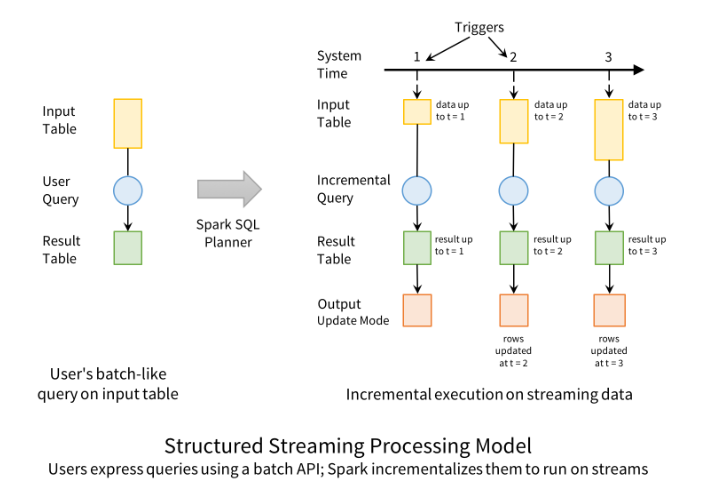
The Main Trigger Types
There are several ways to configure triggers, but for the Data Engineer Associate exam and most real-world use cases, you'll need to master three key behaviors: Default, Processing Time, and Available Now.
Let's start with the official Databricks documentation, which provides an excellent overview.
Configure Structured Streaming trigger intervals
This table from the official Databricks documentation is the best starting point. It clearly summarizes the different trigger modes, their syntax, and their primary use cases.
Focus on the summary table in the 'Trigger modes overview' section. Pay close attention to the descriptions for 'Unspecified (Default)', 'Processing Time', and 'Available Now'. We'll discuss the others later.
Let's break down these modes in more detail.
1. Default Trigger (Unspecified)
If you don't specify a trigger, Structured Streaming defaults to fixed-interval micro-batches of 500ms (or as soon as the previous micro-batch finishes processing).
- Behavior: The stream processes data as quickly as possible. As soon as one micro-batch is complete, Spark checks for new data and kicks off the next one.
- When to use it: For low-latency streaming applications where you need to process data almost as soon as it arrives, and you're not concerned about the cost of keeping a cluster running continuously.
2. Processing Time Trigger
This trigger allows you to define a fixed time interval for your micro-batches. It's like telling Spark, "Check for new data every N seconds/minutes."
- Syntax:
.trigger(processingTime='10 seconds') - Behavior: The stream will trigger a micro-batch at the specified interval (e.g., every 10 seconds), process any new data that has arrived since the last batch, and then wait for the next interval.
- When to use it:
- When you need to balance latency with cost. Running a batch every minute is much cheaper than running one every 500ms.
- To prevent resource exhaustion if data arrives in bursts. This smooths out the processing load.
- For near-real-time dashboards that don't need sub-second updates.
3. Available Now Trigger
This trigger processes all the data that is currently available in the source and then stops the stream automatically. It essentially turns a streaming query into an incremental batch job.
- Syntax:
.trigger(availableNow=True) - Behavior: The query starts, processes all available data that it hasn't seen before (tracked via the checkpoint), and then terminates.
- When to use it:
- For scheduled, periodic jobs. You can run a notebook with this trigger every hour using Databricks Jobs to process all data that arrived in the last hour.
- When you want to use the same code for both streaming and batch workloads. This trigger allows a streaming source (like Auto Loader) to be used in a batch-like fashion.
Important Note: In older versions of Spark, you would use .trigger(once=True). This is now deprecated. For the exam, you should know that availableNow=True is the modern and recommended approach.
Visualizing the Triggers
Watching these triggers in action can make the concepts much clearer.
11 Spark Streaming Triggers - Once, Processing Time & Continuous | Tune Kafka Streaming Performance
This video from 'Ease With Data' provides a practical demonstration of the once (which functions like availableNow) and processingTime triggers.
Please watch the following two segments: 02:26 - 04:34: Watch the demonstration of the once trigger. Notice how the streaming query processes the available data and then automatically stops. 04:34 - 05:51: Watch the demonstration of the processingTime trigger. Notice how the Spark UI shows new jobs being triggered at the specified 10-second interval.
Your Turn: Experiment with Triggers
Now it's time for you to see these triggers for yourself. This hands-on exercise will solidify your understanding of how each one controls the execution of a streaming query.
Instructions:
-
Open a new Databricks Python notebook and attach it to a running cluster.
-
Run the following cell to set up a source directory for our stream and a helper function to write new files to it.
# 1. Setup source_path = "/tmp/streaming_triggers_source" checkpoint_path_processing_time = "/tmp/streaming_triggers_checkpoint_pt" checkpoint_path_available_now = "/tmp/streaming_triggers_checkpoint_an" # Clean up previous runs dbutils.fs.rm(source_path, True) dbutils.fs.rm(checkpoint_path_processing_time, True) dbutils.fs.rm(checkpoint_path_available_now, True) # Create the source directory dbutils.fs.mkdirs(source_path) # Helper function to add new data import time def add_new_data(data): file_name = f"data_{int(time.time())}.json" dbutils.fs.put(f"{source_path}/{file_name}", data, overwrite=True) print(f"Added file: {file_name}") print("Setup complete. Source directory is ready.") -
In a new cell, define the streaming DataFrame. We'll read simple JSON data.
# 2. Define the stream from pyspark.sql.types import StructType, StructField, StringType, IntegerType schema = StructType([ StructField("event_id", IntegerType(), True), StructField("event_type", StringType(), True) ]) streaming_df = (spark.readStream .schema(schema) .format("json") .load(source_path) ) -
Experiment 1:
processingTimeTrigger. Run the following code in a new cell. This stream will wake up every 15 seconds, process any new files, and print them to the console.# 3. Start a stream with a processingTime trigger (streaming_df.writeStream .format("console") .trigger(processingTime='15 seconds') .option("checkpointLocation", checkpoint_path_processing_time) .queryName("processing_time_query") .start() ) -
Experiment 2:
availableNowTrigger. Run this code in a different new cell. This will start a separate stream.# 4. Start a stream with an availableNow trigger (streaming_df.writeStream .format("console") .trigger(availableNow=True) .option("checkpointLocation", checkpoint_path_available_now) .queryName("available_now_query") .start() )Observation: Notice that this stream starts, reports that there's no new data (because the source is empty), and then the command finishes. The stream is no longer active.
-
Now, let's add some data. Run the following cell.
# 5. Add a batch of data
add_new_data('{"event_id": 1, "event_type": "login"}\n{"event_id": 2, "event_type": "click"}')
Observation: Look at the output of your
processing_time_query. Within 15 seconds, a new micro-batch will trigger and you will see the data printed to the console. Theavailable_now_querydid nothing because it was not running. -
To process this new data with the
availableNowlogic, you must run the cell from step 4 again. Do this now.
Observation: The stream starts, processes the two new records, prints them, and stops. This demonstrates its "incremental batch" nature. -
Feel free to run the cell from step 6 again with different data to see the
processing_time_querypick it up on its next scheduled interval. -
Once you're finished, stop the active stream by running
for s in spark.streams.active: s.stop().
Other Trigger Types and Considerations
While processingTime and availableNow are the most common, it's good to be aware of two others.
- Continuous Trigger: An experimental mode in open-source Spark designed for sub-millisecond latency. Databricks does not support this and recommends using Real-time mode instead.
- Real-time mode: A Databricks feature (currently in Public Preview) for ultra-low latency workloads. It's an advanced option not typically required for the associate-level certification.
Finally, a practical point: you can change the trigger interval between runs of a streaming job that uses the same checkpoint. Spark handles the transition gracefully. For instance, if you switch from a 1-minute processingTime trigger to an availableNow trigger, the next job run will simply process all data that has accumulated since the last 1-minute batch.
Configure Structured Streaming trigger intervals
For more detail on these advanced topics, you can refer back to the Databricks documentation.
Briefly review the sections 'realTime: Ultra-low-latency operational workloads' and 'Change trigger intervals between runs'. This is for context and deeper understanding beyond the core exam objectives.
Conclusion
You've now learned how to control the execution engine of your streaming queries. By choosing the right trigger, you can create pipelines that are not only correct but also cost-effective and performant.
Key Takeaways
- Triggers control when and how often a streaming query executes.
- The default trigger runs micro-batches back-to-back for the lowest possible latency.
processingTimetrigger executes micro-batches on a fixed schedule (e.g., every 5 minutes), balancing cost and freshness.availableNowtrigger runs the query as a single incremental batch, processing all new data and then stopping. It's ideal for scheduled jobs.- Remember that
trigger(once=True)is deprecated in favor oftrigger(availableNow=True).
Next Steps
So far in this module, we've manually constructed streaming pipelines by defining sources, transformations, sinks, output modes, and triggers. While powerful, this can involve a lot of boilerplate code. In the next module, we will introduce Delta Live Tables (DLT), a declarative framework that dramatically simplifies building reliable and maintainable data pipelines, intelligently managing many of these configurations for you.