In our last lesson, we took a tour of the MetaTrader 5 platform, familiarizing ourselves with the charts, side panels, and the essential Toolbox window. With that foundation in place, it's time to transition from the user environment to the developer's workshop. Your goal is to build complex tools, and that work happens in a dedicated space: the MetaEditor.
Today, we will open this development environment, understand its role, and create your very first MQL5 file. This lesson focuses on setting up your workspace and creating the blank canvas for your code. By the end, you'll have successfully set up the MetaEditor and generated a new MQL5 script file, positioning you perfectly to write your first lines of code in our next session.
What is MetaEditor? Your Integrated Development Environment
Before we jump in, let's clarify what MetaEditor is. You have some experience with Python, so you may have used a text editor or a more advanced tool like VS Code or PyCharm. MetaEditor is an Integrated Development Environment (IDE) specifically designed for MQL5. An IDE bundles all the essential tools for a programmer into a single application.
Master MQL5 from beginner to pro (Part I): Getting started ...
This article from the official MQL5 website introduces the core concepts of the MQL5 programming environment. It provides an excellent explanation of what an IDE is and its key components.
Please read the section titled Software for Programming. As you read, focus on understanding the roles of the four main components mentioned: the text editor, the compiler, the debugger, and the Version Control System (VCS).
In short, MetaEditor is your workbench. It provides the text editor for writing your code, a compiler to translate that code into a language the computer can execute, and a debugger to help you find and fix errors.
Launching MetaEditor
The MetaEditor is tightly integrated with the MetaTrader 5 platform. You can launch it directly from the MT5 interface.
There are three common ways to open it:
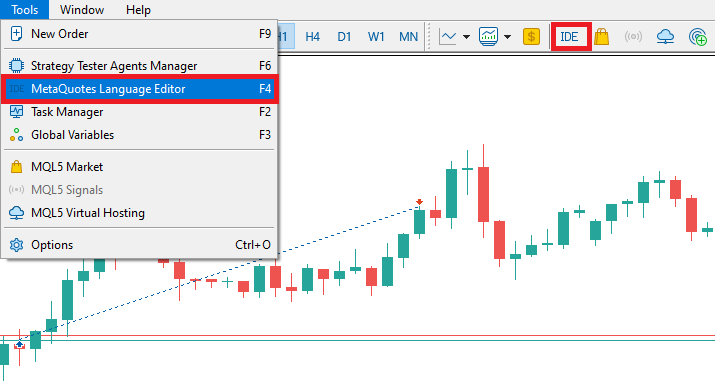
- Go to the Tools menu and select MetaQuotes Language Editor.
- Click the IDE button in the main toolbar (it often has a small blue book icon).
- Use the keyboard shortcut F4.
The image below illustrates the first two methods. The F4 shortcut is a favorite among developers for its speed and efficiency.
Go ahead and open the MetaEditor now. You'll see a new window appear with a more code-focused layout.
Understanding MQL5 Program Types
Before you create your first file, the MQL5 Wizard will ask you what type of program you want to create. MQL5 has several distinct program types, each with a specific purpose. For your goal of building custom tools, it's vital to understand these distinctions from the start.
Master MQL5 from beginner to pro (Part I): Getting started ...
Let's return to the MQL5 article to learn about the different program types available.
Read the brief section titled MQL5 Program Types. Pay close attention to the descriptions of Scripts, Indicators, and Expert Advisors (EAs), as these are the three you will work with most often.
As you've just read, each program type has a different role and execution model.
- Expert Advisors (EAs) run continuously, reacting to every price change (tick). They are designed for automated trading.
- Indicators also run continuously on every tick, but their purpose is to perform calculations and draw data on a chart, not to trade.
- Scripts are the simplest type. They are designed to run once to perform a specific, single task when you execute them.
Because of their one-off execution, scripts are perfect for learning and for tasks that don't require constant monitoring, like generating a report or, in our case, simply printing a "Hello World" message. We will start our journey with a script.
Creating Your First Script File
Now you're ready to create the file. We will use the MQL5 Wizard, a tool that generates a basic file template for you.
The following video provides a clear, practical demonstration of this process.
Our very first MQL5 Program "Hello World!!!" #coding #programming #helloworld
This video by Sydney Chukwu walks through creating a "Hello World" program. We will focus only on the file creation part for now.
Watch the segment from launching MetaEditor to creating the script. The presenter explains why a script is the right choice and shows how to use the MQL5 Wizard to name and generate the file.
To reinforce what you just saw, let's walk through the steps with a static image and detailed instructions.
- In MetaEditor, click the "New" button in the toolbar or go to
File > New. - The MQL5 Wizard will appear. Select "Script" and click "Next".
- In the "General properties" window, you must provide a name for your script. For this exercise, let's name it
MyFirstScript. The wizard will automatically place it in the correctMQL5\Scriptsfolder. You can leave the Author and Link fields as they are for now. - Click "Finish".
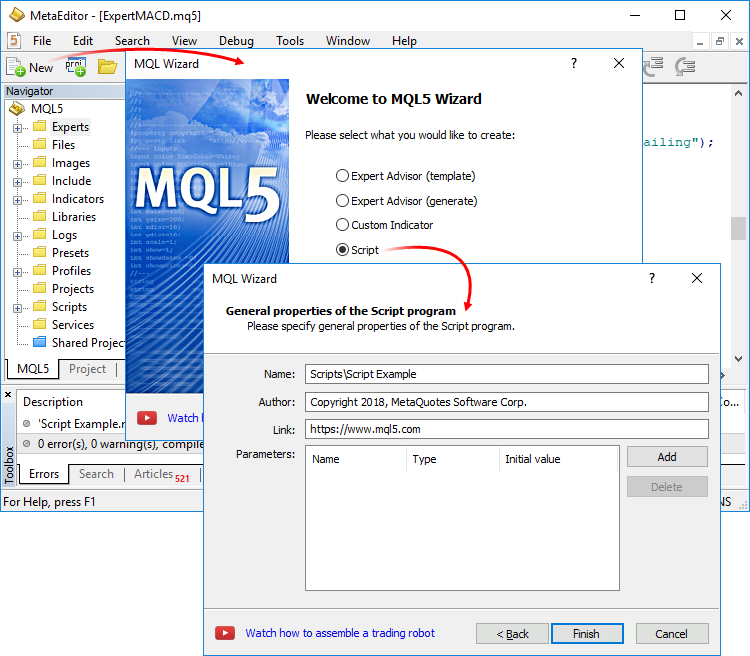
Once you click "Finish", MetaEditor will open a new tab containing the code for MyFirstScript.mq5. This is your first MQL5 source code file. It's not empty; the wizard has generated a basic template for you. You'll see some lines starting with #property and a function block called OnStart(). This is the basic structure that every script starts with. We will explore what these lines mean in our upcoming lessons.
Conclusion
In this lesson, you made the crucial step from being a platform user to a developer. You've launched the MetaEditor, understood its role as an Integrated Development Environment (IDE), and learned the key differences between Scripts, Indicators, and Expert Advisors. Most importantly, you used the MQL5 Wizard to create your very first MQL5 script file, MyFirstScript.mq5.
You now have a blank canvas ready for your first creation. You have the file, and you know it's a script that will execute once. The logical next step is to make it do something.
In our next lesson, we will add your first line of MQL5 code to the OnStart() function of this script. You will learn how to compile the file—turning your human-readable code into a program MT5 can run—and execute it to see the classic "Hello World" message appear in the terminal.