Welcome to your first lesson on the path to becoming an MQL5 developer! Our journey begins not with code, but with the environment where your code will come to life. Your ambition is to build sophisticated trading tools, and to do that, you first need to master the command center: the MetaTrader 5 (MT5) platform itself.
Today's objective is to become thoroughly familiar with the MT5 user interface. We will identify and understand the purpose of its main components, specifically the charts, the Market Watch panel, and the Toolbox (often called the Terminal window). Think of this as learning the layout of your workshop before you start building. By the end of this lesson, you'll be able to navigate the platform with confidence, ready for us to open the code editor in our next session.
The Anatomy of the MetaTrader 5 Platform
When you first open MetaTrader 5, the screen can look busy. It's a dense interface designed for professionals who need a lot of information at a glance. Our first step is to break it down into its core functional areas.
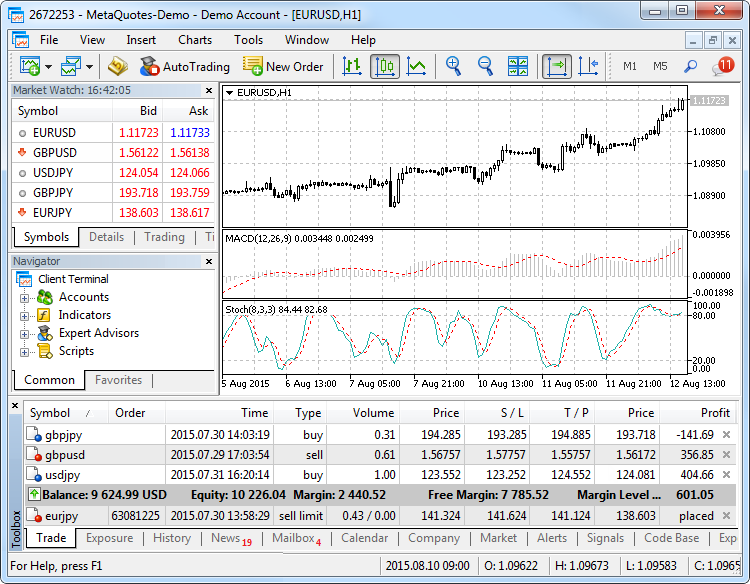
As you can see in the image above, the interface is primarily divided into four sections:
- Market Watch (Top-Left): This is your list of available financial instruments (like currency pairs or stocks) and their live prices. Consider it your palette of assets to work with.
- Navigator (Bottom-Left): This is your project explorer. It gives you access to your trading accounts, and more importantly for our purposes, it's where you'll find and manage your Expert Advisors, Custom Indicators, and Scripts—the very programs you are going to learn to build.
- Chart Window (Center): This is the main canvas. It displays the price history of an instrument, and it's where the visual output of your indicators and Expert Advisors will appear.
- Toolbox (Bottom): This is your control panel and information feed. It has tabs for managing your trades, viewing your account history, reading news, and—most crucially for a developer—viewing logs and messages from your running MQL5 programs.
Now, let's take a closer look at each of these components.
The Chart Window: Your Canvas
The chart is the heart of the platform. While your goal is to focus on the code behind the tools rather than trading strategy, the chart is the primary space where your creations will interact with the user.
A video is the best way to see the charts in action. The following clip demonstrates how to manage chart properties and timeframes. As you watch, notice how these settings change the visual representation of the data—these are properties you will eventually be able to control with your code.
Complete MetaTrader 5 Tutorial [For Beginners] - 2024 Edition
In this video from Disciplined Trader, you'll see a practical walkthrough of chart customization.
Please watch the section on chart options and templates, which covers changing chart types (bars, candlesticks, lines), adjusting color schemes, and saving your preferences as a template. Then, watch the segment on changing timeframes and customizing the timeframe menu.
The Side Panels: Market Watch and Navigator
Typically docked on the left side of the platform, the Market Watch and Navigator panels are your primary tools for selecting what to work on and which tools to use.
Market Watch
This window lists all the symbols (e.g., EURUSD, GBPUSD) your broker provides. From here, you can see live bid/ask prices and open new chart windows.
Navigator
The Navigator is your tree view for all functional components. This window is central to your work as a developer. Under the Indicators, Expert Advisors, and Scripts branches, you will find, compile, and run the programs you create.
This next video clip shows how to work with both of these panels.
Complete MetaTrader 5 Tutorial [For Beginners] - 2024 Edition
Let's return to the "Complete MetaTrader 5 Tutorial" video to see these panels in a live environment.
First, watch the segment on the Market Watch window. Pay attention to how new symbols are added and how a new chart is opened from it. Afterwards, skip ahead to the section on the Navigator window to see how it organizes accounts, indicators, and expert advisors.
The Toolbox: Your Developer's Console
At the bottom of your screen is the Toolbox. You may also hear this referred to as the Terminal window, its name in the previous version of the platform (MT4). The Toolbox is a multi-tabbed window that provides access to a wide range of information. While traders use the Trade and History tabs to monitor their activity, you will find the Experts and Journal tabs indispensable.
- Experts Tab: This tab displays messages specifically from running Expert Advisors and scripts. When you use MQL5 functions like
Print(), the output appears here. This is your primary tool for debugging and monitoring the state of your programs. - Journal Tab: This tab provides a log of all platform events, including connection status, trade execution attempts, and errors from your programs.
To solidify your understanding of the main interface components, please read through the following brief guide. It provides a clear, written summary of the elements we've just discussed.
Metatrader 5 trading tutorial guide explanation. MT5 ... - Just2Trade
This article from J2T provides a concise breakdown of the MT5 interface layout.
Please read the section titled Workspace Layout. Focus on the bullet points that define the function of each key element.
Customizing Your Workspace
A key aspect of using any professional software is tailoring the environment to your specific workflow. MT5 is highly customizable. You can hide, show, and rearrange panels to create a layout that works for you. Since you'll be spending a lot of time in this environment, getting comfortable with its customization is well worth the effort.
The following video demonstrates how to manage the workspace, including using keyboard shortcuts—a fundamental skill for any developer looking for an efficient workflow.
How to Install and Customize MetaTrader 5 (MT5) on your PC (PROFESSIONAL LOOK) | COMPLETE GUIDE
This video by Freedom Tradehouse focuses on creating a "professional look" by customizing the workspace.
Watch how the demonstrator removes the Market Watch and Navigator panels using both the menu and keyboard shortcuts (Ctrl+M and Ctrl+N). Then, see how they arrange and maximize the chart windows.
Conclusion
In this lesson, we've taken a comprehensive tour of the MetaTrader 5 interface. You now know the names and functions of the core components: the Chart Window as your canvas, the Market Watch as your palette of instruments, the Navigator as your project explorer, and the Toolbox as your developer console. You've also seen how to manipulate and customize these windows to organize your workspace.
This foundation is critical. Every MQL5 program you write will interact with this environment—whether it's by drawing objects on a chart, pulling price data for a symbol from Market Watch, or printing debug messages to the Experts tab in the Toolbox.
In our next lesson, we will move from the trading platform to the development environment. We'll set up the MetaEditor, the specialized code editor for MQL5, and you will write and compile your very first "Hello World" script to verify that your setup is working perfectly.