Hello! Welcome back to our study of enterprise wireless networking.
In our last lesson, we successfully configured a secure WPA3-Enterprise WLAN, linking our Catalyst 9800 controller to a Cisco ISE server for robust 802.1X authentication. This setup forms the backbone of modern, secure wireless access. However, building the network is only half the battle. As a network professional, you'll spend a significant amount of time ensuring it runs smoothly.
Today, we transition from configuration to diagnostics. Our goal is to analyze wireless client connectivity issues using controller logs and tools. We'll explore a systematic approach to troubleshooting, starting from high-level dashboards and drilling down into the powerful, granular tracing capabilities of the Catalyst 9800. This lesson will equip you with a practical toolkit for identifying and resolving the common problems that prevent wireless clients from connecting.
The Troubleshooting Toolkit: From Overview to Deep Dive
A structured troubleshooting methodology is essential. We typically start with a broad view to identify the scope of a problem and then use more specific tools to pinpoint the root cause. Your experience as a solutions engineer has likely given you a strong appreciation for this tiered approach.
1. The 30,000-Foot View: Centralized Management Tools
For a quick assessment of client health and connectivity history, a centralized network management platform like Cisco DNA Center or its predecessor, Cisco Prime Infrastructure, is invaluable. These tools provide a user-friendly, graphical interface to monitor the overall network and individual client experiences.
To see this in action, let's look at how Cisco Prime can be used to investigate a client issue.
Client Troubleshooting Using Cisco PI
This video from the Cisco Community, 'Client Troubleshooting Using Cisco PI', demonstrates the high-level workflow for investigating a client's connectivity status, association history, and session details using a centralized management tool.
Please watch the entire video (about 5 minutes). As you watch, notice how the interface allows you to move from a general list of clients to a detailed '360-degree view' for a specific user, and finally into a dedicated troubleshooting and debug log collection tool. This represents the first few steps in our troubleshooting process.
As the video shows, tools like Prime can quickly answer questions such as:
- Is the client currently associated?
- Which AP and controller is it connected to?
- What is its IP address and VLAN?
- What does its recent association history look like?
- Are there any high-level alarms related to the client?
This initial analysis helps you understand the context of the problem before diving into the controller itself.
2. The Ground-Level View: Catalyst 9800 Controller Tools
When the high-level view isn't enough, the Catalyst 9800 itself provides a suite of powerful CLI and GUI tools for deep-dive analysis. These tools, built into Cisco IOS-XE, are what you'll use to uncover the precise reason for a failure.
The following document provides an excellent overview of these capabilities. We won't read it all, but I'll summarize the most critical tools for client connectivity troubleshooting.
Troubleshoot Catalyst 9800 Wireless LAN Controllers - Cisco
The Cisco support document 'Troubleshoot Catalyst 9800 Wireless LAN Controllers' details the extensive logging and debugging features of the platform. We will use this as a reference for the tools we are about to discuss.
You don't need to read this document now, but I will be referencing its concepts. It's a valuable resource to bookmark for future use.
Here are the key tools in your C9800 toolkit, in order of increasing granularity:
- Syslog (
show logging): This is your first stop. It provides a time-stamped log of system-wide events, errors, and status messages. Any major system health issues, such as resource exhaustion or process crashes, will appear here.
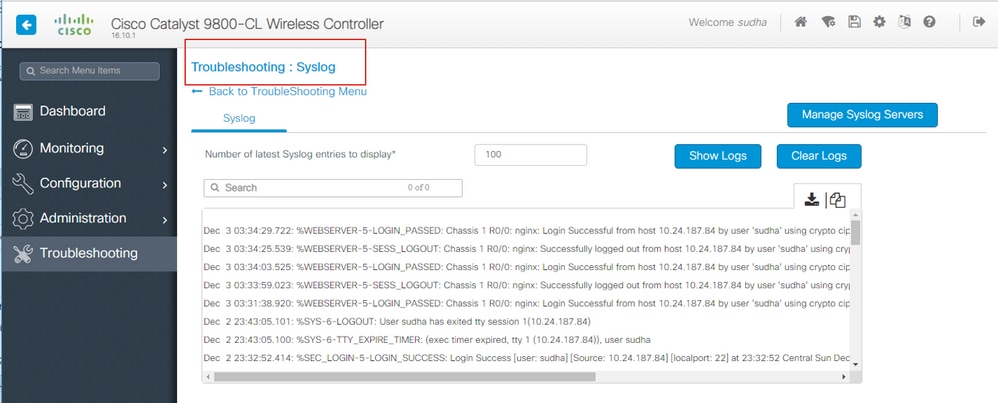
*This is the GUI view of the Syslog on a Catalyst 9800 controller. It provides a quick, centralized place to view system-level events, which is often the starting point for any troubleshooting investigation.*
-
Always-on Tracing: One of the most significant advantages of the IOS-XE based controllers. The C9800 constantly logs trace messages for all its processes at a "Notice" level. This means you can retrospectively investigate a failure without having to reproduce it. If a user reports an issue from an hour ago, you can pull the traces for their specific MAC address from that time period. The command is
show logging profile wireless filter mac <client-mac> .... -
Conditional Debugging (Radioactive Tracing): This is your primary tool for live, in-depth troubleshooting of a specific client. When you enable radioactive tracing for a client's MAC address, the WLC captures verbose, "Debug" level logs from every single process that interacts with that client. This gives you an end-to-end view of the entire client state machine, from association and authentication to IP addressing and data forwarding. The key command is
debug wireless mac <aaaa.bbbb.cccc>. The output is saved to a file on the controller's flash for later analysis. -
Embedded Packet Capture (EPC): For the most complex issues, you can capture the actual packets on the WLC itself, just like with Wireshark. You can set up captures on interfaces and apply filters (like an ACL) to capture traffic to or from a specific client. This is invaluable for diagnosing issues at the protocol level.
Test your understanding!
A user reports they were unable to connect to the corporate Wi-Fi network this morning between 9:00 AM and 9:05 AM. They are now connected and working fine. You need to investigate what happened during that five-minute window. Which C9800 troubleshooting tool is the most appropriate and effective for this specific task?
- Embedded Packet Capture (EPC)
- Conditional Debugging / Radioactive Tracing
- Syslog (
show logging) - Always-on Tracing
Show answer
The correct answer is 4. Always-on Tracing. Since the issue is in the past and cannot be reproduced live, Always-on Tracing is the ideal tool. It allows you to go back in time and pull the notice-level traces for the client's MAC address during the specific time window of the failure. Conditional Debugging requires the issue to be reproduced live, and EPC would have needed to be running at the time of the event. Syslog is too high-level for detailed client-specific connection analysis.
Applying the Toolkit: Common Connectivity Scenarios
Now that we know our tools, let's apply them to real-world problems. We'll use a common set of troubleshooting steps and log analysis to diagnose several typical client connectivity failures.

Consider this network topology. A user with the 'Wireless PC' is reporting connectivity issues. Our task is to use the tools on the Catalyst 9800 WLC to determine the cause.
The following document is a fantastic resource that details common problems, the log messages they generate, their root causes, and solutions.
Troubleshoot Catalyst 9800 Wireless Controllers Common ... - Cisco
The Cisco document 'Troubleshoot Catalyst 9800 Wireless Controllers Common ...' is a practical guide that walks through numerous failure scenarios. We will focus on a few key examples related to authentication and configuration.
First, read the 'Collect Logs' section (Step 1 to Step 11) to familiarize yourself with the systematic process of gathering traces. Then, carefully review the following subsections under 'Scenarios When the Client Cannot Connect': 'Wrong Password', 'No Valid VLAN Defined on Policy Profile', and 'Access Control List (ACL) Sent by RADIUS does not Exist on 9800 WLC'. Pay close attention to the log examples and the proposed solutions.
Let's summarize and analyze the scenarios you just read about. These are all problems you might encounter after setting up the 802.1X authentication we configured in the last lesson. You would typically discover these messages within the Radioactive Trace file you collect.
Scenario 1: Wrong Password
- Symptom: The client attempts to connect but repeatedly fails.
- Key Log Message:
[client-keymgmt]: (ERR): MAC: e4b3.187c.3058 Keymgmt: Failed to validate eapol mic. MIC mismatch. - Analysis: The "MIC mismatch" message during the EAPOL (EAP over LAN) key exchange is a classic indicator of an incorrect Pre-Shared Key (PSK) or password. The Message Integrity Check (MIC) is calculated using the key, and if the client's key and the authenticator's key don't match, the MIC validation fails.
- Solution: The user needs to re-enter the correct password on their device.
Scenario 2: ACL Sent by RADIUS Does Not Exist on WLC
- Symptom: The client successfully authenticates with their credentials, but is immediately disconnected. The ISE Live Logs show a successful authentication.
- Key Log Message:
[epm-acl]: (ERR): ACL acl-sent-by-ise is missing in configuration for mac e4b3.187c.3058 [auth-mgr]: (ERR): [e4b3.187c.3058:capwap_90000003] SM unable to apply User Profile... [client-exclusion]: (info): MAC: e4b3.187c.3058 Add client to exclusionlist... reason: ACL failure - Analysis: This is a great example of a post-authentication failure. The RADIUS server (ISE) successfully authenticated the user and, as part of the Authorization Profile, sent back an attribute telling the WLC to apply a filter-ID (an ACL name) like
acl-sent-by-ise. However, the WLC does not have a configured ACL with that exact name. Unable to apply the policy, the WLC disconnects the client. - Solution: Either create the missing ACL on the Catalyst 9800 or modify the Authorization Profile in ISE to send the correct ACL name.
Scenario 3: No Valid VLAN Defined on Policy Profile
- Symptom: A client fails to connect. This scenario assumes you are not using RADIUS to assign the VLAN (i.e., no AAA Override).
- Key Log Message:
[epm]: (ERR): EPM_PLUGIN_VLAN_ERR: [HDL = 0x0] Unable to get active_feature_ctx for vlan group name [sanet-shim-miscellaneous]: (ERR): MAC: 0874.0277.1345 Error in fetching vlans - Analysis: These logs indicate that the client has been assigned to a Policy Profile, but the WLC cannot find a valid, active VLAN associated with that profile. This could be due to a typo in the VLAN name or the VLAN not existing on the controller. Remember that VLAN names are case-sensitive.
- Solution:
- Verify the Policy Profile assigned to the client (
show wireless client mac-address <mac> detail). - Check the VLAN configured in that Policy Profile (
show wireless profile policy detailed <name>). - Ensure that VLAN exists and is active on the WLC (
show vlan brief). - Correct the Policy Profile configuration with the valid VLAN ID or name.
- Verify the Policy Profile assigned to the client (
Conclusion
Troubleshooting is a core competency for any senior network engineer, and today you've added a powerful set of wireless-specific tools and methodologies to your skillset. By understanding how to leverage everything from high-level dashboards to granular radioactive traces, you can systematically diagnose and resolve complex client connectivity issues.
Key Takeaways:
- Adopt a tiered approach: Start with broad tools like Cisco Prime/DNA Center and then drill down with controller-specific tools.
- Master the C9800 toolkit:
show loggingfor a quick health check, Always-on Tracing for investigating past events, and Radioactive Tracing for live deep-dives are your most important tools. - Correlate logs to problems: The key to efficient troubleshooting is recognizing specific log messages and mapping them to common failure scenarios, such as MIC failures for wrong passwords or "ACL missing" errors for post-authentication policy issues.
- Look beyond client authentication: Connectivity failures can happen at multiple stages, including policy enforcement (VLANs, ACLs) after a successful authentication.
Preview of the Next Lesson:
Having mastered configuration and troubleshooting of client connectivity, we will now explore features that build upon a working wireless network. In the next lesson, we will cover the learning outcome: Describe the main features of a Cisco Hyperlocation and Connected Mobile Experiences (CMX) solution. We will see how a wireless network can be used not just for data access, but also as a powerful sensor for location-based services and analytics.