Hello! In our previous session, you successfully built a program that reads numbers from a user and performs calculations after converting the input from strings to numeric types. You now have the core components for creating interactive, calculation-based tools. However, you might have noticed that displaying the results can feel a bit clunky, especially when you want to mix words and numbers in a single, clean sentence.
This lesson tackles that exact issue. We will explore f-strings, a modern and highly readable way to format output in Python. By the end of our session, you'll be able to craft clear, professional-looking messages that seamlessly blend text with the results of your program's calculations, a crucial skill for making your applications user-friendly.
Why Do We Need Better Formatting?
In the past, to combine text and variables for printing, you had to manually concatenate strings. This often involved using the + operator and converting non-string types, like integers or floats, into strings using the str() function.
For example, to print a user's name and age, the code would look like this:
name = "Sam"
age = 30
print("My name is " + name + " and I am " + str(age) + " years old.")
While this works, it's cumbersome to write and can be difficult to read, especially with many variables. You have to keep track of spaces and constantly switch between quotes and + signs. Python introduced f-strings to make this process much simpler and more intuitive.
Introducing F-Strings
An f-string (which stands for "formatted string literal") allows you to embed Python expressions directly inside a string. The syntax is straightforward and consists of two key parts:
- The
fprefix: Place the letterfimmediately before the opening quotation mark of your string. - Curly Braces
{}: Place any variable or valid Python expression inside curly braces{}, and Python will automatically evaluate it and insert the result into the string.
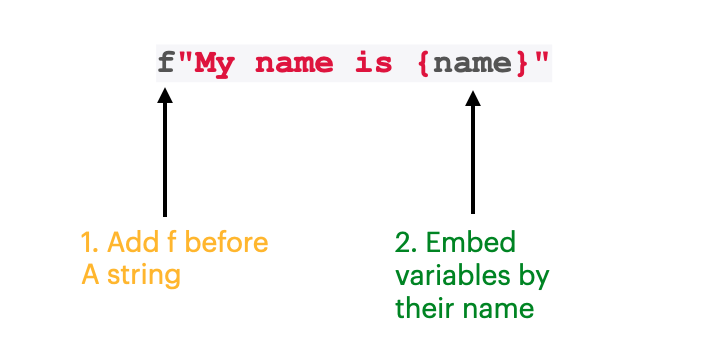
Using an f-string, the previous example becomes much cleaner:

This approach is not only easier to write but also significantly easier to read, as the variables are placed exactly where they will appear in the final output.
The following video provides a great visual summary of this core concept.
Python F-strings - Visually Explained
This video from the Visually Explained channel clearly demonstrates the fundamental syntax and benefit of f-strings.
Watch the segment from the beginning until the first example. It shows how to convert a regular string to an f-string and embed a variable's value.
Embedding Expressions and Calculations
The power of f-strings goes beyond just inserting variables. You can place any valid Python expression inside the curly braces, and it will be calculated on the fly. This is incredibly useful for the kind of programs you've started building.
For instance, if you have two numbers, you can perform the addition directly within the print statement:
num1 = 10
num2 = 5
print(f"The sum of {num1} and {num2} is {num1 + num2}.")


# Output: The sum of 10 and 5 is 15.
This feature is perfect for displaying the results of user input.
Python F-strings - Visually Explained
Let's continue with the "Visually Explained" video to see how to perform calculations inside an f-string.
Watch the next part of the video, which explains how to embed an entire calculation directly within the curly braces.
Formatting Numbers for Readability
When your calculations involve division or floating-point numbers, you often end up with results that have many decimal places (e.g., 19.44444444). F-strings give you precise control over how these numbers are displayed using format specifiers.
A format specifier is added inside the curly braces, following the variable or expression, and is preceded by a colon (:).
One of the most common specifiers is for formatting floating-point numbers. For example, :.2f tells Python to format the number as a float with exactly two decimal places. This is perfect for displaying prices or measurements.
price = 59
tax_rate = 0.075
total_price = price * (1 + tax_rate)  # This calculates to 63.425

print(f"The total price is ${total_price:.2f}")


# Output: The total price is $63.43
Notice how Python correctly rounded the number for display.
This next resource provides a clear, text-based explanation of this formatting capability.
This W3Schools article provides excellent, straightforward examples of f-string formatting.
Please read the section Placeholders and Modifiers. Focus on the example that uses {price:.2f} to format a number to two decimal places.
F-strings can also make large numbers easier to read by adding comma separators. You can achieve this by adding a comma to the format specifier.
large_number = 15000000
print(f"The population is approximately {large_number:,}.")


# Output: The population is approximately 15,000,000.
The video we've been watching covers both of these formatting techniques very well.
Python F-strings - Visually Explained
Now, let's see these formatting options in action.
First, watch the segment on formatting decimals to see how the .2f specifier works. Then, watch the part on making big numbers readable with comma separators.
A Practical Use Case: Creating Aligned Output
Imagine you want to display a price list where the item names and prices are neatly aligned in columns. Because item names have different lengths, simply printing them will result in a messy, unaligned list. F-strings solve this elegantly with alignment specifiers.
You can specify a total width for a placeholder. For example, :15 tells Python to reserve 15 characters of space for the output. By default, strings are left-aligned and numbers are right-aligned within this space.
This article uses a wonderful, narrative-driven example of a shop sign to illustrate this.
The Curious Little Shop at The End of My Street • Python's f-strings
This article from The Python Coding Stack demonstrates a practical and compelling use of f-strings to create well-formatted, column-like text.
Please scroll down to the subsection titled Fixing the tabulation. Read through this part to understand how specifying a width (e.g., {item:15}) can be used to align text and create a clean, readable price list.
Practice: Upgrade Your Adder
It's time to apply what you've learned. Let's revisit the adder program you created in the last lesson.
Instructions:
- Open the Python file containing your adder program.
- Modify the final
print()statement to use an f-string. - Your output should be a single, well-formatted sentence that includes both of the user's original numbers and their sum.
- Use a format specifier to ensure the final sum is always displayed with two decimal places.
For example, if the user enters 10.5 and 5.2, your output should look like this:The sum of 10.5 and 5.2 is 15.70.
If the user enters 10 and 20, your output should be:The sum of 10.0 and 20.0 is 30.00.
This exercise will solidify your understanding of embedding variables, performing calculations, and formatting numbers all within a single, powerful f-string.
Conclusion
In this lesson, you've moved beyond basic output and learned how to craft polished, professional, and highly readable messages for your users. F-strings are a fundamental tool in modern Python programming that you will use constantly.
Here are the main takeaways:
- F-strings simplify formatting: They allow you to embed variables and expressions directly into a string using an
fprefix and{}placeholders. - Expressions are evaluated on the fly: You can perform calculations, like
{num1 + num2}, right inside an f-string. - Format specifiers give you control: You can control the appearance of numbers using specifiers like
:.2ffor decimal places and: ,for thousand separators. - Alignment creates structure: By specifying a width for placeholders, you can create clean, table-like outputs.
In our next two lessons, we will complete this module by building two small, complete programs that tie together everything you've learned: reading user input, converting data types, and displaying beautifully formatted output. We'll start by writing a program that gives a user a personalized greeting.