Introduction
In the last lesson, we focused on securing the logical objects within Unity Catalog—catalogs, schemas, and tables—by granting and revoking permissions. This gave you control over who can access which data assets from a metadata perspective.
Today, we will connect this logical world to the physical world of cloud storage. The learning outcome for this lesson is to configure external locations and storage credentials for managed data access. This is a critical skill for any data engineer working with Databricks, as it allows you to bring your own cloud storage under the governance umbrella of Unity Catalog. This is fundamental for building custom data lake solutions, such as the Medallion Architecture, on your preferred storage service.
By the end of this lesson, you will understand and be able to implement the two key components that make this possible:
- Storage Credentials: Secure, named objects in Unity Catalog that encapsulate a cloud credential (like an AWS IAM Role) authorizing access to your cloud storage.
- External Locations: Named, securable pointers in Unity Catalog that use a storage credential to map to a specific path in your cloud storage (e.g., an S3 bucket or a folder within it).
1. The Conceptual Model: Connecting Logic to Physical Storage
Before diving into the hands-on steps, it's crucial to understand how these components fit together. By default, when you create a MANAGED table, Databricks stores its data in a cloud storage location that it controls within your account. However, most organizations want to store data in their own S3 buckets or ADLS containers for better cost management, integration with other tools, and data ownership.
This is where external locations and storage credentials come in. They allow Unity Catalog to securely read from and write to storage that you manage directly.
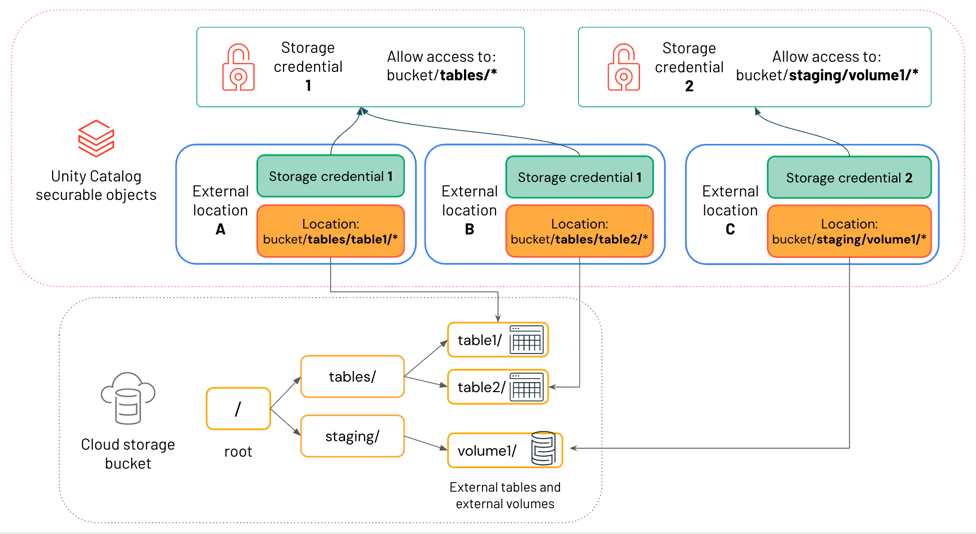
Here’s a breakdown of the architecture shown in the diagram:
- Cloud Storage (e.g., S3 Bucket): The physical location where your data files reside.
- Storage Credential: This is the "key." It is a Unity Catalog object that securely stores the ARN of an AWS IAM role. This role has policies attached in AWS that grant specific permissions (like read/write) to your S3 bucket.
- External Location: This is the "door." It is a Unity Catalog object that represents a specific path in your cloud storage (e.g.,
s3://my-company-bucket/bronze/) and is explicitly linked to a Storage Credential. You grant permissions on the external location itself within Unity Catalog. - Tables/Volumes: Once an external location is defined, you can create external tables or volumes on top of it, making the data queryable and governable through Unity Catalog, just like a managed table.
2. Hands-On: Configuring Access to AWS S3
Now, let's walk through the end-to-end process of configuring access to an S3 bucket. This involves a secure handshake between your AWS account and your Databricks workspace. Given your experience with AWS, you should find the concepts familiar, but the specific sequence of operations is important.
The process can be summarized as:
- In AWS: Create an IAM role that Databricks will be allowed to assume.
- In Databricks: Create a Storage Credential using that IAM role's ARN. Databricks will generate a unique
External ID. - Back in AWS: Update the IAM role's trust policy to include the
External IDfrom Databricks. This ensures only your Databricks workspace can assume this role. - Back in Databricks: Validate the credential and create an External Location that uses it.
The following video provides an excellent, detailed walkthrough of this entire procedure. We'll use it as our primary guide. I recommend having the official Databricks documentation open in another tab, as it's a great place to copy the required JSON policies.
Create a storage credential and external location for S3
First, open the official Databricks documentation. This page contains the specific JSON policies and SQL commands you'll need. Keep it handy as you follow the video.
Skim through the document to familiarize yourself with the steps. Pay attention to the JSON templates for the 'IAM role trust relationship policy' and the 'IAM policy' that grants S3 access. You will copy and paste these during the exercise.
Now, let's proceed with the hands-on configuration.
Create Storage Credential for Connecting to AWS S3
The video 'Create Storage Credential for Connecting to AWS S3' by Abiola David provides a clear, step-by-step demonstration. Follow along in your own AWS and Databricks environments.
Watch from 00:52 to 17:02. This covers the full, two-part process of creating the credential and updating the trust policy. The key steps are: Prerequisites & AWS Bucket Setup (00:52 - 04:20): Understand the requirements and see how to create an S3 bucket with the correct settings (ACLs disabled). AWS IAM Role & Policy Creation (04:20 - 11:59): This is the core of the AWS-side setup. You'll create an IAM role with a custom trust policy and a separate IAM policy to define S3 permissions. Attaching the Policy (12:12 - 13:33): A quick but essential step to link the role and policy. Databricks Credential Creation & Trust Policy Update (13:33 - 17:02): This is the crucial handshake. You create the credential in Databricks to get the External ID, then immediately switch back to AWS to update the role's trust policy. The final validation in Databricks confirms the connection is successful.
3. Creating and Verifying the External Location
With a validated storage credential, you can now define an external location. This can be done through the Catalog Explorer UI or programmatically with SQL. For production automation and infrastructure-as-code, using SQL is the standard approach.
First, let's see how it's done in the UI and what the result looks like.
Create Storage Credential for Connecting to AWS S3
Continuing with the same video, this next segment shows you how to create the external location using the credential you just configured.
Watch from 17:02 to 20:45. The video demonstrates creating the external location in the UI and then shows the powerful result: the files in your S3 bucket are now visible and browseable directly within the Databricks Catalog Explorer.
As you saw, the UI is straightforward. However, for your work as a data engineer, you will most often define these resources using SQL, especially when using tools like dbt or custom deployment scripts.
The command is simple and declarative.
-- Make sure to use backticks for the names and single quotes for the URL/comment
CREATE EXTERNAL LOCATION IF NOT EXISTS `dce_pro_aws_external_location`
    URL 's3://your-bucket-name/your-path/'
    WITH (CREDENTIAL `your_storage_credential_name`)
    COMMENT 'External location for raw data ingest';
After creating an external location, you can manage permissions on it just like any other securable object in Unity Catalog. For a data pipeline to use this location, the corresponding service principal would need the CREATE TABLE, READ FILES, or WRITE FILES privileges on it.
-- Grant a data engineering group permissions to create tables and write data
GRANT CREATE TABLE, WRITE FILES
ON EXTERNAL LOCATION `dce_pro_aws_external_location`
TO `data_engineers`;

-- Grant an analytics group permission to read data from this location
GRANT READ FILES
ON EXTERNAL LOCATION `dce_pro_aws_external_location`
TO `data_analysts`;

-- You can inspect the details of the location
DESCRIBE EXTERNAL LOCATION `dce_pro_aws_external_location`;
Conclusion
In this lesson, you've bridged the gap between Unity Catalog's logical governance layer and your own physical cloud storage. This is a foundational capability for building enterprise-grade data lakehouses on Databricks.
Key Takeaways:
- Storage Credentials act as a secure bridge to your cloud provider, encapsulating an IAM role that grants Databricks permission to act on your behalf.
- The creation process is a secure handshake: you provide Databricks an IAM Role ARN, and Databricks gives you an
External IDto lock down that role's trust policy. - External Locations are named pointers to specific paths in your cloud storage (e.g.,
s3://bucket/path/). They are associated with a storage credential. - Once an external location is defined, it becomes a securable object in Unity Catalog. You can grant privileges like
READ FILES,WRITE FILES, andCREATE TABLEon it to control access. - This setup allows you to store and govern data in your own S3 buckets, which is essential for managing data according to your organization's policies and cost structures.
Preview of the Next Lesson:
Now that you can connect to and govern external data sources, how do you track how this data flows through your pipelines? In the next lesson, we will focus on how to trace data lineage across tables and pipelines using Unity Catalog. You will learn how Unity Catalog automatically captures and visualizes lineage, from source tables through transformations to downstream dashboards, providing critical visibility for impact analysis and debugging.