Introduction
In our last lesson, you mastered VLOOKUP, a powerful tool for pulling data from one table into another. However, you may have already suspected a potential problem: what happens if the client name in your invoice sheet is "Apex Solutions " (with an extra space), but in your lookup table it's "Apex solutions" (lowercase)? VLOOKUP would fail, returning an error because it can't find an exact match. This is an extremely common issue in data research.
This lesson tackles that exact problem head-on. We will explore a family of functions designed to manipulate text: cleaning it, standardizing it, and combining it. As a data researcher, a significant portion of your work will involve tidying up "messy" data from various sources. Mastering these text functions is not just a spreadsheet skill; it's a foundational part of preparing data for any kind of analysis or reporting.
Why Data Cleaning is Crucial
Data rarely arrives in a perfect, ready-to-use format. It often contains inconsistencies that can break formulas and lead to inaccurate conclusions. Common issues include:
- Extra spaces before, after, or between words.
- Inconsistent capitalization (e.g., "DELL", "Dell", "dell").
- Information split across multiple columns that needs to be joined (e.g., "First Name" and "Last Name").
Cleaning this data manually is tedious and prone to error. Text functions allow you to automate this process, ensuring consistency across your entire dataset.
Let's begin with the two most common cleaning tasks: removing unwanted spaces and standardizing capitalization.
Text Functions in Google Sheets: Complete Guide
This guide from Sheets Bootcamp provides an excellent overview of the most essential text functions. We will refer back to it throughout the lesson.
To start, please read the sections What Are Text Functions? and Essential Text Functions. Focus on understanding the purpose of TRIM, CLEAN, UPPER, LOWER, and PROPER.
Fixing Spaces and Capitalization
As you just read, TRIM and the case functions (PROPER, LOWER, UPPER) are your first line of defense against messy text.
=TRIM(text)removes all leading and trailing spaces and reduces multiple spaces between words to a single space.=PROPER(text)converts text to "Title Case," capitalizing the first letter of each word. This is ideal for names and titles.=LOWER(text)converts all letters to lowercase, which is essential for standardizing data like email addresses.=UPPER(text)converts all letters to uppercase, useful for standardizing codes or IDs.
The following short video demonstrates TRIM and PROPER in action.
15 POWERFUL GOOGLE SHEETS TIPS & TRICKS (Insanely Useful Productivity Tips For Beginners)
This clip from Learn With Seb shows how quickly you can fix a messy list of names.
Watch the section on capitalizing names with PROPER from this timestamp, and then immediately continue to the next tip on removing extra spaces with TRIM from this timestamp.
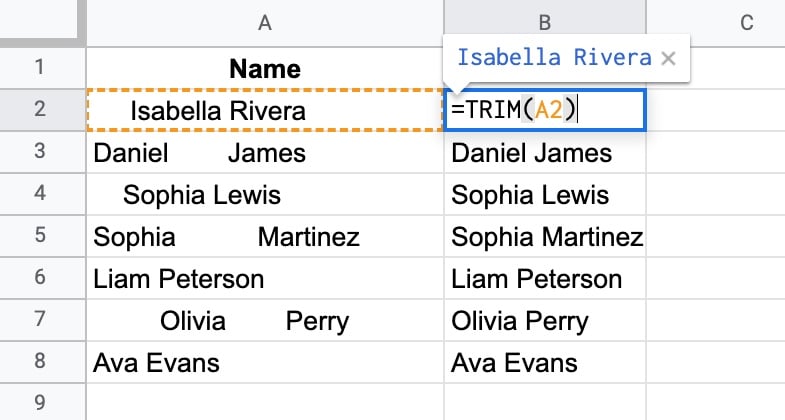
A common and efficient practice is to nest these functions to perform both cleaning actions in a single step. Google Sheets evaluates nested functions from the inside out. In the formula =PROPER(TRIM(A2)), Sheets first TRIMs the text in cell A2 to remove spaces, and then takes that result and applies the PROPER function to fix the capitalization.
Combining Text: CONCATENATE and Its Alternatives
Another frequent task is combining text from different cells. For instance, you might have columns for "First Name" and "Last Name" and need to create a "Full Name" column.
The classic function for this is CONCATENATE.
=CONCATENATE(string1, string2, ...)
This function joins the text strings you provide. However, you must explicitly tell it to add any spaces or other separators. To join a first name in A2 and a last name in B2 with a space, you would write:
=CONCATENATE(A2, " ", B2)

In practice, most users prefer the ampersand (&) operator because it's shorter and more readable:
=A2 & " " & B2
This formula achieves the exact same result as the CONCATENATE function above.
To see these methods for joining text, and to learn about the more modern TEXTJOIN function, watch the following video.
Google Sheets Join Strings, Text in Cells - CONCATENATE, JOIN, &, JOINTEXT Functions Tutorial
This video from Learn Google Sheets & Excel Spreadsheets clearly explains the different ways to combine text.
First, watch the section on using the ampersand (&) to join text. Then, skip ahead to learn about the CONCATENATE function. Finally, watch the section on the powerful TEXTJOIN function, which is especially useful for joining many cells at once.
As you saw, TEXTJOIN is a very flexible function that lets you specify a delimiter (like a comma or space) to place between each item and can automatically ignore any empty cells, which is very convenient.
Practical Exercise: Cleaning and Combining Contact Data
Let's apply these skills to your My Freelance Invoices spreadsheet. You'll clean up some messy client names and then combine first and last names to create a full contact name.
Part 1: Prepare Your Sheet
- Open your
My Freelance Invoicesspreadsheet. - Add a new column header in cell L1 (or the next available column) called "Cleaned Client Name".
- Add two more columns: "Contact First Name" in M1 and "Contact Last Name" in N1.
- Finally, add a column header in O1 called "Full Contact Name".
- To create some messy data to work with, manually edit a few of the client names in column B. For example:
- Change "Quantum Leap Inc." to " quantum LEAP inc. " (with extra spaces and mixed case).
- Change "Silver Screen Prod." to "silver screen prod.".
- Populate the "Contact First Name" and "Contact Last Name" columns with some sample names for each client.
Your sheet should look something like this:
| Client Name | ... | Cleaned Client Name | Contact First Name | Contact Last Name | Full Contact Name |
|---|---|---|---|---|---|
| Sunshine Navigations | ... | Sarah | Jones | ||
quantum LEAP inc. |
... | David | Chen | ||
silver screen prod. |
... | Maria | Garcia |
Part 2: Clean and Combine
-
Clean the Client Name: In cell L2, enter the nested formula to both trim spaces and apply proper case:
=PROPER(TRIM(B2))
Press Enter. You should see the messy name from B2 appear perfectly formatted in L2. Drag the fill handle down to apply this to all your client names. -
Combine the Contact Names: In cell O2, you'll create the full name. Use the ampersand operator for this:
=M2 & " " & N2
Press Enter. The first and last names should now be combined into a single full name. Drag this formula down the column.
You have now successfully automated the cleaning and combining of your text data. This is a vital skill that saves immense time and prevents errors.
Conclusion
In this lesson, you've learned how to tame messy text data, a critical skill for any data researcher. By using a few simple functions, you can ensure your data is clean, consistent, and ready for reliable analysis.
Here are your key takeaways:
TRIMis your go-to function for removing extra and unwanted spaces from text.PROPER,LOWER, andUPPERallow you to standardize text capitalization for consistency.- Functions can be nested (e.g.,
=PROPER(TRIM(A2))) to perform multiple operations in one formula. - Text can be combined using
CONCATENATE, the&operator (most common), or the more advancedTEXTJOINfunction.
In our next lesson, we'll learn how to import data from external files, specifically CSV files. You will quickly find that the data cleaning skills you learned today are immediately essential, as imported data is one of the most common sources of messy formatting.