Introduction
Welcome to our next lesson. In our previous session, we focused on cleaning and standardizing data that was already inside your spreadsheet using text functions like TRIM and PROPER. This was a crucial step because, as a data researcher, you'll often find that data doesn't originate in your spreadsheet—it comes from external sources.
This lesson bridges that gap by teaching you how to import data from one of the most common file formats you'll encounter: the CSV file. Mastering this skill is fundamental to your work, as it allows you to bring data from websites, databases, and other software into your own environment for analysis. We'll cover what a CSV file is and walk through the step-by-step process of importing one into Google Sheets.
What is a CSV File?
Before we import a file, it's important to understand what it is. A CSV file, which stands for "Comma-Separated Values," is a plain text file used to store tabular data. Each line in the file represents a row of data, and within each row, commas separate the individual values (which become the columns in your spreadsheet).
Because of their simplicity and universal compatibility, CSV files are a standard format for exchanging data between different applications.
To get a clearer picture of this concept, start by reading a brief introduction to delimited files.
Importing Data — Introduction to Google Sheets and SQL
This article from the "Introduction to Google Sheets and SQL" course on Runestone Academy clearly explains the structure of delimited files.
Please read the first part of the article, starting from the definition of a delimited file and the examples of different separators.
The video below also provides a quick, practical explanation of what a CSV file is in the context of a real-world data project.
How to Import & Merge CSV File to Google Sheets | Strength Coach Tutorials
This tutorial from DSMStrength on YouTube begins with a concise overview of CSV files.
Watch the initial segment from this timestamp for a straightforward definition.
The Import Process in Google Sheets
Now that you understand what a CSV file is, let's walk through how to import one into Google Sheets. The process is straightforward, involving the Import function found in the File menu.
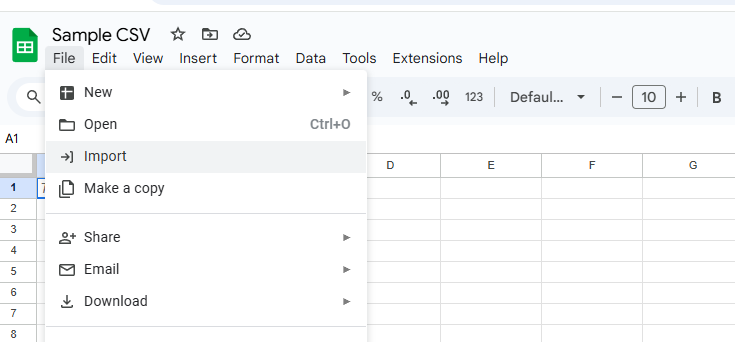
Once you select "Import," you'll be able to choose a file from your computer or Google Drive and will then be presented with an "Import file" dialog box. This is where you tell Google Sheets how to handle your data.
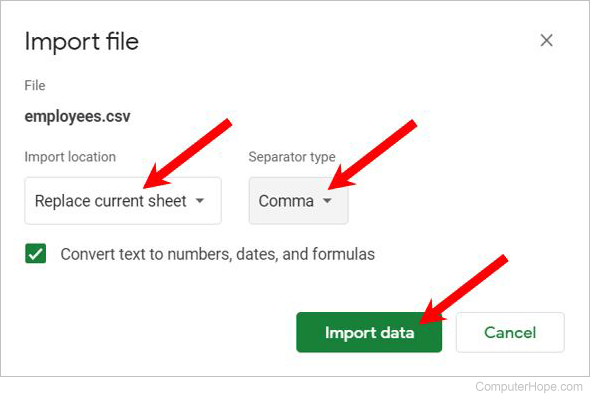
Let's look at the key options:
- Import location: This determines where the data will go. You can create a new spreadsheet, replace the current sheet, or—very usefully—append the new data to the bottom of the current sheet.
- Separator type: This tells Sheets what character separates your data values. For CSV files, it's a comma. While "Detect automatically" often works well, it's good practice to explicitly select "Comma" to avoid errors.
- Convert text to numbers, dates, and formulas: This option should generally be checked. It allows Sheets to automatically recognize and correctly format different data types, which is essential for performing calculations or sorting later.
The following video demonstrates this entire process from start to finish.
How to Import & Merge CSV File to Google Sheets | Strength Coach Tutorials
This part of the tutorial provides a clear, step-by-step visual guide to the import process.
Watch the sections where the presenter navigates to the import menu and then explains the various import options. Pay close attention to the different "Import location" choices.
Hands-On Exercise: Import Your First Dataset
It's time to put this into practice. For this exercise, you will use a sample dataset about breakfast cereals, which is a classic dataset for learning data handling.
Part 1: Download and Import the Data
- First, you need the data file. The "Importing Data" article you reviewed earlier provides a link to download it.
Importing Data — Introduction to Google Sheets and SQL
This section of the article contains the link to the dataset and recaps the import instructions.
Find the link within the text that says Here is a dataset, and click it to download the cereal.csv file to your computer.
- Now, open a new, blank Google Sheet.
- Following the steps you just learned, go to File > Import.
- Click the Upload tab and select the
cereal.csvfile you just downloaded. - The "Import file" dialog will appear. Configure it as follows:
- Import location: "Replace current sheet" (since our sheet is blank).
- Separator type: "Comma".
- Convert text to numbers...: Ensure this is checked.
- Click Import data.
You should now see the cereal dataset neatly organized into rows and columns in your spreadsheet. Take a moment to look it over. Notice how the text cleaning skills from our last lesson would be useful here if, for example, the manufacturer names ("N", "Q", "K") were inconsistent.
Part 2: Appending Data
A common task is to add new data to an existing dataset. Let's simulate this by importing the same file again, but this time appending it.
- In the same sheet, scroll to the bottom of the data (around row 80).
- Go to File > Import again and re-select the
cereal.csvfile. - This time, in the "Import file" dialog, change the Import location to "Append to current sheet".
- Click Import data.
You will now see the dataset has been added again to the bottom of your sheet. However, you'll also notice a problem: the header row (name, mfr, type, etc.) from the second import has been added into the middle of your data. This is a perfect example of the "messiness" that comes with real-world data work.
The video you watched earlier offers a clever solution for this exact problem.
How to Import & Merge CSV File to Google Sheets | Strength Coach Tutorials
This final clip demonstrates merging data and cleaning up the result.
Watch how the presenter appends a second file and then uses the "Remove duplicates" tool from this timestamp to quickly clean the extra header row.
Try using the "Remove duplicates" feature (found under the Data > Data cleanup menu) to remove the repeated header row in your practice sheet.
Conclusion
In this lesson, you've acquired a critical skill for any data researcher: importing external data. You now understand the structure of a CSV file and can confidently use the File > Import function in Google Sheets to bring datasets into your workspace for analysis.
Here are the key takeaways:
- A CSV (Comma-Separated Values) file is a universal plain-text format for storing tabular data.
- The
File > Importcommand is your gateway for loading external data into Google Sheets. - Understanding the import options—especially
Import locationandSeparator type—is crucial for controlling how data is added to your sheet. - Imported data often requires cleaning. Merging datasets can introduce issues like duplicate headers, which can be cleaned using tools like
Data > Remove duplicates.
Now that you know how to bring data into your sheets, our next lesson will focus on ensuring data quality at the source. We will explore data validation, a powerful feature that lets you create rules to control what information can be entered into a cell, preventing many common errors before they even happen.