Introduction
In our last lesson, we laid the essential groundwork for our lead generation project by defining a clear plan. We established our Ideal Customer Profile (ICP) as Gyms and Fitness Centers in Austin, TX, with 1-10 employees, and our Buyer Persona as the Owner, Founder, or Manager of these establishments.
Today, we transition from planning to action. This lesson is dedicated to the hands-on process of finding individuals who match these specific criteria using LinkedIn, a primary tool for professional data research. You will learn how to use LinkedIn's search filters effectively and then master a powerful technique called Boolean search to craft highly precise queries. By the end of this lesson, you will have identified your first few potential leads, preparing you to build out the full deliverable.
1. Finding Leads with LinkedIn's Basic Filters
Before diving into advanced techniques, let's start with the most direct method: using LinkedIn's standard search and filter functions. This approach is intuitive and powerful enough for many research tasks.
The core idea is to first identify a target company and then find the right person within it, or to search for the person directly. A video from Megan Grant illustrates these two methods clearly.
How to Generate B2B Leads on LinkedIn // LinkedIn Lead Generation for FREE
This video demonstrates the fundamental workflows for finding leads on LinkedIn. It aligns perfectly with our goal of finding specific people within a target industry.
Please watch the following three segments: First, watch the method of searching by company. Notice how the search starts with a niche ("law firm" in her case), filters by "Companies," and then explores the employee list to find relevant job titles. Next, watch the alternative method of searching by people directly. This approach casts a wider net from the start. Finally, see how to use "All Filters" to narrow the results by criteria like Location and Title. This is the most crucial part for our project.
Your First Search Task
Now, let's apply this to our project.
- Go to the LinkedIn search bar.
- Type
gymorfitness centerand press Enter. - Click the "People" filter button.
- Click the "All filters" button.
- In the filters panel, add "Austin, Texas, United States" under Locations.
- Scroll down to the Title field and add
Owner. Click "Show results".
Browse the first page of results. Do you see people who seem to match our buyer persona? You've just executed your first targeted lead search. This method is a great starting point, but we can make it much more powerful and precise.
2. Supercharging Your Search with Boolean Logic
What if you want to search for "Owner" OR "Founder" OR "Manager" all at the same time? Or what if you want to find a "Marketing Manager" but NOT a "Sales Manager"? This is where Boolean search comes in.
Boolean search uses a combination of logical operators—words like AND, OR, and NOT—to build sophisticated search queries. It allows you to tell the search engine exactly what to include and exclude.

The five essential Boolean operators for LinkedIn are:
- AND: Narrows your search. Results must contain both keywords. Example:
marketing AND manager. - OR: Broadens your search. Results can contain either keyword. Example:
owner OR founder. - NOT: Excludes terms from your search. Results will not contain the specified keyword. Example:
manager NOT assistant. - Quotation Marks
"": Searches for an exact phrase. Example:"personal training director". - Parentheses
(): Groups parts of your query to control the order of operations, just like in mathematics. Example:(owner OR founder) AND gym.
The following video provides an excellent crash course on using these operators on LinkedIn.
How To Use LinkedIn Boolean Search [2024]
In this video, Skye Snayd provides a clear, example-driven walkthrough of each Boolean operator.
Watch the video from the beginning to the end of the parentheses section. Pay close attention to how each operator changes the search results and how parentheses are used to combine multiple conditions. Remember that operators like AND and OR must be in ALL CAPS.
3. Building Your Project's Boolean Query
Now, let's construct the precise Boolean query for our project based on the requirements from our last lesson. This is where your new skills become directly applicable to your freelance work.
Our goal is to find a person who is an (Owner OR Founder OR Manager) at a (Gym OR Fitness Center).
-
Start with the job titles. We want to find anyone with the title "Owner," "Founder," or "Manager." In Boolean, we group these with
OR:(Owner OR Founder OR Manager)
The parentheses ensure LinkedIn searches for any of these titles first. -
Add the industry keywords. We can add keywords related to our target industry to find people whose profiles mention these terms.
(gym OR "fitness center")
We use quotes around "fitness center" to search for that exact two-word phrase. -
Combine them with AND. We need profiles that contain both our desired title and our industry keywords.
(Owner OR Founder OR Manager) AND (gym OR "fitness center")
This combined string is a powerful search query.
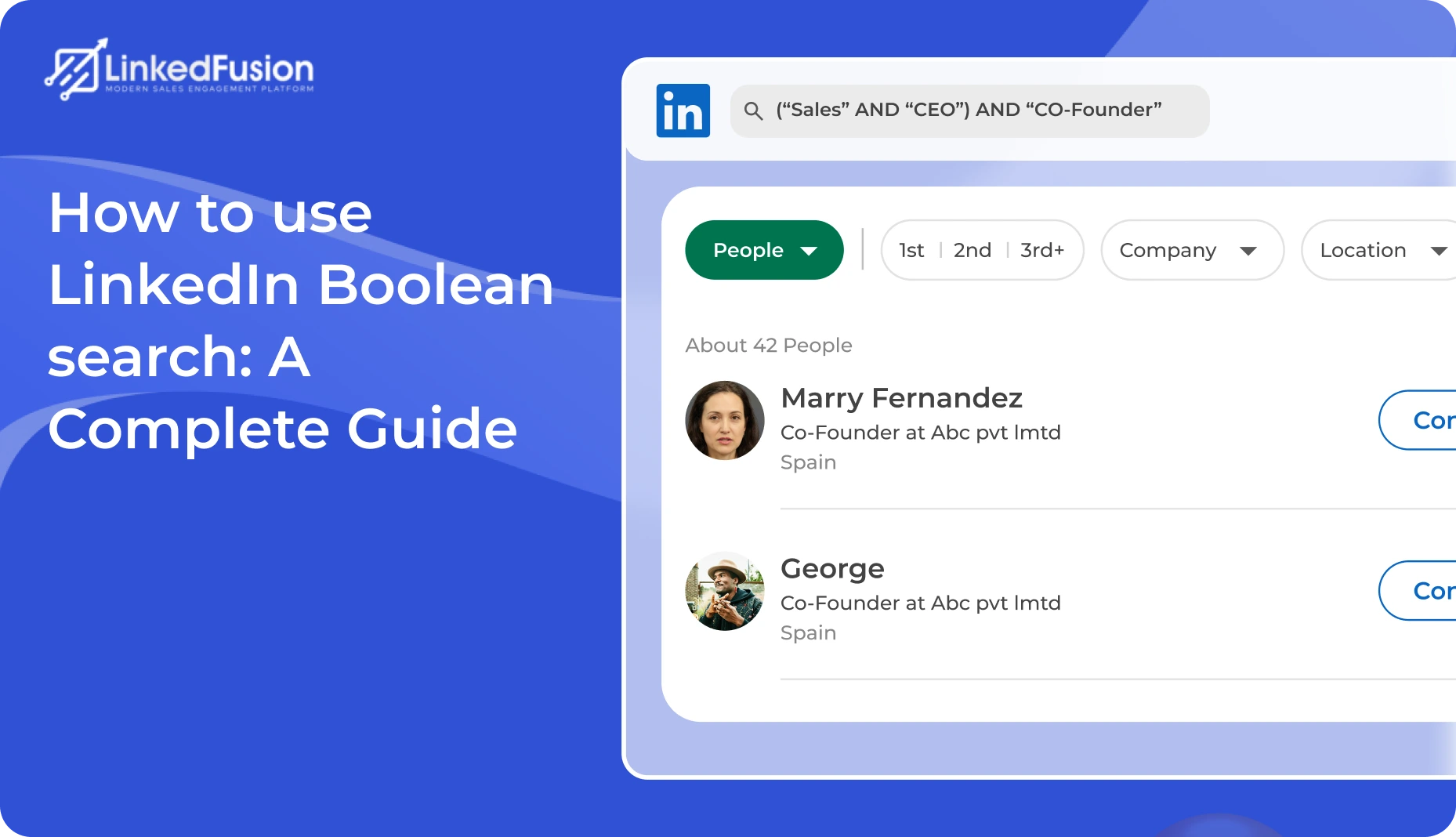
For further study, the following guide provides excellent real-world examples that reinforce these concepts.
Ultimate Guide to LinkedIn Advanced Search & Filter
This article from Kondo offers a deep dive into Boolean techniques and practical examples that are directly relevant to lead generation.
Please read the sections titled "Advanced Boolean Search Techniques" and "Real-World Boolean Examples". Focus on the structure of the "For Sales Prospecting" example, as it closely mirrors the type of query we are building.
Your Second Search Task
It's time to put your full query into practice.
- Go to the LinkedIn search bar.
- Ensure the "People" filter is selected.
- Set the Location filter to "Austin, Texas, United States."
- In the main search bar at the top of the page, enter your new Boolean string:
(Owner OR Founder OR Manager) AND (gym OR "fitness center") - Press Enter and review the results.
Compare these results to your first search. They should be much more relevant to our specific project needs. From this list, identify 2-3 people who look like strong potential leads. For each one, open their profile in a new tab. You will need these profile URLs for our next lesson.
Conclusion
In this lesson, you have made the crucial leap from planning to execution. You learned how to translate project requirements into concrete search actions on LinkedIn, a fundamental skill for any data researcher.
Here are the key takeaways:
- LinkedIn's basic filters for People, Location, and Title are a good starting point for any search.
- Boolean search gives you precision and control by using operators like
AND,OR,NOT, quotes"", and parentheses(). - A well-constructed Boolean query combines multiple criteria to find highly specific results, such as
(Owner OR Founder) AND gym. - The research process is iterative: you build a query, analyze the results, and refine it to improve accuracy.
You have now identified your first potential leads for our project. In the next lesson, "Extract and compile lead data," you will learn how to systematically capture the information from these LinkedIn profiles and organize it in the Google Sheet we planned, bringing our project deliverable to life.