Introduction
In our previous lesson, you learned how to automate data collection from multi-page websites using Instant Data Scraper. This is a powerful skill for gathering structured data from directories and listings. Now, we will turn our attention to one of the most valuable sources for professional data: LinkedIn. As a freelance data researcher, you will frequently get requests for building lists of potential business leads, analyzing competitors' employees, or gathering information on industry experts, and LinkedIn is the primary source for this.
Today's lesson focuses on extracting key information—like names, job titles, and company names—from public LinkedIn profiles. However, unlike a simple directory, LinkedIn has strict rules about data collection. We will therefore focus on effective and, most importantly, safe methods that respect their policies and protect your account. You'll learn how to perform "smart copy-pasting" with a browser extension and a clever technique for gathering profile data without directly scraping LinkedIn's site.
The Rules of the Road: Safe LinkedIn Data Extraction
Before we jump into the "how," we must cover the "why." Why can't we just point a tool like Instant Data Scraper at LinkedIn and let it run? The simple answer is that doing so violates LinkedIn's User Agreement and can get your account restricted or even permanently banned. Losing a professional network you've built over years is a significant risk.
For a freelancer, your reputation and your tools are your business. It's crucial to operate professionally and ethically. Let's start by understanding the landscape.
5 Ways to Extract LinkedIn Lead Data Without Violating Terms of ...
This article from trykondo.com clearly explains the risks and outlines compliant alternatives. It's essential reading for any data professional.
Please read the following sections to understand the professional context: Start by reading from the risks involved to understand the potential consequences of improper scraping. Next, read the section on "Use Compliant Browser Extensions for Single-Profile Data Capture." Focus on the explanation of how these tools work, starting from how they work. This describes the "smart copy-paste" approach we'll be using. Finally, review the section Deeper Dive for a summary of the key risks, including account bans and data quality issues.
The key takeaway is that automated, bulk scraping is forbidden, but user-initiated, single-profile data capture is a much safer and more compliant approach. Our methods today will fall into this safer category.
Method 1: Semi-Manual Extraction from Individual Profiles
This first method is a two-step process: first, you find the profiles you're interested in, and second, you visit them one by one to extract the data into a spreadsheet. This is the most common and reliable workflow for building high-quality, targeted lists.
Step 1: Finding Profiles
You can use LinkedIn's own search bar to find people by title, company, or keyword. For even more power, you can use the advanced Google search techniques you learned earlier in this module.
For example, to find CEOs of FinTech companies in New York, you could search Google for:site:linkedin.com/in/ "CEO" "FinTech" "New York"
This gives you a list of public profiles directly in your Google search results.
Step 2: Extracting Data
Once you have a profile open, you could manually copy and paste the name, title, and company into Google Sheets. But this is slow and repetitive. A "smart copy-paste" browser extension can speed this up dramatically.
"Add to Sheets" is a great example of a compliant tool that does exactly this. It allows you to right-click specific pieces of information on a webpage and send them directly to a pre-configured Google Sheet.
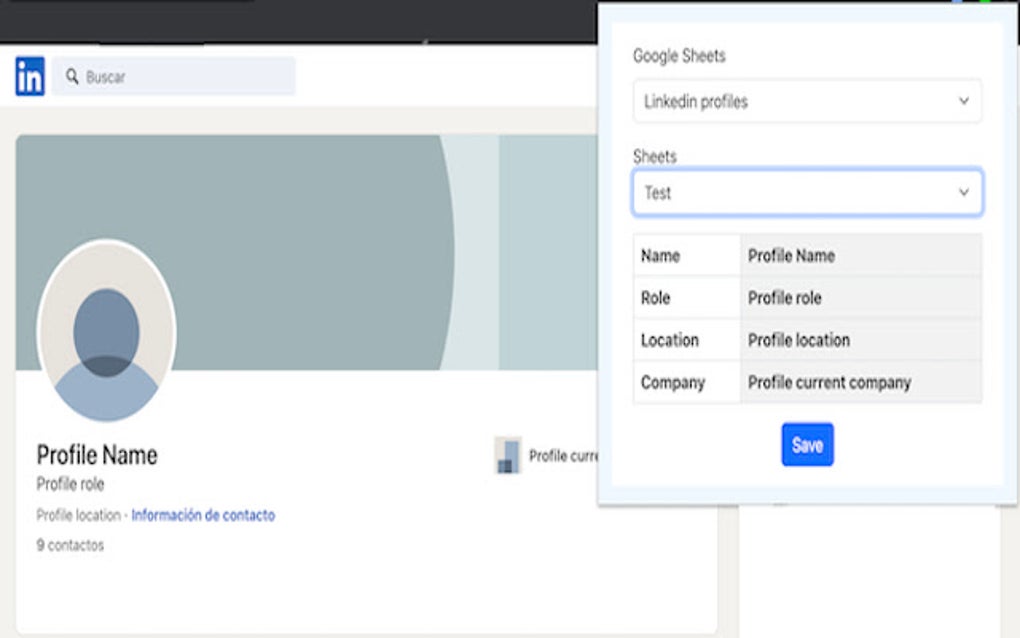
Let's look at how to use this type of tool.
Save LinkedIn Profiles to Google Sheets
This guide for the 'Add to Sheets' extension provides a clear, practical overview of the single-profile capture method.
Please review the following to understand the process: Look at the table under the heading What You Can Save. It shows exactly which data points you can capture and the simple action required. Read the instructions under Step-by-Step. This walks you through installing the extension, setting up your spreadsheet, and saving data from a profile.
The workflow demonstrated in the "Add to Sheets" guide—visiting a profile, selecting data points, and saving them to a sheet—is a core skill. The following video shows this same workflow in a real-world context, where a researcher is gathering emails and other data points for a lead list. While the specific tool is different (SalesQL), the process of going profile-by-profile is identical.
Data Entry Tutorial | Finding Peoples Email Address in Linkedin Using Sales QL | Lead generation
This video by Chad Godoy demonstrates the practical rhythm of building a lead list by moving from profile to profile.
Watch these two short clips to see the workflow in action: First, understand the goal. The presenter outlines the data points he needs to collect for his spreadsheet (the objective). This is just like defining the columns for your own project. Next, see how he moves from a list of search results to an individual profile and then extracts the data. Notice that it's a manual process for each person: copying and pasting the email, name, profile link, and company into his spreadsheet. This is the "single-profile data capture" method in practice.
Method 2: Scraping Google Search Results
What if you need to gather a large list of names and profile URLs quickly, before you begin the detailed, one-by-one extraction? Our second method provides a clever way to do this by scraping the Google search results page itself, rather than LinkedIn. This is generally safer as it avoids sending rapid, automated traffic to LinkedIn's servers.
For this, we'll use a different type of extension called an XPath helper, which can be configured to grab specific repeating elements from a page. It's more technical than Instant Data Scraper but very powerful.
The video below walks you through the entire process:
- Using a
site:linkedin.com/in/search in Google to generate a list of profiles. - Using the "expat helper" extension to extract all the names from the search results page.
- Modifying the tool's settings to then extract all the corresponding LinkedIn profile URLs.
- Pasting both lists into a Google Sheet.
LinkedIn Data Scraping Tutorial | Scrape LinkedIn Profiles for FREE
This tutorial from aRafys provides an excellent walkthrough of a powerful and free technique for bulk-gathering profile links.
Please watch from the beginning until the end of the demo. Pay close attention to these steps: Google Search Setup: Note how the search query is built and how to change Google's settings to show 100 results per page (search setup). Extracting Names: See how the expat helper extension is used to select and copy all the names from the results page (extracting names). Extracting URLs: Watch carefully how the XPath query is modified to grab the profile URLs instead of the names (extracting URLs). This technique gives you a ready-made list of prospects to either use as-is or to feed into the semi-manual extraction process from Method 1 for gathering more detail.
Conclusion
You now have two effective and responsible methods for gathering data from LinkedIn, a critical skill for freelance data research. You've learned not just the "how" but also the important "why" behind choosing safer data collection practices.
Let's summarize the key points:
- Safety First: Automated bulk scraping of LinkedIn is against their terms of service and risks your account. The professional approach is to use compliant methods.
- Method 1: Single-Profile Capture: This "smart copy-paste" method involves visiting profiles one by one and using an extension like "Add to Sheets" to quickly save data to a spreadsheet. It's ideal for creating high-quality, detailed lists.
- Method 2: Scraping Google Results: This technique uses Google search operators and an XPath extension to quickly gather a large number of names and profile URLs without sending risky traffic to LinkedIn. It's excellent for initial list-building.
The data you collect, especially with the second method, will rarely be perfect. You might have names and titles mixed in the same cell, for example. This is a perfect lead-in to our next module, where we will dive into Data Cleaning and Preparation. In the very next lesson, you will learn how to use advanced filtering techniques to isolate messy data and begin the process of tidying it up.