Introduction
In our last lesson, you mastered the foundational skill of manually extracting data from a single webpage and entering it into a structured spreadsheet. While this is a crucial skill for small, precise tasks, you'll quickly find it becomes incredibly time-consuming when a client asks for data from a directory, product catalog, or search result that spans dozens of pages.
Today, we'll solve that exact problem. This lesson will teach you how to systematically and automatically collect data from multi-page websites. We'll move beyond simple copy-pasting and learn to use a powerful, yet beginner-friendly, browser extension called Instant Data Scraper. This tool will help you gather large amounts of data quickly, a key skill for many freelance data research projects.
The Challenge of Multi-Page Listings
Imagine a client wants a list of all dentists in Atlanta from Yellow Pages. Manually copying data from the first page is easy enough, but what about the second, third, and tenth pages? Doing this by hand is not only tedious but also increases the risk of errors. A professional data researcher needs a more efficient method.
The solution is to use a tool that can automatically detect the data on a page, find the "Next" button, and repeat the process until all pages are covered. This is precisely what Instant Data Scraper does.
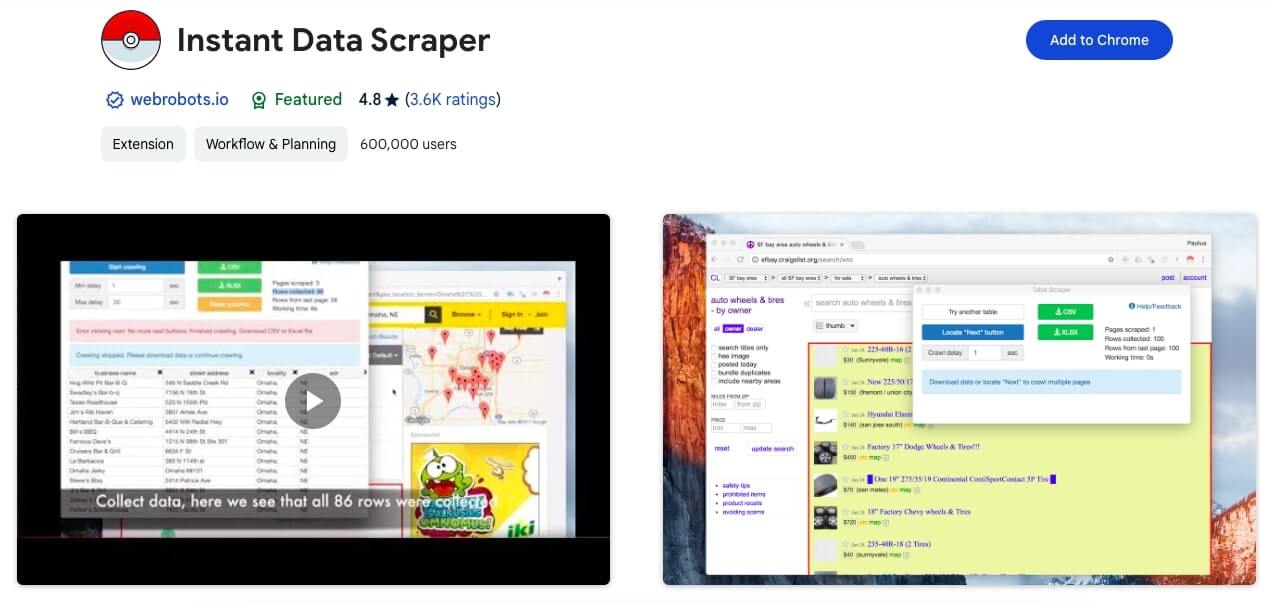
Before we dive into a practical demonstration, let's get a high-level understanding of what this tool is and how it handles multi-page data collection, often referred to as "pagination."
Ultimate Guide to Using an Instant Data Scraper - Indie Hackers
This guide from Indie Hackers provides an excellent overview of the tool's capabilities.
Please read the following short sections to understand the core concepts: Start with the Key Takeaways section to get a quick summary. Note the point about "pagination support." Then, read the section How Instant Data Scrapers Work to understand the three main steps: Detection, Extraction, and Pagination. Finally, review the section on Handling Pagination and Infinite Scrolling. This is the central skill for today's lesson.
A Practical Walkthrough: Scraping a Directory
Now that you have a conceptual grasp of the tool, let's put it into practice. The following video provides a clear, step-by-step demonstration of using Instant Data Scraper to extract data from a multi-page directory—the exact task we discussed.
You will learn how to install the extension, activate it, tell it how to navigate to the next page, and export your collected data.
How to Scrape Data from Website | Instant Data Scraper Chorme Extension | Learn Web Scraping
This video from Azharul Rafy provides a perfect demonstration of the entire process from installation to data export.
Please watch the video, paying close attention to these key stages: Installation: First, watch how to find and install the extension from the Chrome Web Store (Installation process). Activation and Pagination: This is the most important part. See how the tool is activated on the target page and, critically, how to use the "Locate next button" feature to teach the scraper how to move from page 1 to page 2, and so on. Watch this segment carefully: Activating and locating 'Next'. Crawling and Exporting: Once the "Next" button is set, watch how to start the automated crawling process. Then, see how to stop the process and export the data as a CSV file, which you can open in Google Sheets or Excel (Crawling and exporting).
Understanding Your Scraped Data
After the scraper finishes, you can download all the collected data in a single file. As the video demonstrates, you simply click the "CSV" or "XLSX" button.
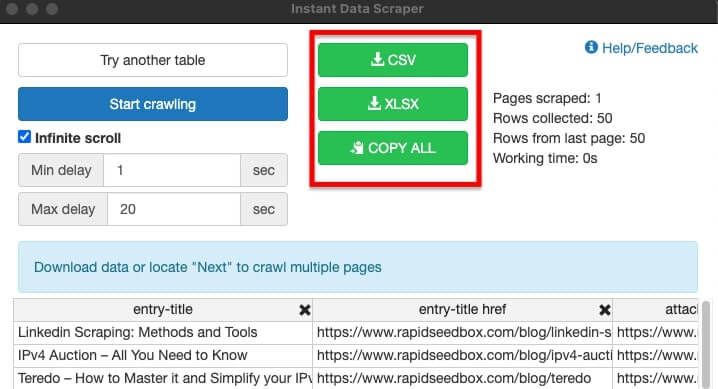
The exported data is rarely perfect. You'll often find extra columns that aren't useful, messy formatting, or inconsistent entries. The video gives a quick glimpse of this (
It's also important to know that while Instant Data Scraper is fantastic for sites with clear, table-like structures and simple "Next" buttons, it has its limits. It may struggle with highly dynamic websites or those with complex anti-scraping measures. Acknowledging a tool's limitations is just as important as knowing its strengths.
Conclusion
You've now taken a significant step forward in your data research capabilities. By learning to automate the collection of data from multi-page listings, you've moved from a purely manual workflow to a more scalable and efficient one. This is a skill that directly translates to completing larger freelance projects faster and more accurately.
Here are the key takeaways from this lesson:
- The Problem with Manual: Manually copying data from multi-page websites is inefficient and prone to error.
- The Tool for the Job: Instant Data Scraper is a user-friendly Chrome extension that automates the process of extracting data from simple, structured websites.
- The Key Technique (Pagination): The most critical step is using the "Locate 'Next' button" feature to teach the scraper how to navigate through all the pages of a listing.
- The Output: The tool allows you to export all the collected data into a single CSV or Excel file for further analysis and cleaning.
In our last few lessons, we've focused on general web research. In our next lesson, we will turn our attention to a specific and highly valuable source of professional data: LinkedIn. You will learn how to apply your extraction skills to gather key information from public LinkedIn profiles, a common and essential task in lead generation and market research.