Introduction
In our last lesson, we explored methods for gathering valuable professional data from LinkedIn. As we discussed, the data you collect—especially when gathered in bulk—is often not perfectly structured. You might find job titles mixed with names, missing company information, or other inconsistencies. This raw data needs to be refined before it can be used for any meaningful research or analysis.
This lesson marks the beginning of our module on Data Cleaning and Preparation. We'll start with the essential first step: finding the data that needs to be fixed. You'll learn how to use advanced filtering techniques to go beyond the simple sorting you learned in our first module. These methods will allow you to isolate specific rows based on complex rules, making it possible to target messy data with precision. By the end of this lesson, you will be able to use powerful filtering tools in both Excel and Google Sheets to find data that needs cleaning.
A Quick Refresher on Basic Filtering
Before diving into advanced methods, let's quickly review the standard filtering capabilities available in most spreadsheet tools. Basic filters are great for simple tasks like showing data for a specific category or values within a certain range.
The video below provides a great overview of these fundamental techniques. As you watch, notice how you can filter by text, numbers, and dates using simple dropdown menus. This will provide a solid foundation for understanding what makes the "advanced" techniques we're about to cover so powerful.
This video from Kevin Stratvert's channel, "How to Filter in Excel," offers a clear demonstration of the basic filtering functions you'll use daily.
Please watch the following segments to refresh your memory on standard filtering: Text Filters: Watch how to select specific text values from a list or use conditions like "begins with" (this segment). Number Filters: See how to apply numerical conditions like "less than or equal to" or find the "bottom N items" (this part). Date Filters: Review the options for filtering by date, such as selecting "last year" or a custom date range (date filtering).
Advanced Filtering: The Criteria Range
While basic filters are useful, they fall short when you need to apply multiple, complex conditions. For example, what if you need to find all contacts from "New York" who are "CEOs" OR all contacts from "California" who are "VPs"? This requires more sophisticated logic.
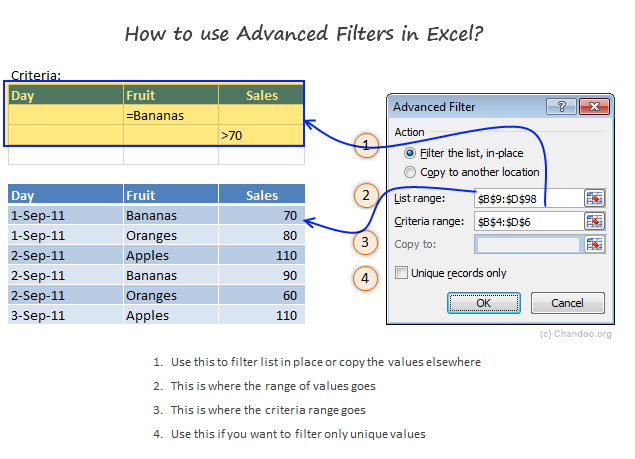
Both Excel and Google Sheets provide ways to handle this. Let's start with Excel's built-in Advanced Filter tool. Its power comes from a concept called the criteria range.
A criteria range is a small, separate table you create on your worksheet to define your filtering rules.
- Column Headers: The headers in your criteria range must exactly match the headers in your main data table.
- AND Logic: To find rows that meet multiple conditions (e.g., Region is "North" AND Sales > 1000), you place the criteria in the same row.
- OR Logic: To find rows that meet at least one of several conditions (e.g., Region is "North" OR Region is "South"), you place the criteria on different rows.
The following article provides a comprehensive guide to setting up and using Excel's Advanced Filter.
Excel Advanced Filter – how to create and use
This guide from Ablebits.com is an excellent resource that breaks down the Advanced Filter tool with clear examples.
Please read the following sections to understand how to build and use a criteria range: Start with the setup instructions to learn the fundamental rules for creating a criteria range. Review the table of comparison operators and the sections on filtering text to see what kinds of conditions you can write. Next, learn how to use wildcards for partial matches by reading the introduction to wildcards and looking at the examples in the table that follows. Finally, and most importantly, study the section on AND vs. OR logic. This is the key to creating powerful, complex filters.
To apply an Advanced Filter, you go to the Data tab and click Advanced. This opens a dialog box where you specify your main data list and your criteria range.
The FILTER Function in Google Sheets
Google Sheets takes a different, more dynamic approach. Instead of a dedicated tool, it provides the FILTER function. This is a formula that you type directly into a cell, and it "spills" the results into the cells below and to the right. The biggest advantage is that the filtered results update automatically if your source data changes.
The basic syntax is:=FILTER(range, condition1, [condition2, ...])
range: The data you want to filter (e.g.,A2:D100).condition1: A logical test that applies to a column in your range (e.g.,B2:B100 = "New York").
For a visual demonstration of how this works, the following video is an excellent starting point.
How to Use the FILTER Function in Google Sheets | Multiple Columns
In this video, Leila Gharani provides a clear, step-by-step tutorial on using the FILTER function in Google Sheets.
Watch the following sections to get a solid grasp of the basics: First, see how to use the function with a single condition to filter data based on a dropdown selection. Next, learn how to add a second condition to create an AND filter, where both conditions must be true.
Using AND / OR Logic with FILTER
To create complex filters with multiple conditions, you combine your logical tests using arithmetic operators. This is a key technique for data cleaning.
- AND Logic: To require all conditions to be true, you multiply them:
(condition1) * (condition2) - OR Logic: To require at least one condition to be true, you add them:
(condition1) + (condition2)
Let's see this in action. Imagine you have data in columns A through E and you want to filter for rows where the product in column C is "Financial Software" OR "Marketing Analytics". The formula would be:
=FILTER(B3:E17, (C3:C17="Financial Software") + (C3:C17="Marketing Analytics"))
The article below provides more examples of this syntax and other best practices.
Google Sheets FILTER Function: A 2025 Data Analysis Guide - OWOX
This guide from OWOX provides practical examples of the FILTER function for various data cleaning scenarios.
Focus on these sections for advanced usage: Read through the "Practical Use Cases" section, paying close attention to the syntax for AND and OR logic. Notice the use of * for AND and + for OR. Review the section on mastering advanced criteria for a summary of how logical operators work. Finally, look at the common challenge of handling no matches. Wrapping your FILTER formula inside an IFERROR function is a professional way to manage cases where your filter returns no results.
Practical Application: Isolating Messy Data
Let's apply these techniques to a common data cleaning task. Imagine you've collected the following contact data, and you need to find entries that require fixing.
| Name | Title | Company |
|---|---|---|
| Jane Doe | CEO | TechCorp |
| John Smith - Manager | Regional Manager | Innovate |
| Peter Jones | Solutions | |
| Susan Chen | Intern | Beta Inc. |
| Mark Rivera - VP | Vice President of Sales | Globex |
| Alice Williams | Chief Financial Officer |
Our goal is to isolate rows that have at least one of these problems:
- The
Companyfield is blank. - The
Namefield contains a hyphen-, suggesting it needs to be split. - The
Titleis "Intern", which we want to remove from our final lead list.
This is a perfect use case for an OR filter.
In Excel (using Advanced Filter)
You would set up the following criteria range. Notice how each condition is on a new row to create the OR logic.
| Name | Title | Company |
|---|---|---|
*-* |
||
=Intern |
||
= |
*-*: The asterisks are wildcards, so this finds any name containing a hyphen.=Intern: This finds titles that are exactly "Intern".=: An equal sign by itself in a criteria cell finds blank cells.
You would then open the Advanced Filter tool, select your data as the List range, and select this new table as the Criteria range.
In Google Sheets (using the FILTER function)
Assuming your data is in A1:C7, you would write this formula:
=FILTER(A2:C7, (ISBLANK(C2:C7)) + (ISNUMBER(SEARCH("-", A2:A7))) + (B2:B7="Intern"))
Let's break that down:
ISBLANK(C2:C7): This checks for empty cells in the Company column.ISNUMBER(SEARCH("-", A2:A7)): TheSEARCHfunction finds the position of the hyphen in the Name column. If it's found, it returns a number;ISNUMBERconverts this to TRUE. This is how we check if text contains a certain character.B2:B7="Intern": This checks if the Title is "Intern".- The
+operators combine these three conditions with OR logic.
Both methods will successfully isolate the rows for John Smith, Peter Jones, Susan Chen, Mark Rivera, and Alice Williams, which are the ones that need cleaning.
Conclusion
In this lesson, you've taken your first major step into data cleaning by learning how to isolate problematic data. You now have powerful techniques for both Excel and Google Sheets to find rows that meet complex criteria.
Here are the key takeaways:
- Advanced filtering is crucial for data cleaning because it allows you to define complex rules to find messy or irrelevant data.
- In Excel, the Advanced Filter tool uses a separate criteria range to define
AND(same row) andOR(different rows) logic. - In Google Sheets, the dynamic
FILTERfunction uses formulas with*forANDlogic and+forORlogic to achieve the same goal. - Techniques like using wildcards (in Excel) or functions like
SEARCH(in Google Sheets) allow you to find partial text matches, which is essential for identifying data that needs to be split or standardized.
Now that you can effectively find and isolate data that needs fixing, our next lesson will focus on what to do with it. We will explore how to identify and correct data entry errors using Find & Replace, a simple but incredibly effective tool for cleaning up the data you've just filtered.