Introduction
In our last lesson, you learned how to use dictionaries to store and manage data as key-value pairs, which was a significant step up from simple lists. You built a small monitor for an AI core, but you may have noticed a limitation: as soon as your program finished, the ai_core_status dictionary and all its information vanished. The data was ephemeral, existing only in your computer's temporary memory (RAM).
To build truly powerful applications, especially in AI where you need to save model configurations, log experiment results, or process vast datasets, you need a way to make your data persistent. This means saving it to a location where it will remain even after the program stops running.
This lesson addresses that exact need. Your learning outcome is to read from and write to text files to persist data. You will learn the fundamental process of interacting with files on your computer's storage, allowing your programs to save their state, load data, and interact with the outside world in a much more meaningful way. This is the final step in our programming foundations module and a crucial skill for any serious developer.
Why Do We Need Files?
All the variables, lists, and dictionaries you've worked with so far reside in your computer's RAM. RAM is fast, but it's also volatile—its contents are erased when the power is turned off. For permanent storage, we use non-volatile media like hard drives or SSDs. Files are the named locations on these devices where we store data permanently.
To understand the motivation behind file handling, let's watch a short explanation.
File Handling in Python | Python Tutorials for Beginners #lec95
This video from Jenny's Lectures CS IT clearly explains why file handling is a necessary concept in programming, contrasting temporary RAM with permanent disk storage.
Watch from 00:08 to 05:46. Focus on the three main reasons given for needing files: Storing data permanently. Handling large amounts of input data that are impractical to type manually. Storing large amounts of output data.
Text Files vs. Binary Files
There are two main categories of files you'll encounter:
- Text Files (
.txt,.py,.csv,.json): These store data as human-readable characters. You can open them in a simple text editor (like Notepad or VS Code) and understand their contents. Internally, each character is represented by a number using an encoding scheme like ASCII or UTF-8. - Binary Files (
.jpg,.mp3,.exe): These store data in a format that is not human-readable. They are made of bytes that represent custom data structures, like the pixels of an image or the machine code of a program. Opening a binary file in a text editor will show you what looks like garbage.
In this lesson, we will focus exclusively on text files, as they are fundamental for configuration, logging, and many forms of data exchange.
The File Handling Process
Working with files in any programming language generally follows a three-step process:
- Open the file, establishing a connection between your program and the file on the disk. You must specify the mode you want to use (e.g., read, write).
- Perform Operations on the file, which means either reading its contents into your program or writing data from your program into the file.
- Close the file, which breaks the connection and ensures that any data you wrote is safely saved to the disk.
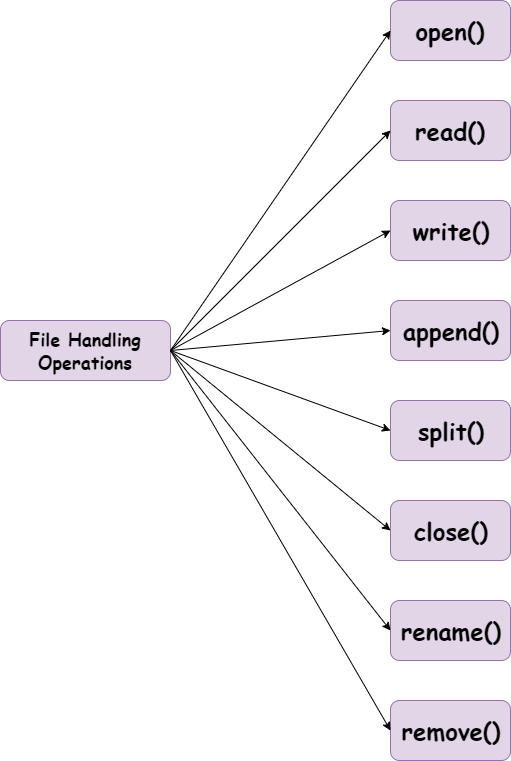
Opening and Writing to Files in Python
The modern and safest way to work with files in Python is by using the with statement. It automatically handles closing the file for you, even if errors occur in your code. This prevents data corruption and memory leaks.
The basic syntax is:
with open('filename.txt', 'mode') as file_object:


    # Perform operations on the file_object here
# The file is automatically closed when you exit the 'with' block
There are three primary modes for text files:
'w'for write: Opens a file for writing. If the file already exists, its contents are erased. If it doesn't exist, it is created.'a'for append: Opens a file for writing. New data is added to the end of the file. If the file doesn't exist, it is created.'r'for read: Opens a file for reading. This is the default mode. If the file does not exist, Python will raise an error.
Let's see how to write and append to a file in practice.
Text Files in Python || Python Tutorial || Learn Python Programming
The video 'Text Files in Python' from Socratica provides a concise and clear demonstration of writing to files using the with statement.
Watch from 03:35 to 05:39. Pay close attention to: How to open a file in write mode ('w'). Using the .write() method to put text into the file. The necessity of adding the newline character (\n) yourself to separate lines. How append mode ('a') differs from write mode by adding to the end instead of overwriting.
A key point to remember is that the .write() method only accepts strings. If you want to save a number or another data type, you must first convert it to a string using str().
score = 100
with open('scores.txt', 'w') as f:
    f.write(str(score))
Reading from Files
Once data is saved in a file, you need to be able to read it back into your program. We open the file in read mode ('r') and can then use several methods to access the content.
Text Files in Python || Python Tutorial || Learn Python Programming
Let's return to the Socratica video to see how to read from a file and how to handle the common error when a file doesn't exist.
Watch from 01:49 to 03:46. Focus on: Using the with statement to open a file in read mode. The .read() method, which reads the entire file content into a single string. What a FileNotFoundError is and how to use a try...except block to handle it gracefully.
Besides .read(), there are other useful ways to get data from a file:
.readlines(): Reads all lines from the file and returns them as a list of strings. Each string in the list includes the newline character\nat the end.- Iterating over the file object: This is the most common and memory-efficient way to read a file line by line.
Here's an example demonstrating the iteration method:
# Assuming 'oceans.txt' contains one ocean name per line
line_number = 1
with open('oceans.txt', 'r') as f:
    for line in f:


        # .strip() removes leading/trailing whitespace, including the newline character
        print(f"Line {line_number}: {line.strip()}")
        line_number += 1
For a more detailed summary of these file operations, you can refer to the following guide.
The NCERT textbook 'File Handling in Python' provides a solid, structured overview of the concepts we've discussed. It's a good reference to consolidate your understanding.
Skim through the sections 'Opening and Closing a Text File', 'Writing to a Text File', and 'Reading from a Text File'. Pay special attention to the explanations of the with clause and the different reading methods (read(), readline(), and readlines()).
Your Turn: Persisting the AI Core Status
Now, let's make the "AI Core Systems Monitor" from our last lesson persistent. You will write the dictionary's status to a file and then write a second piece of code to read it back, proving the data has been saved.
Instructions (20 minutes):
This task has two parts.
Part 1: Save the Status to a File
- Start with the
ai_core_statusdictionary you created in the last lesson.ai_core_status = { 'primary_power': 'Online', 'memory_usage': 45.7, 'active_processes': ['Vision', 'NLP', 'Logistics'], 'data_bus': 'Nominal' } - Open a file named
core_log.txtin write mode ('w'). - Loop through the dictionary's items using the
.items()method. - Inside the loop, for each key-value pair, write a formatted string to the file in the format
key:value\n. For example, the first line in the file should beprimary_power:Online. - Remember to convert the values to strings using
str()before writing.
Part 2: Read and Reconstruct the Status
- Open the
core_log.txtfile you just created, this time in read mode ('r'). - Create a new empty dictionary called
reconstructed_status. - Iterate through each line of the file.
- Inside the loop, for each line, you need to parse it to get the key and value back.
- Use
.strip()to remove the newline character. - Use the string method
.split(':')to break the line into a list of two strings (the key and the value).
- Use
- Add the key and value to your
reconstructed_statusdictionary. - After the loop, print the
reconstructed_statusdictionary to verify that you have successfully read the data and restored it.
Example Code Structure:
# --- Part 1: Writing to the file ---
ai_core_status = {
    'primary_power': 'Online',
    'memory_usage': 45.7,
    'active_processes': ['Vision', 'NLP', 'Logistics'],
    'data_bus': 'Nominal'
}
print("Saving status to core_log.txt...")
with open('core_log.txt', 'w') as f:
# Your for loop to write items here
for key, value in ai_core_status.items():
f.write(f"{key}:{str(value)}\n")
print("Save complete.")
# --- Part 2: Reading from the file ---
print("\nReading status from core_log.txt...")
reconstructed_status = {}
try:
with open('core_log.txt', 'r') as f:
# Your for loop to read lines and reconstruct the dictionary here
for line in f:
# Clean the line and split it
key, value = line.strip().split(':', 1) # Split only on the first colon
reconstructed_status[key] = value
print("Reconstructed Status:")
print(reconstructed_status)
except FileNotFoundError:
print("Log file not found. Cannot reconstruct status.")
Note: The split(':', 1) is a slightly more robust way to split, ensuring that if a value itself contains a colon, it's not incorrectly split. For this exercise, a simple .split(':') also works. Try to complete the code yourself before relying on the full solution here.
Conclusion
Excellent work. You have now completed the final lesson in our "Programming Foundations" module. You've mastered the essential skill of file I/O, which bridges the gap between your running program and the computer's permanent storage. This ability to save and load data is not just a convenience; it's a requirement for nearly every real-world application, from simple utilities to the complex AI systems you aim to build.
Key Takeaways:
- Data in RAM is volatile; files provide persistent storage on disk.
- The
with open(...) as ...statement is the standard, safe way to handle files, as it guarantees they are closed. - The key file modes are
'r'(read),'w'(write - overwrites), and'a'(append - adds to end). - You can write data using
.write()(which requires a string) and read data using.read(),.readlines(), or by iterating directly over the file object. - Always be prepared to handle
FileNotFoundErrorwith atry...exceptblock when reading files.
Preview of the Next Lesson:
You have built a strong foundation. Now, we will move on to Module 2: Data Handling and Visualization in Python. Our first lesson will be on importing and using functions from Python standard library modules. This will unlock a vast array of pre-built tools that come with Python, allowing you to perform more complex tasks without having to write everything from scratch. This is the first step toward leveraging the powerful ecosystem of libraries that makes Python the language of choice for AI and data science.