Hello! Welcome to the final lesson of our "Advanced Python Fundamentals" module.
In our previous lessons, we've honed our skills in writing clean functions, handling errors gracefully, and managing resources safely with context managers. All this work has focused on making the code inside a single file better. Now, we'll zoom out and learn how to organize the files themselves.
This lesson addresses the learning outcome: Organize code into modules and packages with proper import structures. As you start building machine learning projects, you'll have separate code for data loading, preprocessing, model training, and evaluation. Keeping this code organized is not just about tidiness—it's essential for creating projects that are maintainable, scalable, and easy for you or others to work on.
Modules: The Basic Unit of Code Organization
At its simplest, a module is just a Python file (.py extension) containing functions, classes, and variables. Instead of writing one massive script, you can group related code into separate modules.
Let's say you have a file main.py and you want to use a function from another file, helpers.py, located in the same directory. This is the most basic form of importing.
The following video provides a clear, practical demonstration of this fundamental concept.
Importing Your Own Python Modules Properly
This clip from NeuralNine's video 'Importing Your Own Python Modules Properly' shows the simplest case: importing functions from one file into another within the same directory.
Watch from 01:00 to 03:10. Notice the different ways to import: you can import specific functions (from functionality import add) or all functions (from functionality import *).
Import Statements: Your Toolkit
As you saw in the video, Python gives you several ways to import code:
-
import module_name: Imports the entire module. You must then prefix a function or variable with the module name to use it (e.g.,module_name.my_function()). This is explicit and avoids name conflicts. -
from module_name import function_name: Imports a specific function or class directly into the current namespace. You can then call it directly (e.g.,my_function()). -
import module_name as alias: Imports the module and gives it a shorter, more convenient name. This is extremely common in data science (e.g.,import numpy as np,import pandas as pd). -
from module_name import *: Imports everything from the module into the current namespace. This is generally considered bad practice. It can "pollute" your namespace with unexpected names, overwrite existing functions, and make it very difficult to track where a function came from.
To reinforce the best practices around importing, let's turn to a short reading.
Complete Guide to Imports in Python: Absolute, Relative, ...
The article 'Complete Guide to Imports in Python' explains the different import syntaxes and provides a compelling example of why import * can be dangerous.
Please read the sections titled 'Importing *' and 'Importing As'. Pay close attention to the example with time and asyncio to see how name clashes can cause subtle bugs.
Packages: Structuring Larger Projects
When your project grows beyond a few files, you'll want to group related modules into directories. In Python, a directory that contains modules is called a package. This allows you to create a hierarchical structure for your code.
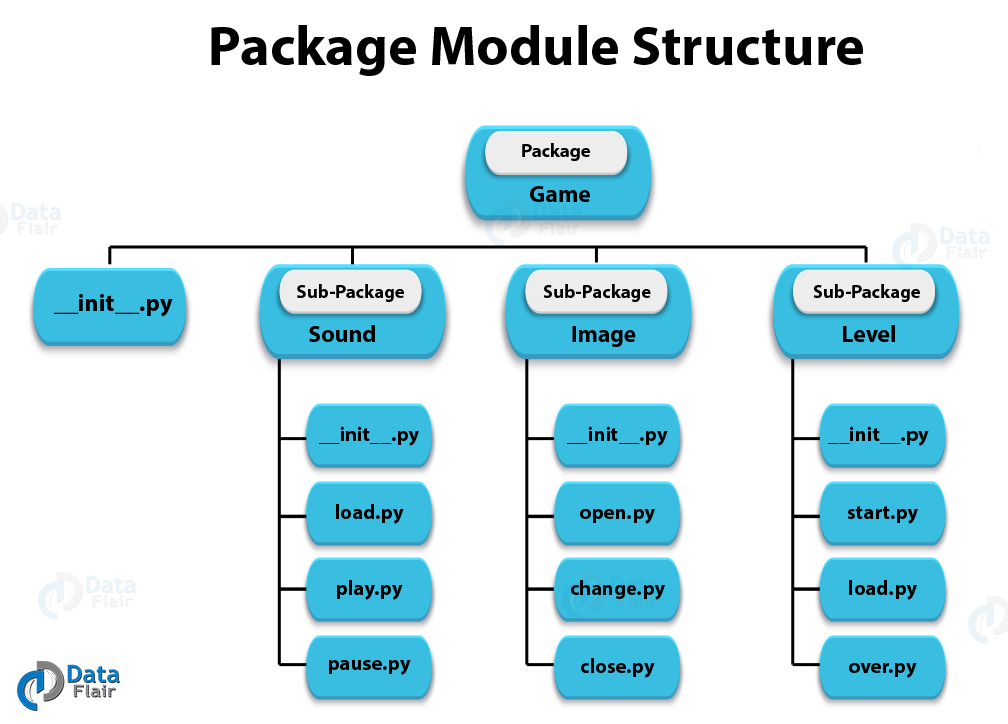
As you can see, the special file __init__.py plays a central role. Let's explore what it does.
The Role of __init__.py
For Python to treat a directory as a regular package, it must contain a file named __init__.py. While this file can be empty, it has two primary functions:
- Package Initialization: The code inside
__init__.pyis executed the first time the package or one of its modules is imported. This is useful for any setup the package needs. - Creating a Public API: You can use
__init__.pyto make functions or classes from your submodules more easily accessible. Instead of a user having to writefrom my_package.my_module import my_function, you can import it within the__init__.pyfile, allowing the user to simply writefrom my_package import my_function.
The following video explains this concept clearly.
What does '__init__.py' do in Python?
This segment from Tech With Tim's video 'What does 'init.py' do in Python?' demonstrates how the __init__.py file works, both for package initialization and for simplifying import statements for the end-user of your package.
Watch from 01:36 to 06:34. The first part clarifies that while __init__.py is no longer strictly mandatory for some package types in modern Python, it's still essential for regular packages and best practices. The second part shows the powerful technique of simplifying imports.
Absolute vs. Relative Imports: Navigating Your Package
Now for the trickiest part of Python's import system. When you're working inside a package, how do you import a module from a different part of that same package? You have two choices: absolute or relative imports.
-
Absolute Imports: Specify the full path from the project's root directory (the top-level folder that Python is looking at).
- Example:
from my_project.utils import data_helper - Pro: Very clear and unambiguous.
- Con: Can break if you try to run a file directly from within a sub-package.
- Example:
-
Relative Imports: Specify the path relative to the current module's location using dot notation.
.refers to the current directory...refers to the parent directory.- Example:
from . import data_helper(imports from the same directory) - Example:
from ..models import linear_regression(imports from a siblingmodelsdirectory). - Pro: Makes your package self-contained and easier to rename.
- Con: Can only be used within a package. Trying to run a file that uses relative imports as a standalone script will cause an error.
This distinction is a common source of confusion and errors. The next video segment dives into this topic, explaining the common pitfalls and how to resolve them.
What does '__init__.py' do in Python?
This is the most critical part of the lesson. The video explains why your imports might work when you run your main script but fail with a ModuleNotFoundError or ImportError in other situations. It demonstrates the difference between absolute and relative imports in practice.
Watch from 06:34 to 12:04. Pay close attention to the errors that pop up and how they are fixed. The key takeaway is understanding the difference between running a file directly (python my_module.py) versus running it as part of a package (python -m my_package.my_module).
The -m Flag: Your Secret Weapon
As the video highlighted, the error ImportError: attempted relative import with no known parent package is extremely common. It happens when you try to execute a file directly that is designed to be part of a package and uses relative imports.
The solution is to tell Python to run the file as a module within the context of your project's package structure, using the -m flag.
From your project's root directory, instead of running:python my_package/my_module.py (This will fail if my_module.py uses relative imports)
You run:python -m my_package.my_module (This works!)
Test your understanding!
Imagine you have the following project structure:
my_app/
├── __init__.py
├── main.py
└── utils/
    ├── __init__.py
    ├── string_utils.py
    └── math_utils.py
Inside main.py, you want to import a function add from math_utils.py. Which of the following import statements is an absolute import?
from .utils.math_utils import addfrom my_app.utils.math_utils import addfrom utils.math_utils import add
Show answer
The correct answer is 2. from my_app.utils.math_utils import add.
This is an absolute import because it specifies the full path starting from the root of the package (my_app).
- Option 1 is a relative import.
- Option 3 would work if you were running
main.pyfrom themy_appdirectory, but it relies on Python's path and is less explicit than the full absolute import in option 2.
For a more detailed written explanation of these concepts, you can refer to the "Absolute Imports" and "Relative Imports" sections of the pythonforthelab.com article we looked at earlier.
Conclusion
Congratulations on completing the "Advanced Python Fundamentals" module! You've moved beyond basic scripting and are now equipped with the tools to write robust, efficient, and well-organized Python code.
Key Takeaways:
- Modules are single
.pyfiles used for organizing code. - Packages are directories containing modules and an
__init__.pyfile, allowing for hierarchical project structures. - The
__init__.pyfile initializes a package and can be used to define a clean public API for it. - Absolute imports (
from project.package import module) are explicit and based on the project root. - Relative imports (
from . import module) are used for imports within a package and make the package more self-contained. - To run a file that's part of a package, use the
python -m package.modulecommand to avoid common import errors.
Preview of the Next Lesson:
With our foundation in writing and organizing advanced Python code now solid, we're ready to tackle a new paradigm. Our next module, Object-Oriented Programming in Python, will teach you how to create your own custom data types using classes. We will begin with the lesson Design classes with appropriate attributes and methods, where you'll learn to bundle data and functionality together—the fundamental principle of OOP and a cornerstone for building complex machine learning systems.