Recommended resources
The freely available resources this lesson will direct you to.
Hello again! Last lesson followed a change from a GitHub commit through verification to a running website. Now we’ll look inside the automation that can perform part of that journey. The question for this lesson is: when GitHub Actions runs a workflow, what actually runs, and how is the work organized?
Allow about 35–40 minutes to study this lesson. For your eventual 20-minute Azure App Service workshop, you can compress its central diagram and explanation into roughly two minutes. We’ll leave trigger filters, credentials, and Azure deployment settings for later lessons.
See the execution structure first
GitHub Actions is the automation platform; an action is one reusable component that a workflow can call. Those similar names are easy to confuse. Watch GitHub’s beginner video for the basic vocabulary and for a glimpse of where jobs and steps appear in the Actions interface.
How to use GitHub Actions | GitHub for Beginners
Watch “How to use GitHub Actions | GitHub for Beginners” from GitHub to see the execution structure described and then located in an actual workflow run.
Start with core vocabulary, paying particular attention to the job running on a runner. Watch file structure for the top-level name, on, and jobs fields. At steps in practice, distinguish uses from run. Finally, inspect a run to see how the interface exposes a job’s individual steps. The video’s example handles issues rather than deploying a web app, but the execution structure is the same.
The nesting is the key idea. A repository can contain multiple workflow files. One workflow defines one automated process; it contains one or more jobs. Each job contains an ordered list of steps. A step commonly either executes a shell command with run or invokes a reusable action with uses.
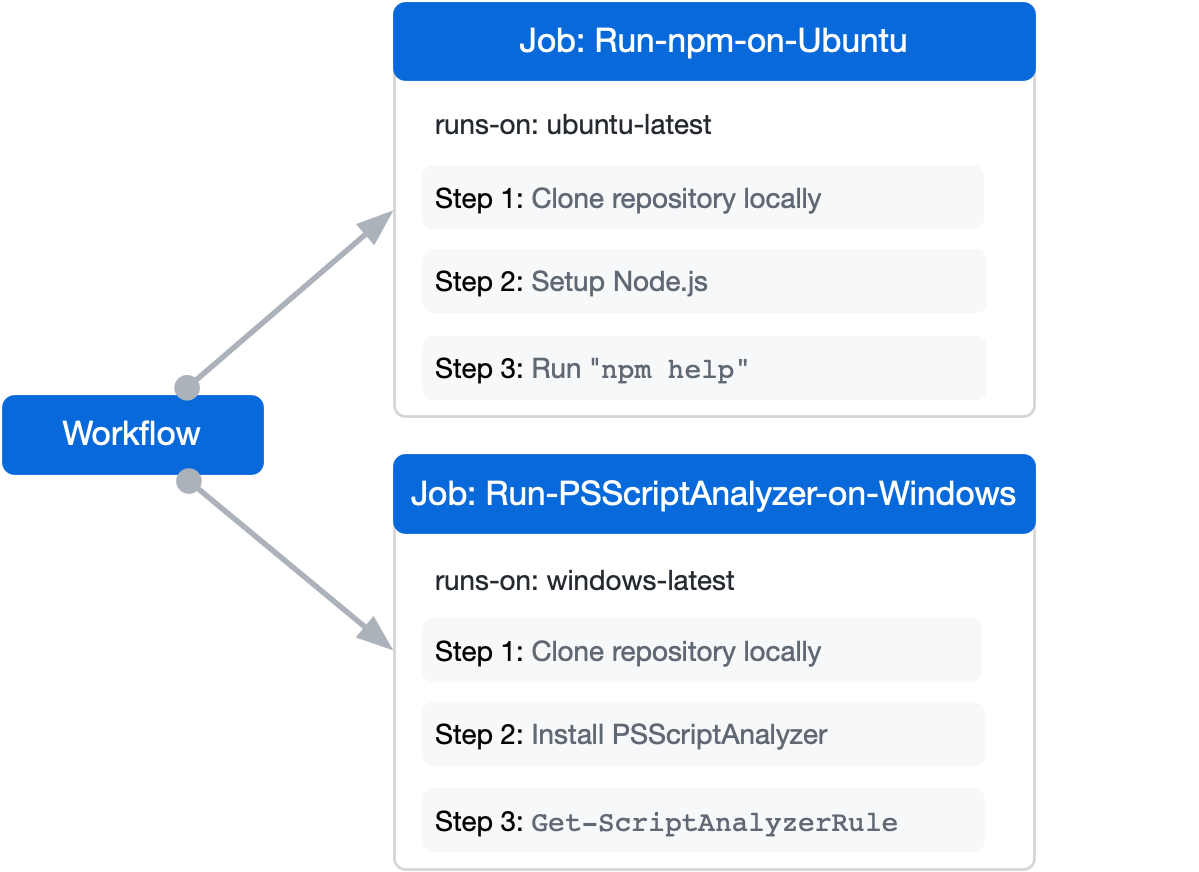
For your web-app workshop, the same structure could be drawn without committing to a deployment design yet:
Repository
  .github/workflows/web-checks.yml
    Workflow: Web app checks
      Job: inspect                 (runner A)
        Step: get source           (uses a checkout action)
        Step: list project files   (runs a shell command)
      Job: report                  (runner B)
        Step: print a message      (runs a shell command)
Notice that the action belongs inside a step. It is not a substitute name for the whole workflow, and invoking one does not automatically create a separate job.
Read the YAML as a nested set of instructions
GitHub’s “Creating an example workflow” tutorial gives a small, complete file. It is worth reading before interpreting a web-app example: the tutorial shows exactly which YAML keys own the jobs and steps.
Read GitHub Docs’ “Creating an example workflow” to connect the visual hierarchy to the indentation and keys in a real workflow file.
In “Creating an example workflow,” start where the page explains YAML files in .github/workflows, then read the example setup through the instruction after the YAML example. In “Understanding the workflow file,” read the explanations from the optional workflow name through the final command: the line-by-line guide. Focus on what jobs: groups, what steps: groups, and why some list items use uses while others use run. You do not need to install the tutorial’s bats tool for this course.
Here is a deliberately small workflow adapted to our future web-app setting. It does not build or deploy the application yet; it only makes the execution boundaries visible.
name: Web app checks

on: push

jobs:
  inspect:
    runs-on: ubuntu-latest
    steps:
      - name: Get source
        uses: actions/checkout@v6

      - name: Show project files
        run: ls

  report:
    runs-on: ubuntu-latest
    steps:
      - name: Print a message
        run: echo "A separate job ran"
Read from the outside inward. name identifies the workflow. on: push says what kind of event can start a workflow run; we will examine trigger details next lesson. Under jobs:, inspect and report are two job identifiers. Each job has its own runs-on setting and its own steps: list. The dash before each step marks a separate list item—not a new job.
Within inspect, the first step invokes the reusable actions/checkout action. That action places repository code on the job’s runner so a later command can work with it. The second step runs ls on that same runner. In report, echo is a shell command rather than an action. These examples make a useful distinction for a beginner audience:
A step is a position in a job’s execution list. An action is reusable code that a step may invoke.
A run step can contain more than one shell command, so “step” does not mean “exactly one command.” Conversely, seeing uses tells you the step calls an action; it does not tell you that the whole workflow came from an action.
What stays together, and what runs separately?
Steps within a job normally run in their listed order on the same runner. That is why the ls step can inspect files placed there by the preceding checkout step. For an eventual build job, this means checkout, build, and test steps can operate on the same working files.
Jobs have a different boundary. By default, jobs without dependencies are eligible to run in parallel, and each has its own runner environment. In the example, report does not wait for inspect merely because it is written below it. Nor does its runner automatically inherit the files checked out by inspect.
Read GitHub’s explanation of this distinction. Its build-and-package example makes the difference between independent and dependent jobs especially clear.
Understanding GitHub Actions - GitHub Docs
Read the “Jobs” subsection of GitHub Docs’ “Understanding GitHub Actions” for the scheduling and runner boundary that YAML indentation alone cannot explain.
In “The components of GitHub Actions,” find the “Jobs” subsection. Begin with its opening definition of a job, then follow the jobs explanation to the end of the build-and-package example. Focus on why steps can use data created earlier within the same job, while independent jobs may run simultaneously. The later matrix discussion is an extension, not something you need for this lesson.
When one job truly must finish before another—for example, verification before deployment—the later job declares a dependency with needs. In a future workflow, a deployment job might include needs: build to wait for a successful build job. needs establishes ordering and a success dependency; it does not by itself transfer the build’s files to the other runner. Moving published output between jobs requires an explicit transfer mechanism, which we’ll use when constructing the full deployment workflow.
This is also a reason not to describe a workflow as “a list of steps” in your workshop. A workflow is a set of jobs, and each job owns a list of steps. The distinction determines both scheduling and which files are available.
Make the distinction clear on a workshop slide
For a beginner audience, the most useful explanation is short enough to say while pointing at the ASCII diagram:
Suggested GitHub Actions slide — about 2 minutes
- Talking point: “A workflow file defines the automation. It contains jobs; each job runs on a runner and contains steps. A step either runs a command or calls an action.”
- Speaker notes: “The
inspectjob’s checkout andlssteps share one runner, so the second can see the checked-out files. Thereportjob has its own runner and may run at the same time. Position in the YAML file does not create a dependency between jobs.” - Demo instruction for later: In GitHub’s Actions tab, open a workflow run, select a job, and expand a step’s log. Point out those three levels in the interface before discussing whether the deployment succeeded.
- Key takeaway: Steps are ordered within a job; jobs are separate units of execution within a workflow.
Avoid presenting the two-job diagram as if the second job automatically follows the first. When your complete Azure deployment workflow needs that order, you will express it explicitly.
Conclusion
A GitHub Actions workflow is an automated process defined in a YAML file under .github/workflows. Its jobs are the units scheduled onto runners; each job’s steps do the work. A step may invoke a reusable action with uses or execute a command with run. Steps in one job normally share a runner and run in order, whereas jobs are independent and may run in parallel unless a dependency is declared.
Next, we’ll examine what starts a workflow run and how events, branch filters, runner selection, and encrypted secrets affect its execution.