Recommended resources
The freely available resources this lesson will direct you to.
Hello! In our previous lesson, we proactively configured the Info.plist file to declare your app's intent to use privacy-sensitive features, a critical step for App Store compliance. Now, we shift from proactive setup to reactive problem-solving. This lesson prepares you for the inevitable reality of native development: things will sometimes break.
The goal of this session is to equip you with a mental model for diagnosing and resolving the most common build failures you'll encounter on the iOS platform. As an experienced developer, you know that understanding a platform's failure modes is as important as knowing its happy path. We will explore three primary categories of errors: dependency conflicts with CocoaPods, the notoriously complex world of code signing, and environment mismatches related to deployment targets and tooling.
By the end of this lesson, you will not just have solutions to specific problems, but a systematic approach to troubleshooting that will serve you throughout your mobile development journey.
A Systematic Approach to Debugging iOS Builds
Before diving into specific errors, let's establish a reliable diagnostic workflow. When a build fails in Xcode, the error messages can be verbose and intimidating. The key is to approach them systematically.
- Read the Error: The most important step. Xcode's Issue Navigator (the speech bubble icon with an exclamation mark in the left-hand pane) is your best friend. It categorizes errors and often provides direct links to the problematic code or setting.
- Start with a Clean Slate: Native builds can sometimes fail due to stale artifacts. A clean build forces Xcode to recompile everything from scratch.
- Clean Build Folder: In Xcode, use the shortcut
Cmd + Shift + Kor go toProduct > Clean Build Folder. - Re-sync Capacitor: Always ensure your native project is aligned with your web code. Run
bunx cap sync iosbefore a new build attempt.
- Clean Build Folder: In Xcode, use the shortcut
- Isolate the Source: The error categories we'll discuss—dependencies, signing, and configuration—provide a framework for narrowing down the problem. Ask yourself:
- Did I just add a new plugin? (Likely a dependency issue).
- Am I trying to run on a physical device for the first time? (Likely a signing issue).
- Did I just update Xcode or Capacitor? (Likely a configuration or environment issue).
Category 1: CocoaPods Dependency Failures
Capacitor uses CocoaPods as the dependency manager for its native iOS plugins. Think of it as the npm or bun for the Swift/Objective-C ecosystem. When you run bunx cap sync ios, Capacitor invokes pod install behind the scenes to fetch and integrate the native code for your plugins. Most dependency-related build failures originate here.
Common Issue: CocoaPods Version Mismatch
Sometimes, the Podfile.lock, which records the exact versions of installed pods, is created with a newer version of CocoaPods than you have installed. This will cause pod install to fail.

The error message, as seen in the terminal screenshot above, is usually very clear. It tells you which version is expected and which you have.
Solution: CocoaPods is distributed as a Ruby gem. You can update it with a simple command:
sudo gem install cocoapods
After updating, delete the ios/App/Pods directory and ios/App/Podfile.lock file, then run bunx cap sync ios again.
Common Issue: Incompatible Pod Versions
A more complex problem arises when two different Capacitor plugins require conflicting versions of a shared underlying native library. The error message will look something like [!] CocoaPods could not find compatible versions for pod "SomeSDK".
Solution: The first step is to force CocoaPods to re-evaluate the dependency tree from scratch.
# Navigate to your iOS app directory
cd ios/App


# Remove the lock file and installed pods
rm Podfile.lock
rm -rf Pods


# Re-install, forcing an update of the pod specs repository
pod install --repo-update


# Go back to your project root
cd ../..
If the error persists after this, it indicates a genuine conflict that requires developer intervention, such as finding updated versions of the plugins that are compatible with each other. The following guide from Capawesome offers a great summary of this and other issues.
The iOS Troubleshooting Guide for Capacitor - Capawesome
This guide covers several common Capacitor iOS issues. For dependency problems, we'll focus on the section dealing with CocoaPods compatibility.
Read the section titled CocoaPods could not find compatible versions. This reinforces the diagnostic steps for resolving dependency conflicts.
Common Issue: could not find module 'Capacitor'
This error often appears when building for the iOS Simulator on an Apple Silicon (M1/M2/M3) Mac. It's a processor architecture mismatch. The simulator on these machines runs as an arm64 process, but some builds might incorrectly try to link against x86_64 libraries, or vice-versa.
Solution: This requires a small but crucial modification to your ios/App/Podfile. You need to add a post_install hook that tells Xcode how to handle architectures correctly for the simulator.
The Capawesome guide you just reviewed provides the exact code snippet for this.
The iOS Troubleshooting Guide for Capacitor - Capawesome
Let's revisit the troubleshooting guide for the solution to the architecture mismatch problem.
Read the first section, could not find module 'Capacitor'. Copy the entire post_install block and add it to the end of your ios/App/Podfile. This is a one-time fix that you can commit to your repository.
Category 2: Code Signing & Provisioning Failures
Code signing is Apple’s mechanism for ensuring security and trust. It verifies your identity as the developer and guarantees that the app hasn't been tampered with. While "Automatically manage signing" simplifies this, issues are still common, especially when moving from the simulator to a physical device.
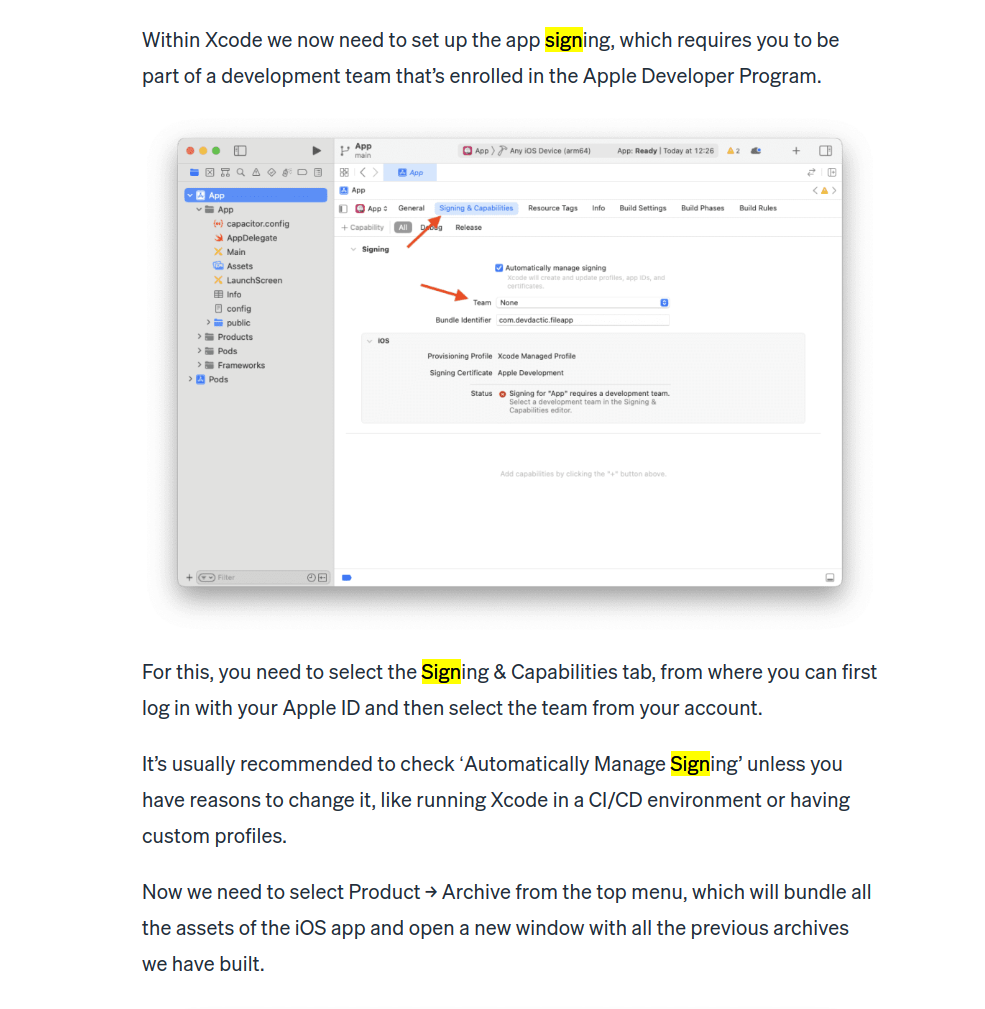
Common Issue: "Conflicting Provisioning Settings" or "No matching profiles found"
These errors typically mean there's a mismatch between the Bundle Identifier, the Apple Developer Team, and the Provisioning Profile.
- Bundle Identifier: The unique ID for your app (e.g.,
com.yourcompany.yourapp). This must be identical incapacitor.config.tsand in the Xcode project's "General" tab. - Team: The developer account you selected in the "Signing & Capabilities" tab.
- Provisioning Profile: The file that ties them all together, authorizing your app (with its specific Bundle ID) to be installed on certain devices and use certain services (like Push Notifications).
Solution Checklist:
- Trust Automatic Signing: For development, ensure "Automatically manage signing" is checked, as shown in the image above. If it's already checked, try unchecking and re-checking it to force Xcode to refresh its state.
- Verify Bundle ID: Double-check that the
appIdin yourcapacitor.config.tsmatches theBundle Identifierin Xcode underTarget > General. - Check Your Account: In Xcode, go to
Settings > Accountsand ensure your Apple ID is logged in and your developer team membership is active. - Device on Profile (for manual signing): If you're not using automatic signing, you must ensure your physical device's UDID has been added to the provisioning profile in the Apple Developer Portal.
The Codemagic documentation, while written for a CI/CD environment, provides an excellent breakdown of the root causes of these signing errors.
Common iOS issues - Codemagic Docs
This document catalogs many common iOS build problems. We will focus on the principles behind signing and bundle ID errors, adapting them from a CI context to our local development workflow.
Focus on the concepts in these sections: "The uploaded certificate and provisioning profile do not match": Read this to understand the core relationship between certificate and profile types. "Bundle ID mismatch": This section explains why a mismatched ID leads to failure. Read the description of the problem. "No matching profiles found...": This error is very direct. Read the explanation to understand what Xcode is looking for.
Category 3: Configuration & Environment Mismatches
This category covers issues stemming from the tools and project settings themselves, rather than dependencies or signing.
Common Issue: Deployment Target Mismatch
You might see an error like: The iOS deployment target 'IPHONEOS_DEPLOYMENT_TARGET' is set to 12.0, but the range of supported deployment target versions is 13.0 to 17.0.
Cause: Your project is configured to support an older version of iOS than what your dependencies or Xcode version allows. Capacitor and its plugins require a reasonably modern minimum iOS version.
Solution:
- Project Target: In Xcode, select the
Apptarget, go to the General tab, and under Minimum Deployments, set the iOS version to14.0or higher. - Podfile Target: Open
ios/App/Podfileand ensure the first uncommented line isplatform :ios, '14.0'(or whatever version you chose). The version in thePodfileshould generally match the version in your Xcode project settings.
The Codemagic documentation explains this issue well.
Common iOS issues - Codemagic Docs
Let's revisit the Codemagic guide for a clear explanation of this specific error.
Read the section on the deployment target issue and its accompanying solution. This confirms the steps needed to align your project and Podfile versions.
Common Issue: Outdated Xcode
New versions of Capacitor often leverage new APIs available only in the latest version of the iOS SDK, which is bundled with Xcode. Using an old version of Xcode with a new version of Capacitor can cause strange compilation errors.
A classic example is an error like value of type 'WKWebView' has no member 'isInspectable'. This indicates your version of Xcode doesn't know about the isInspectable property because it's too old.
Solution: The solution is straightforward: update Xcode from the Mac App Store. Always try to stay on the latest public release of Xcode.
Conclusion
Troubleshooting is an art, but it's one grounded in systematic investigation. When an iOS build fails, don't panic. Clean your build folder, re-sync your Capacitor project, and carefully read the error messages.
Let's summarize the key takeaways:
- Systematic Approach: Follow a consistent workflow:
clean,sync,build, and analyze the error logs. - Dependency Issues (CocoaPods): These often relate to version conflicts or architecture mismatches on Apple Silicon. Use
pod install --repo-updateand Podfile hooks as your primary tools. - Signing Issues: These revolve around the triad of Bundle ID, Developer Team, and Provisioning Profile. Rely on Xcode's "Automatically manage signing" for development and meticulously check your identifiers.
- Configuration Issues: Keep your tools updated (Xcode, CocoaPods) and ensure your project's deployment targets are aligned and modern.
In our next module, we will leave the Apple ecosystem for a moment and turn our attention to Android. You'll learn how to install the necessary toolchain (Android Studio and SDK), configure your project, and run your app on an Android emulator and physical device.