Recommended resources
The freely available resources this lesson will direct you to.
- SpringBoot - Build CI/CD Pipeline Using GitHub Actions | Build & Push Docker Image | JavaTechiewww.youtube.com
- GitHub Actions Tutorial - Basic Concepts and CI/CD Pipeline with Dockerwww.youtube.com
- Step‑by‑Step Guide to Spring Boot CI/CD Using GitHub ...medium.com
- Build and Test React app with GitHub Actionsdev.to
Introduction
In our previous lesson, we explored Test-Driven Development (TDD), a powerful practice that places testing at the heart of the development process. You've now built a comprehensive understanding of writing unit, integration, and end-to-end tests for both your Spring Boot backend and React frontend. However, writing tests is only half the battle; ensuring they run consistently and automatically is what truly safeguards your codebase.
This lesson is the capstone of our module on software testing. We will bridge the gap between writing tests and automating them by setting up a Continuous Integration (CI) pipeline. You will learn how to configure GitHub Actions to automatically build your application and run your entire test suite every time you push new code. This practice is a non-negotiable standard in modern software development and a critical skill for any developer aspiring to a senior role.
1. What is Continuous Integration?
At its core, Continuous Integration (CI) is a DevOps practice where developers regularly merge their code changes into a central repository, after which automated builds and tests are run. The goal is to catch integration bugs early, improve code quality, and make the development process more efficient. Instead of running tests manually on your local machine, a CI server takes on that responsibility, providing a consistent and reliable feedback loop.
GitHub Actions is a powerful and flexible platform built directly into GitHub that allows you to automate these workflows. A CI pipeline is just one of many workflows you can create. The typical flow, as shown in the diagram below, involves a developer committing code, which triggers the CI pipeline to automatically build the code and run tests.
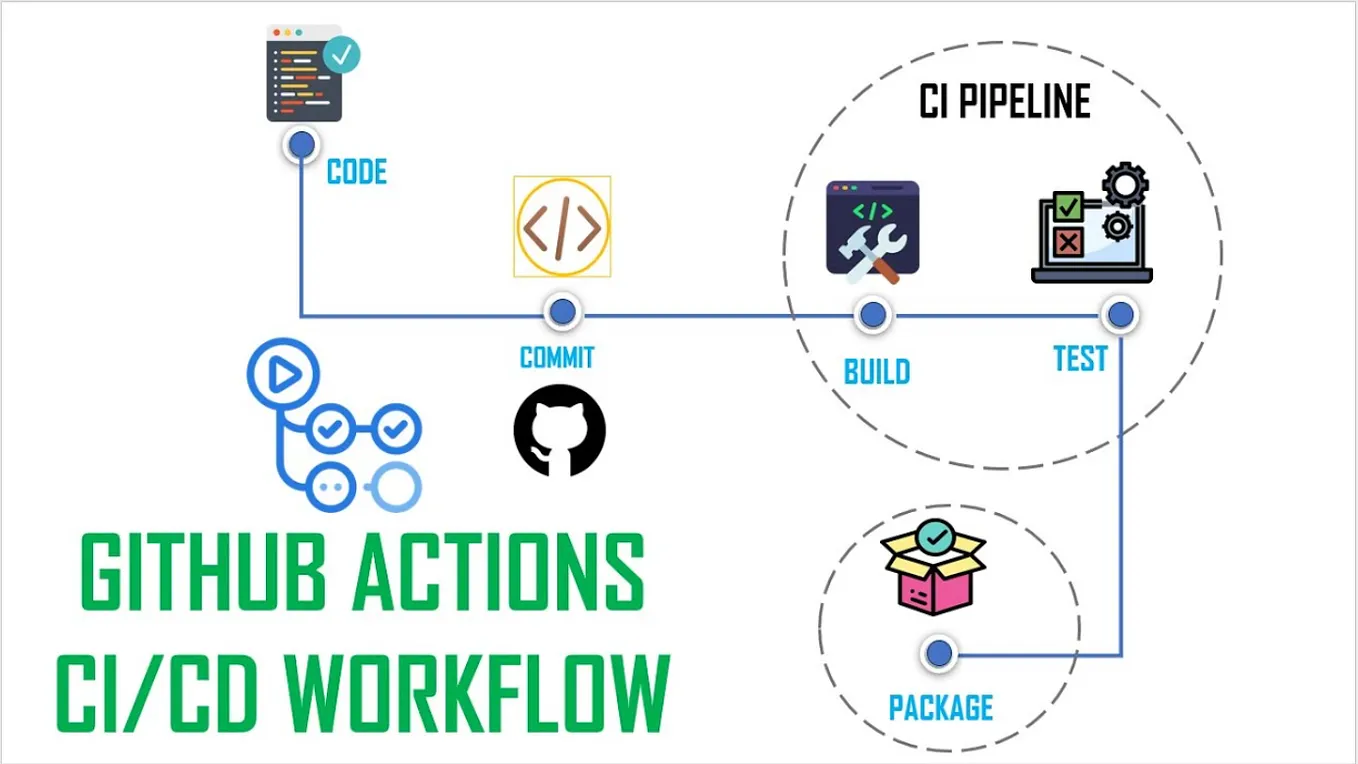
To get a clear understanding of what GitHub Actions is and the problems it solves, the following video provides an excellent high-level introduction.
GitHub Actions Tutorial - Basic Concepts and CI/CD Pipeline with Docker
This segment from the "GitHub Actions Tutorial" by TechWorld with Nana explains the purpose of GitHub Actions beyond just CI/CD.
Watch the introduction from the beginning. Focus on the idea of automating developer workflows and how CI/CD is a key example of this.
2. The Anatomy of a GitHub Actions Workflow
To build a CI pipeline, you need to understand the basic building blocks of GitHub Actions. These are defined in a YAML file that you place in your repository's .github/workflows/ directory.
The key concepts are:
- Workflow: The top-level automated process. You can have multiple workflows in a repository.
- Event: A specific activity that triggers a workflow, such as a
pushto a branch or apull_requestbeing opened. - Job: A set of steps that execute on a specified runner. By default, jobs run in parallel.
- Runner: A server that executes your jobs. GitHub provides runners with different operating systems like Ubuntu, Windows, and macOS.
- Step: An individual task within a job. A step can either run a shell command (
run) or use a pre-built, reusable component called an Action (uses). - Action: A reusable unit of code that performs a common task, like checking out your repository (
actions/checkout) or setting up a specific version of Java (actions/setup-java).
The next segment of the video provides a fantastic walkthrough of a sample workflow file, explaining how these components fit together.
GitHub Actions Tutorial - Basic Concepts and CI/CD Pipeline with Docker
The presenter breaks down the syntax of a basic workflow file, explaining each of the core concepts we just discussed.
Watch the detailed explanation from this timestamp. Pay close attention to the distinction between the uses keyword for actions and the run keyword for commands.
3. CI Pipeline for a Spring Boot Project
Let's apply these concepts to your Spring Boot backend. You will create a workflow that checks out your code, sets up the Java environment, and runs your test suite using Maven or Gradle.
To do this, you would create a file named ci.yml (or similar) inside the .github/workflows/ directory of your Spring Boot project repository.
The following article provides a detailed guide. We will focus specifically on the sections that configure the build and test process.
Step‑by‑Step Guide to Spring Boot CI/CD Using GitHub ...
This guide walks through creating a full CI/CD pipeline. For this lesson, we will focus only on the CI part: building and testing.
First, read the introductory sections to understand the basics: What is GitHub Action gives a good summary. The flow explains where to place the YAML file. The sections on Events and Jobs explain the on and jobs keywords. Next, focus on the section "Test the project". This section details the exact steps needed to run the unit tests in a Spring Boot application.
Here is a consolidated YAML configuration for a simple build-and-test workflow for a Maven-based Spring Boot project. This combines the compile and test steps into a single job for simplicity.
File: .github/workflows/ci.yml
name: Java CI with Maven

on:
  push:
    branches: [ "main", "develop" ]
  pull_request:
    branches: [ "main", "develop" ]

jobs:
  build-and-test:
    runs-on: ubuntu-latest

    steps:
    - name: Checkout repository
      uses: actions/checkout@v4

    - name: Set up JDK 17
      uses: actions/setup-java@v4
      with:
        java-version: '17'
        distribution: 'temurin' # A popular open-source distribution of Java

    - name: Cache Maven packages
      uses: actions/cache@v4
      with:
        path: ~/.m2/repository
        key: ${{ runner.os }}-maven-${{ hashFiles('**/pom.xml') }}
        restore-keys: |
          ${{ runner.os }}-maven-

    - name: Build and Test with Maven
      run: ./mvnw -B test # '-B' runs Maven in non-interactive (batch) mode
This workflow will trigger on any push or pull request to your main or develop branches. It checks out the code, sets up Java 17, caches dependencies to speed up future runs, and finally executes ./mvnw -B test to compile the code and run all your JUnit tests.
4. CI Pipeline for a React Project
The process for your React frontend is conceptually the same, but the specific tools and commands differ. Here, you'll use actions/setup-node and npm commands.
The following article provides a clear, concise guide to setting this up.
Build and Test React app with GitHub Actions
This article is a focused tutorial on creating a CI pipeline for a React application.
Read the section explaining how to update the workflow file. Pay special attention to the strategy block for defining Node.js versions and the final run step that uses npm ci, npm run build, and npm test. The article also provides a helpful explanation of the difference between npm ci and npm install. Then, review the complete yml file to see how all the pieces come together.
Here is a complete YAML configuration for a React project testing workflow.
File: .github/workflows/ci.yml
name: React CI

on:
  push:
    branches: [ "main", "develop" ]
  pull_request:
    branches: [ "main", "develop" ]

jobs:
  build-and-test:
    runs-on: ubuntu-latest

    strategy:
      matrix:
        node-version: [18.x] # Use the Node.js version relevant to your project

    steps:
    - name: Checkout repository
      uses: actions/checkout@v4

    - name: Use Node.js ${{ matrix.node-version }}
      uses: actions/setup-node@v4
      with:
        node-version: ${{ matrix.node-version }}
        cache: 'npm' # This caches npm dependencies

    - name: Install dependencies
      run: npm ci

    - name: Run tests
      run: npm test
This workflow runs on pushes and pull requests to main or develop. It sets up Node.js 18, installs dependencies using npm ci (which is faster and more reliable for CI environments), and then runs your test suite with npm test.
5. Viewing the Results
Once you commit and push your workflow file to GitHub, the pipeline will run automatically. You can view its progress and results in the "Actions" tab of your repository.

If a test fails, the Run tests step will fail, causing the entire job to fail. You can click into the logs for that step to see the exact test output, which will tell you which assertion failed. This immediate feedback is what makes CI so valuable for maintaining code quality.
Practical Application
Your task is to implement a CI pipeline for one of the projects you've been working on during this course.
- Choose a Project: Select either your Spring Boot backend or your React frontend project that you have already written tests for.
- Create the Workflow File: In your chosen project's repository, create the
.github/workflows/ci.ymlfile. - Add the Configuration: Copy the appropriate YAML configuration from this lesson (either the Spring Boot or React example) into your
ci.ymlfile. Adjust the Java or Node.js version if necessary to match your project's requirements. - Commit and Push: Commit the
ci.ymlfile and push it to yourmainordevelopbranch on GitHub. - Observe the Run: Navigate to the "Actions" tab in your GitHub repository. Watch your workflow trigger and execute. Confirm that it passes with a green checkmark.
- Test the Failure Case (Optional but Recommended): To see the full feedback loop in action, intentionally modify a test so it fails (e.g., change an
expectedvalue to something incorrect). Commit and push this change. Observe the workflow run again, but this time it should fail. Click into the logs to find the error message from your test runner. Then, fix the test and push again to see it turn green.
This exercise provides direct, practical experience in setting up one of the most fundamental automation practices in modern software engineering.
Conclusion
Congratulations on completing the "Software Testing and Quality Assurance" module! You have progressed from knowing nothing about testing to mastering unit, integration, and end-to-end tests, adopting the TDD mindset, and finally, automating your entire test suite with a CI pipeline. This automation is the safety net that enables teams to move fast without breaking things—a core competency for a senior developer.
Key Takeaways:
- Continuous Integration (CI) automates the building and testing of code every time a change is made, providing rapid feedback.
- GitHub Actions is a platform for automating developer workflows using YAML files stored within your repository.
- A workflow is triggered by events (like
push) and consists of one or more jobs, which are made up of steps. - The
runkeyword executes shell commands (e.g.,npm test), while theuseskeyword leverages pre-built actions (e.g.,actions/checkout).
With a solid foundation in ensuring code quality, we will now shift our focus from code to process. In the next module, Agile Mastery and Technical Project Management, you will learn the principles and practices that high-performing teams use to deliver value efficiently, starting with the Agile Manifesto and the Scrum framework.