Recommended resources
The freely available resources this lesson will direct you to.
Hello! Last lesson, you combined lists, dictionaries, and functions in a batch unit converter. You also saw that looking up a missing dictionary key can cause an error. Today you’ll learn to use Python’s error report—a traceback—to locate a failure, form a specific explanation, and test a correction.
Allow about 40 minutes, including the short video, reading, and time to run the examples. A traceback is useful evidence, not a sign that you have failed at programming.
Read the traceback from the bottom
When Python encounters an error it cannot continue past, it usually prints a traceback in the terminal. Watch Traceback (most recent call last): Python’s tracebacks explained by Python Morsels for a short demonstration.
Traceback (most recent call last): Python's tracebacks explained
Watch this video to see how the error message and the function-call history work together. Its most useful distinction is between the line where execution failed and the earlier line where a bad value may have originated.
Watch traceback anatomy for the bottom-up reading method and the meaning of each file-and-line entry. Then watch the correction, focusing on why the speaker changes the caller rather than merely staring at the line that failed.
This annotated traceback gives you a visual reference:
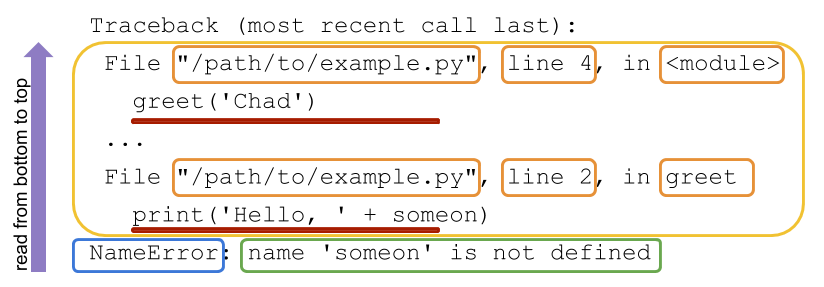
Start with the last line: it names the error type and gives a message. Then move upward to the nearest entry showing a file, line number, and code. That entry tells you what Python was executing when the error occurred. If there are more entries above it, they show how execution reached that point. The failure location is a strong clue, but the change needed to fix it may belong in the caller.
Not every error has the same shape
Python distinguishes a syntax error, found while it is trying to understand your code, from an exception, raised while valid Python code is running. For example, a missing colon after an if statement is a syntax problem. Looking up "km" in a dictionary containing only "mm" and "cm" is an exception.
Read the two introductory sections of the Python documentation’s 8. Errors and Exceptions. You do not need its later section on handling exceptions yet; that comes in Week 2.
Read the Python documentation to distinguish errors detected before a program runs from errors encountered during execution.
In Chapter 8, read Section 8.1, “Syntax Errors,” from syntax errors. Notice that an arrow marks where Python detected the problem, which is not always where the missing character belongs. Then read Section 8.2, “Exceptions,” from runtime errors. Focus on the final error line and the source lines above it; stop before Section 8.3, “Handling Exceptions.”
You need not memorize error names. For now, treat them as clues to investigate:
| Error | A useful first question |
|---|---|
NameError |
Is a variable or function name misspelled or not yet defined? |
KeyError |
Is the requested key actually in this dictionary? |
IndexError |
Does this list contain an item at the requested position? |
TypeError |
Am I using a value as though it had a different type? |
ValueError |
Does this value have the form an operation requires? |
An error type narrows your search; it does not, by itself, tell you which change is correct.
Diagnose a converter failure
Create debug_converter.py in your VS Code project. This is a deliberately flawed, shortened version of last lesson’s converter. Save it and run it with Run Python File.
def scale_distance(distance_m, factor):
    return distance_m * factor


def convert_batch(distances_m, target_unit, factors):
    results = []
    for distance_m in distances_m:
        converted = scale_distance(distance_m, factors[target_unit])
        results.append(converted)
    return results


distances_m = [1.2, 0.5]
factors = {"mm": 1000, "cm": 100}
target_unit = input("Target unit (mm or cm): ").strip()
print(convert_batch(distances_m, target_unit, factors))
Enter MM in uppercase. You should get a traceback ending in KeyError: 'MM'. Depending on how VS Code runs the file and which Python version you use, the path and extra pointer marks may differ. Its essential entries will look like these:
Traceback (most recent call last):
  File "debug_converter.py", line 16, in <module>
    print(convert_batch(distances_m, target_unit, factors))
  File "debug_converter.py", line 8, in convert_batch
    converted = scale_distance(distance_m, factors[target_unit])
KeyError: 'MM'
Work from the bottom. KeyError: 'MM' says Python attempted a dictionary lookup using the key "MM" and did not find it. The frame just above points to factors[target_unit] inside convert_batch(): that is where the failure happened. The earlier frame shows that the main program called convert_batch() with target_unit. Looking back at how that value was obtained reveals the likely cause: .strip() removes surrounding spaces, but it does not change uppercase letters to lowercase. The dictionary’s keys are "mm" and "cm".
Before editing, you can check that explanation. Temporarily insert these lines immediately before the print(convert_batch(...)) call, then run the file again with MM:
print("Requested unit:", target_unit)
print("Available units:", factors)
The two prints should show MM and a dictionary with lowercase keys. You have tested a hypothesis about the value causing the error, rather than guessing from the error name. Remove the temporary prints afterward.
Now replace the original last two lines of the file with this version, restoring both the normalization and the membership check used in last lesson’s program:
target_unit = input("Target unit (mm or cm): ").strip().lower()

if target_unit in factors:
    print(convert_batch(distances_m, target_unit, factors))
else:
    print("Choose mm or cm.")
Save and rerun the file for each input:
MMshould print[1200.0, 500.0].cmshould print[120.0, 50.0].kmshould printChoose mm or cm.without a traceback.
These runs check two different claims. Lowercasing makes uppercase input match a supported key; the membership check prevents an unsupported key from reaching the lookup. Testing only MM would not establish that the program behaves well for km.
When the failing line is not the whole explanation
Here is a second small example. Create input_debug.py and run it with 2 as input:
distance_m = input("Distance (m): ")
print(distance_m / 2)
The traceback ends with a TypeError about dividing a str by an int. The print() line is where the operation fails, but the earlier input() line explains why: console input is text, even when you type 2. Change the first line to:
distance_m = float(input("Distance (m): "))
Save and test again with 2; the result should be 1.0. Then try a non-numeric word. Python now raises a different error, ValueError, because that word cannot be converted to a number. Your correction solved the type mismatch for numeric input, but it did not make every possible input valid. You will learn how to handle invalid input deliberately in Week 2.
This illustrates a practical debugging routine: reproduce the failure, read the last line, locate the failing statement, inspect where its values came from, make one justified change, and rerun both a successful case and a case that should be rejected. If a program prints a wrong answer without raising an exception, there will be no traceback; you must compare its result with an expected result instead.
Key takeaways
Read a traceback from the bottom upward: identify the error and message, find the statement that failed, then examine earlier calls and values to understand why. Syntax errors may point near a missing character; runtime tracebacks show the path to a failed operation. Most importantly, test your correction with more than the input that first exposed the problem.
Next, you’ll use these debugging habits while assembling your Week 1 command-line engineering unit converter from tested functions.