Recommended resources
The freely available resources this lesson will direct you to.
In the last few lessons, we've explored the "parts bin" of software development, distinguishing between versatile libraries like Lucide and structured frameworks like Next.js. You've learned that whether you're using a simple tool or a full chassis, modern projects are built by assembling pre-existing packages. This naturally leads to a critical question: how do you keep track of all these parts?
When your AI assistant instructs you to npm install framer-motion, and you peek inside the package.json file, you don't just see the package name. You see something like "framer-motion": "^10.16.4". What do these numbers mean? And what is that little caret symbol (^) doing there? This lesson will demystify these version strings. You will learn to read the dependency list in package.json and understand what these numbers and symbols signify, giving you crucial insight into your project's stability and maintenance.
The Project Blueprint: package.json
As we've touched on before, the package.json file is the central manifest for your project. Think of it as the official parts list or bill of materials for your custom build. It tells anyone (or any computer) what your project is called, its version, and most importantly, what other packages it depends on to run.
Before we get into version numbers, it's important to know that these dependencies are typically split into two main categories.
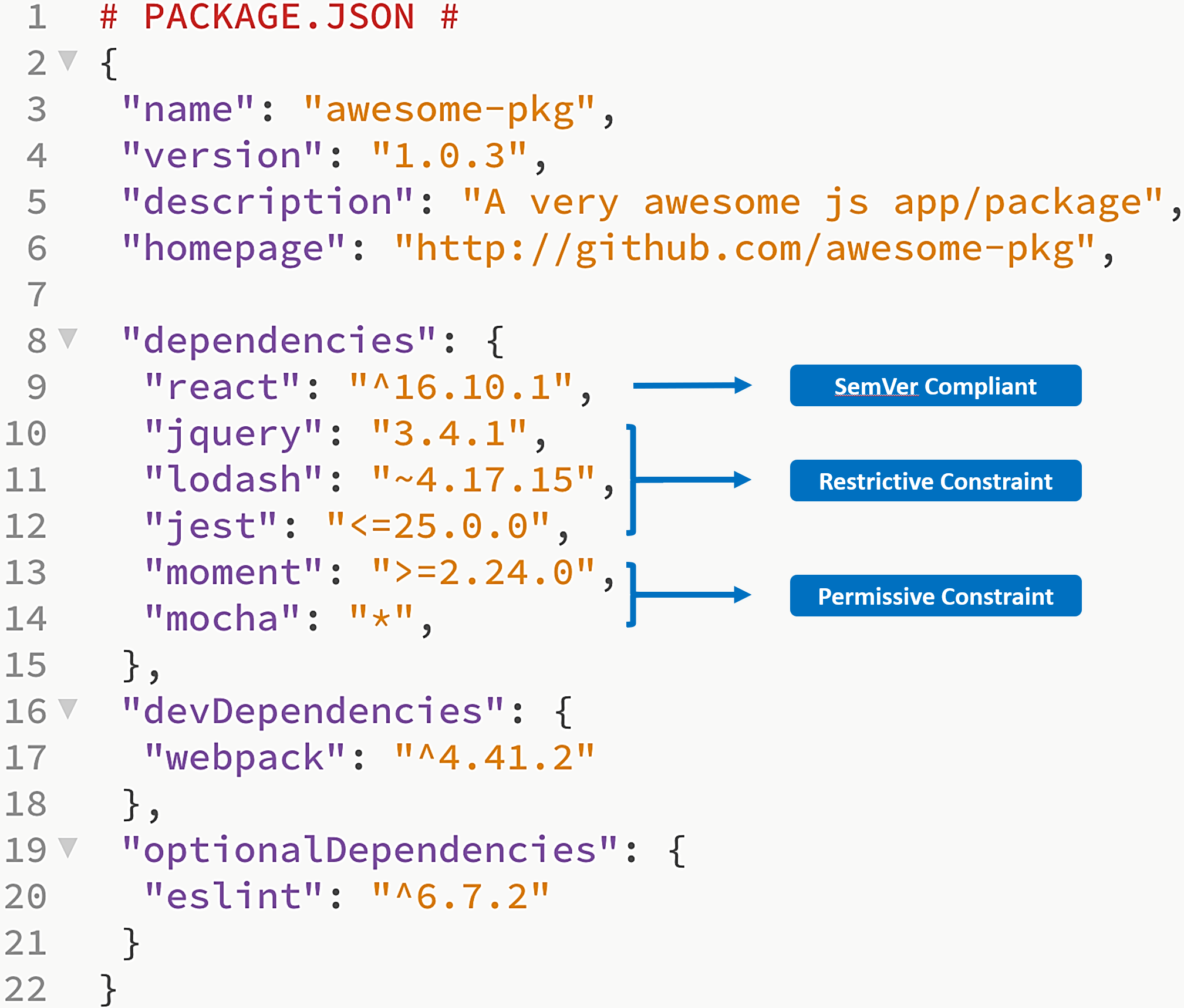
Let's look at the two most common types you'll encounter:
dependencies: These are the essential parts required for your application to actually work when it's live. For a web app, this would include packages likereact(to build the UI) andframer-motion(for animations). Using our drone analogy, these are the motors, propellers, and the flight controller—the parts that make it fly.devDependencies: These are the tools you use only during the development process. This could include a testing framework or a code formatter. These tools are like the specialized screwdrivers, soldering iron, and diagnostic equipment you use in your workshop to build and test the drone. They are crucial for building it correctly, but you don't ship them to the end user along with the final product.
The following article explains this distinction with some great analogies.
A Deep Dive into package.json: Understanding Every Dependency Type - DEV Community
This article clearly separates the roles of dependencies and devDependencies, which is a fundamental concept for understanding a project's structure.
Please read the sections titled dependencies (The Essentials) and devDependencies (The Workshop Tools). Pay attention to the "Core Philosophy" analogies, which compare dependencies to the parts of a car and devDependencies to the tools in the workshop.
Decoding the Numbers: Semantic Versioning
Now for the main event: the version numbers themselves. Packages don't just have random version numbers; most follow a system called Semantic Versioning, or SemVer. It’s a simple but powerful convention for communicating the types of changes in new releases.
The format is always MAJOR.MINOR.PATCH, like 3.9.2.
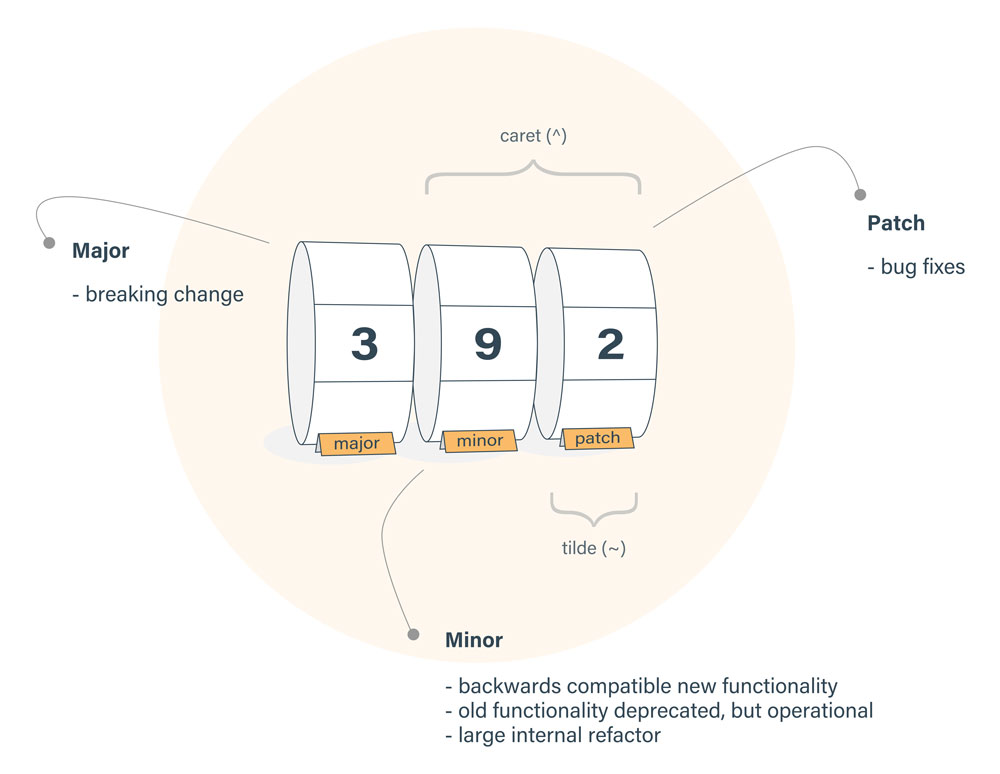
Here's what each number means, using your hobbyist background as a guide:
-
MAJOR (
3.9.2): This number changes when there are breaking changes. Imagine a drone manufacturer releases a new frame that uses a completely different mounting system for motors. Your old motors won't fit without significant modification. A jump from version 3 to version 4 of a package signals a similar kind of break; your existing code that uses it might stop working and will need to be updated. -
MINOR (3.
9.2): This changes when new, backwards-compatible functionality is added. This is like the drone manufacturer adding a new, optional mount for a GoPro to the frame. It’s a new feature, but it doesn't affect any of the existing motor mounts or how the drone flies. You can safely use the new frame without changing your existing setup. -
PATCH (3.9.
2): This changes for backwards-compatible bug fixes. This is like discovering a screw hole was slightly misaligned and correcting it, or strengthening a weak point in one of the drone's arms. It makes the product better but doesn't change its function or add new features.
This short video provides a quick, clear summary of how SemVer works.
What is Semantic Versioning? (semver)
The hosts of the Syntax podcast give a concise and practical explanation of the MAJOR.MINOR.PATCH system.
Watch the section where they break down the meaning of each number in the MAJOR.MINOR.PATCH format, using the React library as a concrete example.
The Symbols: Caret (^) and Tilde (~)
You might be wondering, "If I want my app to be stable, why not just lock in the exact version, like 3.9.2, and never change it?" You could, but you'd miss out on all those helpful bug fixes (patches) and non-breaking new features (minor updates).
This is where the symbols come in. They let you define a range of acceptable versions, giving you a balance between stability and receiving beneficial updates.
-
Caret (
^): This is the most common symbol and the default fornpm install. It says, "I'm okay with any minor and patch updates, but do not give me a new major version that could break my code."^3.9.2will match any version from3.9.2up to, but not including,4.0.0. It allows the9and the2to go up.
-
Tilde (
~): This is more restrictive. It says, "I only want patch updates. Don't add any new features, just fix the bugs."~3.9.2will match any version from3.9.2up to, but not including,3.10.0. It only allows the2to go up.
The rotating barrel image (LINK) you saw earlier visualizes this perfectly. The caret allows the minor and patch barrels to turn, while the tilde only allows the patch barrel to turn.
This video from Coder Coder does a great job of explaining how these symbols work in practice.
What is NPM, and why do we need it? | Tutorial for beginners
This part of the video tutorial focuses specifically on versioning and the control symbols in package.json.
Watch the segment from where the presenter explains the role of the caret (^) and tilde (~) symbols in controlling which updates npm will install automatically.
The Safety Net: package-lock.json
The caret and tilde introduce a potential for ambiguity. If you send your project to a friend (or your LLM assistant sends it back to you), and they run npm install, they might get a slightly newer patch version of a package than you have. Usually, this is fine, but sometimes it can cause subtle, hard-to-find bugs.
So, how do we ensure everyone working on a project has the exact same set of packages?
This is solved by the package-lock.json file.
When you run npm install, npm generates this file automatically. It acts as a definitive snapshot of your node_modules directory, recording the exact version of every single package and sub-package that was installed.
Now, when someone else gets your project and runs npm install, npm sees the package-lock.json file and uses it to replicate the dependency tree exactly, ignoring the flexible ranges (^, ~) in package.json. This guarantees a consistent setup across all machines and environments. You should never edit this file by hand; let npm manage it for you.
Conclusion
You've now decoded one of the most common but cryptic parts of a modern software project. You can look at a package.json file and understand not just what parts the project uses, but the strategy for how those parts are kept up-to-date.
Key Takeaways:
- Dependencies in
package.jsonare the parts your project needs.dependenciesare for the live app, anddevDependenciesare for your development tools. - Version numbers follow Semantic Versioning (
MAJOR.MINOR.PATCH) to signal the type of change: breaking changes, new features, or bug fixes. - The caret (
^) allows updates that don't include breaking changes (minor and patch versions), offering a good balance of newness and stability. - The tilde (
~) is more restrictive, allowing only bug fixes (patch versions). - The
package-lock.jsonfile is a safety net that locks down the exact versions of all installed packages, ensuring your project works consistently for everyone.
This lesson concludes our module on packages and libraries. You now have a solid understanding of how to find, evaluate, install, and manage the third-party code that will form the backbone of your vibe-coded applications. In the next module, we'll shift our focus from managing other people's code to managing your own. We'll dive into Git and GitHub, the essential tools for saving, sharing, and tracking the history of your creative work.