Recommended resources
The freely available resources this lesson will direct you to.
Hello! Welcome to your second lesson in the "Advanced Network Analysis" module.
In our last session, we dove into the network waterfall chart, learning how to interpret the timing of each phase of a request. You learned to spot bottlenecks like high TTFB, connection limits, and costly redirects. We saw what was happening and for how long.
Today, we'll answer the why. Why does the browser fetch a CSS file before an image? Why does one script start downloading while another waits? We'll explore how browsers prioritize requests and, more importantly, how you can influence that strategy to optimize loading performance. This directly addresses our learning outcome: to analyze request priority and queuing to understand and optimize browser resource loading strategies.
How Browsers Decide What to Load First
A browser's goal is to render a page as quickly and efficiently as possible. To do this, it doesn't just download resources in the order they appear in the HTML. Instead, it uses a complex set of heuristics to assign a priority to each resource. This priority determines the order of downloads, especially when the network is congested or when constrained by connection limits.
To get a solid understanding of these default behaviors, the following article from web.dev is an excellent resource.
Optimize resource loading with the Fetch Priority API
This article, 'Optimize resource loading with the Fetch Priority API,' explains the browser's default prioritization logic. It's a foundational piece for understanding modern loading optimization.
Please read the section titled Resource priority. Focus on the factors that affect priority computation (resource type, location, async/defer) and study the table that shows how Chrome prioritizes different resources. This table is a valuable mental model for an FE developer.
As you saw, the browser is quite intelligent. It knows that early, render-blocking CSS is critical (Highest priority), while images that are not yet in the viewport can wait (Low priority). Scripts marked with async or defer are also typically given a Low priority by default.
Viewing Priority and Queuing in DevTools
Theory is great, but let's see this in action. The Network panel in DevTools makes these priorities visible.
- Open the Network panel.
- If you don't see a Priority column, right-click on the table header (e.g., on "Name" or "Status") and check "Priority".
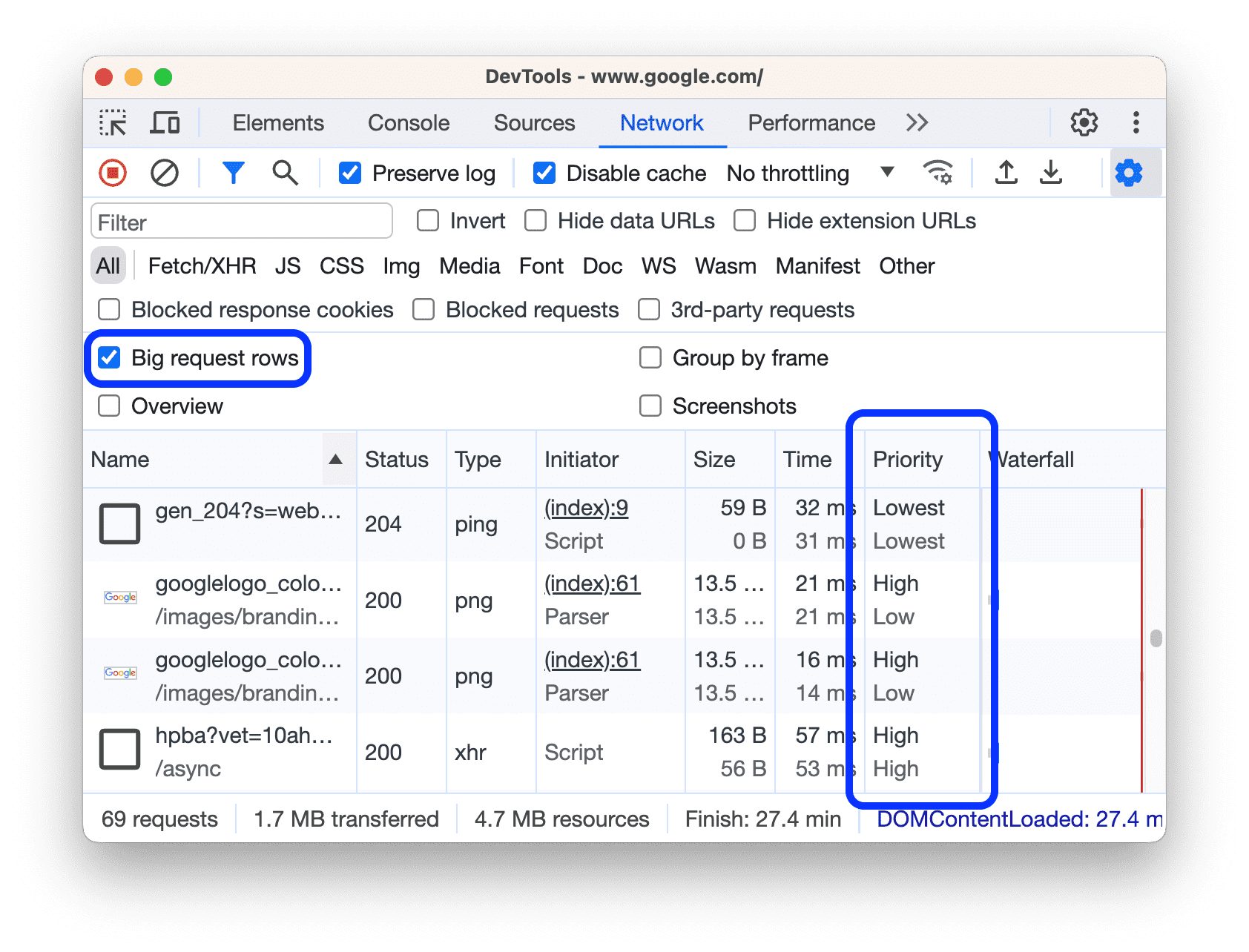
For even more insight, you can see if a resource's priority changed during the loading process. A common example is an image that starts as Low priority but is boosted to High once the browser realizes it's in the viewport.
To see this, you need to enable "Big request rows".
The official Chrome documentation has a quick guide on this feature. It's a small setting that provides a lot of value when analyzing priority.
Read the short section titled Use big request rows. Follow the instructions to enable it. Once enabled, the Priority column will show the final priority on top and the initial priority on the bottom for any request whose priority changed.
This priority system is the direct cause of the Queuing phase we discussed in the last lesson.
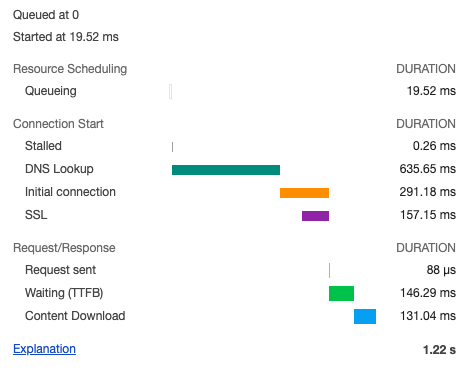
A request is queued if the browser decides there are more important things to do first. The official documentation confirms this. A request is queued when:
- There are higher priority requests.
- (For HTTP/1.x) There are already six TCP connections open for this origin.
Influencing the Browser: The Fetch Priority API
While the browser's default priorities are good, they aren't always perfect for every application. For years, developers have used indirect methods (like changing the order of <script> tags) to influence load order. Today, we have a more direct tool: the Fetch Priority API.
This API provides the fetchpriority HTML attribute, which you can use to give the browser a strong hint about a resource's relative importance. It's not a directive, but a powerful signal.
Optimize resource loading with the Fetch Priority API
Let's return to the 'Optimize resource loading with the Fetch Priority API' article to learn how to use this feature.
Please read the following sections: Summary: A quick overview of the key use cases. When might you need Fetch Priority?: This covers practical scenarios, such as prioritizing hero images and critical async scripts. The fetchpriority attribute: This section explains the attribute's values (high, low, auto) and includes a very helpful table showing its effect on different resource types.
The key takeaway is that you can use fetchpriority="high" to boost critical resources and fetchpriority="low" to deprioritize less important ones. This is particularly powerful for optimizing Core Web Vitals, especially Largest Contentful Paint (LCP).
Practical Example: Optimizing the LCP Image
One of the most impactful uses of fetchpriority is to ensure your LCP element loads as quickly as possible. Often, an LCP image is discovered late by the browser or competes for bandwidth with less critical resources like non-visible images or analytics scripts.
This video provides a perfect, concise demonstration of identifying and fixing this issue.
How To Optimize Largest Contentful Paint
This video from DebugBear shows a real-world example of an LCP image being delayed by competing requests and how fetchpriority solves the problem.
Watch from 04:12 to 06:01. Pay close attention to the 'before' and 'after' waterfall charts. Notice how adding a preload tag with fetchpriority='high' moves the LCP image request right to the front of the queue, dramatically reducing its load time.
As the video demonstrates, combining <link rel="preload"> (for early discovery) with fetchpriority="high" (for high priority) is a potent combination for LCP image optimization.
Test your understanding!
You are working on a page with the following resources in the <head>:
- A critical, render-blocking CSS file.
- A large JavaScript library for a non-essential chat widget, loaded with
<script async src="..."></script>. - A small analytics script, also loaded with
<script async src="..."></script>. - A preload tag for the page's LCP hero image:
<link rel="preload" as="image" href="...">.
By default, the LCP image is loading slower than you'd like because it's competing with the chat widget script. How would you use fetchpriority to instruct the browser to prioritize the resources for the best user experience?
Show answer
Here is an optimal strategy:
- LCP Image: Add
fetchpriority="high"to the preload tag:<link rel="preload" as="image" href="..." fetchpriority="high">. This tells the browser that despite being preloaded, this image is the most important resource to fetch after the initial render-blocking assets. - Chat Widget Script: Add
fetchpriority="low"to its script tag:<script async src="..." fetchpriority="low"></script>. Since it's large and non-essential for the initial render, this signals the browser to download it only when bandwidth is available and higher-priority tasks are complete. - Analytics Script: Leave it as is or also add
fetchpriority="low". Its priority is already "Low" due toasync, but explicitly marking it as low can further ensure it doesn't interfere. - Critical CSS: Do not add
fetchpriority. Its default priority is already "Highest", and you don't want to change that.
This setup ensures the critical CSS loads first, followed immediately by the LCP image, with the less important async scripts being downloaded in the background without impacting the primary user experience.
Important Considerations
Before you apply fetchpriority everywhere, it's crucial to understand its nuances. Since you have extensive experience, knowing these caveats is key to using the API effectively.
Optimize resource loading with the Fetch Priority API
The final section of the web.dev article discusses some important implementation notes.
Read the section Fetch Priority implementation notes. Pay special attention to the distinction between Fetch Priority and preload, and the note about how CDN prioritization can affect your results.
Conclusion
Today, we've moved from simply observing the network to actively directing it. You learned that the browser's resource loading strategy is based on a sophisticated prioritization system, and you now have the tools to both analyze and influence it.
Key Takeaways:
- Browsers assign a priority (Lowest to Highest) to every resource based on its type, location in the document, and attributes like
async/defer. - You can view these priorities in the Priority column of the Network panel. Enabling "Big request rows" reveals both initial and final priorities.
- The Fetch Priority API (
fetchpriorityattribute) allows you to providehighorlowhints to the browser, influencing the default priority. - A primary use case is to boost the priority of the LCP image using
fetchpriority="high", often combined withrel="preload", to improve Core Web Vitals. fetchpriorityis a hint, not a directive, and it complementspreload—one affects prioritization, the other affects discoverability.
In our next lesson, we will focus on simulating different network conditions. You've just learned how to optimize for constrained networks; next, you'll learn how to configure custom network throttling profiles to test your optimizations under realistic, specific scenarios beyond the generic "Slow 3G" presets.