Recommended resources
The freely available resources this lesson will direct you to.
Hello! In the previous lesson, you read schematic labels and active-low signals without treating a drawn connection as a measurement. Now you will apply the same discipline to a startup failure: an illuminated LED, a blank screen, or an error message is evidence of what happened, not yet proof of which component failed.
You will learn to classify faults as power, POST, firmware, bootloader, storage, or operating-system problems. The aim is to identify the last checkpoint you can confirm and the first checkpoint you cannot, then state how certain your classification is. Allow about 35–40 minutes for the lesson and resources.
Find the last confirmed checkpoint
Recall the power sequence you traced earlier: supplies must become usable, reset must be released, and the processor must begin executing firmware. Firmware then initializes and checks enough hardware to attempt a boot. If you see a meaningful error on screen, the machine has already done more than merely receive power. If you see a charging light, however, you have not established that the processor ran firmware.
POST—power-on self-test—is part of firmware-led startup. A diagnostic LED pattern or beep code may tell you that an early hardware check failed. The pattern’s meaning depends on the particular platform; a beep count is not a universal diagnosis.
Troubleshooting Hardware - CompTIA A+ 220-1201 - 5.1
Watch Professor Messer’s Troubleshooting Hardware for two useful observations: how POST faults become visible, and how firmware boot priority can prevent an otherwise working system from starting its intended OS.
Watch POST indicators for the checks and the need to interpret alerts using platform documentation. Then watch boot priority for an example in which the selected device, rather than a failed component, explains the symptom.
A manufacturer’s broad categories provide a useful first pass. Read the following article for its descriptions of No Power, No POST, No Boot, and No Video. Its model-specific repair steps are not needed for this lesson.
Resolve No Power, No POST, No Boot or No Video Issues | Dell US
Read Dell’s startup-troubleshooting guide to compare symptoms at the power, POST, and post-POST boundaries—and to see why a blank display needs its own check.
Under “No Power For Laptops,” read power indicators. Under “No Power-On Self-Test (POST),” read failed POST. Under “No Boot,” begin at “After the computer completes the Power-On Self-Test” and read post-POST failure. Finally, under “No Video,” read the distinction between no picture and no startup.
The key separation is startup progress versus display output. A laptop with normal power indications and a dark panel may have stopped during POST, or it may have booted successfully without producing visible output. Conversely, a diagnostic pattern can reveal an early failure even when the screen cannot show a message. “Black screen” alone is therefore not a stage classification.
Use the six labels precisely
These labels are useful, but they are not six perfectly separate steps. POST runs in firmware, and a storage fault can interrupt several later steps. Classify the best-supported failure domain while recording the stage at which its symptom appeared.
| Classification | Observable evidence that supports it | Important qualification |
|---|---|---|
| Power | No normal response to the power button; no expected power indicators or startup activity, or power drops immediately. | A charging LED proves only that some power circuitry responds. Fans spinning briefly do not prove stable supplies or completed POST. |
| POST | A documented memory, processor, or other hardware-check code; startup repeatedly stops during early hardware initialization. | Decode LEDs and beeps against the platform’s documentation. Absence of a beep does not prove POST passed—or even that a speaker exists. |
| Firmware | Setup is reachable but selects the wrong boot target; firmware reports a configuration problem; or, after a failed update, the platform enters a documented firmware-recovery mode. | A failed update raises suspicion, but a black screen alone does not establish firmware corruption. A boot-selection error differs from failure to execute firmware at all. |
| Bootloader | Firmware finds a boot target, but the boot manager, its configuration, or the OS loader cannot be loaded or used—for example, a specific missing-BCD or GRUB rescue error. | “No bootable device” alone does not establish that a bootloader ran; firmware may never have found one. |
| Storage | A previously present drive is absent from firmware inventory, a drive diagnostic reports failure, or repeated read errors prevent startup. | Storage is a cause category, not one fixed startup stage. Missing files on an otherwise readable drive require different evidence from a failed drive. |
| Operating system | The OS loader has handed off far enough for a kernel error, such as a Windows stop error or Linux kernel panic, or startup fails later while loading drivers or services. | A storage or driver defect can cause an OS-stage error. “OS-stage failure” identifies where it appeared, not necessarily the defective part. |
Consider an error reading “no bootable device.” Firmware is awake enough to display it, which makes total no-power unlikely. But three possibilities remain: the drive is not detected, the firmware is looking at the wrong target, or the target lacks usable boot files. The message localizes the investigation to the boot boundary; it does not settle the cause. Checking whether firmware lists the internal drive and the intended boot entry would separate these possibilities without changing either one.
This is also why you should not label every machine that reaches a manufacturer logo “POST passed.” Some systems keep a manufacturer logo on screen during later loading. A usable firmware setup screen or boot menu is stronger evidence that firmware can run; a specific boot-manager or kernel message is stronger evidence of later progress.
Distinguish the bootloader from the operating system
After early hardware initialization, a UEFI system selects an EFI executable to start. In a typical Windows installation, Windows Boot Manager is bootmgfw.efi on the EFI System Partition (ESP). It uses boot configuration data (BCD) to find the appropriate Windows loader, winload.efi; the loader prepares the kernel to run. You do not need to repair these files yet. For classification, the point is that reaching a boot manager is not the same as reaching the kernel.
Windows boot issues troubleshooting - Windows Client
Read Microsoft’s outline of Windows startup to locate the boundary between UEFI firmware, Boot Manager, OS Loader, and kernel. Focus on symptom recognition, not the recovery commands elsewhere in the article.
In “Phases of the startup process,” begin with the phase table and read the phase outline. In “Troubleshoot issues in the Boot loader phase,” read loader clues, including the named boot-file and BCD errors. In “Troubleshoot issues in the Kernel phase,” read kernel clues. Note how a later-stage message gives more information than a generic blank screen.
The provided Windows 10 recovery diagram shows one implementation of this handoff. Look at where Bootmgfw.efi and the primary and recovery BCD stores sit: they are on the ESP, not inside UEFI firmware. The diagram simplifies what happens after Boot Manager—it does not show every loader and kernel step. Its separate recovery route is an example, not a layout to assume on every computer.
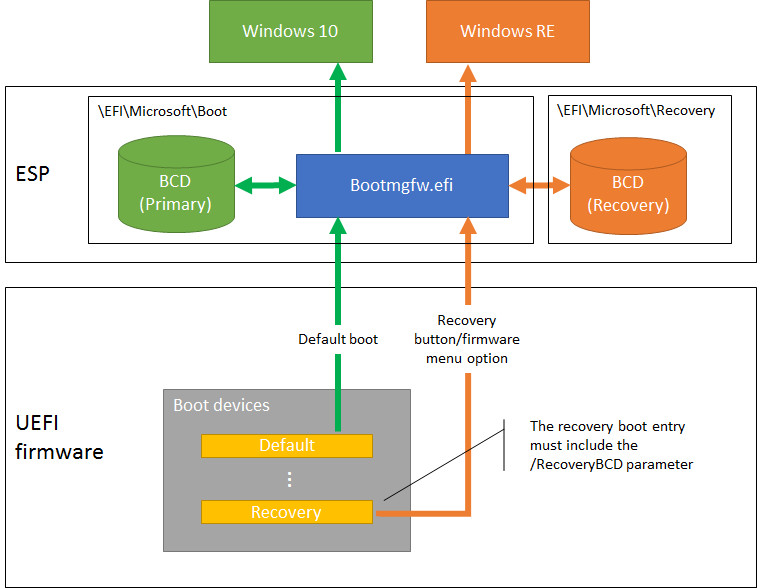
Suppose the screen specifically reports that BCD is missing or corrupted. The firmware has progressed far enough to attempt the Windows boot path, so bootloader/configuration failure is the appropriate initial classification. You still do not know whether BCD was deleted, the ESP is unreadable, or the drive is deteriorating. In contrast, a Windows stop screen naming inaccessible boot device is evidence of an OS/kernel-stage failure: the kernel is running far enough to report the problem, even though storage or its driver may be the underlying cause.
The same boundary matters on Linux. A GRUB rescue prompt points toward a bootloader-stage problem; a clearly identified Linux kernel panic points toward an operating-system-stage problem. Neither message, by itself, proves the physical drive is healthy.
Classify from evidence, and keep the alternatives visible
A practical triage note has three parts: what you observed, what that observation establishes, and what remains uncertain. This prevents a plausible hypothesis from quietly becoming a claimed fact.
Imagine three machines described simply as “powers on to a black screen”:
- One has a repeating, documented memory-fault LED pattern and never presents setup. POST failure is the strongest classification; the code, not the dark screen, supplies the evidence.
- One can enter setup, where the internal drive is listed, but the intended boot entry is no longer selected. This supports a firmware boot-configuration hypothesis. It does not yet tell you whether the files on that drive are usable.
- One produces the familiar OS startup sound while its built-in display stays dark. No video is the immediate symptom; calling it no POST or no boot would conflict with evidence that startup progressed further.
A fourth machine may show the internal drive in setup but report “no bootable device.” Here the honest initial label is unresolved at the firmware/bootloader/storage boundary. Drive presence does not prove that every sector is readable, and firmware detection does not prove an EFI boot file exists. A classification can be provisional; forcing one of the six labels before the evidence supports it makes later diagnosis harder.
Pay attention to when a symptom appears and who could have produced it. A firmware setup error is not a kernel error. A named Windows stop code is not a POST beep. If the system abruptly loses all lights and fan activity during startup, revisit power stability even if it displayed a logo earlier. Record exact wording, LED or beep patterns, whether setup is accessible, whether the drive is listed, and whether any boot-manager or OS message appears. These observations are safer and more informative than immediately resetting settings or writing to a drive.
Key takeaways
Classify a startup fault by its last confirmed checkpoint, not by a single ambiguous symptom. No response suggests power; documented early hardware-check errors support POST; setup and boot selection implicate firmware; missing boot-manager files or configuration implicate the bootloader; drive detection or read evidence can support storage; and kernel or later startup errors place the visible failure in the operating system. Storage can be the underlying cause at more than one stage, while a blank display may be a video problem rather than a boot failure.
In the next lesson, you will use POST indicators, firmware messages, and operating-system logs to refine a provisional classification into a better-supported hardware fault hypothesis.