Recommended resources
The freely available resources this lesson will direct you to.
Welcome to the final module of our course, "Containerization and Deployment." In our previous lessons, we successfully built and tested a complete, multi-tenant agentic system. Your application logic is now robust and verified by integration tests. The next logical step is to prepare it for deployment.
This lesson begins that journey by focusing on a cornerstone of modern software deployment: containerization. Your goal is to write a multi-stage Dockerfile to build an optimized production-ready container image for the Node.js service. By the end of this lesson, you will have a Dockerfile that produces a small, secure, and efficient image, ready to be run in any environment.
The Problem with Naive Dockerfiles
As an experienced developer, you're likely familiar with writing a Dockerfile to package an application. A straightforward approach for a Node.js application might look simple, but it often hides significant issues related to size, security, and performance.
Docker Multi-Stage Builds for Node.js Applications - Library
The GrizzlyPeak Software blog provides an excellent analysis of common pitfalls in Dockerizing Node.js applications.
To understand the problem we're about to solve, please read the section "Why Docker Images Get Bloated". Pay close attention to the five reasons listed, as we will address each of them.
These issues—a bloated base image, including devDependencies, and inefficient layer structure—result in large, slow, and insecure images. A key concept to grasp is how Docker layers work and why simply deleting files in a later step doesn't reduce the image size.
Docker Image BEST Practices - From 1.2GB to 10MB
The video "Docker Image BEST Practices" by Better Stack offers clear visual explanations of layer caching and immutability.
First, watch the segment on layer caching to see how the order of instructions dramatically affects build speed. Then, watch the crucial explanation of immutable layers, which demonstrates why a multi-stage build is necessary for true optimization.
The Solution: Multi-Stage Builds
The most effective pattern for creating optimized production images is the multi-stage build. This technique allows you to use one container image with a full build toolchain to compile your application and install dependencies, and then copy only the essential runtime artifacts into a separate, minimal production image.
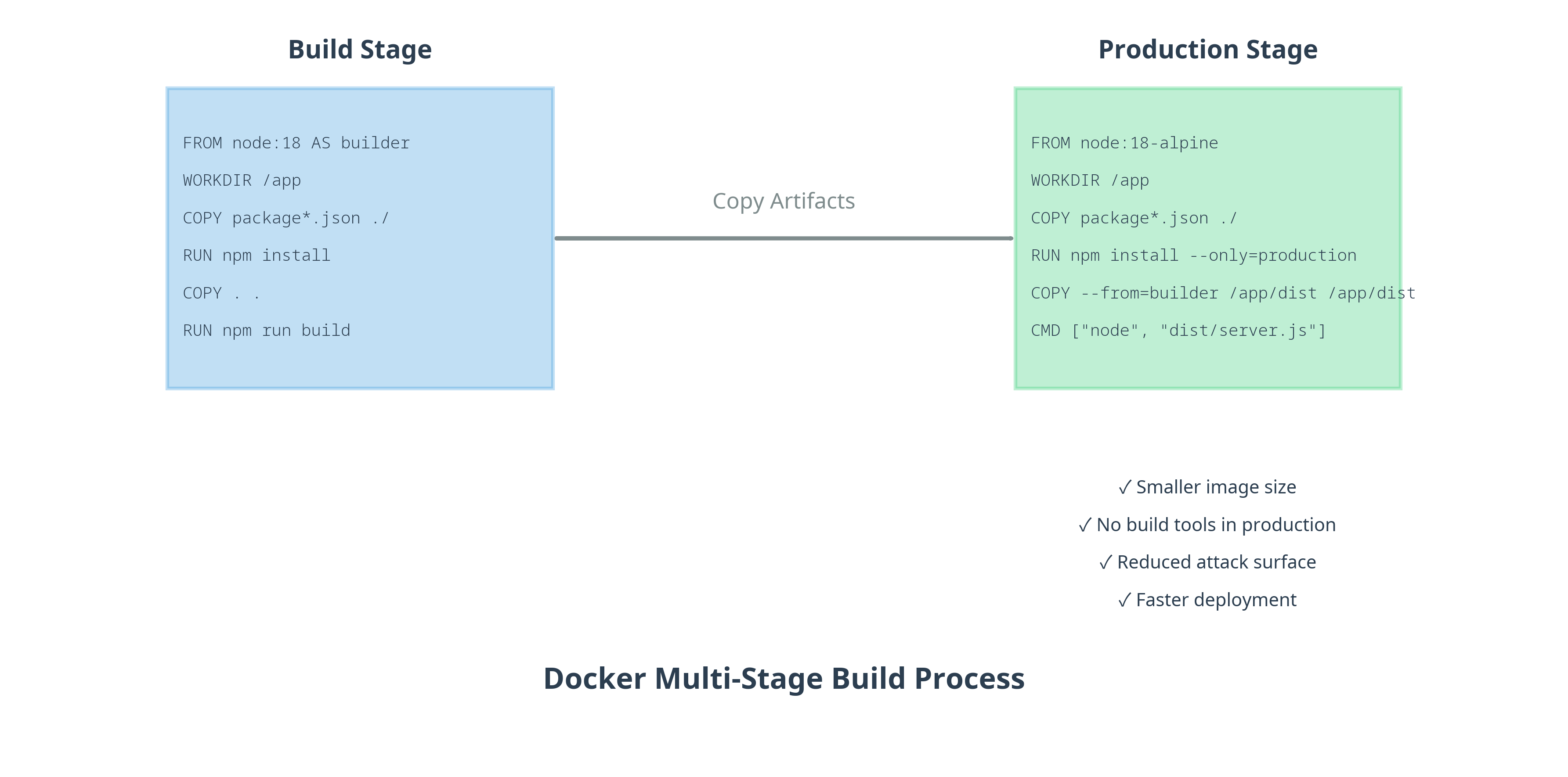
This approach elegantly solves the problems we've identified:
- Build-time dependencies and tools are completely discarded.
- The final image contains only what's needed to run the application.
- The attack surface is significantly reduced.
Constructing a Production-Grade Dockerfile
Let's build a production-ready Dockerfile for our agentic service, incorporating several best practices along the way.
1. Choosing the Right Base Image
The choice of a base image is the foundation of your optimization efforts. While node:alpine is often touted for its small size, it comes with trade-offs, such as using musl libc instead of the more common glibc, which can lead to compatibility issues with native Node.js modules. For production systems, a slim Debian-based image often provides a better balance of size, compatibility, and security.
Node.js Rocks in Docker, DockerCon 2022 Edition
In his DockerCon talk, Bret Fisher gives a masterclass on selecting Node.js base images, weighing the pros and cons of each.
Watch his detailed analysis from the comparison table through his discussion of Ubuntu-based images. He makes a compelling case for using specific, version-pinned, slim images over latest or alpine. For our project, a tag like node:20-bullseye-slim is an excellent choice.
2. The .dockerignore File
Before we even write our Dockerfile, we must create a .dockerignore file. This works just like .gitignore and prevents the Docker client from sending unnecessary or sensitive files to the daemon, speeding up the build and preventing secret leaks.
Create a .dockerignore file in your project root. A comprehensive one should look like this:
# .dockerignore


# Dependencies (installed fresh in container)
node_modules
.npm


# Source control
.git
.gitignore


# IDE and editor files
.vscode/
.idea/


# Environment and secrets
.env
.env.*
!.env.example


# Test and development files
coverage/
__tests__/
*.test.ts
*.spec.ts
vitest.config.ts
*.md


# OS files
.DS_Store
Thumbs.db


# Docker files (prevent recursive context)
Dockerfile
docker-compose.yml
This simple file can reduce your build context from hundreds of megabytes to just a few, significantly speeding up the COPY instruction.
3. Building the Dockerfile Step-by-Step
Now, let's create the Dockerfile. We'll use a two-stage approach: a builder stage and a final production stage.
# syntax=docker/dockerfile:1


# ============================================
# Stage 1: Build Stage
#
# This stage installs all dependencies (including dev)
# and builds the TypeScript source into JavaScript.
# ============================================
FROM node:20-bullseye-slim AS builder

WORKDIR /app


# Copy dependency manifests
COPY package.json package-lock.json ./


# Install all dependencies, including dev dependencies for the build step
# Using --mount will cache the npm cache directory between builds
RUN --mount=type=cache,target=/root/.npm \
    npm ci


# Copy the rest of the source code
COPY . .


# Build the TypeScript application
RUN npm run build


# ============================================
# Stage 2: Production Stage
#
# This stage starts from a fresh, minimal base image and
# copies only the necessary artifacts from the build stage.
# ============================================
FROM node:20-bullseye-slim AS production


# For security, create a non-root user to run the application
# The official node images come with a 'node' user we can use.
WORKDIR /app


# Copy production dependencies from the build stage.
# Alternatively, and for a cleaner result, you can copy package files
# and run `npm ci --only=production`. We'll show the copy method for simplicity here.
COPY --from=builder /app/node_modules ./node_modules


# Copy the compiled application from the build stage
COPY --from=builder /app/dist ./dist


# Copy package.json to have it available for runtime metadata if needed
COPY package.json ./


# Ensure all files are owned by the non-root 'node' user
# The --chown flag is more efficient than a separate RUN chown command.
# Re-copying with --chown is a simple way to set ownership for all copied files.
COPY --chown=node:node . .


# Switch to the non-root user
USER node

EXPOSE 3000


# Set NODE_ENV to production
ENV NODE_ENV=production


# The CMD to run your application.
# We will refine this in the next section.
CMD ["node", "dist/server.js"]
4. Final Touches: Graceful Shutdowns and Health Checks
There are two more crucial best practices for a production-ready container.
First, Node.js wasn't designed to run as Process ID 1 (PID 1), which is what happens by default in a container. This means it won't correctly handle termination signals (like SIGTERM from Kubernetes or Docker Swarm), preventing a graceful shutdown. The solution is to use a tiny init process like tini or dumb-init. tini is included in Docker itself and can also be easily installed in Debian-based images.
Second, you should always include a HEALTHCHECK instruction. This tells the container orchestrator whether your application is just running or actually healthy and serving requests.
Let's integrate these into our final Dockerfile.
Docker Multi-Stage Builds for Node.js Applications - Library
The GrizzlyPeak article provides excellent, copy-pasteable examples for these advanced features.
Review the following sections to understand the implementation details: Layer Caching to reinforce the COPY/RUN order. BuildKit Cache Mounts for the --mount syntax we used. Health Checks for the HEALTHCHECK instruction. Non-Root User Setup for why USER node is important. I also recommend reading the "Best Practices" section from Snyk's article (f674f) on safe termination to fully grasp the PID 1 issue.
Here is our final, production-grade Dockerfile:
# syntax=docker/dockerfile:1


# ============================================
# Stage 1: Build Stage
# ============================================
FROM node:20-bullseye-slim AS builder
WORKDIR /app
COPY package.json package-lock.json ./


# Use BuildKit cache mount to speed up subsequent builds
RUN --mount=type=cache,target=/root/.npm npm ci

COPY . .
RUN npm run build


# ============================================
# Stage 2: Production Stage
# ============================================
FROM node:20-bullseye-slim AS production


# Install tini for proper signal handling and process management
RUN apt-get update && apt-get install -y tini && rm -rf /var/lib/apt/lists/*

WORKDIR /app


# Copy dependency manifests and install *only* production dependencies
COPY package.json package-lock.json ./
RUN --mount=type=cache,target=/root/.npm \
    npm ci --only=production && \
    npm cache clean --force


# Copy compiled application and other necessary files from the build stage
COPY --from=builder /app/dist ./dist


# Set ownership for the app directory
# We switch user later, after all root-level operations are done.
RUN chown -R node:node /app


# Switch to the non-root 'node' user
USER node


# Health check to ensure the application is responsive
HEALTHCHECK --interval=30s --timeout=3s --start-period=10s --retries=3 \
  CMD [ "wget", "--no-verbose", "--tries=1", "--spider", "http://localhost:3000/health" ]

EXPOSE 3000

ENV NODE_ENV=production


# Use tini as the entrypoint to manage the node process
ENTRYPOINT ["/usr/bin/tini", "--"]


# Command to run the application
CMD ["node", "dist/server.js"]
Note: This HEALTHCHECK assumes you have a /health endpoint in your API that returns a 200 status code when healthy. You should add one if you don't already.
Conclusion
You have now created a professional, multi-stage Dockerfile that produces an optimized and secure image for your Node.js application. This file is not just a packaging script; it's a declaration of best practices that will serve you well in any production environment.
Key Takeaways:
- Multi-stage builds are non-negotiable for production Node.js images. They dramatically reduce size and improve security by separating build-time and run-time environments.
- Choose base images deliberately. A
slim, Debian-based image likenode:20-bullseye-slimoffers a great balance of size, security, and compatibility. - Optimize layer caching by copying
package.jsonand runningnpm cibefore copying your application source code. - Always run as a non-root user. Use the provided
nodeuser andchownto secure your container. - Use an init system like
tinito ensure your application handles signals correctly and shuts down gracefully. - A
.dockerignorefile is critical for fast builds and preventing sensitive data from entering your image.
In our next lesson, we will address the next piece of the deployment puzzle. While our Dockerfile is solid, it shouldn't contain any environment-specific configuration or secrets. We will learn how to manage these settings cleanly using environment variables.