Recommended resources
The freely available resources this lesson will direct you to.
Hello! Last lesson, you ran a prebuilt image and saw that removing a container leaves its image intact. This time you’ll create the package yourself. In about 40 minutes, you’ll write a small Dockerfile, build and run its image, then inspect the filesystem layers and metadata that make the image usable by container tooling.
What a Dockerfile contributes to an image
A Dockerfile is a build recipe, not the image itself. It names a base image, describes changes to its filesystem, and sets defaults for containers created from the result. Docker’s build context supplies files that instructions such as COPY can use.
Build, tag, and publish an image - Docker Docs
Read Docker Docs’ explanation of building images to establish what the final dot in a build command means.
Under “Explanation” → “Building images,” read the opening explanation. Stop before the example build output. Focus on the distinction between the Dockerfile’s instructions and the build context that makes local files available to the builder.
An image is more than a directory of files. Its filesystem layers record changes made on top of a base; its configuration records settings such as the default command and environment variables. The OCI image model gives these pieces a standardized structure. In the diagram below, an image manifest refers to a configuration document and layer archives. An optional image index can point to manifests, for example when an image supports multiple CPU architectures.
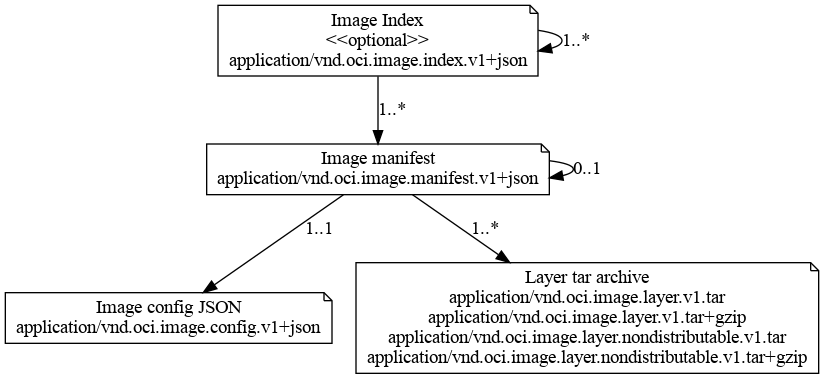
Not every Dockerfile instruction adds a filesystem layer. COPY changes files, while LABEL, ENV, and CMD primarily set image configuration. FROM brings in the base image’s existing layers; it is not simply one new layer representing the whole base.
Read the “Images and layers” subsection for the distinction between filesystem changes and metadata-only instructions.
In “Images and layers,” read the Dockerfile explanation, then the following paragraph. Focus on why deleting a file in a later layer does not erase the bytes stored in an earlier one.
That last point is useful when reading image sizes: layers describe changes. A later layer can hide a file from the final filesystem without removing its data from an earlier, read-only layer.
Build a small image locally
We’ll package a shell script using Alpine Linux as the base. This keeps the build quick and gives each instruction an identifiable purpose. The commands below assume a POSIX-style shell on your PC.
Create a dedicated directory and its application file:
mkdir -p kcna-image-lab
cd kcna-image-lab

cat > hello.sh <<'EOF'
#!/bin/sh
printf 'hello from %s\n' "${APP_NAME:-kcna}"
EOF
Create a file named Dockerfile in the same directory:
cat > Dockerfile <<'EOF'
FROM alpine:3.21
LABEL org.opencontainers.image.title="kcna-hello"
WORKDIR /app
COPY hello.sh /app/hello.sh
RUN chmod 755 /app/hello.sh
ENV APP_NAME=kcna
CMD ["/app/hello.sh"]
EOF
Read it as a recipe. FROM supplies the base filesystem and shell. COPY takes hello.sh from the build context on your PC and places it in the image. RUN executes chmod during the build, so the copied script will be executable in the resulting image. CMD does something different: it records the default command to execute when a container starts. The LABEL and ENV instructions record configuration you can inspect shortly.
Build and test the result:
docker build -t kcna-hello:1.0 .
docker image ls kcna-hello
docker run --rm kcna-hello:1.0
Expect hello from kcna. The -t option assigns a convenient name and tag to the built image. The final . supplies the current directory as the build context; it is not an instruction to run the application. docker run --rm creates a container, runs its short-lived command, and removes that container afterward. The image remains available.
The tag 1.0 is a human-readable reference, not a guarantee that the referenced content can never change. Rebuilding with the same tag can make it point to a different image. Also, a versioned base-image tag such as alpine:3.21 can be updated by its publisher; reproducible production builds may pin a base-image digest.
Inspect layers and metadata
You can now ask two related questions: What build steps are visible? and What does the finished image contain as configuration and filesystem layers?
docker image history kcna-hello:1.0
docker image inspect --format '{{json .RootFS.Layers}}' kcna-hello:1.0
history displays entries newest first, including entries inherited from Alpine. Look for your COPY and RUN instructions, as well as entries for LABEL, ENV, and CMD. Some entries show 0B: a metadata-only instruction can appear in history without adding a filesystem layer. Do not assume that every history row corresponds one-to-one with an item in .RootFS.Layers. That array lists the image’s filesystem-layer identifiers base first; its long sha256: values identify layer contents. The exact count and IDs depend on the base image and build.
Use Docker Docs’ two-image example to check your interpretation of history and .RootFS.Layers; you do not need to repeat its build.
In “Images and layers,” scroll to the numbered example that builds a base image and a final image. In item 8, “Check out the history of each image,” read the explanation after the base-image history. In item 9, “Check out the layers for each image,” read the conclusion after the layer-ID output. Notice how the final image reuses its base image’s layers.
Inspect the image configuration separately:
docker image inspect --format 'OS={{.Os}} ARCH={{.Architecture}} ID={{.Id}}' kcna-hello:1.0
docker image inspect --format 'CMD={{json .Config.Cmd}} ENV={{json .Config.Env}} LABELS={{json .Config.Labels}}' kcna-hello:1.0
Find your script path under CMD, APP_NAME=kcna under ENV, and the OCI-namespaced title under LABELS. OS and ARCH describe the platform for which this local image was built. The image ID identifies the image configuration; it is not the same identifier as every filesystem layer.
The OCI diagram describes the general image structure, while docker image inspect shows Docker’s local view of important parts of it. In particular, .RootFS.Layers reports layer diff IDs; they need not match the digests of compressed layer archives referenced by a registry manifest. A locally built image also need not have a registry digest yet. These distinctions matter when an exam question contrasts an image’s tag, image ID, layers, and registry reference.
See what changes on a rebuild
A layered build can reuse earlier work when its inputs have not changed. Watch this short explanation before changing your application file.
How Dockerfile Layers/Caching Work
Watch “How Dockerfile Layers/Caching Work” by Benjamin Porter for the practical consequence of changing a build input.
Watch cache invalidation. Focus on the point that a changed step may require later steps to be rebuilt, while earlier reusable steps remain cached. The description of hashing is a simplified mental model; use your own build output to see which steps Docker actually caches.
Replace the script’s message and rebuild under the same tag:
cat > hello.sh <<'EOF'
#!/bin/sh
printf 'updated hello from %s\n' "${APP_NAME:-kcna}"
EOF

docker build -t kcna-hello:1.0 .
docker run --rm kcna-hello:1.0
docker image history kcna-hello:1.0
The container should now print updated hello from kcna. In the build output, look for cached work associated with unchanged earlier instructions and renewed work at or after the changed COPY. The tag still reads kcna-hello:1.0, but it now refers to the newly built image. This is why a tag alone does not prove two deployments use identical content.
For KCNA, retain the general principle rather than memorizing a particular builder’s output: shared, unchanged layers can save build time, storage, and transfer bandwidth.
What to retain
You built a container image from a Dockerfile and verified that its default command runs. docker image history reveals build history; docker image inspect exposes configuration, platform, image ID, and filesystem-layer IDs. Filesystem-changing instructions and metadata-only instructions play different roles, and a tag names an image without making that name immutable.
Next, you’ll contrast commands that directly change a system with declarations of desired state—the shift in thinking that makes Kubernetes orchestration possible.