Recommended resources
The freely available resources this lesson will direct you to.
Hello! Welcome to your next lesson in the "Circadian Management with Light" module.
In our last lesson, we established a protocol for managing your ambient light environment by dimming lights and, crucially, turning off all overhead lights 2-3 hours before bed. This reduces the light signals that tell your brain to stay awake.
Today, we address the most potent source of light in your immediate environment: your digital device screens. The learning outcome is to apply software-based blue light filters to digital devices for evening use. While managing ambient light is critical, holding a bright screen inches from your face can single-handedly undermine your efforts. This lesson provides the exact protocols to neutralize that threat across all your devices.
The Core Principle: "Set It and Forget It"
The most effective protocols are the ones that run on autopilot. The goal with software filters is not to remember to turn them on each night, but to schedule them to activate automatically. This removes a point of failure and ensures consistency. All major operating systems now have this capability built-in.
Protocol 1: Securing Your Mobile Devices (Phones & Tablets)
Your phone is likely the last screen you look at before sleep, making this protocol foundational.
Most modern phones have a built-in feature to warm the screen color at night.
- On Apple (iOS) devices, this is called Night Shift.
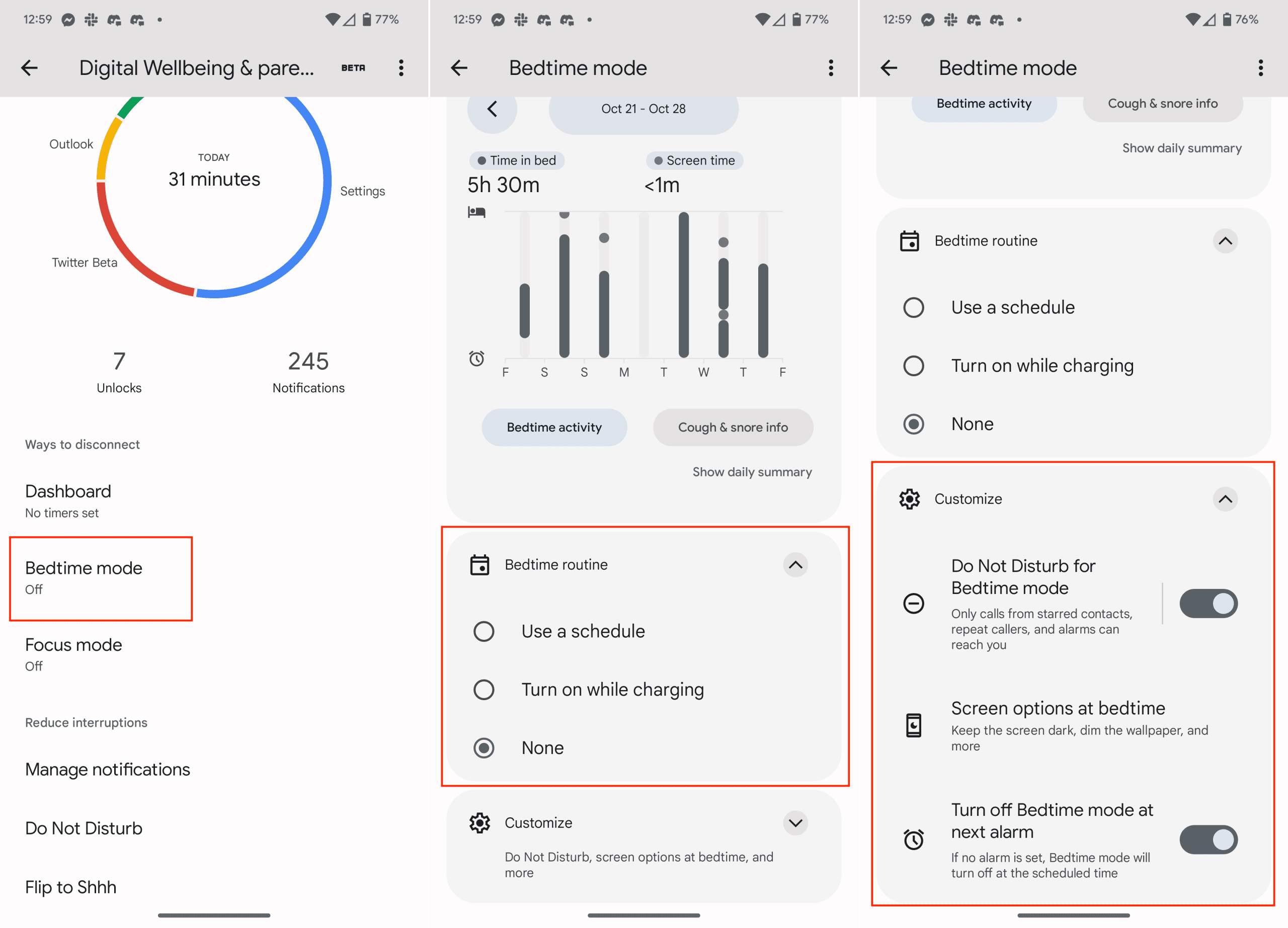
- On Android devices, this is typically called Night Light, Eye Comfort Shield, or is part of a Bedtime Mode.
These tools work by reducing the blue light emitted from your screen, making it appear more orange or reddish. The following article from PCMag provides straightforward, step-by-step instructions for enabling these features on your specific device.
Your Phone's Blue Light Is Keeping You Up At Night. ...
This guide, 'Your Phone's Blue Light Is Keeping You Up At Night,' provides the exact steps to enable and schedule the built-in blue light filters on both Apple and Android devices.
Read the sections titled 'Night Shift on an iPhone, iPad, and Mac' and 'Night Light, Eye Comfort Shield on Android Device'. Focus on the instructions for scheduling the feature to turn on automatically and adjusting the color temperature to be as 'warm' as possible.
Your Action Steps:
- Follow the instructions in the article for your device (iPhone or Android).
- Schedule the filter to turn on automatically at sunset or, at a minimum, 2-3 hours before your target bedtime.
- Set the filter to the warmest possible setting. A weak filter is only marginally better than no filter. You want the screen to be noticeably orange/red.
Maximum Efficacy Protocol (for iPhone users)
For those who want the most aggressive blue light elimination, Apple’s Night Shift is good, but it doesn't remove all blue light. There is a more powerful method using an accessibility feature to turn your screen completely red. This is the best software solution for blocking sleep-disrupting light on an iPhone.
The following short video provides a clear, step-by-step guide to setting this up.
How To Turn Your iPhone Screen Red (improve sleep & health by blocking blue light)
This video, 'How To Turn Your iPhone Screen Red,' demonstrates a powerful technique for maximal blue light reduction on an iPhone.
Watch from 00:30 to 02:00. The video first shows you how to create the red color filter, and then, critically, how to set up an 'Accessibility Shortcut' so you can toggle this mode on and off with a triple-click of the side button.
This "red screen" trick is a powerful tool to use in the final 1-2 hours before bed when you want to absolutely minimize circadian disruption from your phone.
Protocol 2: Securing Your Computer (Laptops & Desktops)
The same principles apply to your computer screen, which you may use for work or entertainment in the evening.
Standard Protocol: Using Built-in Features
Both Windows and macOS have native blue light filtering.
- On Windows: The feature is called Night light.
- On macOS: The feature is called Night Shift.
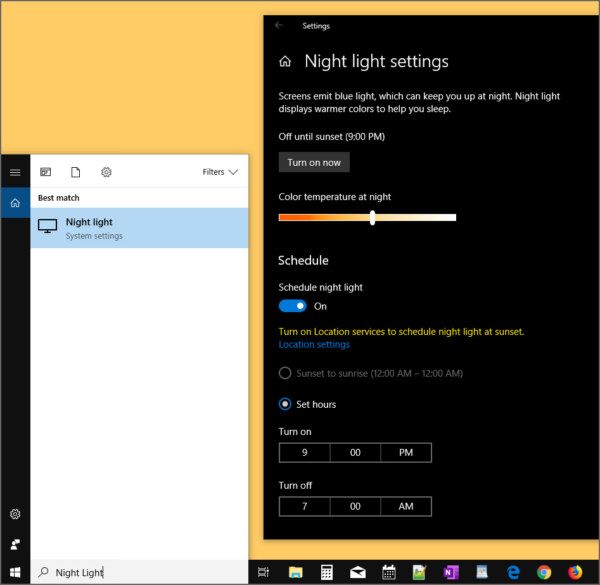
You can find the setup instructions for both operating systems in the same PCMag article we used for mobile devices.
Your Phone's Blue Light Is Keeping You Up At Night. ...
We'll return to the PCMag guide to find the instructions for computers.
Refer back to the guide. Find the instructions for your computer by reading the relevant parts of the 'Night Shift on an iPhone, iPad, and Mac' section (for Mac users) and the 'Night Light on a Windows 10 or 11 Device' section (for Windows users).
Your Action Steps:
- Follow the instructions to enable and schedule Night Shift (macOS) or Night light (Windows).
- Set the color temperature to the warmest setting you can tolerate.
Advanced Protocol: f.lux
For users who want more power and customization than the native options provide, the gold standard has long been a free application called f.lux. It predates the built-in features from Apple and Microsoft and remains superior in several ways.
- More Granular Control: It allows for much warmer color settings (down to 1200K, like candlelight) than the built-in options.
- Gradual Transitions: It changes the screen color slowly over hours, mimicking a natural sunset, which is less jarring than the abrupt change of Night Shift/Night Light.
- Advanced Features: It can be automatically disabled for specific applications (like Photoshop or video players) or for a short period when you need accurate colors.
The following article explains the key differences and why f.lux is a more powerful tool.
This article, 'F.lux VS Night Shift,' compares the built-in Mac feature against the third-party f.lux app, highlighting why f.lux is often the preferred choice for sleep optimization.
Read the 'Features' and 'And finally, which is better' sections. Pay close attention to the comparison of customization options and the informal 'lux measurement' test, which demonstrates f.lux's superior ability to reduce screen light.
f.lux is available for Windows, Mac, and Linux. For anyone serious about optimizing their light environment, installing and configuring f.lux is a high-leverage action.
Test your understanding!
You are working late on a business proposal that includes brand logos and graphics, requiring you to see true colors. However, you still want your blue light filter to resume as soon as you switch away from the proposal. Based on the lesson, what is the best tool for this specific scenario?
Show answer
The best tool is f.lux. Its feature to "disable for certain apps" is designed for exactly this situation, allowing you to maintain color accuracy in one program while automatically re-engaging the filter when you switch to another (like your email or web browser). The built-in Night Shift/Night Light features do not offer this app-specific control.
Conclusion
You now have a complete set of protocols to manage the blue light from your digital devices. By implementing these software solutions, you are automating a key part of your evening light management.
Key Takeaways:
- All digital devices should have a software-based blue light filter.
- Automate the process: Use the scheduling feature to have filters turn on automatically 2-3 hours before bed.
- Maximize effectiveness: Set the color temperature to the warmest possible setting.
- For basic implementation, use the built-in Night Shift (Apple) or Night Light (Windows/Android).
- For advanced control and maximum light reduction, use f.lux on computers and the red screen accessibility shortcut on iPhone.
In this lesson, we covered software solutions. However, software can't filter the light from your TV or other ambient light sources. In the next lesson, we will cover the hardware solution to this problem: selecting and using blue light-blocking glasses to create a personal bubble of darkness, no matter your environment.