Recommended resources
The freely available resources this lesson will direct you to.
Hello! In our last lesson, we decoded the individual files like .html, .css, and .js that form the building blocks of a web app. You now know what each file type generally does, which is like knowing the difference between wood, screws, and paint. In this lesson, we'll take the next step and look at the blueprint—the folder structure that organizes these files.
When an LLM like Claude generates an app, it doesn't just dump all the files into one place. It creates a specific set of folders. This isn't random; it's a system refined over many years by developers to keep projects manageable. Our goal today is to understand this system and answer the question: why does Claude generate folders named src, components, pages, and public? By the end of this lesson, you'll be able to look at a project's folder structure and understand the purpose and logic behind its organization.
Why Bother with Folders?
Before we dive into specific folder names, let's address the fundamental "why." Why can't all the files just live together in one big directory? For a tiny project, they can. But as soon as a project grows beyond a few files, that approach quickly leads to chaos.
This is a universal problem of organization. It's why we have separate folders for "Work" and "Vacation Photos" on our computers, and why in a workshop, you have drawers for screws, bolts, and other parts. Finding what you need becomes nearly impossible without a system.
A well-organized project folder is easier to navigate, maintain, and collaborate on. As a designer, you've likely experienced this with Figma or other design tools. A file with clearly named pages, grouped layers, and a consistent component library is a joy to work in. A file with hundreds of untitled layers is a nightmare. Code is no different.
The video below walks through this exact evolution, from a simple one-file project to the point where folders become an absolute necessity.
The Complete Guide to Folder Structures in React
This video from Cosden Solutions does an excellent job of showing why folder structures evolve by starting simple and adding complexity.
Watch the following three clips to see the progression: First, see how a very simple project can live in a single file. Next, see the intermediate step where code is split into multiple files, but still with no folders. Finally, watch the part where he explains the problem this creates and introduces the idea of organizing by folder type (like components, hooks, and pages) to clean up the mess.
The Two Main Zones: public vs. src
When you look at a modern web project, you'll almost always see two very important folders at the top level: public and src. Understanding the difference between them is the first key to making sense of the structure.

Think of it this way:
src(short for "source"): This is your workshop. It contains all your raw materials—your JavaScript/TypeScript code, your CSS, and images that are part of your UI—that need to be processed, optimized, and bundled together to create the final application. Everything insrcis part of the "build process."public: This is your "ready to ship" area. Files in this folder are completely ignored by the build process. They are copied over to the final output exactly as they are. They are directly accessible in the browser.
So, when should you use which? The article below gives a perfect breakdown.
Public vs Src Assets: When to Use Each Approach in Vite
This article clearly explains the distinct roles of the public and src folders.
Read the introduction "What's the Deal with These Two Folders?" to solidify your understanding of the core difference. Then, review the lists under "When to Use the Public Folder" and "When to Use Src Assets". Finally, read the summary section The Bottom Line.
In summary:
- Put it in
publicif: It needs a predictable URL and doesn't need to be processed. Examples:favicon.ico,robots.txt(a file for search engines), or a large PDF you want users to download. - Put it in
srcif: It's part of your app's code or UI. Examples: your logo that's used in the header, an icon inside a button, or the code for the button itself.
Diving into src: The Heart of the App
Since most of the code you write or generate lives in the src folder, this is where the organization matters most. Inside src, you'll find another set of standard folders.
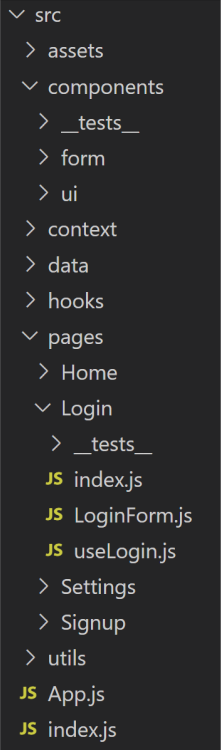
pages (or app)
In most modern frameworks (like Next.js, which is very popular for LLM-generated apps), there's a special folder that controls the pages and URLs of your application. This folder is often named pages or, in the newest versions, app.
The framework uses the folder structure here to automatically create the routes for your website.
- A file at
pages/index.jsbecomes your homepage (e.g.,my-app.com/) - A file at
pages/about.jsbecomes the "About" page (e.g.,my-app.com/about) - A file at
pages/contact.jsbecomes the "Contact" page (e.g.,my-app.com/contact)
This convention is powerful because the file organization directly maps to the website's structure, making it very intuitive to understand where the code for a specific page lives.
components
This is arguably the most important folder for you as a designer. The components folder holds the reusable building blocks of your user interface. If pages are the different screens of your app, components are the elements that make up those screens.
This concept should feel very familiar. It's the code equivalent of a component library in Figma.
- You create a
Buttoncomponent once, with all its styles and interactivity defined. - You can then import and use that
Buttoncomponent on the homepage, the contact page, or inside a pop-up modal, without rewriting the code. - If you need to change the button's style, you only have to edit it in one place—the
Buttoncomponent file—and the change will apply everywhere it's used.
This is the essence of component-based design. The article below uses the fun analogy of "Lego Blocks for Adults."
Best Practices for Organizing Your Next.js 15 2025
This section of the article focuses specifically on how and why to organize your components folder.
Read the section titled "Components: Lego Blocks for Adults". Pay attention to how it suggests sub-dividing components into ui, layout, and features for even better organization as a project grows.
Other Common Folders
As a project expands, you'll see other folders appear inside src to keep things organized:
utilsorlib: A place for miscellaneous helper functions. For example, a function that formats a date into a specific style, or a function that performs a complex calculation. It’s like a utility drawer in your kitchen.styles: For global CSS files that affect the entire application, like defining brand colors or fonts.hooks: A more advanced concept, but this folder is for reusable pieces of logic (not UI). For example, logic to fetch data from a server could be placed in a hook and reused on different pages.
You don't need to master all of these right away. The key is to recognize that each folder has a purpose: to group similar types of files together so the project remains clean and understandable.
Conclusion
You've now seen that the folder structure of a web project isn't an arbitrary choice. It's a well-established system designed to manage complexity and make development more efficient. When Claude or another LLM generates an app with this structure, it's setting you up with a solid, maintainable foundation based on industry best practices.
Key Takeaways:
- Organization is Key: Folder structures exist to prevent chaos and make code easy to find, just like organizing files in a design project.
publicvs.src:publicis for static files that are served directly, whilesrcis for source code that gets processed and bundled.pages/app: This special folder defines the routes (URLs) of your application.components: This is your reusable UI library, the code equivalent of a design system.
In our last lesson, we looked at the files. Today, we looked at the folders they live in. In the next lesson, we'll examine a special category of files that you often see at the top level of a project: configuration files like package.json and next.config.js. We'll demystify what these files do and why they are the "control panel" for your entire project.