Recommended resources
The freely available resources this lesson will direct you to.
Hello! In our last lesson, we focused on securing the network at Layer 2 by implementing port security to control device access. Now, we'll shift our attention up the stack to secure how we, the network administrators, access and manage these devices.
This lesson addresses a fundamental security best practice: replacing insecure management protocols with secure alternatives. Your goal is to learn how to configure SSH for secure remote management and disable Telnet. We'll explore why Telnet is a major security risk, walk through the complete process of enabling Secure Shell (SSH) on a Cisco device, and confirm that our remote management sessions are properly encrypted and protected.
1. The Problem with Telnet: Clear-Text Credentials
For many years, Telnet was the standard for remotely accessing the command-line interface (CLI) of network devices. While functional, it has a critical security flaw: Telnet transmits all data, including usernames and passwords, in plain text. This means anyone who can capture the network traffic between you and the device—a "man-in-the-middle" attacker—can easily read your credentials and gain full administrative control.
In today's security-conscious environment, using Telnet for management is unacceptable. The following video clip vividly demonstrates this vulnerability.
Free CCNA | SSH | Day 42 | CCNA 200-301 Complete Course
This video from Jeremy's IT Lab highlights the fundamental insecurity of Telnet.
Watch the segment from the beginning to see a Wireshark capture of a Telnet session. Notice how the password ccnp is clearly visible in the packet capture. This is the core reason we must disable Telnet.
2. The Solution: Secure Shell (SSH)
The modern, secure standard for remote CLI access is Secure Shell (SSH). SSH provides the same functionality as Telnet but adds a crucial layer of security through encryption and stronger authentication.
Key features of SSH include:
- Confidentiality: All data exchanged during an SSH session, including login credentials and configuration commands, is encrypted. This makes the information unreadable to eavesdroppers.
- Authentication: It verifies the identity of both the user and the device, ensuring you are connecting to the correct machine and that the user is authorized.
- Integrity: It ensures that the data transmitted has not been altered in transit.
SSH typically uses TCP port 22, whereas Telnet uses TCP port 23. The current standard is SSH version 2 (SSHv2), which offers significant security enhancements over the original version 1.
Free CCNA | SSH | Day 42 | CCNA 200-301 Complete Course
This clip provides a concise introduction to SSH and its advantages.
Watch the section explaining what SSH is. Pay attention to the comparison with Telnet, the mention of SSHv2, and the example of an encrypted SSH packet in Wireshark.
3. Step-by-Step SSH Configuration
Enabling SSH on a Cisco IOS device involves a specific sequence of steps. If any prerequisite is missed, the configuration will fail.
Step 1: Fulfill Prerequisites (Hostname and Domain Name)
Before you can generate the cryptographic keys needed for SSH, the device must have a unique identity. This is formed by its hostname and an IP domain name. These two components are combined to create a Fully Qualified Domain Name (FQDN), such as R1.mynetwork.com, which is used to name the encryption keys.
R1(config)# hostname R1
R1(config)# ip domain-name mynetwork.com
Step 2: Generate RSA Cryptographic Keys
The heart of SSH's encryption capability lies in its use of RSA keys. You must generate a key pair on the device.
R1(config)# crypto key generate rsa
The device will then prompt you to choose a key length (modulus). A longer key is more secure. For SSHv2, a minimum of 768 bits is required, but a length of 2048 bits is a strong, modern recommendation.
Configure SSH for Remote Access on Cisco Router
This article from 9tut.com provides a clear, written guide to the initial SSH configuration steps.
Read steps 1, 2, and 3, which cover setting the hostname, domain name, and generating the RSA keypair. Notice how the output confirms the key name is based on the hostname and domain name you configured.
Step 3: Create a Local User and Enable Secret
SSH requires user authentication. You cannot use the simple line password that Telnet supports. You must configure at least one local username and password, and it is also best practice to set an enable secret password to protect access to privileged EXEC mode.
R1(config)# username admin secret MyS3curePass!!
R1(config)# enable secret AnotherS3curePass!
Using the secret keyword instead of password ensures the password is stored in a strongly encrypted format in the device's configuration.
Step 4: Configure VTY Lines for SSH Access
The final step is to configure the Virtual Terminal (VTY) lines, which handle remote access sessions. Here, you will enable SSH, disable Telnet, and specify that logins should use the local user database.

The key command is transport input ssh. This command tells the VTY lines to only accept SSH connections, effectively disabling Telnet and any other remote access protocol.
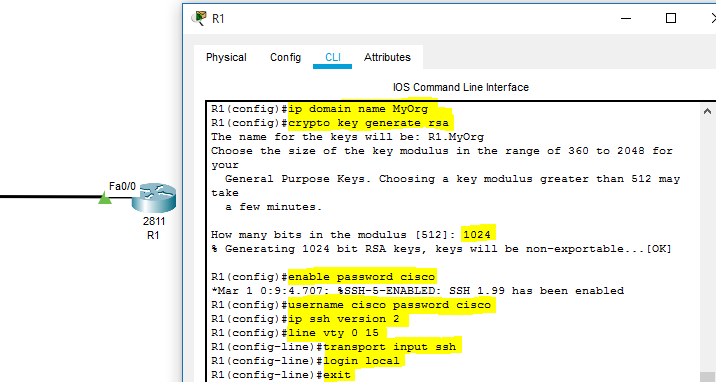
The following commands configure all 16 VTY lines (0-15) for secure access:
R1(config)# line vty 0 15
R1(config-line)# login local
R1(config-line)# transport input ssh
R1(config-line)# exit
As a best practice, you should also explicitly set the SSH version to 2:
R1(config)# ip ssh version 2
4. Verification and Practice
Once configured, you must verify that SSH is working and Telnet is disabled.
show ip ssh: This command confirms that SSH is enabled, which version is running, and other parameters.show ssh: This command shows active SSH sessions on the device.- Attempt to connect from a client using
ssh -l admin <router-ip>. - Attempt to connect using
telnet <router-ip>to confirm the connection is refused.
Now, let's put this all together with a hands-on lab. The following video walks through the entire process on a switch, including the initial setup and verification from multiple hosts.
Free CCNA | SSH | Day 42 Lab | CCNA 200-301 Complete Course
This lab video provides a complete, practical walkthrough of SSH configuration and testing.
First, watch the initial device setup, where a hostname, enable secret, local user, and management IP are configured. These are all prerequisites for remote SSH access. Next, jump to the core SSH configuration. Here you'll see the domain name being set, RSA keys generated, and VTY lines configured for transport input ssh. Finally, watch the verification steps, where connection attempts are made from both an unauthorized host (which is blocked by an ACL) and an authorized host (which successfully connects via SSH).
Conclusion
You have now learned how to implement one of the most important baseline security measures for any network device. By replacing the insecure Telnet protocol with the encrypted and authenticated SSH protocol, you have protected your administrative credentials from being compromised.
Key Takeaways:
- Telnet's Flaw: Transmits all data, including passwords, in plain text, making it highly insecure.
- SSH's Strength: Encrypts the entire remote management session, providing confidentiality, integrity, and authentication.
- Configuration Steps: Enabling SSH requires a strict order: set hostname and domain name, generate RSA keys, create a local user database, and configure VTY lines with
transport input sshandlogin local. - Disabling Telnet: The command
transport input sshon the VTY lines explicitly allows only SSH, thereby denying Telnet access. - Verification: Always test your configuration by attempting both an SSH and a Telnet connection to ensure it behaves as expected.
In our next lesson, we will build upon the concept of user authentication. While creating local users on each device works, it doesn't scale well. We will explore the function of AAA (Authentication, Authorization, and Accounting), a framework for centralizing network access control.