Recommended resources
The freely available resources this lesson will direct you to.
- VLAN , access port configuration and verification | Interface range command | FREE CCNA 200-301www.youtube.com
- Free CCNA | VLANs (Part 1) | Day 16 | CCNA 200-301 Complete Coursewww.youtube.com
- Configuring VLANs on Cisco Switcheswww.practicalnetworking.net
- Configuring access ports on Cisco switches - IT Networking Skillsitnetworkingskills.wordpress.com

Hello! Welcome to our next lesson.
In the previous session, you performed the essential initial setup for a Cisco switch, including configuring a management IP address on interface vlan 1. This gave you a first glimpse into the concept of VLANs. Today, we'll dive deep into what VLANs are, why they are a cornerstone of modern networking, and how you can create your own to segment a network.
This lesson directly addresses the goal of configuring VLANs and assigning switch ports to them. By the end, you'll be able to take a single physical switch and logically divide it into multiple, separate virtual networks, a fundamental skill for improving network performance and security.
1. Understanding the Need for VLANs
Before we jump into configuration, it's crucial to understand the problem that VLANs solve. By default, all ports on a switch are part of the same network, or more specifically, the same broadcast domain. This means a broadcast frame (like an ARP request for an unknown device) sent from one host is forwarded to every other host on the switch. In a large network, this can create significant unnecessary traffic, hurting performance and posing security risks.
VLANs (Virtual Local Area Networks) are the solution. They allow you to logically segment a switch into multiple broadcast domains. Devices in one VLAN cannot directly communicate with devices in another VLAN at Layer 2, as if they were connected to entirely separate physical switches.
Let's watch a video that explains this concept clearly.
Free CCNA | VLANs (Part 1) | Day 16 | CCNA 200-301 Complete Course
This video from Jeremy's IT Lab provides an excellent explanation of broadcast domains and how VLANs are used to create smaller, more manageable network segments.
Watch the segment from the start up to the introduction to VLANs. Focus on: The definition of a LAN as a single broadcast domain. The performance and security problems of a large, "flat" network where all devices are in one broadcast domain. How VLANs logically separate devices at Layer 2, even when they are connected to the same physical switch. The fact that traffic between different VLANs must be handled by a Layer 3 device, like a router (a topic we will explore later).
2. Configuring VLANs and Access Ports
Now that you understand the "why," let's move on to the "how." The process involves two main steps:
- Creating the VLAN on the switch.
- Assigning switch ports to that VLAN.
Ports assigned to a single VLAN are called access ports. These are typically the ports that connect to end devices like PCs, printers, and servers.
Let's look at the following topology. Our goal will be to configure the switch to match this design.
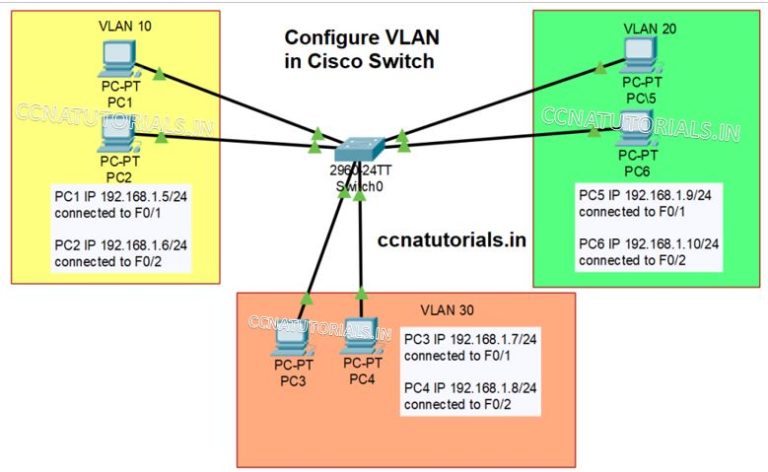
The following reading provides a concise, step-by-step guide to the commands you'll need.
Configuring VLANs on Cisco Switches
This article from Practical Networking .net clearly outlines the configuration process for access ports.
Read the section titled "Access Ports". As you read, pay close attention to the two key parts of the process: Creating the VLAN in the VLAN Database: This section covers the vlan <id> command to create a VLAN and the name <name> command to give it a descriptive label. Assigning the Switchport to a VLAN: This section introduces the switchport mode access command to define the port's role and the switchport access vlan <id> command to assign it to your newly created VLAN.
Step-by-Step Configuration
Let's apply these commands to achieve the setup from the diagram above.
Step 1: Create and Name the VLANs
First, we enter global configuration mode and create each VLAN. It's best practice to name them for easy identification.
Switch> enable
Switch# configure terminal
Switch(config)# vlan 10
Switch(config-vlan)# name Marketing
Switch(config-vlan)# exit

Switch(config)# vlan 20
Switch(config-vlan)# name Finance
Switch(config-vlan)# exit

Switch(config)# vlan 30
Switch(config-vlan)# name HR
Switch(config-vlan)# exit
Note: As mentioned in the reading, some switches will automatically create a VLAN if you assign a port to it. However, it's a more reliable practice to create and name it manually first.
Step 2: Assign Ports to VLANs
Now, we'll configure the individual switch interfaces. For efficiency, we can use the interface range command to configure multiple ports at once.
// Assign ports F0/1 and F0/2 to the Marketing VLAN
Switch(config)# interface range fastEthernet 0/1 - 2
Switch(config-if-range)# switchport mode access
Switch(config-if-range)# switchport access vlan 10
Switch(config-if-range)# exit

// Assign ports F0/3 and F0/4 to the Finance VLAN
Switch(config)# interface range fastEthernet 0/3 - 4
Switch(config-if-range)# switchport mode access
Switch(config-if-range)# switchport access vlan 20
Switch(config-if-range)# exit

// Assign ports F0/5 and F0/6 to the HR VLAN
Switch(config)# interface range fastEthernet 0/5 - 6
Switch(config-if-range)# switchport mode access
Switch(config-if-range)# switchport access vlan 30
Switch(config-if-range)# exit
If you prefer a video walkthrough of this exact process, the second half of the Jeremy's IT Lab video demonstrates it.
Free CCNA | VLANs (Part 1) | Day 16 | CCNA 200-301 Complete Course
This part of the video provides a live demonstration of the CLI commands for creating VLANs and assigning access ports.
You can watch the configuration part from this timestamp. Notice how the interface range command simplifies the process of configuring multiple ports for the same VLAN.
3. Verifying Your VLAN Configuration
After configuration, you must always verify that the switch is operating as intended. The most useful command for this is show vlan brief.
Verifying with show vlan brief
Let's return to the Practical Networking .net article to understand the output of this important verification command.
Read the section titled "show vlan brief". Focus on what information each column provides.
Running show vlan brief on our switch would produce an output similar to this:

From Privileged EXEC mode (Switch#), you would type:
Switch# show vlan brief
The output would confirm:
- VLANs 10, 20, and 30 are
active. - They have the names we assigned (Marketing, Finance, HR).
- The correct ports (e.g., Fa0/1, Fa0/2) are listed next to their respective VLANs.
- All other unused ports remain in the default
VLAN 1.
Conclusion
In this lesson, you moved beyond the default switch configuration to create a segmented Layer 2 network. This is a critical skill for building scalable, secure, and efficient networks. You now understand not just how to configure VLANs, but why they are so fundamental to network design.
Key Takeaways:
- Purpose of VLANs: To divide a single physical switch into multiple logical switches, thereby creating separate broadcast domains. This enhances security and performance.
- Access Ports: A switch port that belongs to a single VLAN and typically connects to an end device.
- Configuration Process:
- Create and name the VLAN from global config mode (
vlan <id>,name <name>). - Assign an interface as an access port to the VLAN (
interface <id>,switchport mode access,switchport access vlan <id>).
- Create and name the VLAN from global config mode (
- Verification: The
show vlan briefcommand is your primary tool to confirm that VLANs are created and ports are assigned correctly.
In our next lesson, we will address a new challenge: how do you extend these VLANs across multiple switches? If a member of the HR team plugs into a different switch, how can they remain in the HR VLAN? The answer is trunking, and we'll explore how to configure 802.1Q trunk links to carry traffic for multiple VLANs between switches.