Recommended resources
The freely available resources this lesson will direct you to.
Welcome back. Last lesson, you compiled, tested, and packaged the expense-tracker project. Those commands depend on Maven selecting libraries for the build. Today you’ll investigate a less obvious failure: two dependencies request different versions of the same library. You’ll use Maven’s dependency tree to identify which version was selected, who requested each version, and why the selection happened.
Why the POM does not tell the whole story
A dependency you declare in pom.xml can bring its own dependencies. Maven calls these transitive dependencies. Your project might therefore receive a library even though you never named it in your POM.
Suppose one library requests version 22.0 of Guava and another requests version 29.0-jre. Both requests can appear in the dependency graph, but Maven must resolve which version your project will use. If your code expects a method available only in the newer version and Maven selects the older one, compilation can fail. Version mismatches can also cause runtime failures.
This diagram illustrates a related principle:
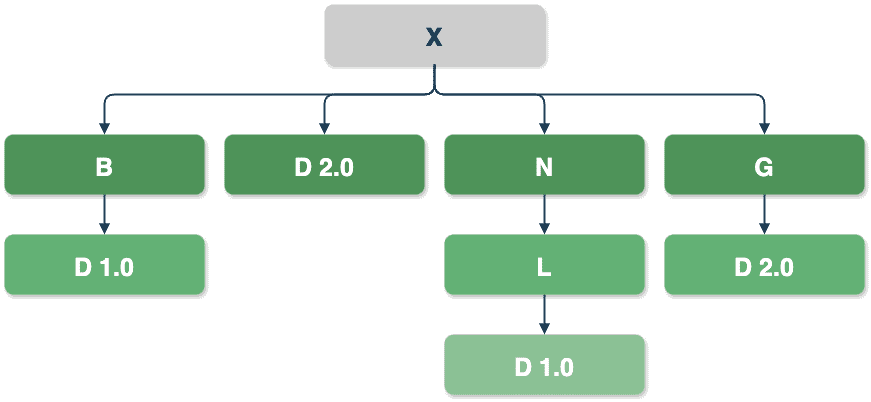
Maven generally uses nearest-definition mediation: a version requested closer to your project wins. In the diagram, X requests D 2.0 directly, so the requests for D 1.0 farther down the B and N branches do not determine X’s selected version. If competing requests are equally close, their order in the POM can determine which one wins. Neither rule means “always choose the newest version.”
Read Baeldung’s How to Resolve a Version Collision of Artifacts in Maven for a concrete case. Its example uses three modules rather than your expense tracker; focus on the two routes by which Guava reaches the consuming module, not on building those modules yourself.
How to Resolve a Version Collision of Artifacts in Maven
Baeldung’s example connects a missing-method compilation error to a specific version selected in a dependency tree.
Read Section 2, “Version Collision of Artifacts,” through the end of subsection 2.4, “Using maven-dependency-plugin.” Begin with the collision definition. In 2.1, “Project Structure,” identify which Guava version each module requests; in 2.2, “Using Features from Specific Dependency Version,” note why the test needs the newer one. Then follow the error in 2.3 and the tree diagnosis in 2.4. Stop at the end of that tree output; later sections discuss remedies beyond today’s diagnostic task.
Read the tree as evidence
From the directory containing pom.xml, run:
mvn dependency:tree
Unlike compile or package, dependency:tree invokes a plugin goal, not a build-lifecycle phase. The first entry represents your project. Indented entries below it show dependencies and the routes by which they enter the project. An entry such as com.google.guava:guava:jar:22.0:compile identifies the group, artifact, packaging, version, and scope.
Ordinary tree output primarily shows the resolved dependencies. To investigate a suspected collision, request the more detailed view:
mvn dependency:tree -Dverbose
In the Baeldung example, the important evidence can be reduced to this shape:
project-collision
+- project-a
|  \- guava:22.0
\- project-b
   \- (guava:29.0-jre - omitted for conflict with 22.0)
The entry without parentheses is the selected Guava version. The parenthesized entry records a competing request that Maven omitted; it does not mean both Guava versions are being used by this project. Both routes are equally deep, so the example’s dependency order favors the route through project-a. That explains why code requiring the newer method cannot compile there.
Baeldung’s Understanding Maven Dependency Graph or Tree shows how to narrow a large tree and distinguish an omitted duplicate from an omitted conflict.
Understanding Maven Dependency Graph or Tree | Baeldung
This Baeldung guide provides the command-line views you need when a backend project’s tree becomes too large to inspect at once.
In Section 3.1, “Using the Maven Dependency Plugin,” look at the basic mvn dependency:tree output, then read from the explanation that Maven shows the hierarchy through the discussion of filtering. Continue through the -Dincludes examples and the verbose example. Stop after the paragraph explaining which spring-core entry was picked and which was removed; the following output-format discussion is optional.
“Omitted for duplicate” means another route requested the same version. “Omitted for conflict with” identifies a request for a different version and names the one that won. Keep that distinction in mind when scanning a long tree.
Investigate from your own project
Try the commands in your expense-tracker directory. Last lesson’s POM declares Commons Lang and test-scoped JUnit Jupiter; it does not intentionally create the Guava collision from the reading.
mvn dependency:tree
mvn dependency:tree -Dverbose
Find a direct dependency from your POM, then follow any indented entries beneath it. Notice that the JUnit-related entries have a test scope: their presence in the tree does not mean they are bundled into the application JAR. Your exact tree will depend on the dependencies and versions in your POM.
When investigating a named library in a larger project, filter the output. For the Guava example, the command would be:
mvn dependency:tree -Dverbose -Dincludes=com.google.guava:guava
Use the group and artifact of the library you are actually investigating. If Guava is absent from your current project, a filter for Guava will not produce a Guava branch; that is expected. If your plugin’s verbose output does not display omitted entries, do not treat their absence alone as proof that nobody requested a competing version. The ordinary tree still tells you the selected version; an omitted-entry view or the requesting dependencies’ POMs may be needed to establish the other requests.
A useful diagnosis records three facts, rather than merely saying “Maven picked the wrong JAR”:
- Selected version: Which version appears as the resolved dependency?
- Competing requests: Which dependencies introduce the other version or versions?
- Selection reason: Is one request nearer to your project, or are the routes equally near and decided by declaration order?
Only after those facts are clear should you choose a remedy, such as declaring a deliberate direct version or excluding an unwanted transitive dependency. Changing versions without tracing their routes can hide the cause rather than address it.
Key takeaways
mvn dependency:tree shows the library version your project resolves and the path that brings it in. Use -Dverbose to look for omitted competing requests, and -Dincludes to focus on one artifact. Maven favors the nearest request; for equally near requests, declaration order can matter—not which version number is highest.
Next, you’ll shift from inspecting the Maven project to tracking changes in it: initializing Git and creating focused commits through the staging area.